





This guide will walk you through the process of integrating Erhalten Antwort mit PopupKit. By connecting these platforms, every lead captured through your WordPress popups will be automatically synced to your GetResponse contact lists.
Voraussetzung:
Accessing MailerLite integration requires a PopupKit Pro subscription.
How to Integrate PoupKit with GetResponse #
Follow the steps below to connect PoupKit with a GetResponse account.
Step 1: Get GetResponse API Key #
To authorize the connection, you first need to generate a unique API key from your GetResponse account:
- Anmeldung zu deinem GetResponse account.
- Klick auf das Werkzeuge menu in the top-left corner of the dashboard.
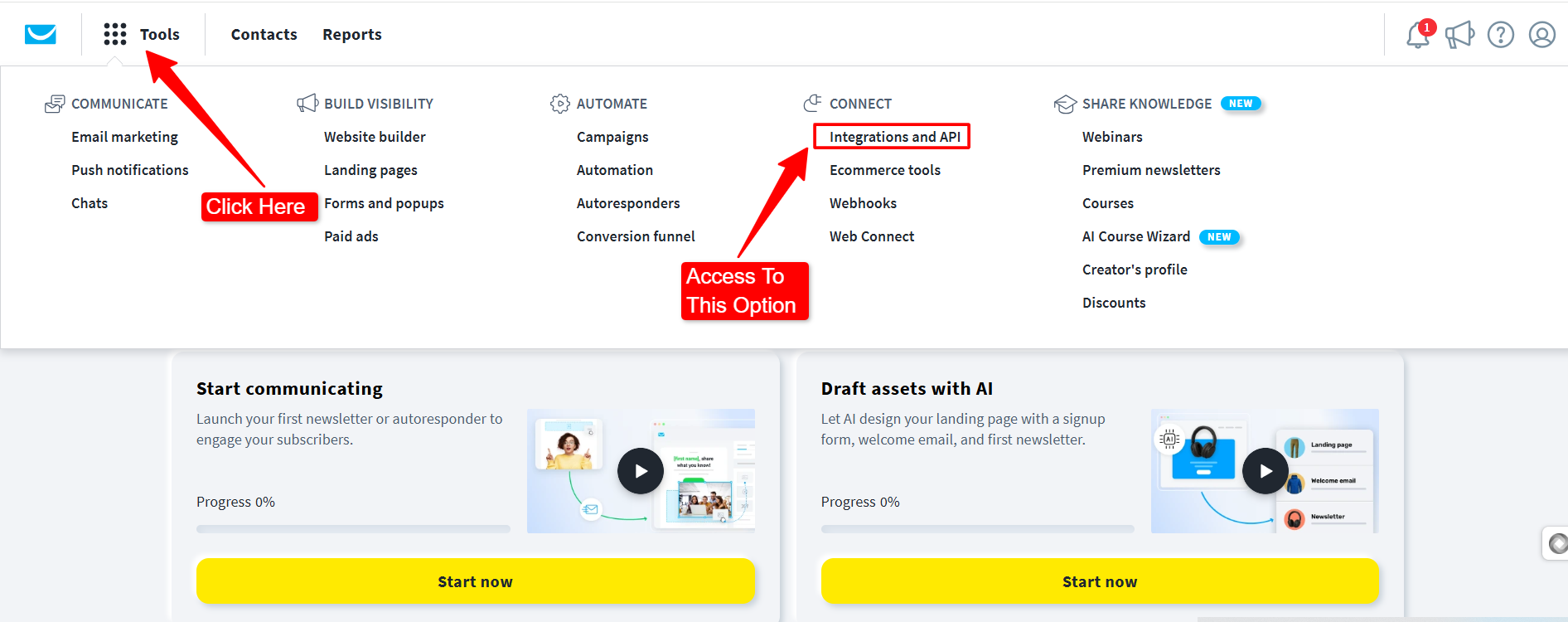
- Wählen Integrations and API from the dropdown list.
- Klick auf das API tab at the top of the page. Like in the image below:
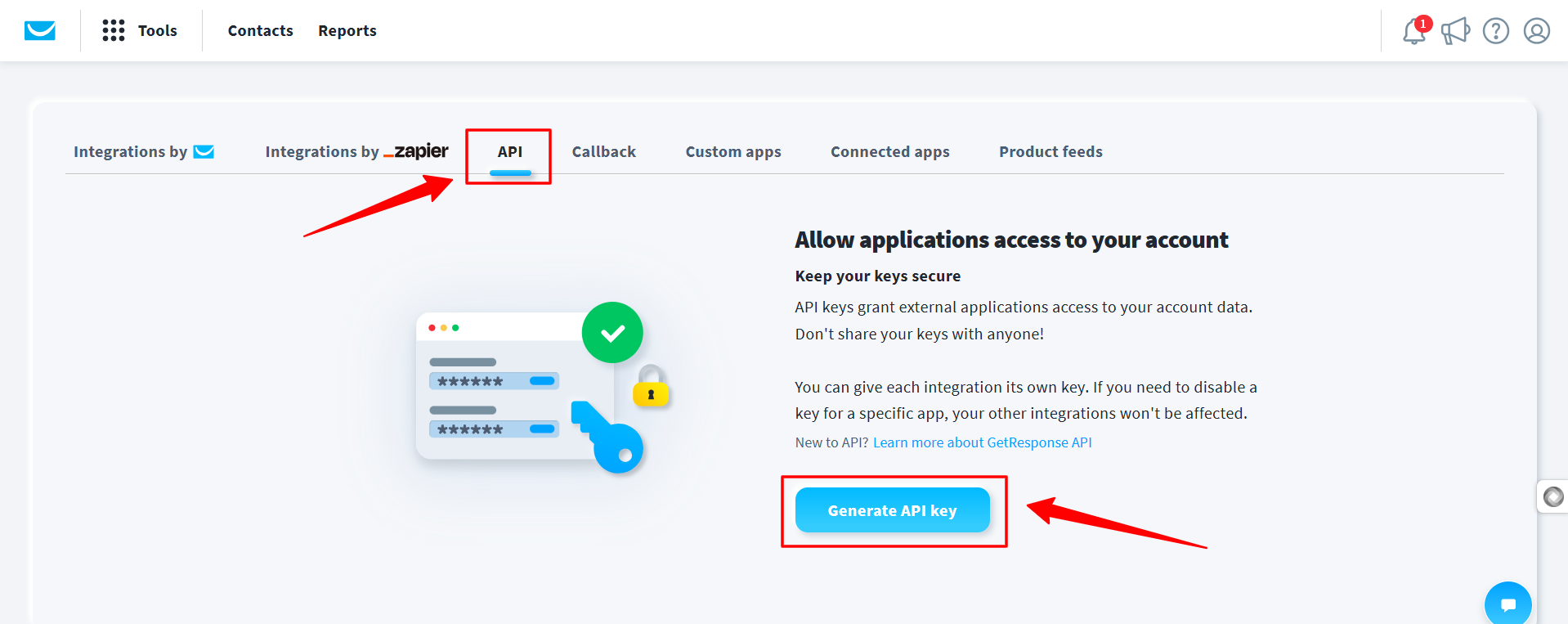
- Drücke den Generate API key Taste.
- Name your key: Give it a descriptive name like “PopupKit Integration” to keep track of its use.
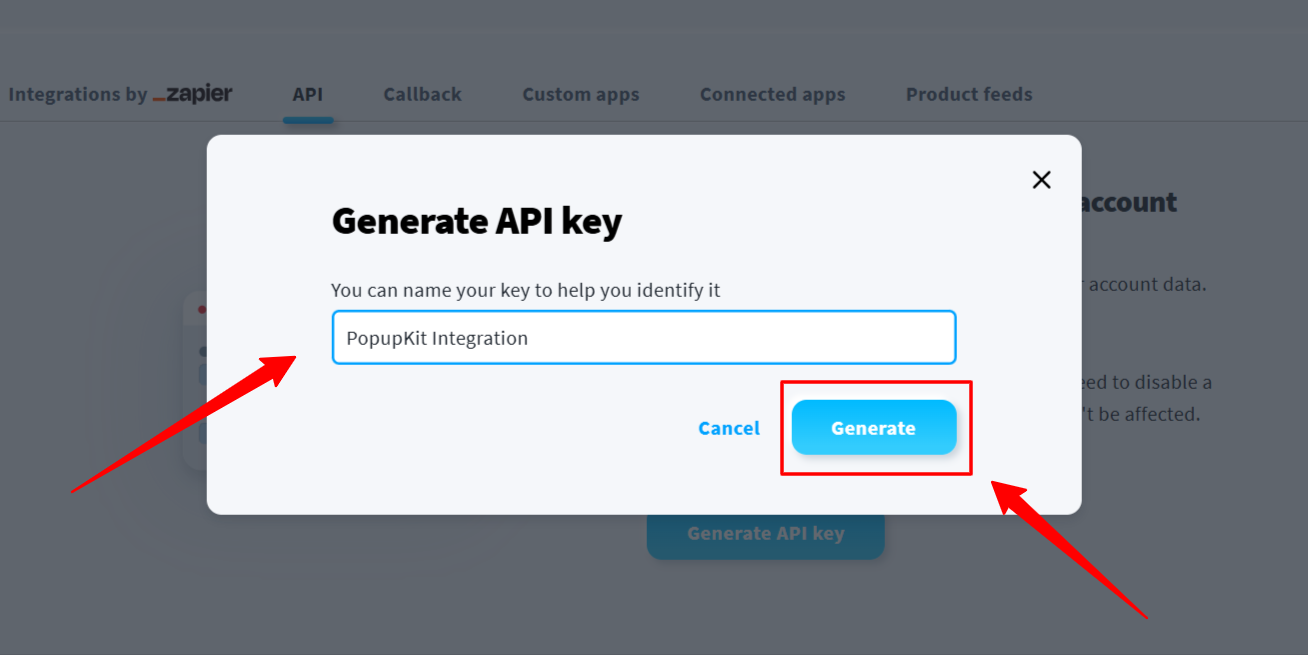
- Drücke den Generieren Taste.
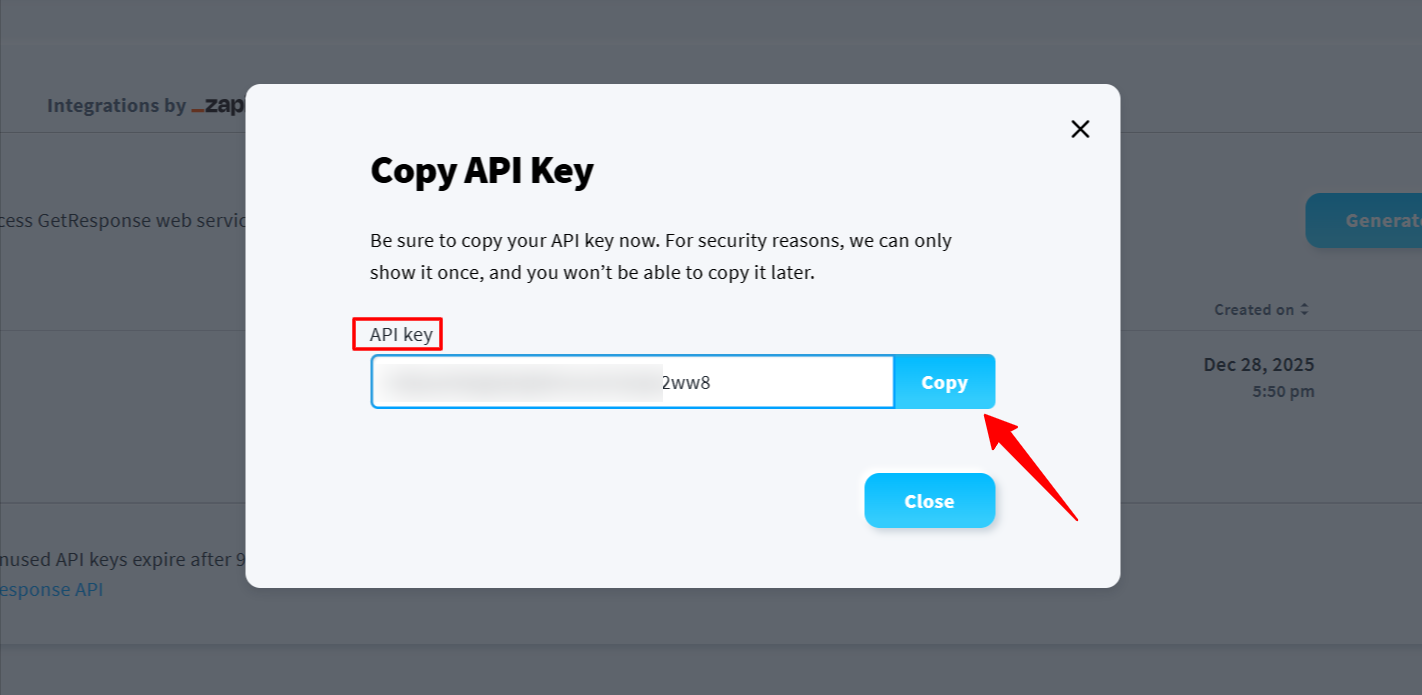
- Copy the Key: Click the “Copy” button. Make sure to save it safely, as you may need it for future reference.
Step 2: Add API Key to PopupKit Settings #
Once you have your API key, you need to input it into the PopupKit settings on your WordPress site:
Gehen Sie zu Ihrem WordPress-Dashboard und navigieren Sie zu PopupKit > Settings > Integrationen Tab.
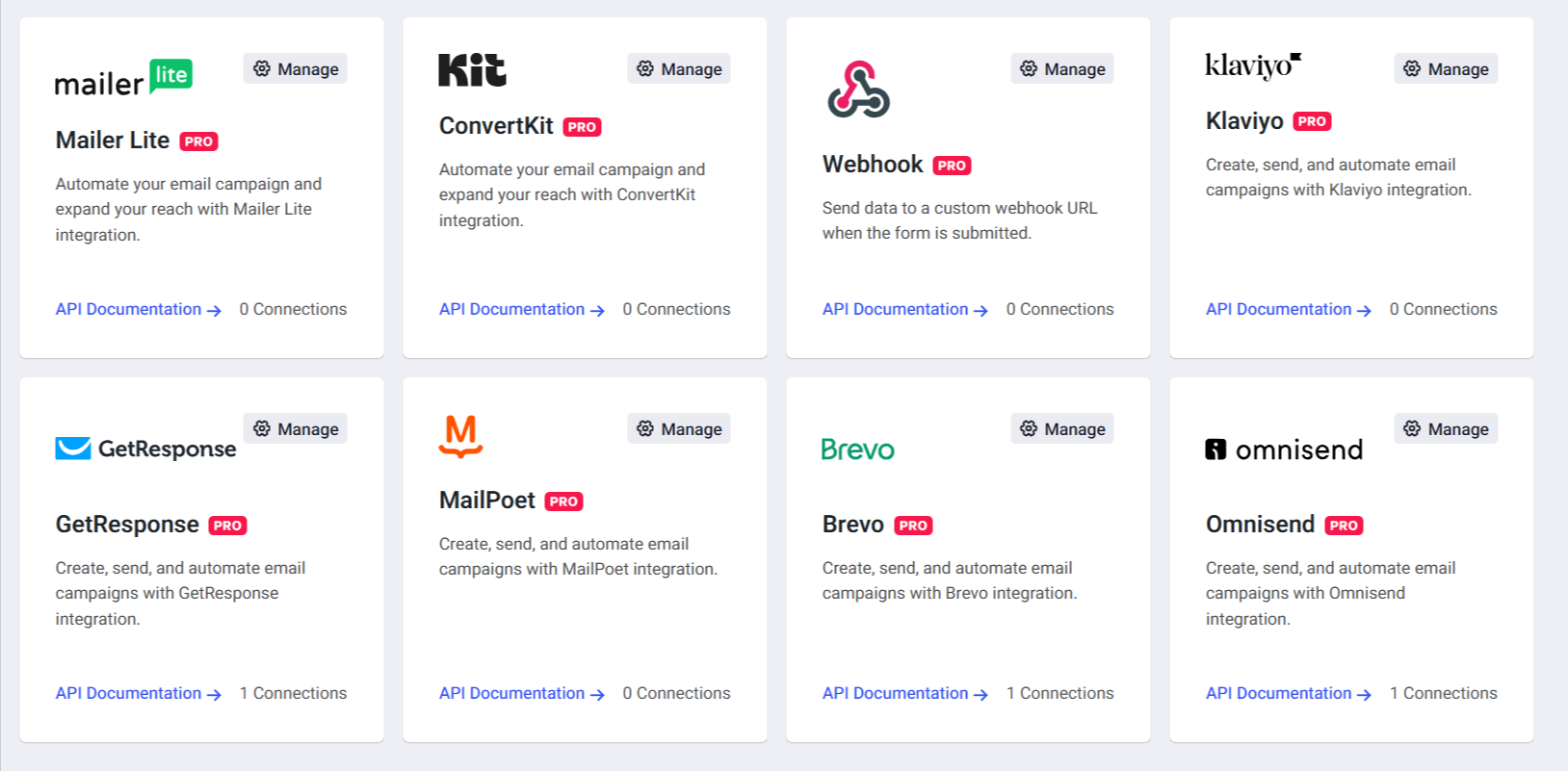
Finden Erhalten Antwort in the list of available marketing services and click on the “Manage” option. You’ll see a popup screen to attach your API Key.
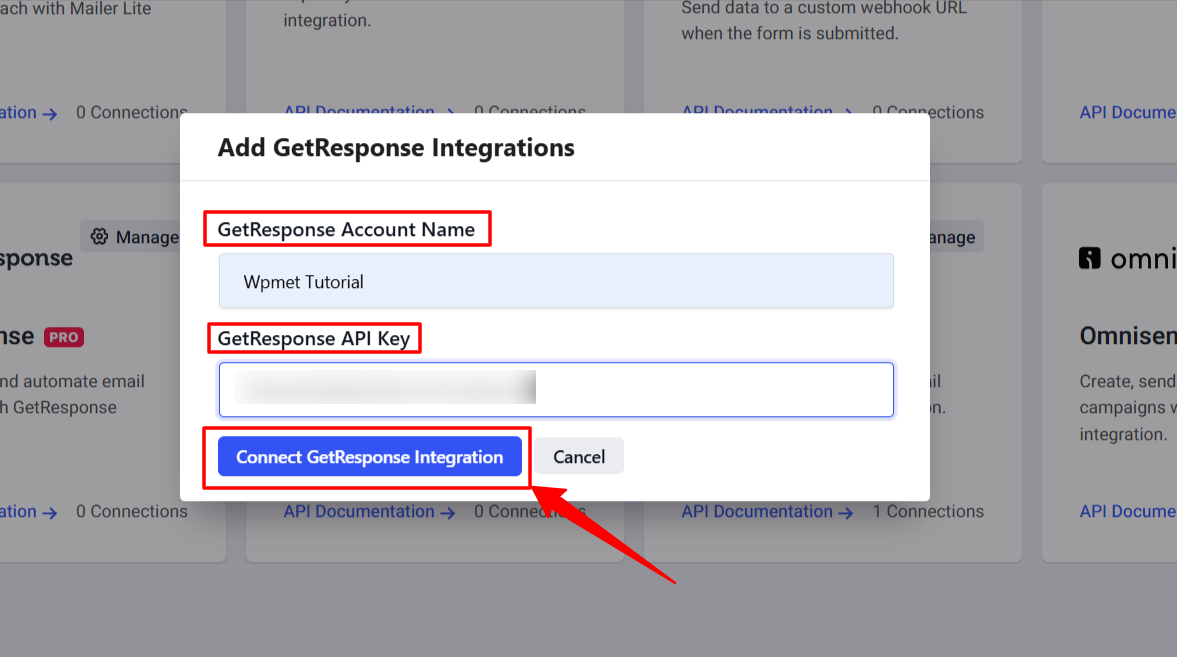
Wähle Deine GetResponse Account Name and paste your API-Schlüssel into the provided field. And, hit the “Connect GetResponse Integration Möglichkeit.
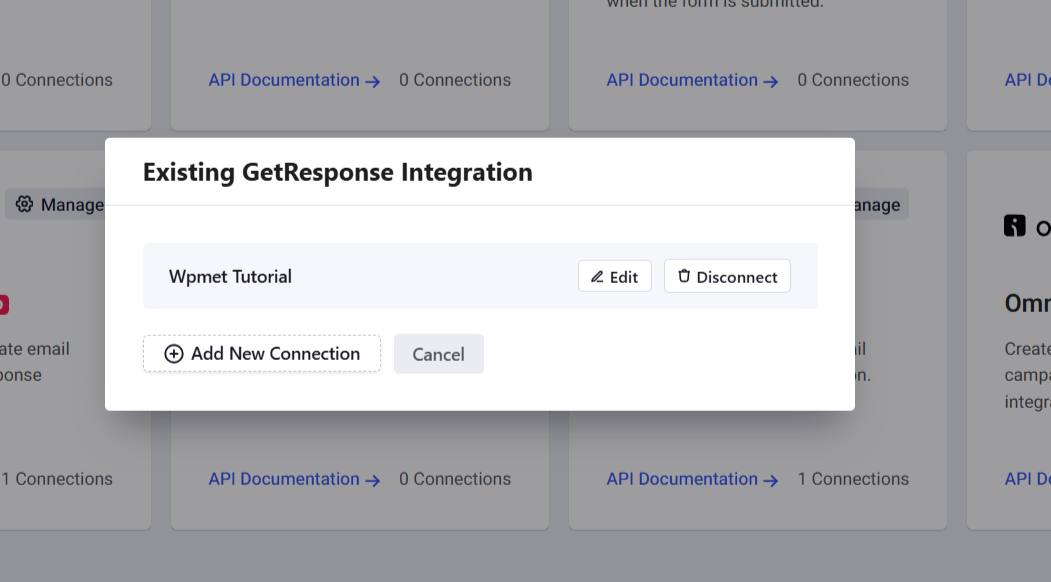
And, you’ll find your account is successfully connected.
Step 3: Configure GetResponse in the PopupKit Editor #
After the global connection is established, you can link specific popups to your GetResponse campaigns:
To do this, add a new popup campaign or start editing an existing one with PoupupKit. Then, in the editor, complete your popup design and must add a Bilden block. Next, click on the Bilden block settings and locate the Integrationen Möglichkeit.
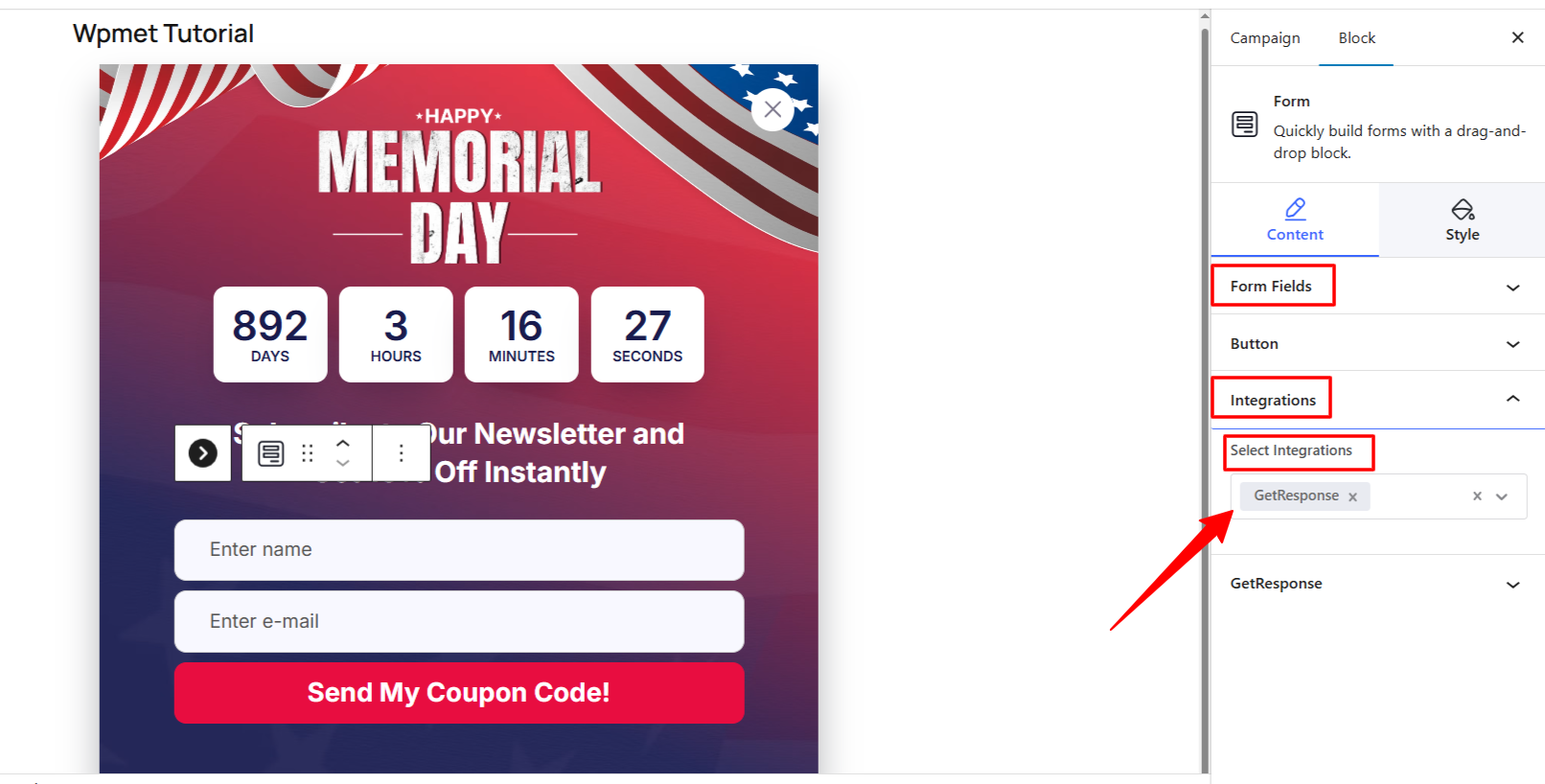
Wählen Erhalten Antwort from the “Select Integrations” dropdown.
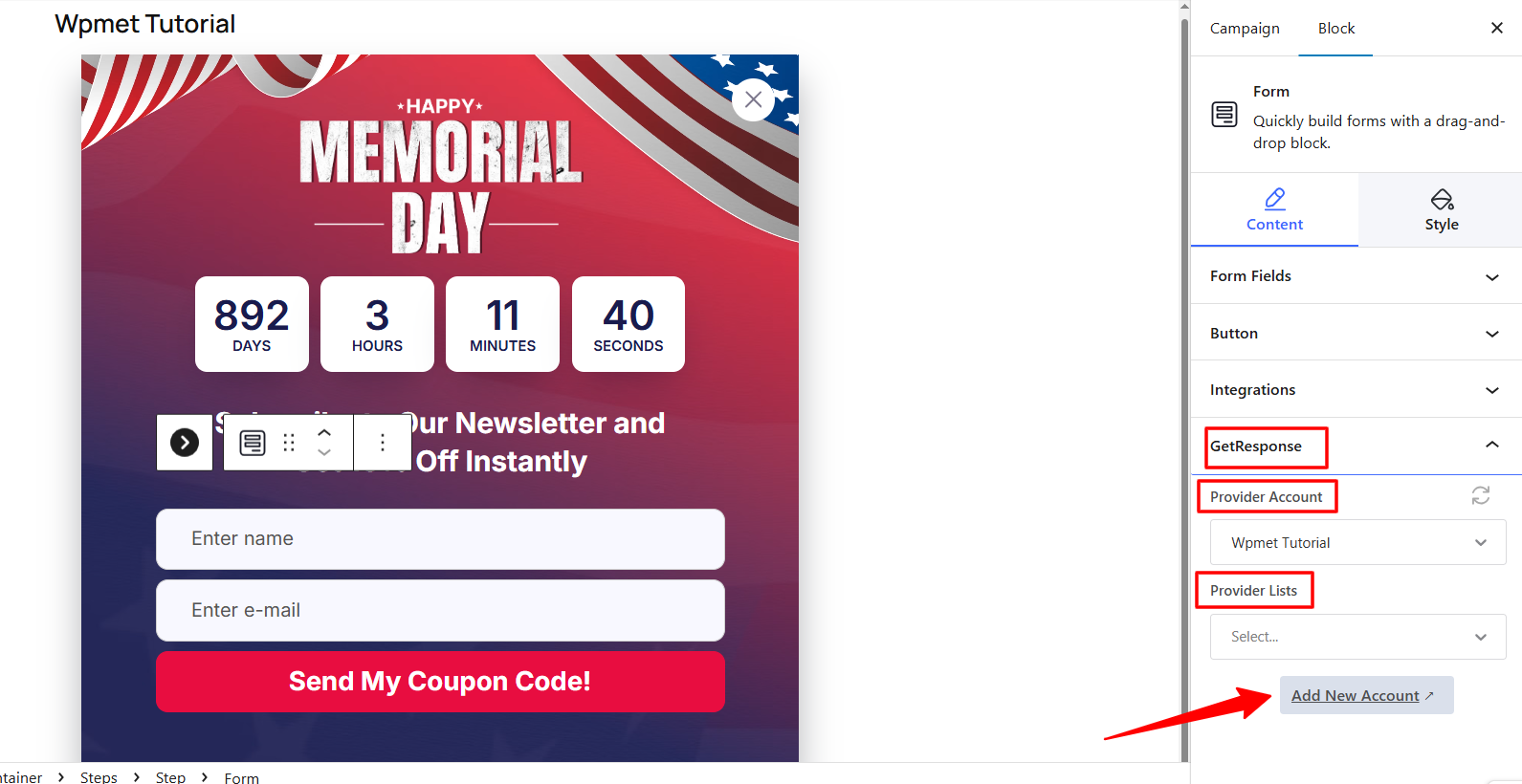
Wähle dein Konto and then select the specific GetResponse List (Campaign) where new leads should be added. And, publish your Popup once you are done.
Your PopupKit integration with GetResponse is now active! New subscribers will be added to your chosen GetResponse list instantly.


