 Fall for Wpmet Up to 83% OFF


Implementing a robust WordPress Zoho CRM integration means effortlessly automating and speeding up essential functions across sales and support. With tools like PopupKit Pro, the setup is truly pain-free.
Let’s learn how to Integrate Zoho and PopupKit.
Zoho CRM Integration with WordPress Popup #
Voraussetzungen:
You must have the PopupKit Pro version, as it includes the necessary Webhook feature.
STEP 1: Access to WordPress #
Log in to your WordPress dashboard, navigate to PopupKit and select the Integrations tab.
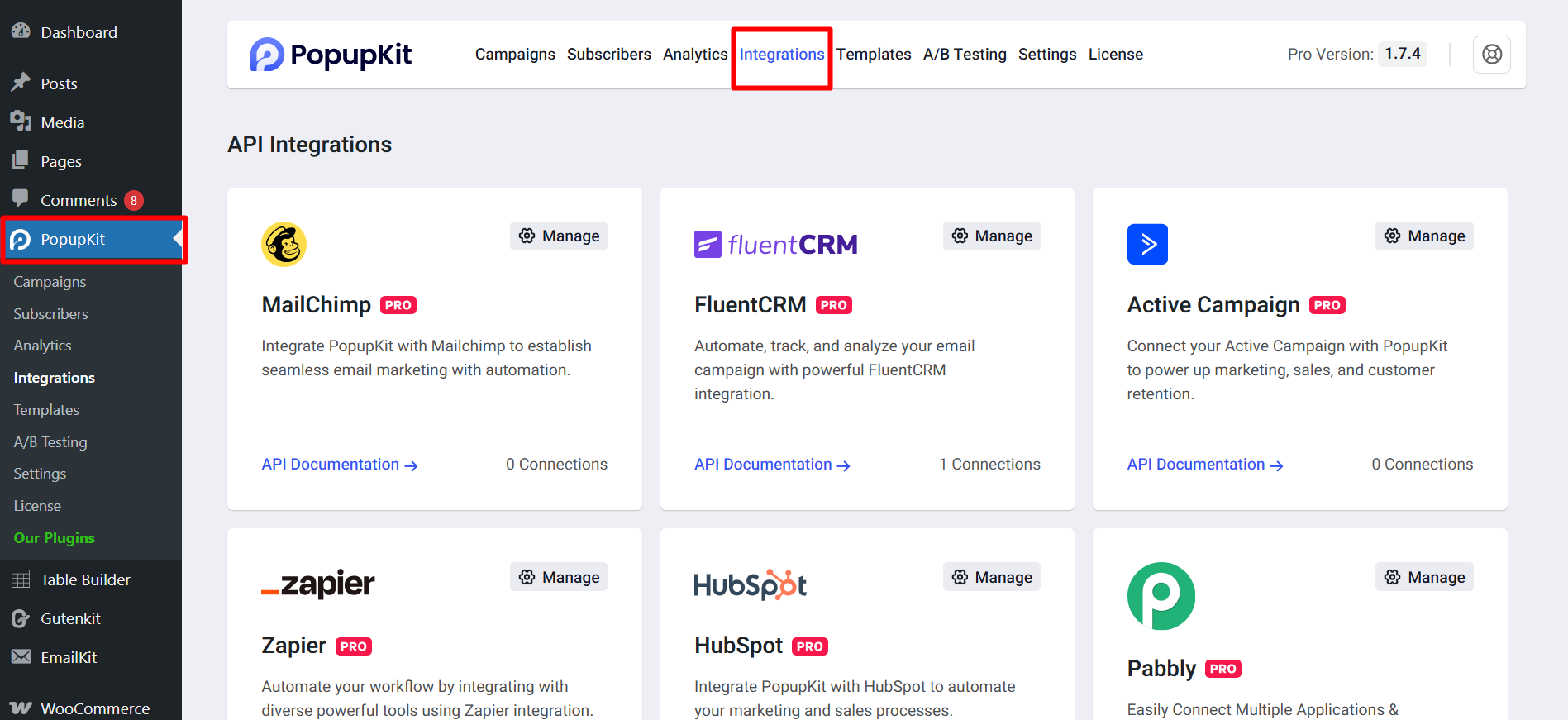
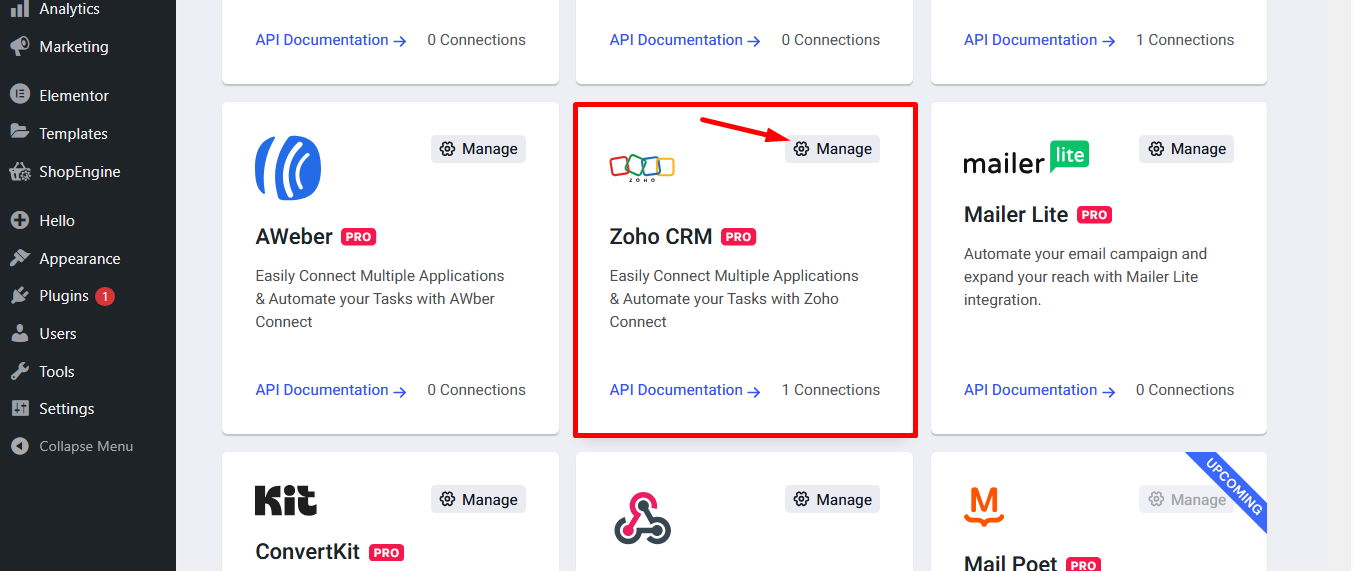
Find Zoho CRM and click on the manage settings icon.
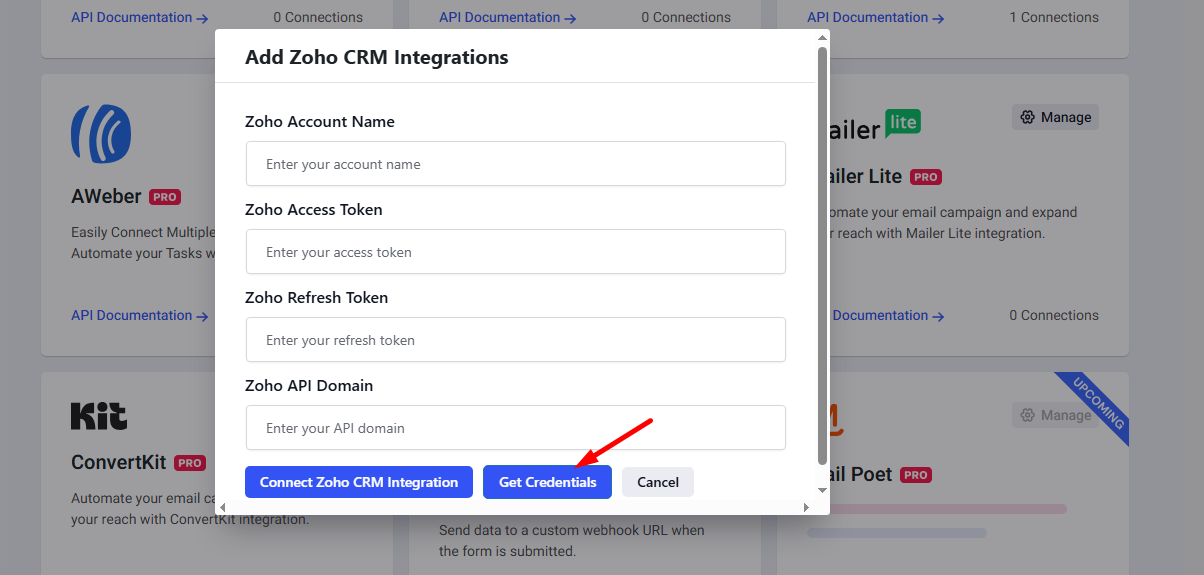
Click on the Get Credentials button. It’ll redirect you to your Zoho account.
STEP 2: Log in to the Zoho Account #
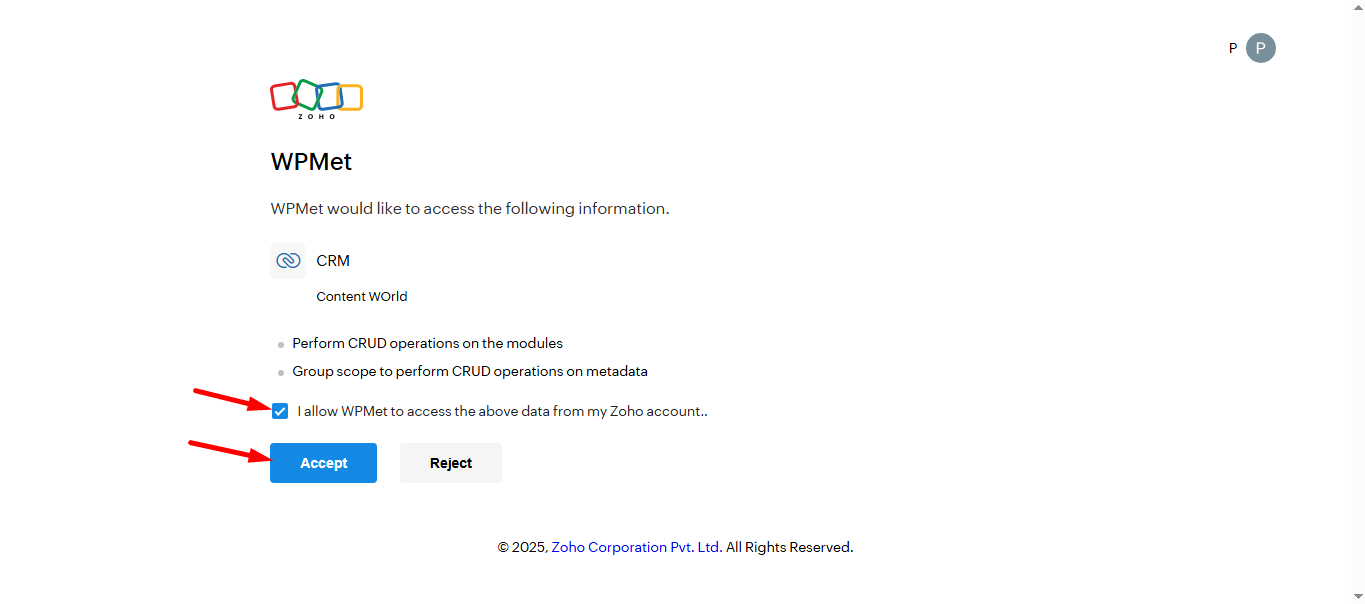
Please make sure you’ve an account and are logged in.
Allow the access permission and click on the accept button.
Your tokens have been generated successfully. Now copy the access token, refresh token, Und API domain, you’ll need these in the next step.

STEP 3: Zoho API Setup #
- Insert the tokens in the provided fields
- Click Connect Zoho CRM Integration

You’ll see a notification that says Zoho CRM is connected successfully.

STEP 4: Open a Popup Campaign #
- Next, go back to your PopupKit Campaigns dashboard
- Create a new campaign or choose from the active campaigns
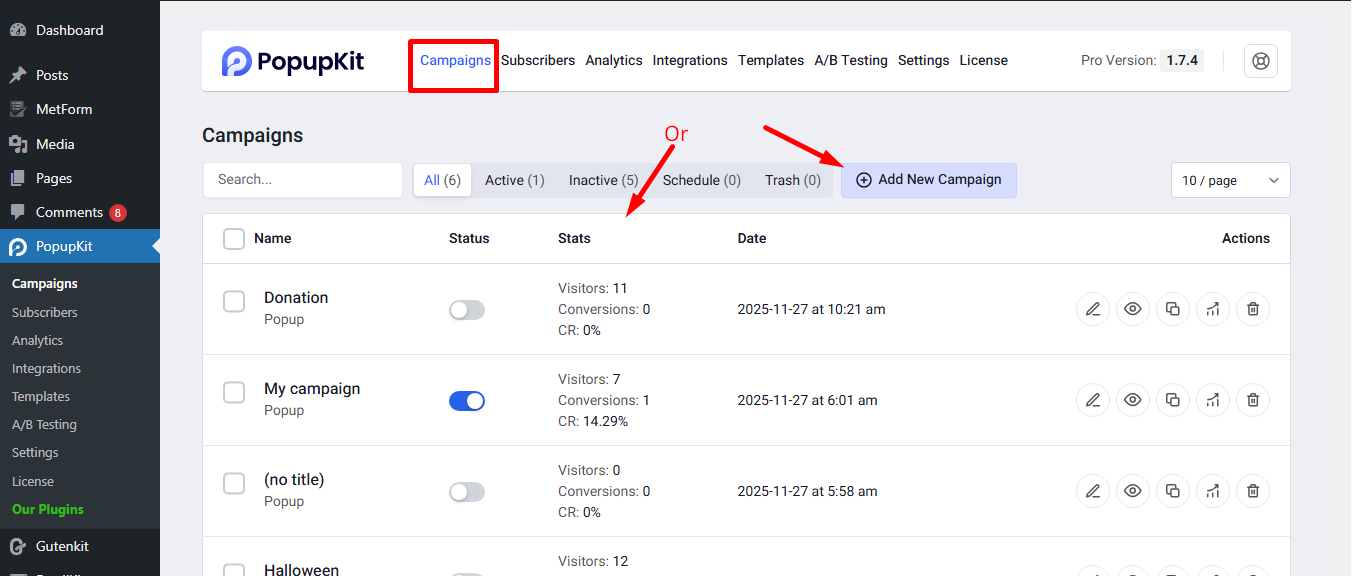
Open your campaign with the Gutenberg editor.

- Go to the popup template and select the Bilden
- Öffne das Integrationen section in the Block panel
- From the dropdown, select Zoho

Select the provider account where you want the form data to be securely stored, and then click ‘Save’.

Review the popup, and confirm your setup by submitting.
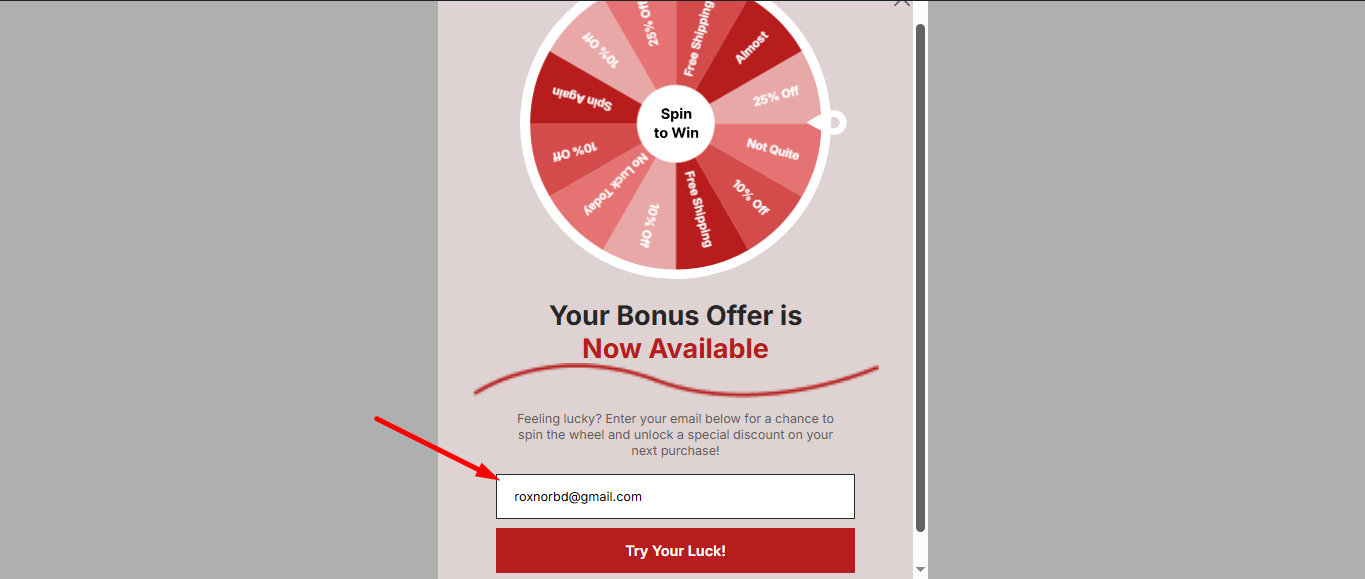
Now, your WordPress lead generation and Zoho CRM are perfectly synchronized. Start capturing, nurturing, and converting leads with ultimate efficiency!


