




Connecting PopupKit with Slack allows you to automate your lead tracking by sending real-time submission data directly to your team’s workspace. This integration ensures that every conversion is captured instantly, helping you maintain a fast and responsive communication workflow.
Slack Integration with PopupKit #
Nödvändig förutsättning: To enable the Slack integration, you’ll need a PopupKit Pro plan. Choose the Pro plan that best matches your requirements.
STEP 1: Log in to the Slack #
Besök Slack’s website and log in to the Slack account. If you don’t have an account, open one.
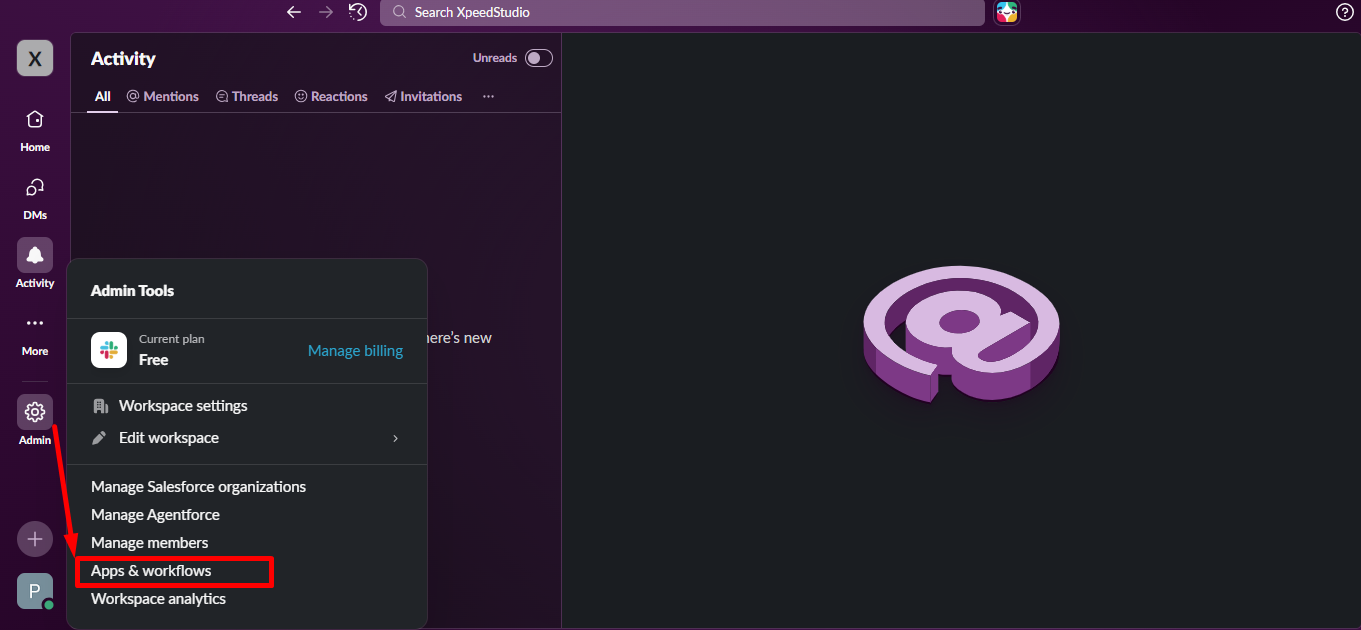
Från Admin option click Apps & workflows
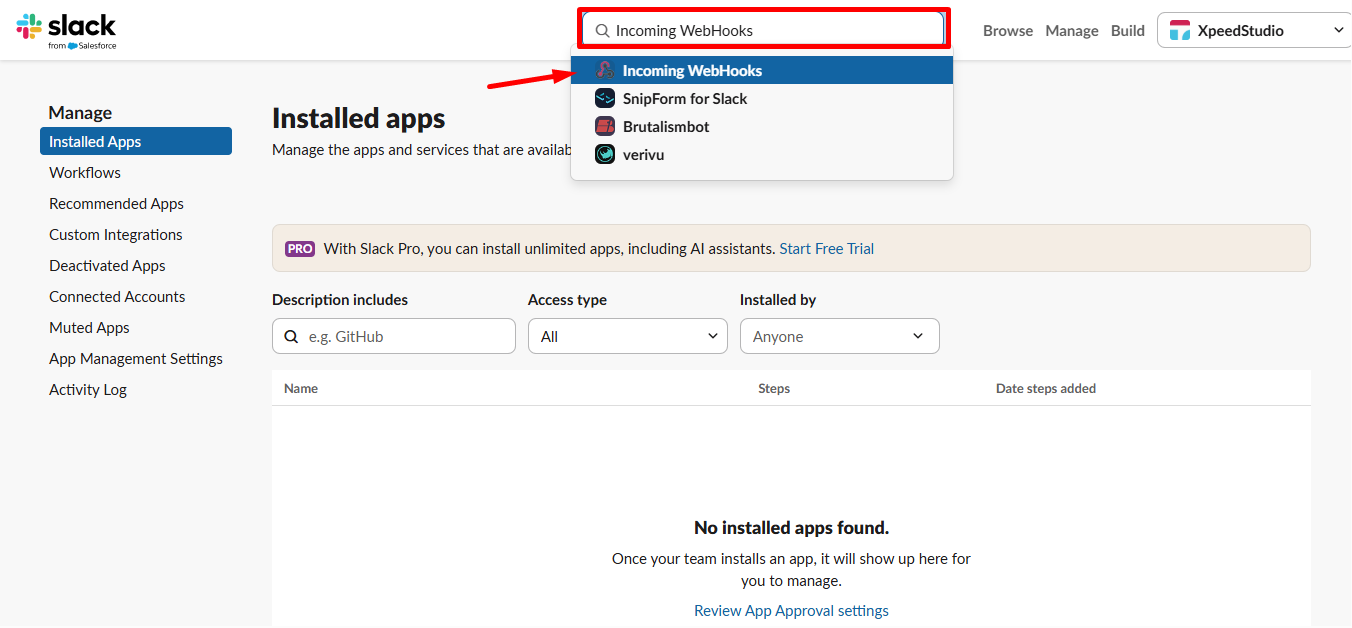
Söka efter Incoming WebHooks and select it.
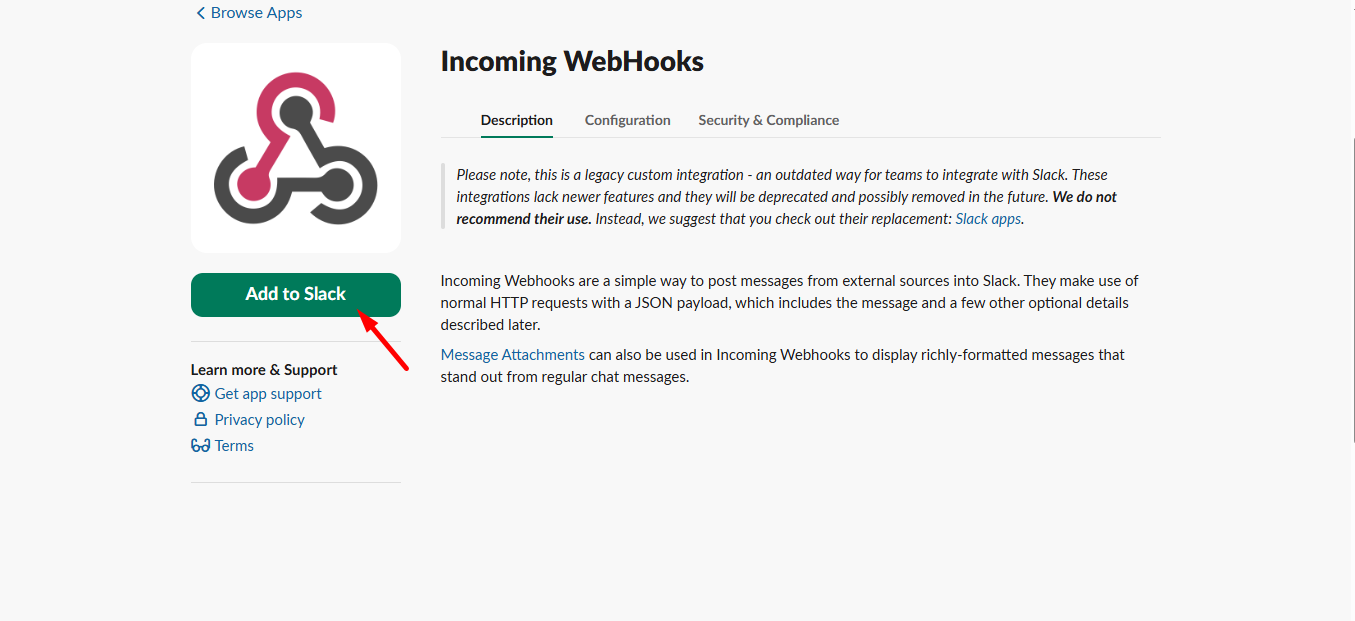
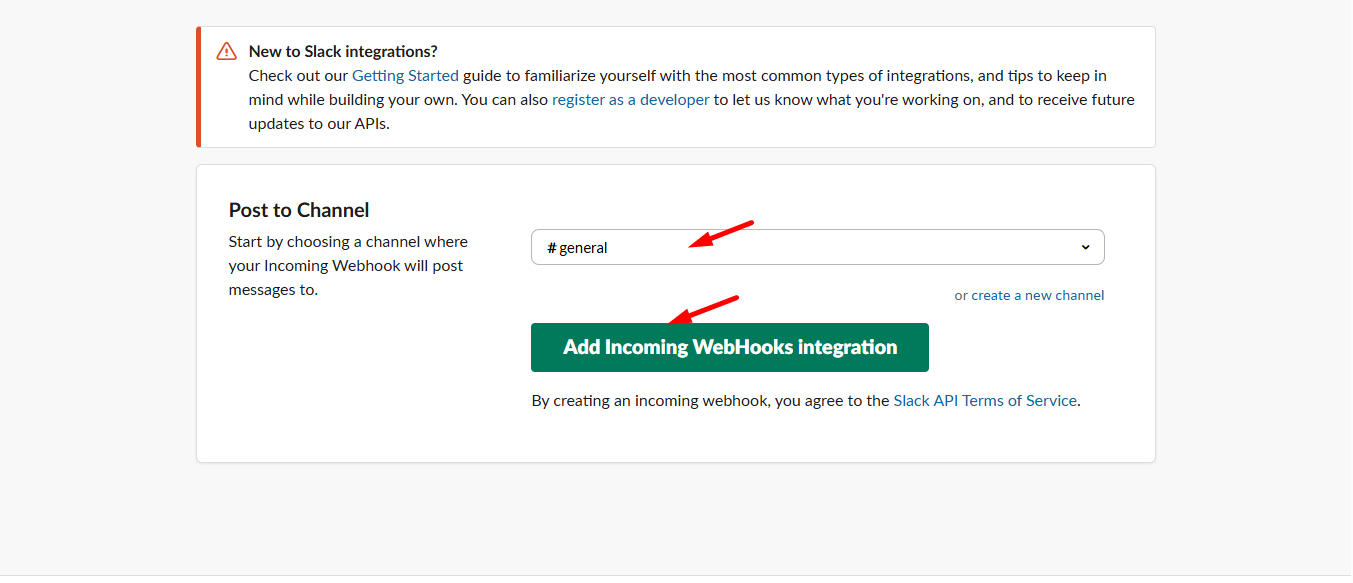
Klicka nu på Add Incoming WebHooks knapp.
Next scroll down –
- Select your Channel where you want to get user information
- Lägg till Incoming WebHooks integration
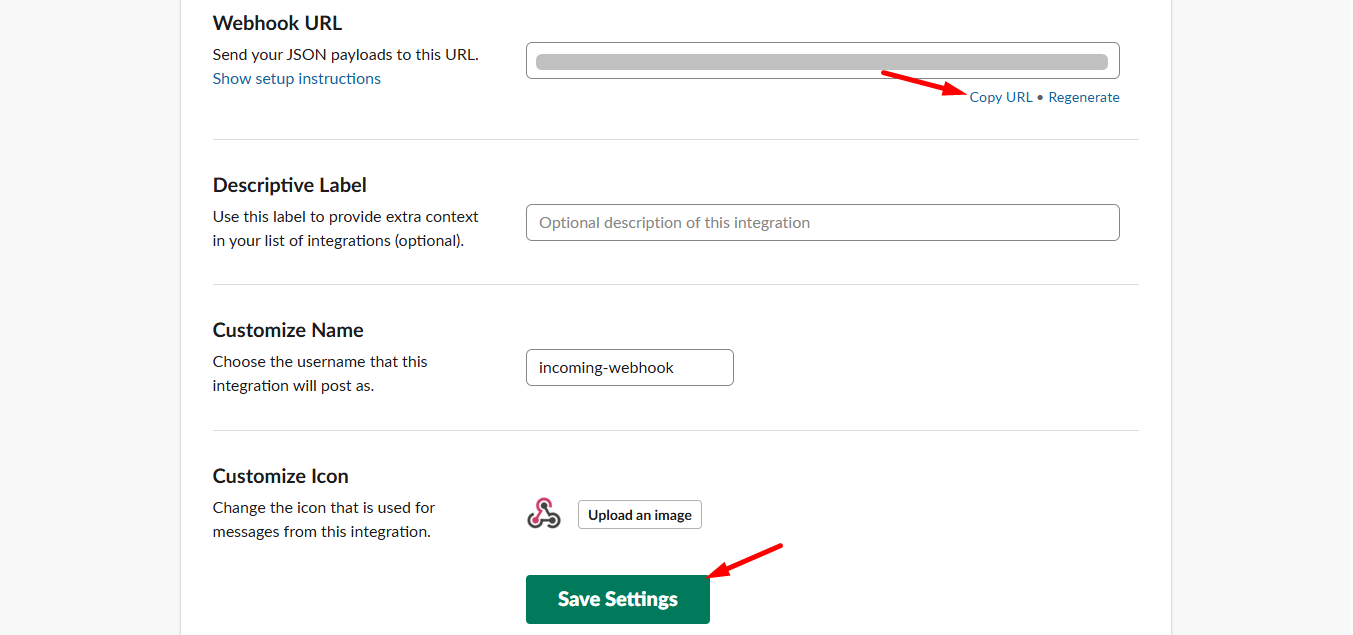
Here, scroll down and you can see the Webhook URL, copy the URL and click Save Settings.
STEP 2: Access your WordPress dashboard #
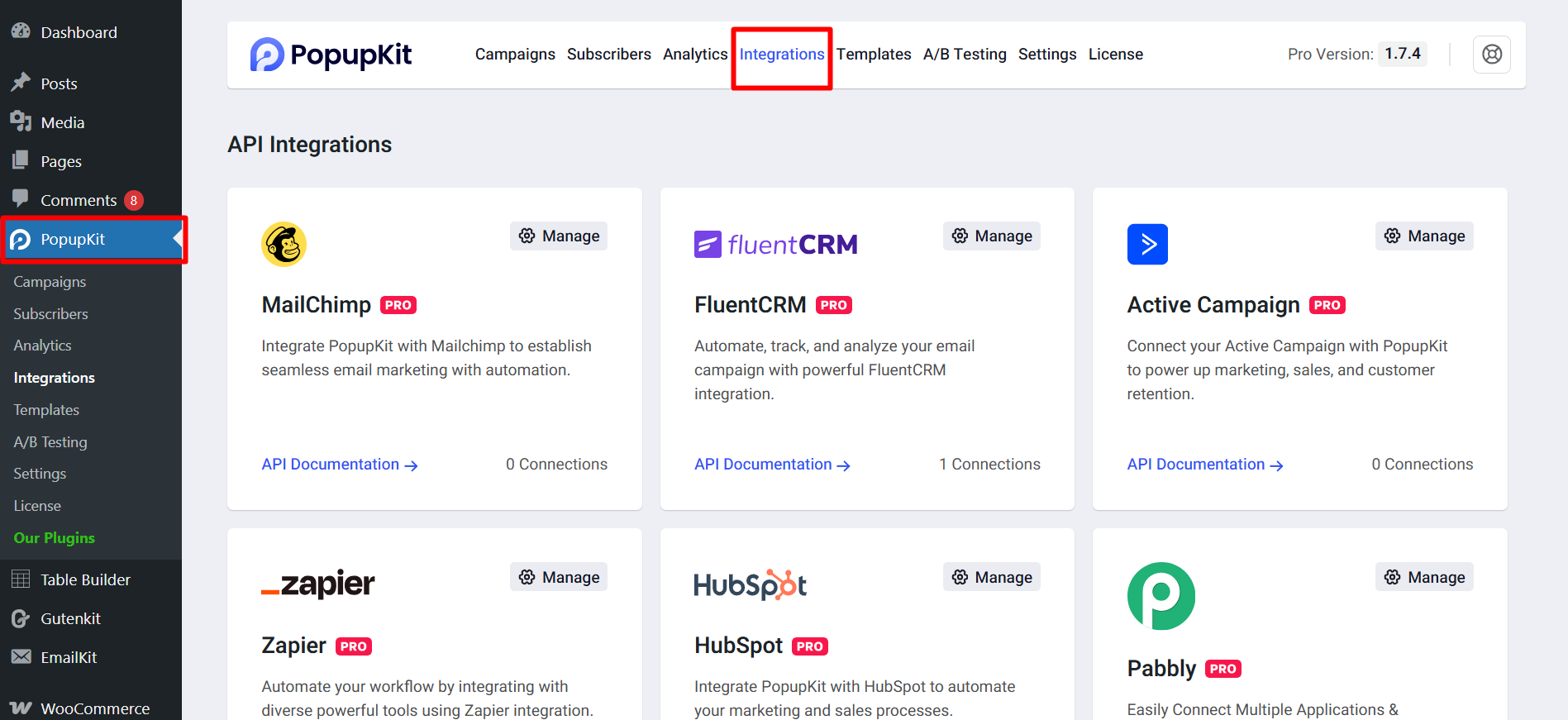
Now, from your WordPress dashboard, navigate to PopupKit and select the Integrations tab
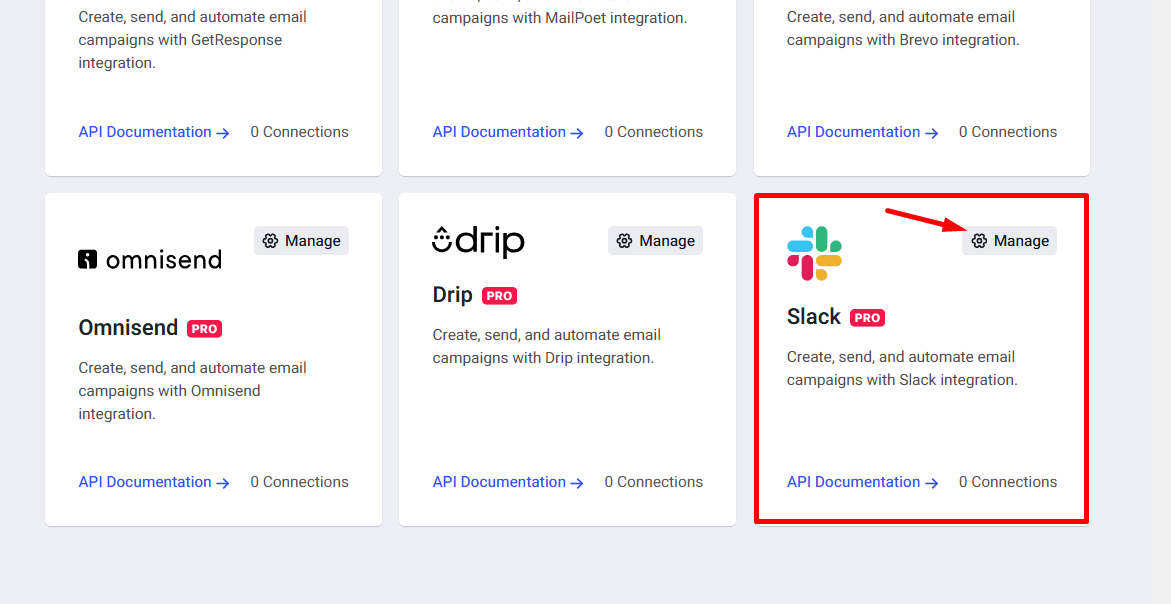
Find Slack and click on the Manage button.
Add Slack integrations details:
- Insert Slack account name
- Slack Hook Url
- Click connect Slack integration
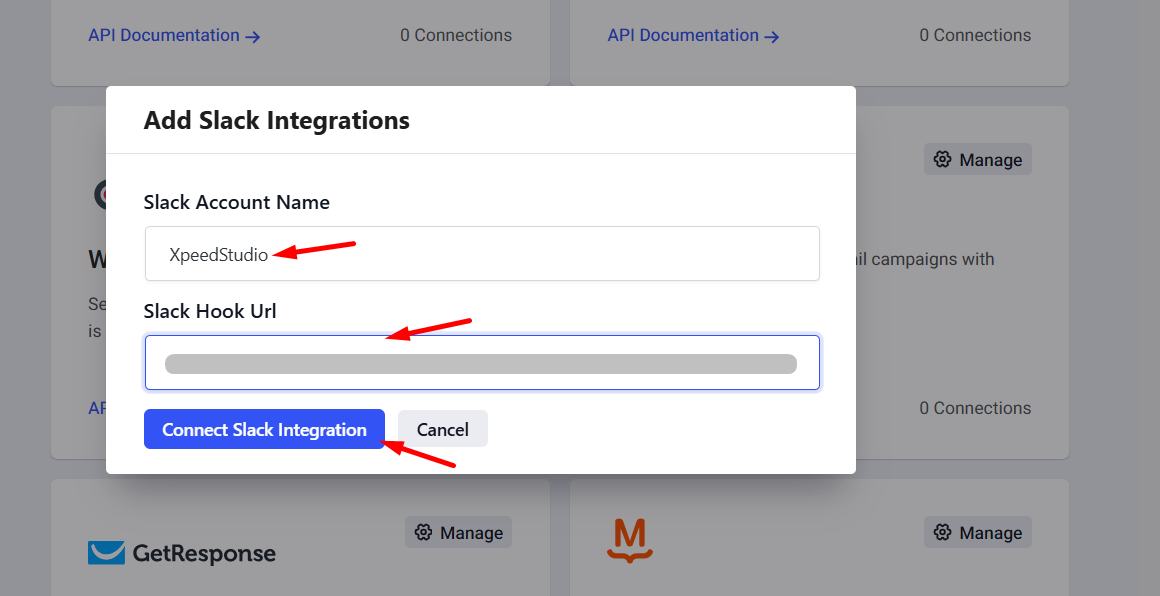
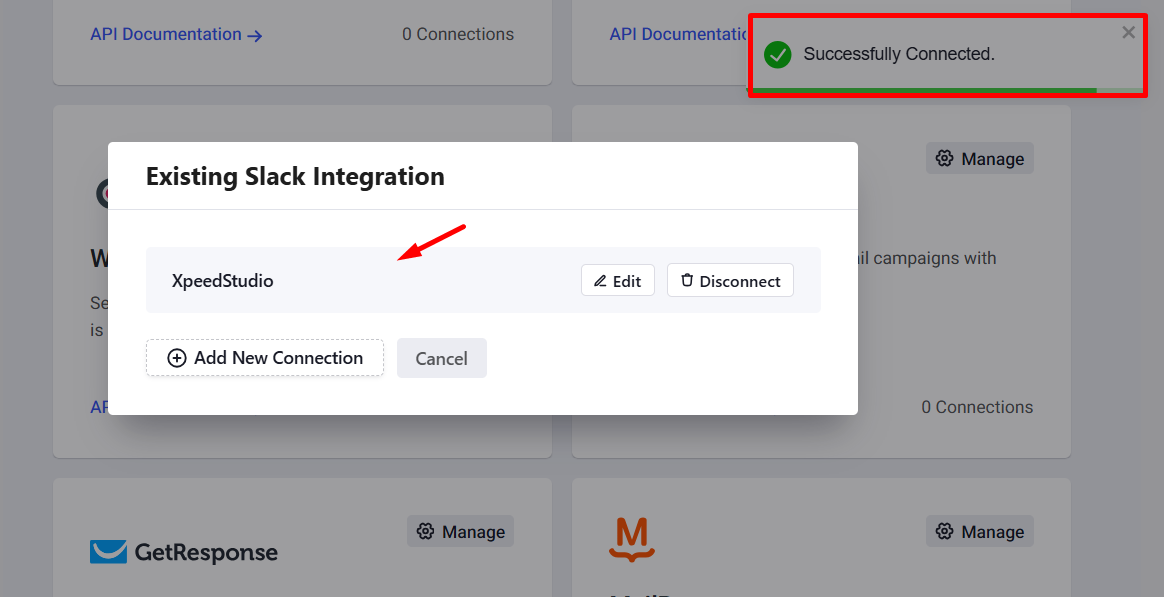
The Slack successfully connected.
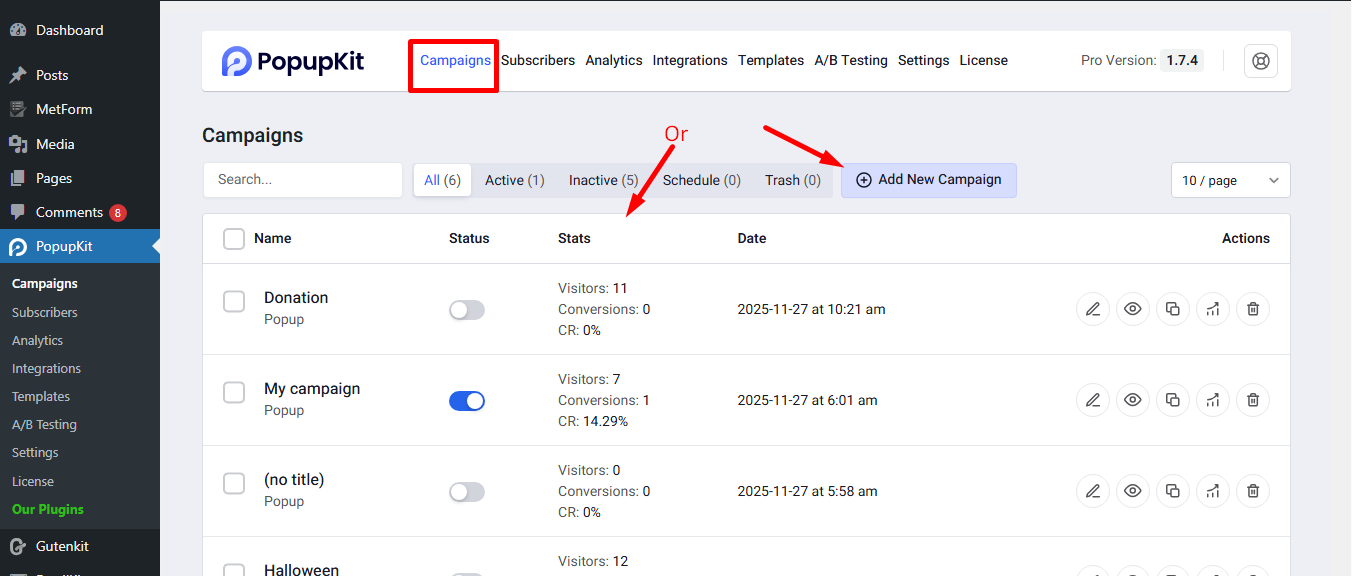
STEP 3: Connect Slack to a Campaign #
Start a new campaign or select an active campaign where you want to integrate Slack.
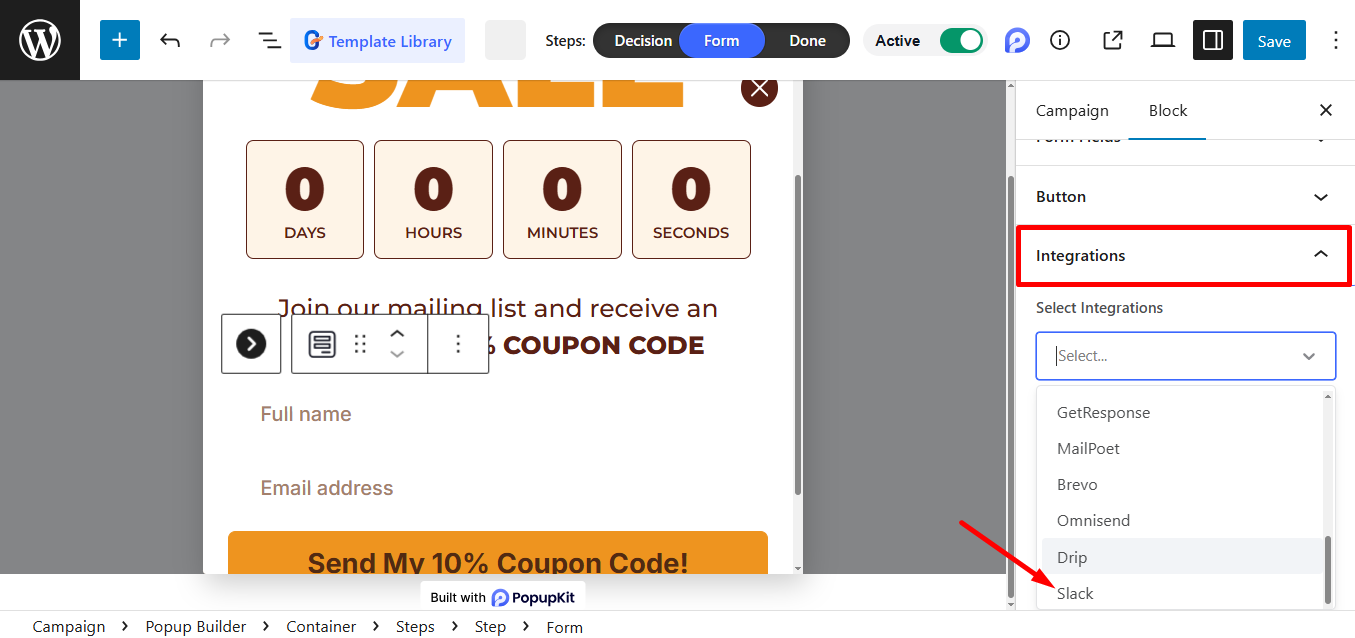
Från integrations’ dropdown menu, select Slack.
Viktig notering: Make sure your popup includes at least one form field, as this is required to activate the integration.
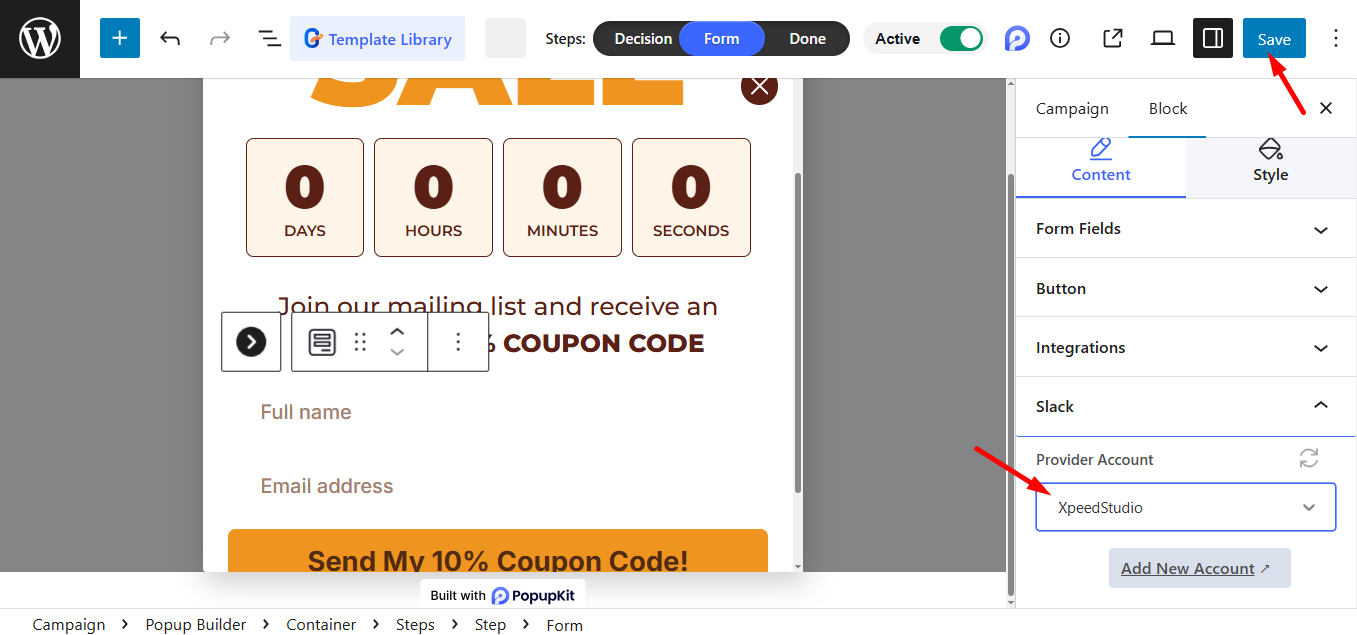
Just choose the Provider Account and click Save to finish the setup.
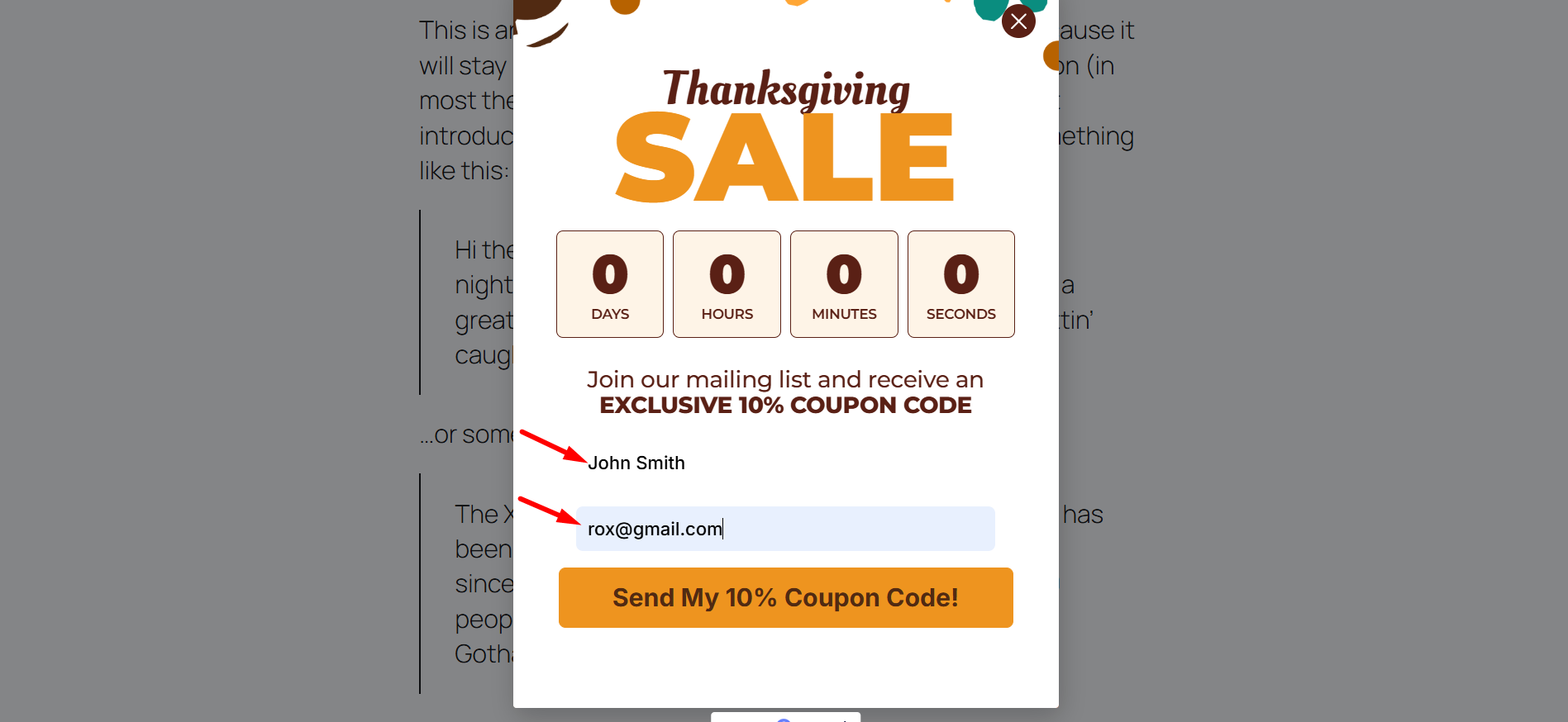
Nu måste du get data on Slack. So, view the form, fill it out, and submit.
STEP 4: Test the Slack Integration #
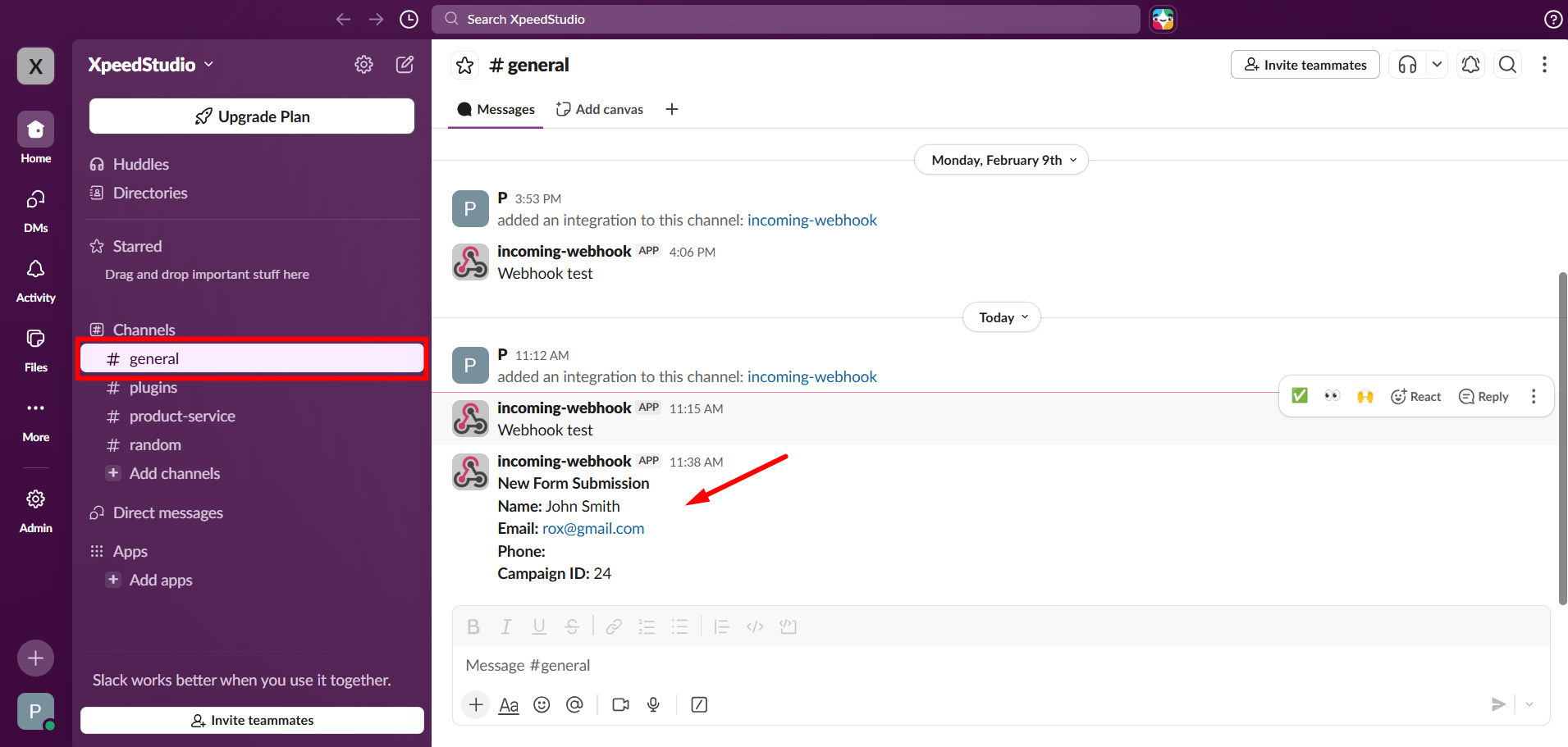
- Klicka på Vald kanal (General)
- Du kan se alla inlämnade uppgifter som kommer att visas här
With your Slack integration now active, your team will receive instant alerts for every new lead, ensuring no conversion goes unnoticed.


