






In 2026, many WordPress plugins will no longer be necessary because their features are built into WordPress core, modern managed hosting, or consolidated plugin ecosystems.
Redirect, caching, CDN, SSL mixed-content, PageSpeed fixer, I revision-control plugins often duplicate server-level or native functionality. They should be removed.
Removing these obsolete plugins reduces PHP execution, database queries, security risk, I long-term maintenance overhead.
If you’re a WordPress site owner, developer, or agency that wants to reduce plugin bloat, this guide will help you.
Quick Overview
Many plugins that WordPress users once relied on are no longer necessary. This is because of the advancements in WordPress core, features offered by modern hosting providers, and the rise of page builders, which have consolidated multiple functions into a single tool.
9 plugin types to retire:
Legacy Migration & Theme Helpers: These are transitional tools. Once your site is moved or your block-based theme is set up, these should be deleted immediately.
Redirect Plugins: These add unnecessary PHP overhead. Use your hosting dashboard (Cloudflare/Nginx) or your primary SEO suite (Rank Math/AIOSEO) instead.
Caching Plugins: Most modern hosts provide Object Cache and Nginx caching natively. Adding a plugin on top of this often creates conflicts rather than speed.
Nofollow Plugins: WordPress and modern builders (GutenKit/ElementsKit) now have native toggles for “nofollow” and “sponsored” attributes directly in the editor.
SSL Mixed Content Fixers: These are “band-aids” that rewrite URLs on every page load. It is better to use a database Search & Replace or server-level rewrites.
CDN Connectors: Modern managed hosting typically includes integrated Cloudflare or Google Cloud CDNs, making connector plugins unnecessary.
PageSpeed “Fixers”: These vanity tools often break site interactivity. Focus on block-native builds and clean code from the start.
Revision Control Plugins: You can prevent database bloat by adding a single line of code—define( ‘WP_POST_REVISIONS’, 5 );—to your wp-config.php file.
Pin Description Plugins: Social metadata is now handled efficiently by lightweight social tools or all-in-one SEO plugins.
Why Some WordPress Plugins Become Obsolete
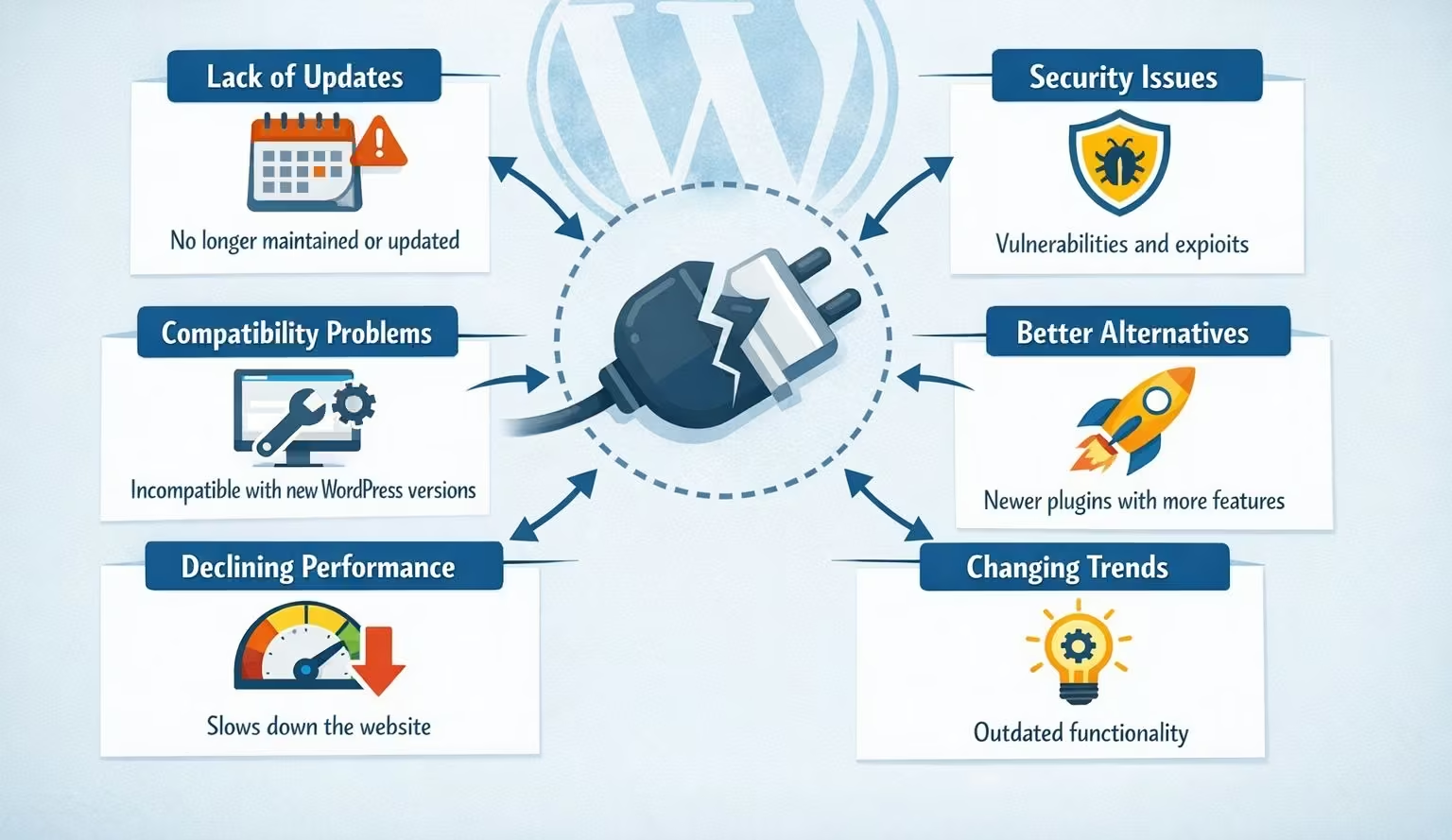
Plugins become obsolete when WordPress core, hosting providers, or modern plugin suites like wpmet suite deliver the same functionality faster, safer, and with less overhead.
Here are the core reasons why your existing plugins become irrelevant:
1. WordPress Core Development
Many features once missing from WordPress, like site health checks, redirects, I performance optimizations, are now built into core.
2. Better Hosting Environments
Modern managed hosting providers handle caching, CDN, SSL, I security at the server level, eliminating the need for many plugins.
3. All-in-One Plugin Suites
Instead of installing 10 small plugins, site owners now prefer robust toolkits that handle multiple functions efficiently.
4. Performance & Security Concerns
Each extra plugin increases database queries, PHP execution, I potential vulnerabilities.
How to Decide If a Plugin is Truly Obsolete?
A plugin isn’t obsolete just because it is relatively old, but because it shows some clear signs. Here’s a checklist that can help your judgment if when to remove them:
| Criterion | What to Look For | Red Flags / Obsolescence Signs |
|---|---|---|
| Maintenance & Updates | * Last update date * Compatibility with current platform * Quality of changelog | * No updates for years * Unsupported on the current platform * Missing changelog |
| Maintainer Activity | * Responses to issues * Merging pull requests * Presence in community | * No issue responses * No merged PRs * Maintainer inactive |
| Security Posture | * Known vulnerabilities * Use of deprecated APIs, * Outdated dependencies | * Unpatched CVEs * Insecure APIs * Dependency chain using obsolete libraries |
| Modern Workflow Compatibility | * Support for current standards * Runtime compatibility * Developer workflow integration | * Breaks with modern versions * Forces legacy workarounds * Incompatible with strict mode or modern build tools |
| Native / Built-in Alternatives | Does the core platform now provide similar features? | * Plugin duplicates functionality * Only adds minimal value |
| Adoption Trends | * Number of downloads* Ratings * Tutorials * Community support | * Shrinking user base * Low user ratings * Outdated tutorials * Community recommending alternatives |
| Cost of Keeping It | * Maintenance effort * Upgrade risk * Complexity | * High ongoing maintenance * Risk of breaking * Reduces system simplicity |
Types of WordPress Plugins You Do Not Need Anymore
Faster and safer alternatives exist at the core, hosting, or platform level. So, these are the plugin categories that no longer provide unique value.
1. Redirect Plugins
Redirect plugins manage 301, 302, I 404 redirects to ensure users don’t land on broken pages. But most of these plugins are considered redundant because redirects are now being handled more effectively by SEO suites, premium hosting providers, or at the server level.
Still having them on your website adds unnecessary execution overhead and additional costs.
Instead, use:
- Rank Math or AIOSEO built‑in redirect managers
- Hosting dashboards (cPanel, Cloudways, Cloudflare Redirect Rules)
- .htaccess or nginx.conf for permanent redirects
2. Caching Plugins
Caching plugins generate static HTML versions of your pages to reduce server load for core web vitals.
But they become redundant if your hosting already provides server-side caching, such as Nginx FastCGI, Varnish, Lub Redis.
Instead of keeping these caching plugins, do these instead:
- Go to your hosting dashboard and check if you see options for “Dynamic Caching,” “Object Cache,” or “Nginx Caching.” You can turn them on.
- Use a lightweight “Asset Manager” like GutenKit that simply disables unused scripts.
3. Nofollow Plugins
NoFollow plugins are utility tools used to add specific instructions to the links on your website. These instructions tell search engine bots like Google not to “follow” the link to the destination page.
Now, they are already obsolete because WordPress and modern SEO tools handle link attributes natively without the use of extra plugins.
You can use better alternatives instead of risking your website’s performance, such as:
- GutenKit as your Gutenberg page builder
- ElementsKit as your Elementor addons
- Rank Math / AIOSEO link controls
GutenKit and ElementsKit allow toggling nofollow, sponsored, and ugc attributes directly in the editor.
4. SSL Mixed Content Plugins
SSL mixed content plugins like SSL Insecure Content Fixer are just a temporary solution. They scan the HTML code I rewrite URLs on every page load.
Z http:// links to https://.
So, instead of keeping them, you can use these better approaches:
- Use database cleanup with Better Search Replace
- Use Cloudflare’s “Automatic HTTPS Rewrites” if you are using Cloudflare.
- Add “upgrade-insecure-requests;” to your site’s header or via your host.
- Enable the “Fix Insecure Content” button from your hosts dashboard.
5. CDN (Content Delivery Network) Plugins
These are traditional connectors for linking a WordPress site to a global CDN. They ensure static assets, like obrazy, CSS, I JavaScript, are served from servers physically close to visitors.
„Example: A visitor in the UK gets assets from a London server.”
Here’s how they usually work:
- Work as URL rewriters and default WordPress URLs like yoursite.com/uploads/image.jpg.
- Automatically rewrite to CDN URLs like cdn.yoursite.com/uploads/image.jpg.
TL;DR: Modern hosts like Kinsta, WP Engine, and SiteGround include built-in Cloudflare or Google Cloud CDNs, so you no longer need a WordPress CDN plugin to serve your images, CSS, or JS globally.
6. PageSpeed Score Fixer Plugins
PageSpeed score fixer plugins are considered vanity tools. These are small, often single-purpose plugins that claim to “instantly boost your Google PageSpeed Insights score” by checking off specific technical boxes that Google’s Lighthouse tool looks for.
But their aggressive delay often harms interactivity and visual stability of your site. Instead, use these better strategies:
- Build with block-native tools like GutenKit.
- Use ElementsKit as your Elementor addons.
- Avoid loading unused CSS/JS from the start.
GutenKit and ElementsKit provide clean code from the start. They don’t “bloat” a website.
7. Revision Control Plugins
Revision control plugins are unnecessary because revision limits can be set via wp-config.php or managed hosting rules.
Aside from the fact that unlimited revisions really bloat databases, installing an independent plugin worsens the case.
The best approach, so you still have access to the deleted page or post is to simply add one line of code to your wp-config.php file:
define( ‘WP_POST_REVISIONS’, 5 ).
This tells WordPress to keep the most recent 5 versions of your post.
8. Pin Description Plugins
Pin description plugins, such as Tasty Pins or Social Warfare, are tools that allow you to attach a specific “Pinterest-only” description to the images on your site. When a reader clicks the “Pin it” button on your site, Pinterest typically grabs the image’s Alt Text by default.
However, they are no longer needed. You can try these better alternatives instead:
- Rank Math / AIOSEO social settings.
- Gutenberg data-pin-description attribute.
- Lightweight social plugins like WP Społeczny.
WP Social is not only helpful for Pinterest needs, but also for other social platforms like Facebook, X (Twitter), etc. It provides advanced features for social needs.
9. Old Migration & Theme Plugins
Legacy migration and theme helper plugins are not permanent solutions. They’re simply transitional tools. So, keeping them once you’ve moved to your new host is a big “No.”
Besides, you can use Block-based themes with Full Site Editing (FSE) to design your website. These can be found from your modern managed host. They allow you edit the header, footer, and every other part of your site directly in the Site Editor without needing a third-party plugin to “unlock” those areas.
Safe Plugin Removal Checklist
Before removing any WordPress plugin, follow this checklist to avoid broken functionality, data loss, or downtime.
1. Create a Full Backup
- Back up your files and database.
- Use your hosting backup system or a trusted backup tool.
- Confirm the backup can be restored if needed.
2. Identify the Plugin’s Purpose
- Write down exactly what the plugin does.
- Check if WordPress core, your host, or another plugin already covers the same functionality.
- Verify whether the plugin is still actively used on the site.
3. Check for Built-In or Server-Level Alternatives
- Review WordPress core features (Site Health, redirects, revisions, lazy loading, etc.).
- Check your hosting dashboard for caching, CDN, SSL, redirects, or security tools.
- Confirm SEO or page builder plugins already provide the same feature.
4. Test in a Staging Environment (If Available)
- Disable the plugin in staging first.
- Check critical pages, forms, checkout flows, and navigation.
- Look for layout issues, broken links, or console errors.
5. Disable the Plugin First (Do Not Delete Immediately)
- Deactivate the plugin and wait at least 24–48 hours.
- Monitor site behavior, performance, and error logs.
- Ensure no warnings appear in the WordPress dashboard.
6. Check Front-End and Back-End Functionality
- Test pages, posts, custom post types, and templates.
- Verify forms, popups, login flows, and search functionality.
- Confirm editor experience (Gutenberg or Elementor) still works correctly.
7. Monitor Performance and Errors
- Run a quick speed test or check server logs.
- Watch for PHP errors, 404s, or missing assets.
- Ensure Core Web Vitals and page load times do not regress.
8. Clean Up Plugin Data (If Necessary)
- Check if the plugin leaves behind database tables or options.
- Remove leftover data only if you’re sure it’s not required.
- Use database cleanup tools cautiously.
9. Delete the Plugin
- Avoid keeping inactive plugins installed, as they can still pose security risks.
- Once you’re confident everything works, delete the plugin.
What to Use Instead in 2026: The Modern Stack
To keep your site clean and lightning-fast, the trend in 2026 is moving toward modular bundles. You can explore many options, like Wpmet suite. It can replace dozens of outdated plugins with a few highly optimized tools:
| Tool | Zamiar | What it Replaces |
|---|---|---|
| PobierzGenie | AI Content & SEO | Standalone AI tools & basic to advanced SEO plugins. |
| Zestaw elementów | Elementor Add-ons | 20+ small widget/styling plugins. |
| MetForm | Kreator formularzy | Bloated, old-school contact form plugins. |
| GutenKit | Bloki Gutenberga | Third-party page builders that slow down the site. |
| Zestaw e-mail | Dostosowywanie poczty e-mail | Complex code-heavy email editors. |
| WP Społeczny | Social Integration | Separate “Share” and “Login” plugins. |
| FundEngine | Crowdfunding | Expensive, standalone donation platforms. |
| Ostateczna recenzja WP | Review Management | Single-purpose testimonial plugins. |
| Kup silnik | WooCommerce Solution | Dozens of WooCommerce “extension” plugins. |
| Wyskakujący zestaw | Fast Popups | Heavy, script-heavy popup generators. |
The Wpmet suite can be a better approach rather than keeping these types of plugins. The suite can help with the issue of bloating because of its modular loading system. In many cases, older and poorly optimized plugins load their own CSS/JS files on every page, even when not in use.
Additionally, users have the option to disable the modules and widgets not in use. This feature can help maintain and even improve the site’s performance.
Instead of paying 5-10 different annual subscriptions, Wpmet offers a single lifetime bundle. You can gain access and enjoy the features of these tools for just $749.
From a cost perspective, Wpmet offers its tools as part of a single lifetime bundle priced at $749. This approach can be a more cheaper for users who rely on multiple standalone plugins with separate subscriptions.

When You Still Might Need These Solutions
Although these plugins are considered obsolete already, it doesn’t mean they are no longer useful. They might still be needed for some scenarios:
1. Redirect Plugins
Redirect plugins are still useful when:
- You’re using a basic shared hosting without access to .htaccess or Nginx configs.
- You’re managing hundreds of redirects during a site restructure.
- A non-technical editor needs to manage redirects safely.
2. Caching Plugins
Caching plugins are useful if:
- The hosting provider does not have server-side caching.
- You are only using a cheap shared hosting that has very limited features.
- You’re running a local or staging environment without caching.
3. Nofollow Plugins
NoFollow plugins are still needed for scenarios like:
- There’s a large amount of content with thousands of outbound links.
- A site with multiple authors where editors don’t understand link attributes.
- A bulk nofollow rule without the need for manual editing.
4. SSL Mixed Content Plugins
SSL mixed content plugins are considered temporary repair tools, and they are usually needed when:
- You need to migrate a very old site with thousands of hard-coded HTTP URLs.
- You need to clean up legacy content before a full database replacement.
- Cloudflare or server-level fixes aren’t available.
5. CDN (Content Delivery Network) Plugins
CDN plugins are usually redundant if you are using a modern hosting, but they are still needed when:
- You’re using an old hosting because it doesn’t provide an integrated CDN.
- You need advanced CDN rules at the WordPress level.
6. PageSpeed Score Fixer Plugins
There are specific scenarios when an individual PageSpeed Score Fixer plugins are still needed, like:
- You are running a temporary campaign that requires a quick performance boost.
- You’re working on a site you can’t fully refactor.
- Your goal is only for a short-term performance target. For example, you want to improve the scores before a marketing or funding deadline.
7. Revision Control Plugins
For most websites, limiting revisions via wp-config.php or hosting rules is enough, but there are some scenarios where individual control plugins are still useful, like:
- Working with large editorial teams to track changes and allow rollback.
- Running sites with legal or compliance requirements, especially for industries that require full change logs, content approval trails, etc.
8. Pin Description Plugins
These plugins can still make sense if:
- Pinterest is a major traffic source for your business website.
- You manage large image-heavy blogs or food/lifestyle sites.
- Editors need an easy user interface for Pinterest-specific metadata.
9. Old Migration & Theme Plugins
These plugins are specifically needed for:
- Migrating sites from very old or unstable servers.
- Working with legacy themes that can’t be rebuilt immediately.
- Client budgets don’t allow a full block-theme conversion.
But once migration or stabilization is complete, these plugins should be removed.
Często zadawane pytania
1. Will Removing Plugins Break Your Website?
Removing plugins is safe if done correctly. Always back up your site first, disable plugins one at a time, and test key pages and functionality. Performance and stability greatly improve after removing redundant plugins
2. Is WordPress Core Powerful Enough to Replace Utility Plugins?
Yes. WordPress core now includes link attribute controls, lazy loading, revision handling, health checks, and full-site editing. When combined with modern hosting and other plugins from wpmet suite, most traditional “utility” plugins are no longer needed.
3. How Often Should You Audit Your WordPress Plugins?
You should audit plugins at least twice a year, and always after major WordPress updates or hosting changes. Regular audits help identify redundant plugins, security risks, and opportunities to simplify your stack of plugins.
4. Are Plugin Suites Safer than Individual Plugins?
Well-maintained plugin suites like Wpmet are safer because they use shared codebases, consistent update cycles, and modular loading. This reduces conflicts and ensures features are designed to work together instead of overlapping unpredictably.
5. What is the Biggest Risk of Keeping Outdated Plugins?
Outdated or redundant plugins increase security vulnerabilities, slow down page load times, and complicate troubleshooting.
Końcowa myśl
The “less is more” philosophy is the winning strategy for WordPress in 2026. By cleaning out the “junk” categories listed above and moving toward a unified stack like the Wpmet ecosystem, you’ll enjoy faster load times, better security, and a much cleaner site.
Remove plugins when their functionality is fully covered by WordPress core, your host, or a modern plugin suite.
However, not every plugin should be removed immediately. Some scenarios still justify keeping certain plugins. For example, managing hundreds of redirects on a large site, adding bulk nofollow rules for many outbound links, or temporarily boosting performance for a time-sensitive campaign. Similarly, migration or legacy theme plugins may still be needed until their specific tasks are complete.
Audit your site regularly. Remember this simple rule, “remove what you don’t need, keep what you must.”
The best WordPress setup today isn’t about having more plugins. It’s always about the smarter ones.

Dodaj komentarz