







Quick Overview
Creating a WordPress user registration form without coding is easy with MetForm and Elementor. It offers both blank and pre-built templates along with a drag-and-drop interface for adding a registration form in minutes.
Solution to create a WordPress user registration form:
✅ Install and activate MetForm
✅ Add a user registration form by clicking the “Add New Form” under the Forms tab
✅ Customize form fields from the control options on the left side
✅ Click the “Publish” button to live the form
✅ Turn on the “Registration” from the Auth tab and configure general settings
✅ Check entries or submissions from the “All Users” tab
Create a WordPress user registration form with MetForm
The easiest, code-free solution for creating a user registration form is to use a WordPress 양식 작성 도구, MetForm. So, here are the steps to follow to learn how to create a WordPress user registration form with MetForm:
Step 1: Install MetForm
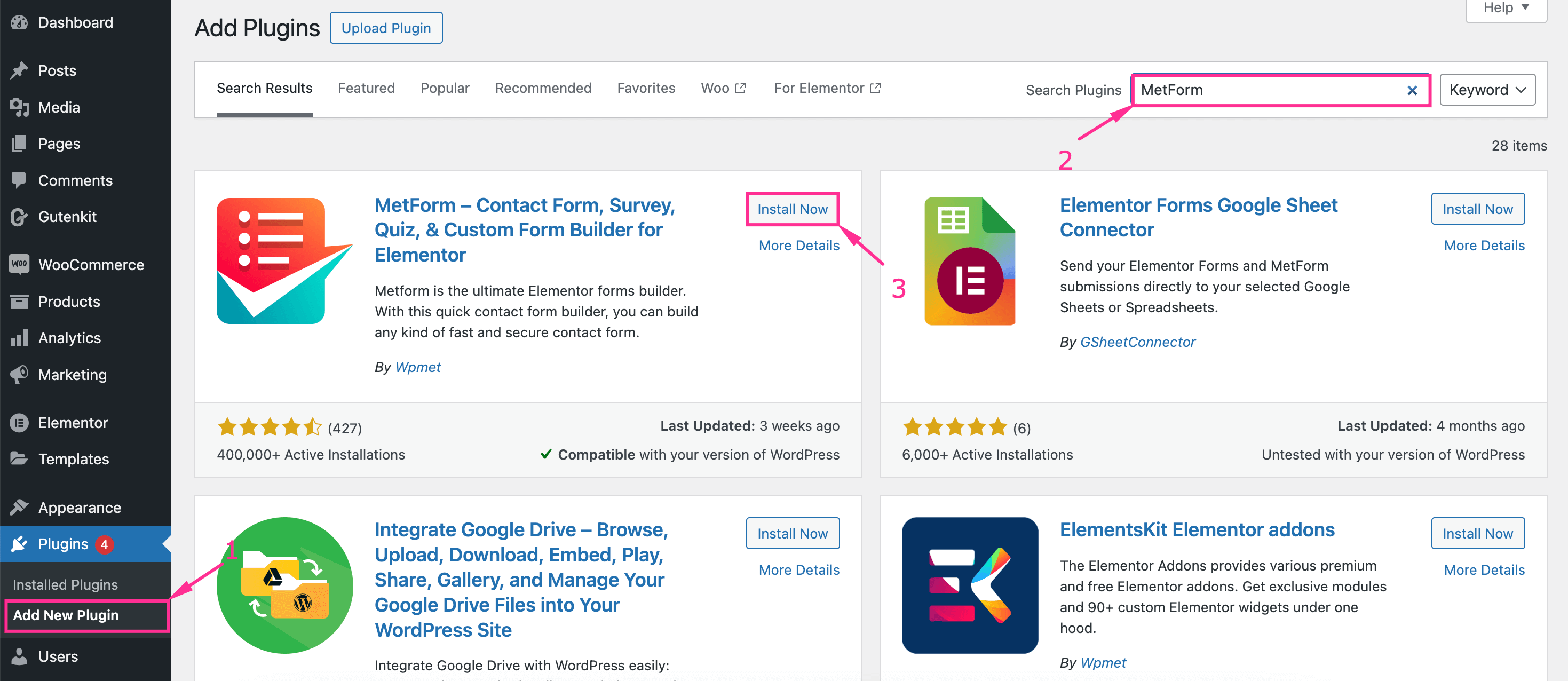
First, install and activate a WordPress user registration plugin, MetForm. Also, install and activate Elementor Free if it is not already installed and activated on your site. To add this plugin to your WordPress site:
- 방문하다 “Add New Plugin” 탭.
- Search for “MetForm”.
- Click the “Install Now” button to download MetForm.
- Activate MetForm afterwards.
To add its premium version or MetForm Pro:
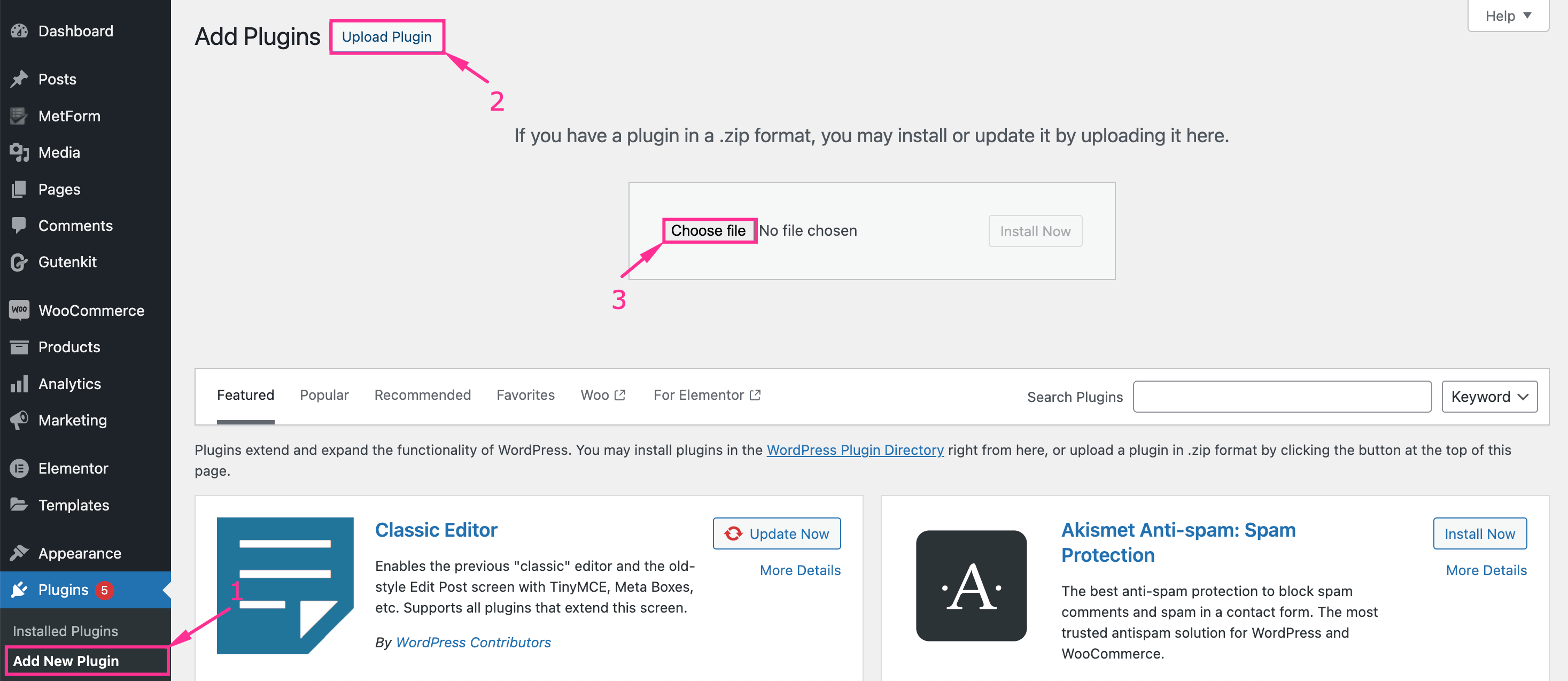
- 다음으로 이동하세요. “Add New Plugin” tab under Plugins.
- 을 치다 “플러그인 업로드” 단추.
- Choose the “MetForm Pro” file from your device.
- 설치 및 활성화 플러그인.
Step 2: Add a user registration form
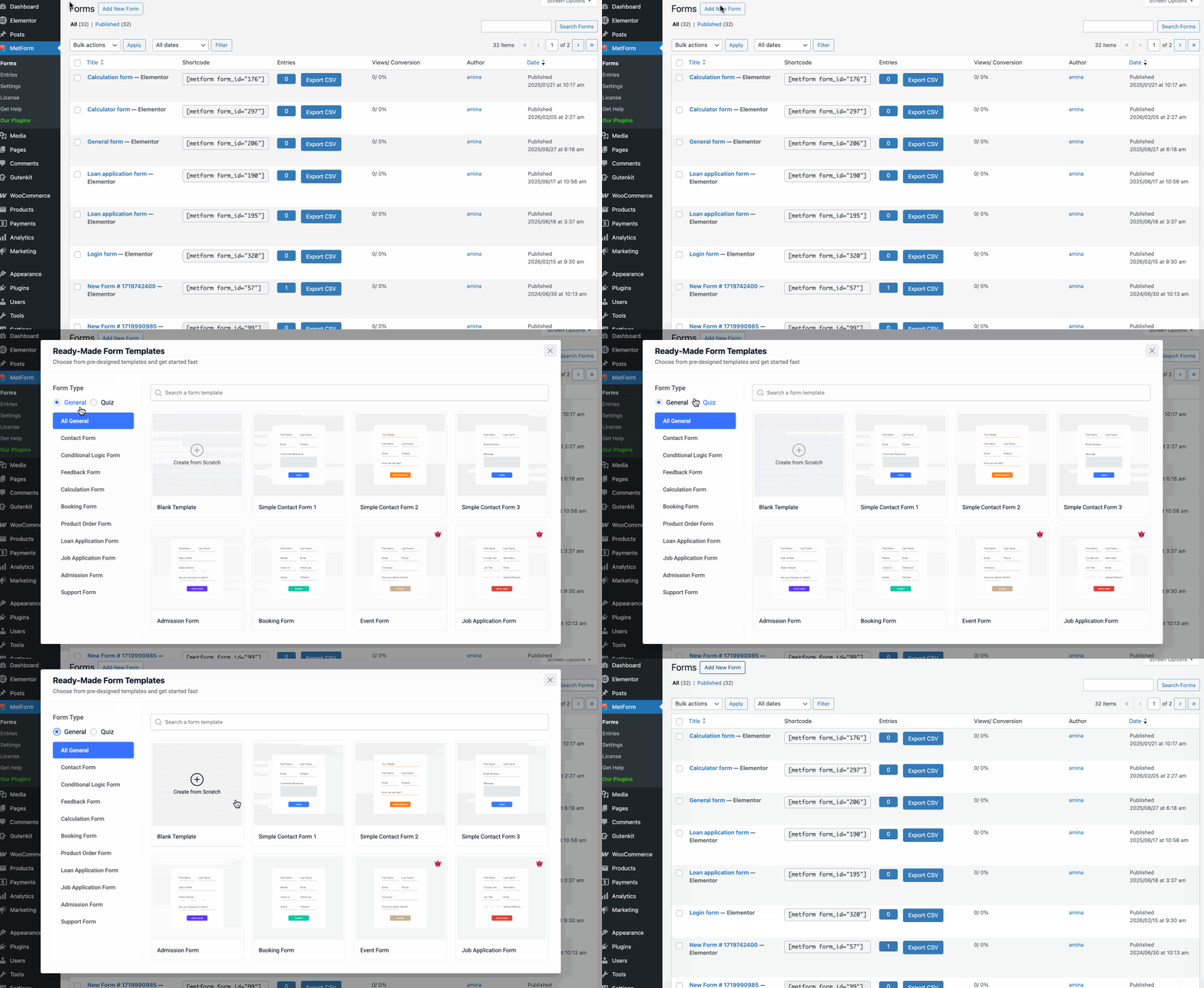
Now, you have to create a WordPress user registration form with MetForm. For that:
- Go to the Forms 탭과 hit the “Add New Form” 단추.
- 선택 blank template.
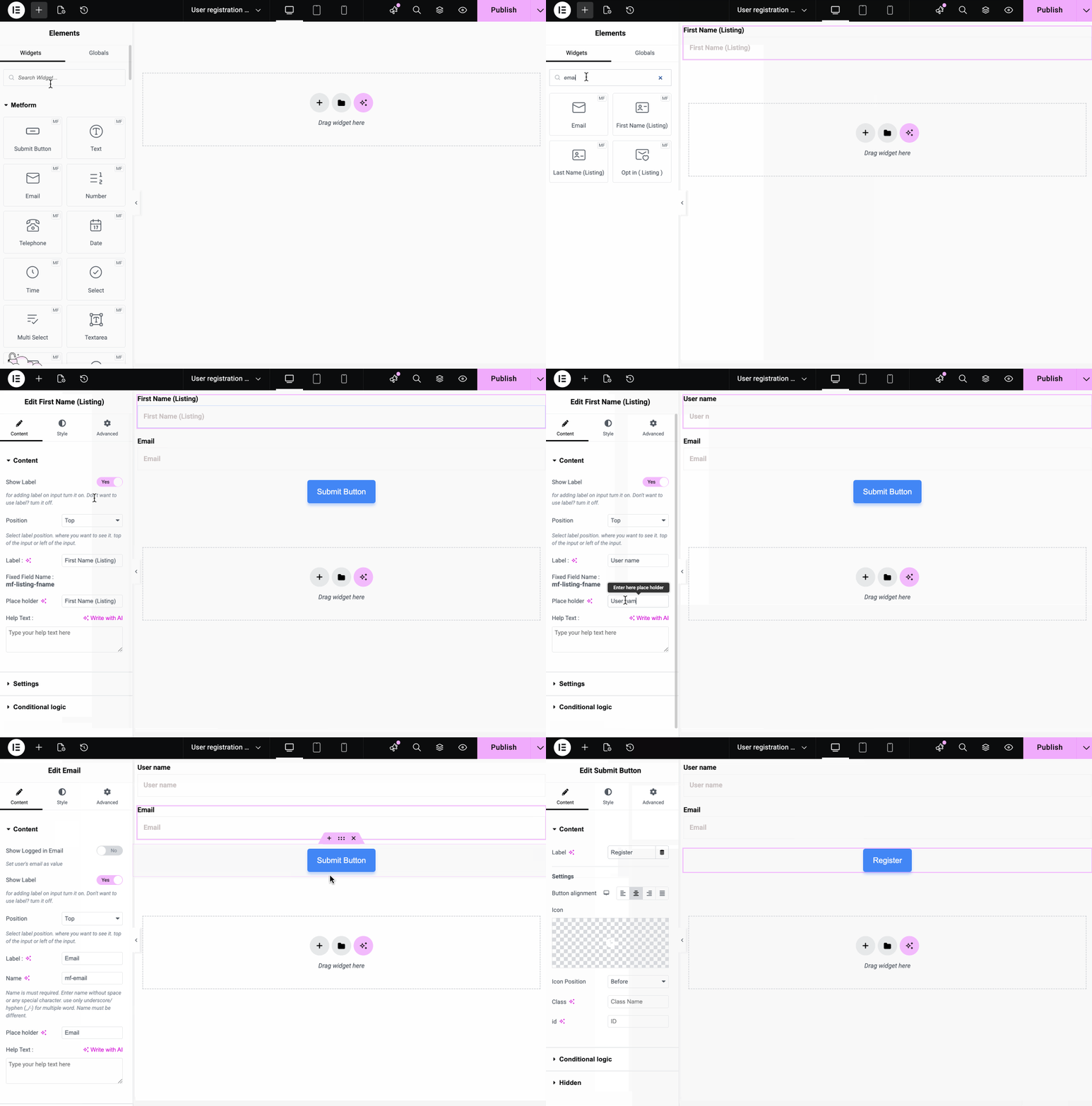
Elementor 편집기로 리디렉션한 후, drag and drop the necessary form fields such as Name, Email, Submit button, etc. Here are the necessary user registration form fields:
- 이름
- 성
- 이메일
- 전화 번호
- 비밀번호
- 리캡차
- 제출 버튼
- 등.
Step 3: Customize the form
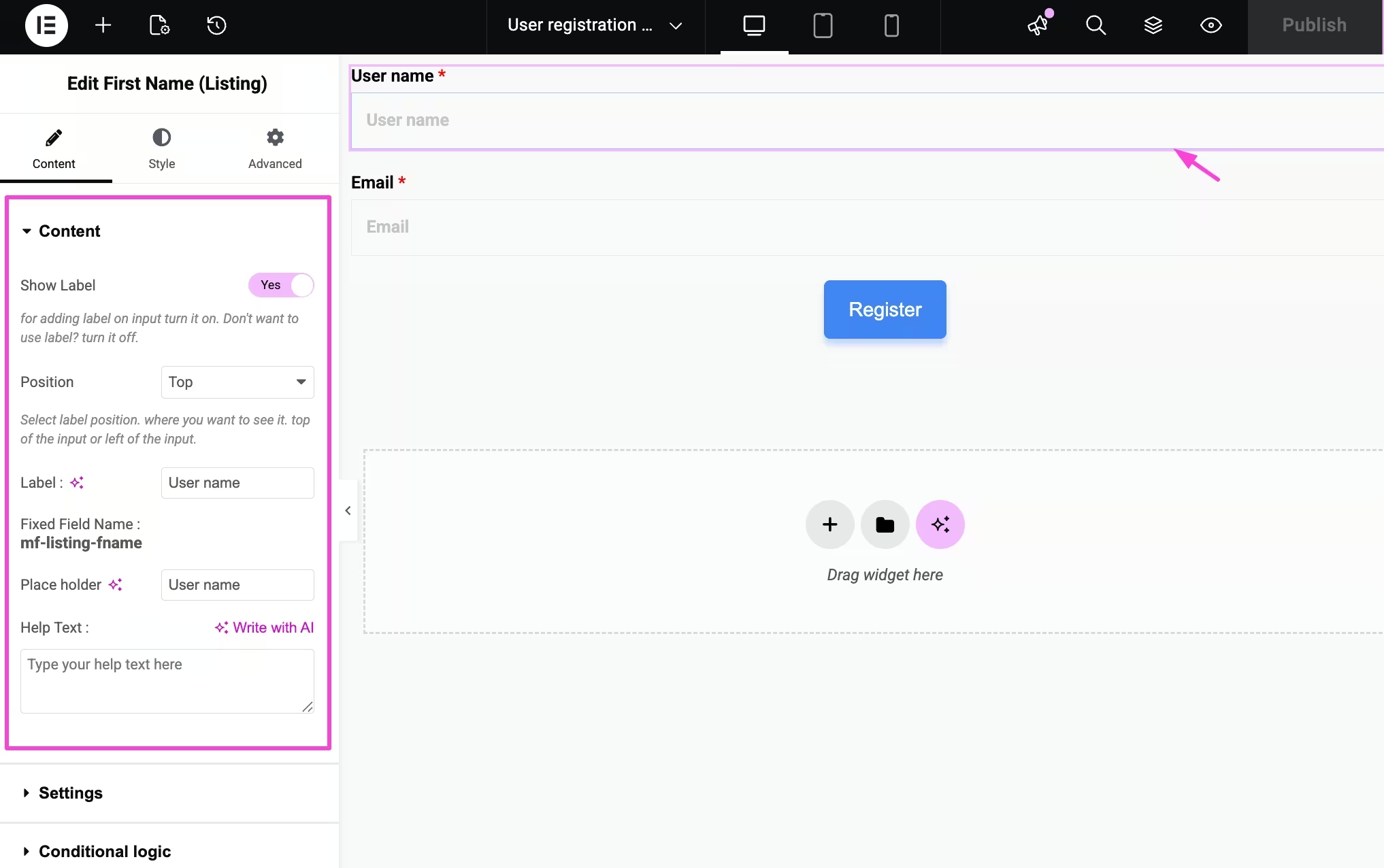
In this step, you have to customize each field from the controls visible on the left side. For customizing form fields:
- Click a field, such as User name, on the right side.
- Edit the content of that field, such as
- 라벨 표시: Enable it to show the label with the field.
- 위치: Select a position from the dropdown.
- 상표: Add the label you want to display for this field.
- 자리표시자: Enter the Placeholder text.
- Help text: Add help text to assist in filling this field.
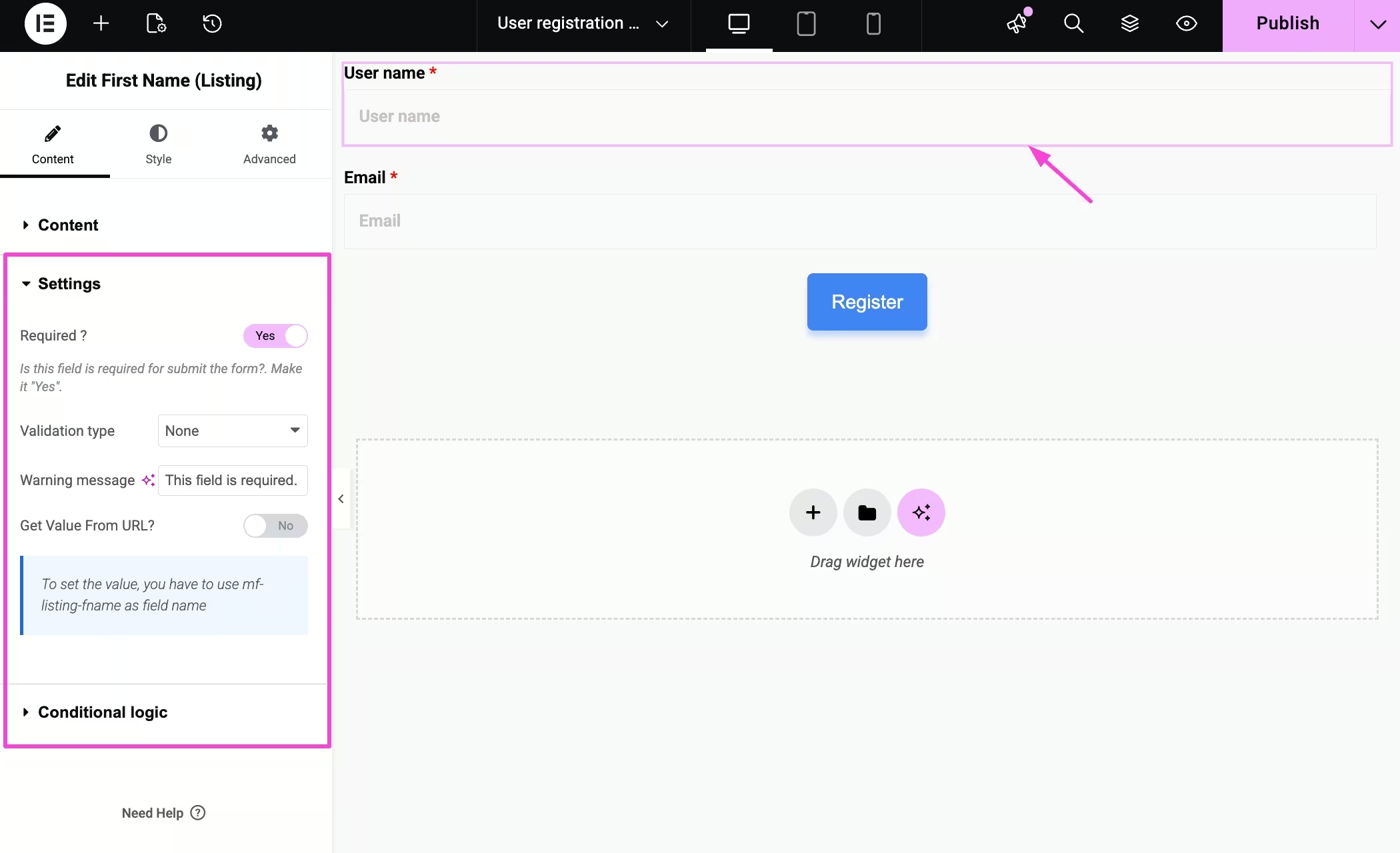
Then, expand the “Settings” tab to customize:
- 필수의: Turn it on to make filling this field required.
- 검증 유형: Select validation type from the dropdown menu.
- 경고 메시지: Enter warning message.
- Get Value From URL: Enable it to get value from the URL.
Step 4: Publish registration form
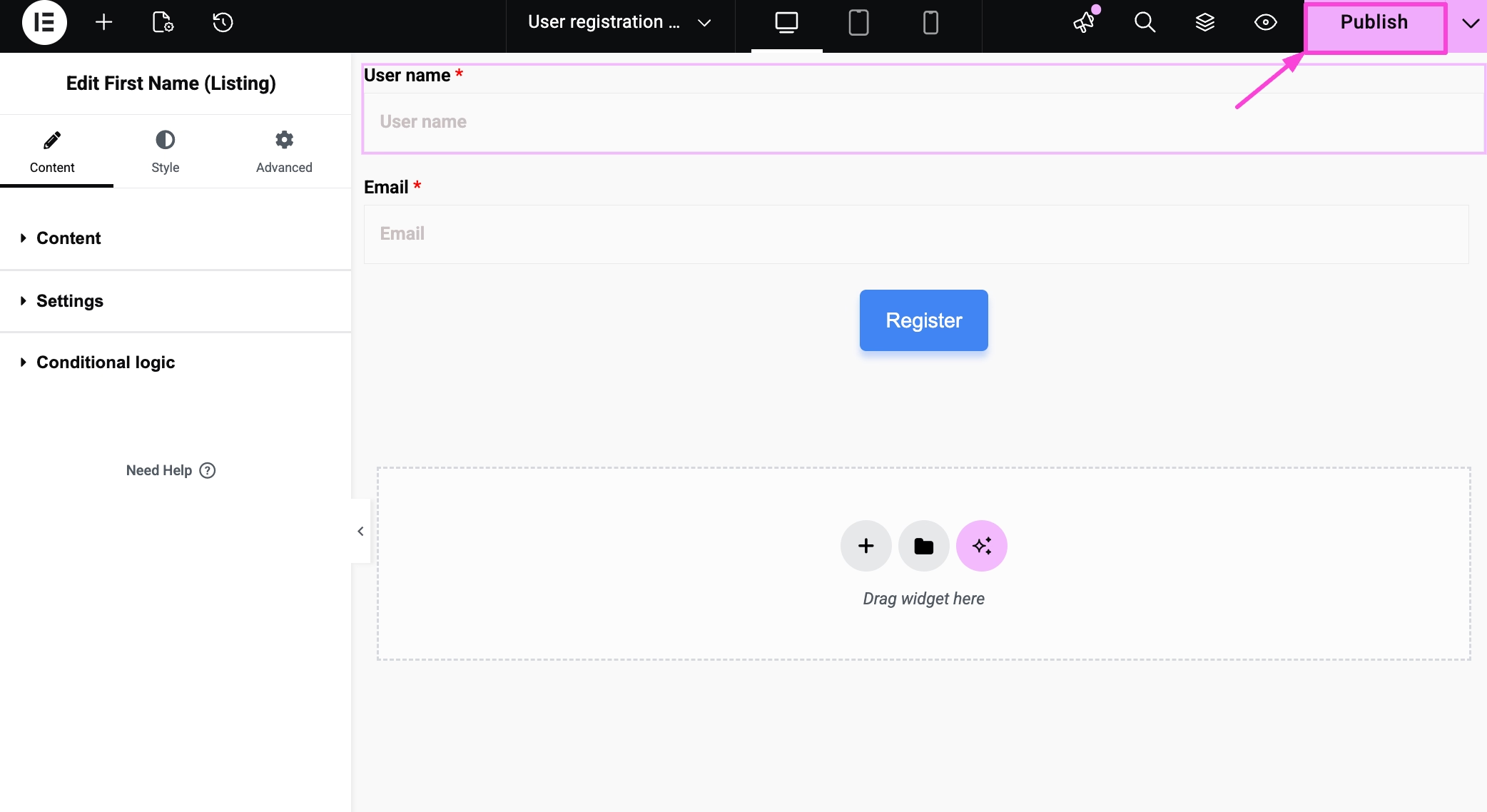
After customizing all the form fields, "게시"를 클릭하세요 button to live your WordPress user registration form with MetForm.
Step 5: Update form settings
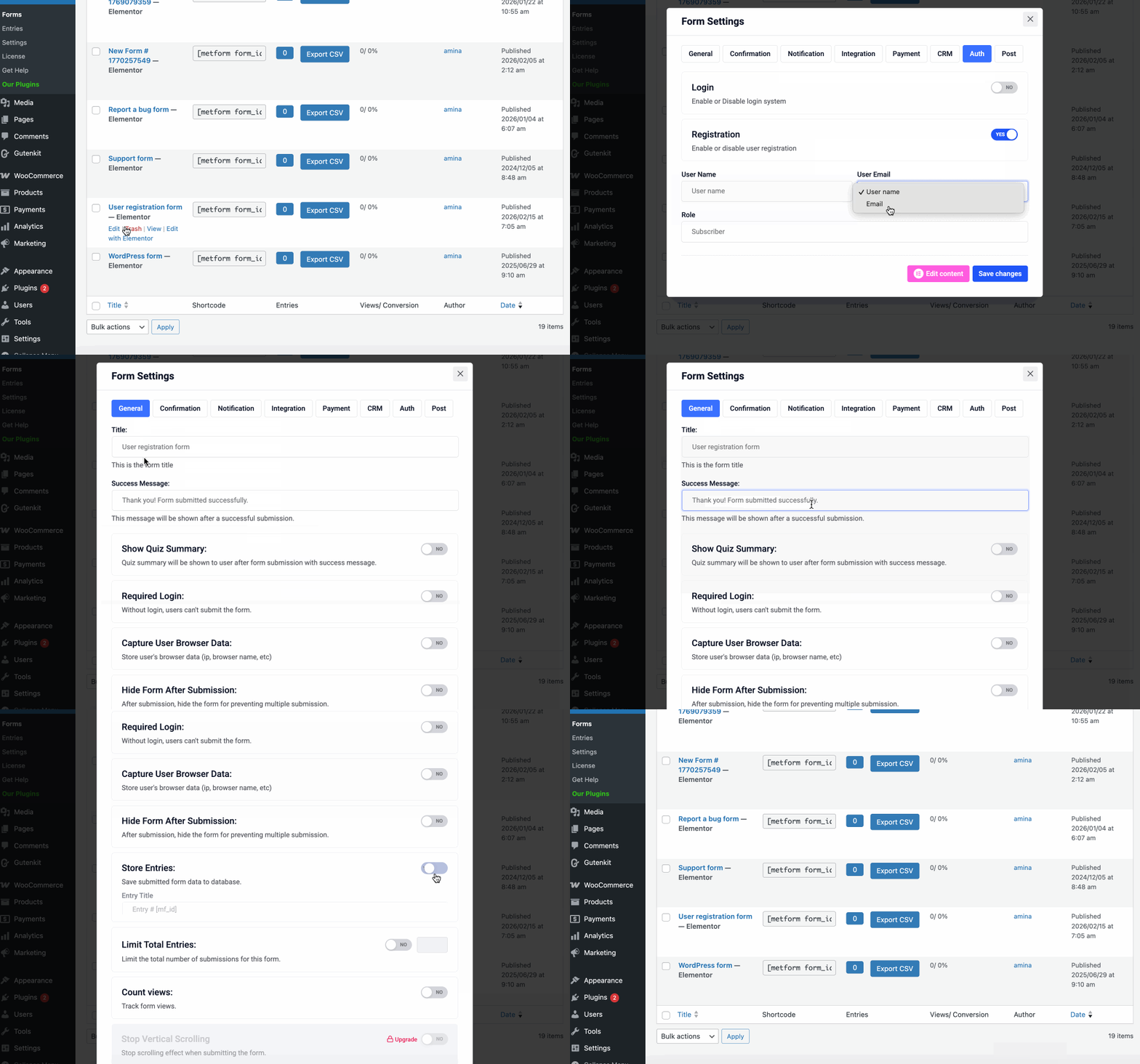
In this step, you have to update form settings by:
- Editing the created user registration form.
- Navigating to the “Auth” tab, turn on the “Registration” field and select:
- User name: Select the user name field.
- Email: Choose the “Email” from the dropdown menu.
- Role: Set the user role.
- Go to the General field to set:
- 제목: Add a title.
- Success message: Enter the success message for submitting the form.
- Store entries: Must enable the store entries to collect submission data.
- Redirect to: Enter the URL where you want to redirect your users.
- 변경 사항 저장 you have made.
Step 6: Start collecting form entries
Now, you will find all the form submissions on the “항목” tab under MetForm on your WordPress dashboard. It means whenever someone submits the form, data will be saved in this field.
자주 묻는 질문
How to enable user registration in WordPress?
Navigate to Settings → General and fill in the checkbox for “Anyone can register” to enable user registration in WordPress.
Which is the free user registration form plugin?
MetForm is the free user registration form plugin that lets you add a form in a drag-and-drop interface.
How to protect user registration form from spam?
You can protect your form from spam submission by configuring the reCAPTCHA widget and adding to your user registration form. This helps prevent spam registrations and bot submissions.
What fields should a WordPress user registration form include?
A basic registration form should include: First Name, Last Name, Email Address, Username, Password, Confirm Password, reCAPTCHA, Submit Button. Besides, you can also add other fields depending on your requirements.
Can you redirect users after successful registration?
Yes. In the General Settings of the form, you can enter a redirect URL to send users to a specific page (such as a welcome page, dashboard, or login page) after successful registration.
마무리
If you want to add a user registration form without writing custom code or editing theme files, this method is appropriate for you. By using MetForm’s drag-and-drop builder and enabling the Registration option under the Auth tab, you can collect user details, assign roles, and manage submissions directly from the dashboard. Once the form is published and user registration is enabled under Settings → General, your WordPress site is ready to accept new users.

답글 남기기