




If you’re facing the WordPress error “Allowed Memory Size Exhausted”, the fastest solution is to increase the WordPress memory limit by updating your wp-config.php, php.ini, .htaccess file or by requesting a higher limit from your hosting provider.
In most cases, setting the WordPress PHP memory limit to 128MB or 256MB immediately resolves fatal errors, improves stability, and restores normal site performance, especially on hypermedia-heavy websites.
In this article, we’ll guide you on how to increase the WordPress PHP memory limit to correct memory exhaustion error in five methods. So, let’s dive into all these methods one by one after exploring the basics of WordPress memory limit.
Quick Overview
To resolve WordPress “Allowed Memory Size Exhausted” error, the fastest solution is to increase the WordPress memory limit by updating your wp-config.php, php.ini, .htaccess file or by requesting a higher limit from your hosting provider.
Here are the methods of how to increase WordPress memory limit in short:
Method 1: Increase WordPress memory limit via wp-config.php
- Edit the wp-config.php file and increase the value of WP_MEMORY_LIMIT from 64M to 128M or 256M. This is the most reliable and beginner-friendly method.
Method 2: Increase PHP memory limit using php.ini
- If the issue persists, update the PHP memory limit in the php.ini file by setting memory_limit = 256M or higher.
- Restart the server after saving changes.
Method 3: Modify the .htaccess file
- When php.ini access is restricted, add memory limit rules to the .htaccess file to increase PHP memory allocation at the server level.
Method 4: Use a WordPress memory extend plugin
- Install a memory extend plugin such as WPMemory and WP Tools to increase the WordPress memory limit without editing core files. This method is ideal for beginners and non-developers.
Method 5: Contact your hosting provider or upgrade hosting
- If none of the above methods work, your hosting plan may be enforcing strict limits. Request a higher memory allocation or upgrade your hosting plan to unlock better performance and scalability.
What is WordPress memory limit?
WordPress memory limit is the maximum amount of server memory (RAM) that a WordPress site is allowed to use while executing PHP scripts.
Why WordPress memory limit matters for your site performance?
The WordPress memory limit directly impacts how efficiently your site handles PHP processes, plugins, and dynamic content. When the memory allocation is too low, WordPress struggles to execute essential tasks.
Learn more why memory limit matters for your site performance:
- Smooth operation: It ensures WordPress has enough PHP memory to run complex operations without interruption.
- Minimizes errors: It Reduces the risk of critical errors such as “Allowed memory size exhausted”.
- Heavy tool support: It supports heavy plugins and builders that demand more memory.
- Loading time: Memory limit reduces slowdown while high traffic or complex request (e,g. backups, imports).
- Sudden failure: this keeps theme and plugin features fully functional without unexpected failures.
- Consistent site performance: It improves consistency of site performance across different environments.

WordPress에서 PHP 메모리 제한 및 최대 업로드 제한을 늘리는 방법:

There are five options you can use to resolve WordPress Memory Exhausted Errors and raise the memory capacity and upload limit in WordPress.
Let’s have a look in detail on how to increase the PHP memory limit in WordPress! 😃
메모: Always keep a new 사이트 파일 및 데이터베이스 백업 실수를 했을 경우 사이트를 복구할 수 있도록 중요한 변경을 하기 전에
1. Increase WordPress memory limit via wp-config.php
wp-config.php 메모리에는 기본 구성 정보가 포함되어 있으므로 WordPress 웹사이트의 필수 파일 중 하나입니다. 이 WP 구성 메모리 제한 파일은 WordPress 파일 시스템의 루트 디렉터리에 있습니다.
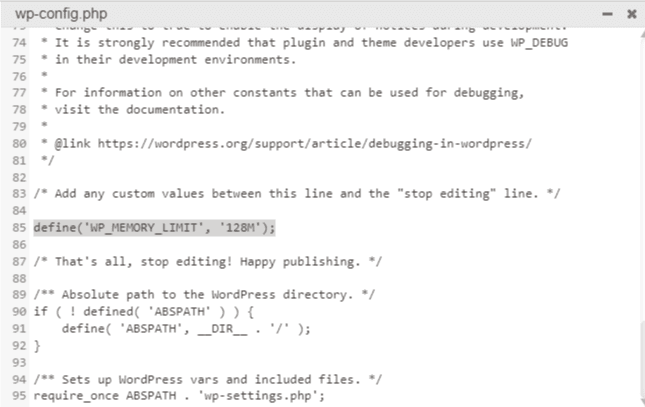
- Look for this line to edit the memory and upload limits on the wp-config.php memory limit file. Here is the WordPress minimum memory limit:
정의('WP_MEMORY_LIMIT', '64M');
- 변화 the value to a higher limit, such as ‘128M’ or ‘256M’.
- 구하다 the WP config PHP memory limit file and check if the error is resolved.
- Note that some hosting providers may limit the maximum WordPress memory you can allocate, so you might not be able to set it to an arbitrarily high value.
정의('WP_MEMORY_LIMIT', '128M');
메모: You’re good to go with this WP config.php memory limit increase method. However, If you’re still having a fatal error, you might need to increase it again. But don’t go too far or 서버가 충돌할 것이다. 아니면 호스트에게 도움을 요청할 수도 있습니다.
2. Edit your PHP.ini file to increase WP memory limit
If changing the wp-config.php file doesn’t solve the problem, you’ll have to deal with the problem in your server settings. WordPress’s PHP memory limit increase method may work here.
공유 호스팅을 사용하는 경우 PHP.ini 파일에 액세스할 수 없습니다. PHP.ini에 대한 액세스 권한이 있는 경우. 루트 폴더에 있을 가능성이 높지만 파일 위치는 호스트에 따라 다릅니다.
수행해야 할 작업은 다음과 같습니다.
- Locate or find your php.ini file. If you can’t find it, simply build your php.ini file 그리고 구하다 it in the WordPress installation’s root directory.
- 사용 your favorite editor to open and 편집하다 your php.ini file.
- Look for the line that says ‘memory limit = 32M’.
- 변화 the 32M or some other number to the desired limit (e.g. 256M or 512M).
- Restart your local host or server after saving your changes.
메모: 자신만의 php.ini 파일을 만들었다면 다음 줄을 추가해야 합니다:
memory_limit = 256M (또는 512M)
어떤 경우에는 목록을 1행에서 3행으로 진행하면서 추가하는 값이 더 커질 수 있습니다. 그만큼 '메모리 제한' 가장 커야 하지만 '최대 파일 크기 업로드' 가장 낮아야 합니다. 그리고 '포스트 최대 크기' 중앙값이어야 합니다.
Clear your browser’s cookies before checking if the WordPress memory limit error has disappeared.
3. Edit your .htaccess file
If you don’t have access to PHP.ini, you’ll have to take the following attempts:
- 편집하다 your WordPress .htaccess memory limit file as a last resort. Since it is a secret file, the .htaccess file begins with a mark.
- 확인하다 to see if your SFTP file manager is keeping some files hidden from view if you don’t see them in your root folder.
- Here are the details you need to add to your .htaccess file to increase the WordPress memory limit:
php_value memory_limit 256M php_value upload_max_filesize 12M php_value post_max_size 13M- Increase the WordPress PHP memory capacity if it hasn’t already been set. You can 다음 코드를 사용하십시오 to increase the PHP WordPress memory limit:
ini_set('memory_limit', '512M'); 그러나 작성된 파일에 대해서만 작동합니다.4. Use the memory extend plugin
Other than editing wp-config.php, PHP.ini, and .htaccess files, you can extend the limit by utilizing the WordPress PHP memory limit increase plugin. There are numerous memory extend plugins such as WP메모리, WP 도구, 등등. 이것들 WordPress 메모리 제한 플러그인 let you improve limits without touching your memory limit files. It is a friendly process for beginners and non-coders. So, try to optimize the memory limit by adopting a memory extend plugin if you want to avoid coding hassle.
5. Through the hosting provider
Contacting your hosting provider to increase your memory limit is the easiest among all methods. Most of the popular hosting providers include this service. However, their services may vary depending on the type of package you’re using. Also, some might not include this option. In this case, you need to adopt any one of the four methods mentioned above to enhance the memory capacity of your WordPress site.
6. Upgrade hosting service:
Upgrading your hosting plan becomes essential when your WordPress site starts demanding more server resources than your current hosting environment can provide. A higher-tier hosting plan offers increased PHP memory limits, better resource allocation, and improved scalability which ensures your site runs smoothly without constant technical interupption.
You should upgrade your hosting plan when:
- You frequently encounter memory exhausted or fatal errors despite increasing the WordPress memory limit.
- Your site has outgrown shared hosting limitations.
- You are running WooCommerce, page builders, or multiple resource-intensive 플러그인.
- High traffic causes slow loading times or server timeouts.
- Site operations like backups, imports, or updates fail or take too long.
- You need better performance, reliability, and room for future growth.
How to Fix Memory Limit While Migrating to a Live Server?
As PHP is a server-side 프로그래밍 언어, and WordPress is written in it. For PHP to work properly, every website needs a hosting server.
So, when you move a local WordPress site to a live server, it’s quite common to run into PHP memory limit errors. This usually happens because your local machine has more flexible resources, while most hosting environments (especially shared hosting) set strict limits to keep things under control.
Here’s a breakdown of why this happens and how to fix it:
1. Increase PHP memory limit in wp-config.php:
- You can increase the WordPress memory limit by adding a line to your
wp-config.php파일.
define( 'WP_MEMORY_LIMIT', '256M' );- The ‘256M’ (256 mega bites) here is the PHP memory limit. You can replace this to a higher value like ‘512M’ to increase the memory limit.
2. Update php.in file:
If updating your wp-config.php file doesn’t fix the issue, it could be that your server’s global PHP memory limit is set lower. In that case, you will need to:
- 조정하다 php.ini file if you have the edit access to it.
- The location of this file can vary depending on your hosting setup. Find it inside your hosting control panel (like cPanel).
- If you can’t locate it, your hosting provider can point you in the right direction.
- Once you’ve opened the file, search for the following line that says memory_limit and increase the value to a higher limit.
Before:
memory_limit = 256M;후에:
memory_limit = 512M;3. Edit .htaccess File
Some hosting providers (mostly Apache servers) let you to override PHP settings right from the .htaccess file in your WordPress root folder.
- Add this line to edit .htaccess file:
php_value memory_limit 512MWordPress에는 얼마나 많은 메모리가 필요합니까?
WordPress의 메모리 요구 사항은 웹 사이트의 크기 및 복잡성, 사용하는 플러그인 및 테마 수, 사이트에서 수신하는 트래픽 양과 같은 여러 요소에 따라 달라질 수 있습니다. 따라서 WordPress에 필요한 메모리 양을 대답하는 것은 그리 간단하지 않습니다.
WordPress 자체의 최소 메모리 요구 사항은 64MB이지만 일반적으로 대부분의 웹 사이트에는 충분하지 않습니다. 권장되는 최소 용량은 약 128MB이지만, 많은 호스팅 제공업체에서는 최적의 성능을 위해 256MB 이상을 할당할 것을 권장합니다.
기본 기능을 갖추고 트래픽 수준이 낮은 소규모 웹사이트의 경우 256MB 메모리이면 충분합니다. 그러나 웹 사이트가 성장하고 더 많은 플러그인, 테마를 추가하고 트래픽이 증가함에 따라 더 많은 메모리를 할당해야 할 수도 있습니다.
It’s worth noting that memory requirements can also vary depending on the hosting environment. Shared hosting plans may have stricter memory limitations compared to dedicated or cloud hosting solutions, such as 킨스타.
WordPress 웹사이트의 정확한 메모리 요구 사항을 확인하려면 호스팅 공급자나 WordPress 플러그인에서 제공하는 도구를 사용하여 사이트의 메모리 사용량을 모니터링할 수 있습니다. 이러한 도구는 사이트에 메모리가 부족한지, 추가 리소스를 할당해야 하는지 확인하는 데 도움이 될 수 있습니다.
최적의 메모리 할당을 결정하려면 항상 호스팅 공급자나 시스템 관리자와 상담하는 것이 좋습니다. 특정 WordPress 설치, 웹사이트 요구 사항과 호스팅 환경에 따른 지침을 제공할 수 있기 때문입니다.
WordPress 메모리 소진 오류란 무엇입니까?
자세한 내용은 다음 동영상을 확인하세요. 치명적인 오류 솔루션 아래에:
웹 서버는 다른 장치와 동일한 방식으로 작동합니다. 여러 응용 프로그램을 동시에 효과적으로 실행하려면 메모리가 필요합니다. WP의 다양한 프로그램에는 서버 관리자가 서로 다른 양의 메모리 제한을 할당합니다.
WordPress가 실행될 때 테마 및 플러그인 처리, PHP 스크립트 실행 등 다양한 작업을 처리하려면 일정량의 메모리(RAM)가 필요합니다. 기본적으로 WordPress에서는 사용할 수 있는 메모리 양에 대한 제한을 설정합니다. 웹사이트가 이 한도를 초과하면 "메모리 소진 오류"가 발생합니다.
| 치명적 오류: WordPress allowed memory size of 67108864 bytes exhausted (tried to allocate 2348617 bytes) in /home4/xxx/public_html/wp-includes/plugin.php on line xxx 또는 치명적 오류: 허용된 메모리 크기 41943040바이트 소진됨 치명적인 오류 허용된 메모리 크기 WordPress |
이 오류 메시지는 WordPress 코드에 기본 할당 메모리 제한보다 더 많은 메모리 제한이 필요할 때 나타납니다.
WordPress에서 "소진된 허용 메모리 크기"란 무엇입니까?
WordPress의 "허용된 메모리 크기가 소진되었습니다"라는 오류 메시지는 WordPress 사이트가 할당된 메모리 제한을 초과했음을 나타냅니다. 각 WordPress 사이트에는 스크립트를 실행하는 동안 PHP가 사용할 수 있는 메모리 양을 제한하는 사전 정의된 메모리 제한이 있습니다.
When a script, such as a plugin or a theme, tries to allocate more memory than the WordPress allowed memory size or limit, this error occurs. The error message usually includes the specific memory size that has been exhausted.
예를 들어 오류 메시지는 다음과 같습니다.
치명적 오류: 123행의 /path/to/wordpress/wp-includes/some-file.php에서 67108864바이트의 허용 메모리 크기가 소진되었습니다(123456바이트 할당 시도).
WordPress PHP 메모리 제한은 무엇입니까?
PHP는 서버측 프로그래밍 언어 웹사이트의 HTML 페이지를 생성합니다.
PHP는 WordPress 질문을 처리하고 계산을 수행하는 등의 작업을 수행할 수 있는 다목적 동적 프로그래밍 언어이지만 이를 위해서는 메모리가 필요합니다.
WordPress’s default defined memory limit is 32MB, 하지만 키워야 하는 경우에는 정상입니다. 예를 들어 WooCommerce는 다음과 같은 WordPress 메모리 제한을 권장합니다. 64MB.
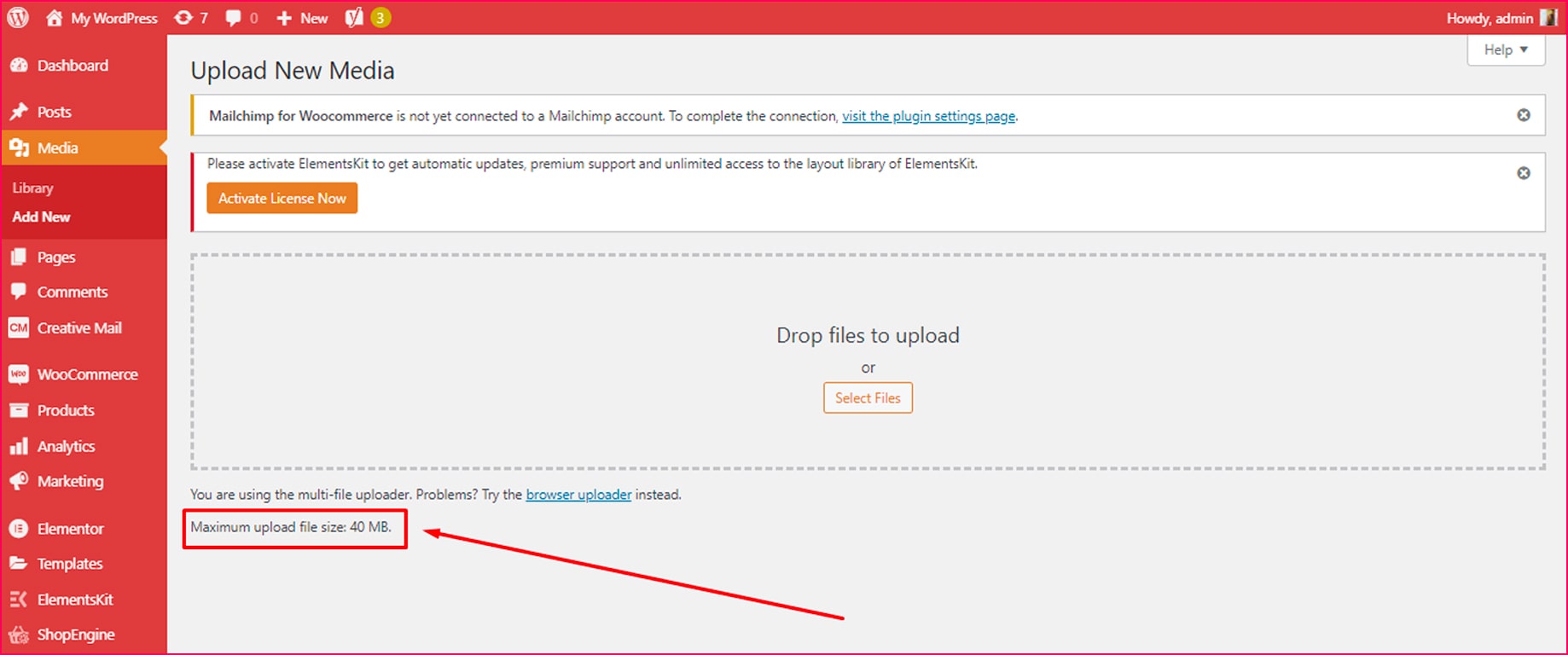
WordPress가 기본 메모리 제한에 도달하면 이를 최대로 높이려고 시도합니다. 단일 사이트 설치의 경우 40MB 그리고 다중 사이트 설치의 경우 64MB. 충분하지 않으면 치명적인 오류 메시지 줄이 나타납니다.
더 많은 메모리가 필요한 플러그인을 설치하지 않는 한 메모리 제한은 128MB 대부분의 페이지에는 충분합니다. 설치하다 서버 IP 및 메모리 사용량 표시 플러그인을 사용하여 각 플러그인이 소비하는 메모리 양을 확인할 수 있습니다.
플러그인을 비활성화하면 플러그인을 활성화한 후 플러그인이 메모리 사용에 어떤 영향을 미치는지 확인할 수 있습니다. 서버 IP 및 메모리 사용량 표시 플러그인. 서버 과부하를 방지하기 위해 고품질, 올인원 플러그인 메모리를 효율적으로 사용할 수 있습니다.
WordPress에서 더 많은 메모리 제한을 요구하는 이유는 무엇입니까?
메모리 제한을 늘리려면 WordPress wp-config.php 메모리 제한 파일에서 최대 업로드 크기를 늘려야 합니다.
그런데 주의하셔야 할 문제가 있습니다. 메모리 제한을 늘리면 WordPress의 비효율성을 식별하기가 더 어려워집니다.
WordPress 메모리 제한을 늘리기 전에 다음을 수행하는 것이 좋습니다. 먼저 무엇이 더 많은 메모리를 소비하는지 알아내십시오.. 문제에 더 많은 리소스를 투입하면 장기적으로 훨씬 더 많은 비용이 발생할 수 있습니다. 특히 호스트를 업그레이드할 계획이 있는 경우 더욱 그렇습니다.
WordPress의 비효율성은 사이트 속도를 저하시키고 사용자 경험을 저하시킬 수 있습니다. 그러나 솔루션을 얻으려면 문제의 근본 원인을 식별해야 하며, 이는 향후 다양한 문제를 해결하는 데 도움이 될 수 있습니다.
단지 4.4%의 워드프레스 웹사이트 최신 버전의 PHP를 사용하세요, 그리고 64%는 이전 버전을 사용합니다. 더 이상 활성 업데이트를 받지 않습니다.
호스팅 서버의 PHP를 최신 버전으로 업그레이드하면 WordPress가 더 효과적으로 작동하고 WordPress에서 메모리 용량을 늘릴 필요가 없습니다.
WordPress의 최대 업로드 제한은 무엇입니까?
WordPress의 최대 업로드 제한은 WordPress에서 업로드를 허용할 수 있는 최대 파일 크기를 나타냅니다. WordPress의 최대 업로드 용량 미디어 라이브러리 업로드 화면에서 찾을 수 있습니다..
이는 호스트에게 유익하지만 사이트의 효율성도 향상시킵니다. 예를 들어 대용량 이미지 파일 업로드는 다운로드하고 표시하는 데 오랜 시간이 걸리기 때문에 웹에서 성능이 저하됩니다.
🤷♀️ 명심하세요:
문제에 더 많은 비용을 지출하고 WP 메모리 제한을 늘리기 전에 메모리 제한과 마찬가지로 파일 크기를 먼저 줄일 수 있는 방법이 있는지 확인하십시오.
이미지가 컨테이너에 비해 너무 크거나 압축하지 않은 경우 자산을 적절하게 향상시키지 못하는 문제의 근본 원인을 해결하기 때문에 해당 문제를 먼저 해결할 수 있습니다. 자세한 내용은 당사를 참조하세요. 웹 사이트 속도를 높이는 방법에 대한 가이드.

자주 묻는 질문
Does WordPress memory limit effect performance?
Yes. A low WordPress memory limit slows down PHP execution, causes fatal errors, and prevents plugins and themes from running smoothly that directly impact site performance.
Is 256M enough?
For most WordPress sites, 256M is sufficient. However, hypermedia-heavy sites, WooCommerce stores, or sites using advanced page builders may require more memory.
How to check current WordPress memory limit?
You can check the WP memory limit from wp-config.php file. In this file, you will find a line similar ( ‘WP_MEMORY_LIMIT’ , ‘128MB’ ). This means your WordPress memory limit is 128MB that you can further change by editing your WordPress PHP or other files.
WP_memory_limit와 WP_max_memory_limit의 차이점은 무엇입니까?
WP_memory_limit는 프런트엔드 메모리 제한을 나타냅니다. 반면, WP_max_memory_limit는 백엔드 개발을 위해 할당되는 PHP 메모리 제한을 나타냅니다.
What does Memory_limit=-1 mean in PHP?
Memory_limit= -1은 잘못 작성된 PHP 스크립트로 인해 모든 메모리를 사용하지 않도록 설정됩니다. 이는 PHP 스크립트가 과도한 서버 리소스를 사용하여 성능 문제를 일으킬 수 없음을 의미합니다.
마무리
WordPress 웹사이트에서 서버를 구성하고 메모리 제한을 늘리는 치명적인 오류를 처리하는 것은 매우 긴장되는 일입니다. 따라야 하는 절차는 선택한 호스팅 회사에 따라 크게 달라지므로 안정적인 호스트를 얻는 것이 매우 중요합니다. PHP WordPress 메모리 제한을 늘리기 위해 변경해야 하는 설정을 찾고 수정하는 데 도움을 줄 것입니다.
그러나 wp 메모리 제한을 늘리면 wp-config 메모리 제한 파일을 통해 웹사이트를 방문하는 것은 믿을 수 있는 가장 쉬운 방법입니다., 나머지 두 개는 약간 아래에 있을 수 있습니다.



답글 남기기