






그만큼 Merge Cells feature in a table lets you combine two or more cells into one larger cell. It’s commonly used to create a single heading across multiple columns or to group related data under one cell.
TableKit helps improve table layout by grouping related content naturally.
Required plugin and theme:
- TableKit: 플러그인 받기
- 주제: Any block theme. e.g., 안녕하세요 블록스 또는 Twenty Twenty-Five theme.
How to merge table cells in WordPress with TableKit #
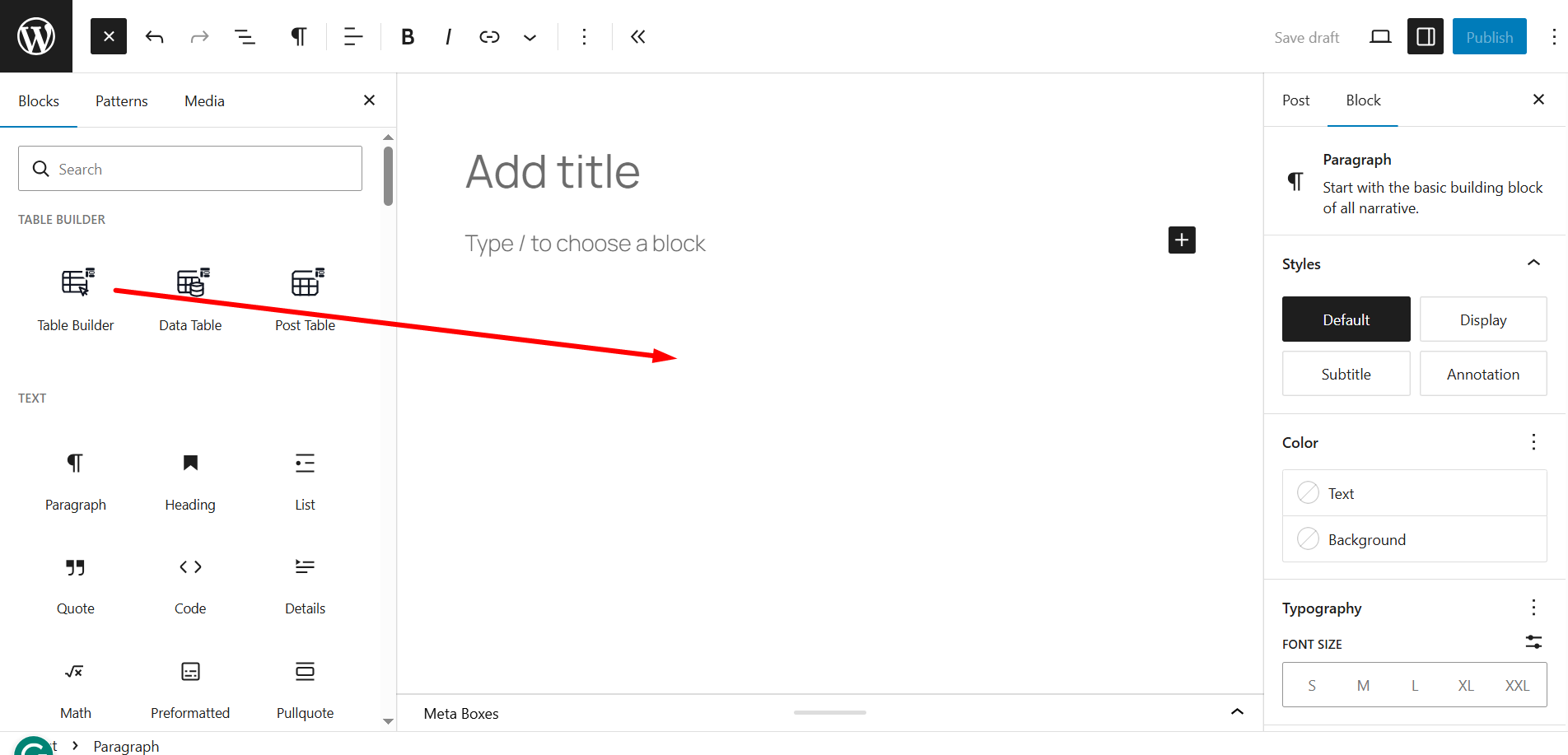
Drag and drop the Table Builder block of TableKit.
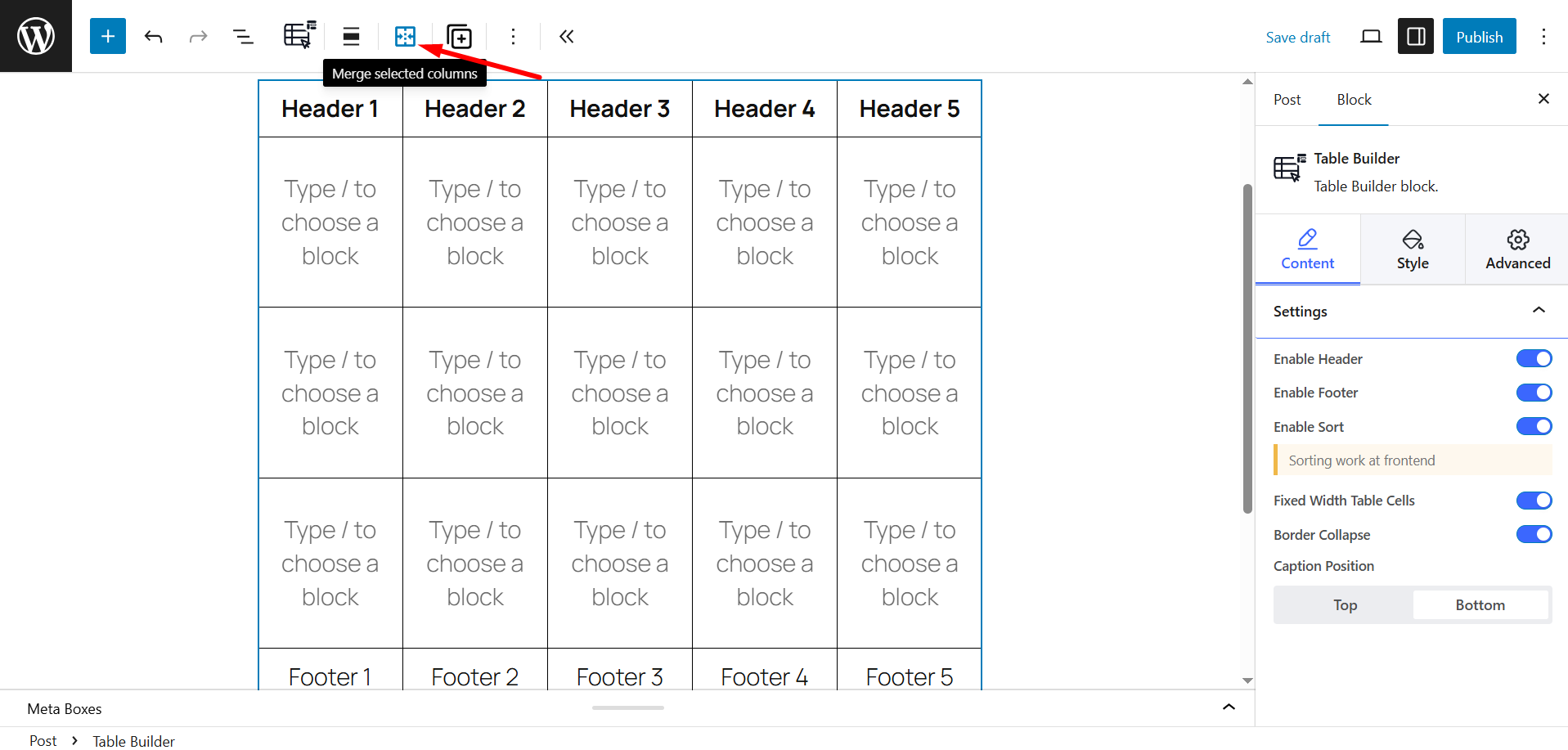
In the top bar, Find Merge selected columns icon.
How to select table cells to merge? #
You can combine multiple adjacent cells into one larger cell across your headers, body rows, or footers. By entering “Merge Mode,” you can easily group related information together to create a cleaner and more organized table layout.
To merge cells in WordPress table, firstly select more than one cell in the table.
However, you can simply use your keyboard arrows or mouse cursor to pick and select cells.
⚫ Keyboard controls:
Hold the Shift key, then use the keyboard arrow keys (🔼🔽◀️▶️) to move up, down, left, or right to select multiple cells for merging.
⚫ Mouse controls:
Hold the Shift key 그리고 drag your mouse cursor across the cells you want to select. This lets you quickly select multiple adjacent cells for merging.
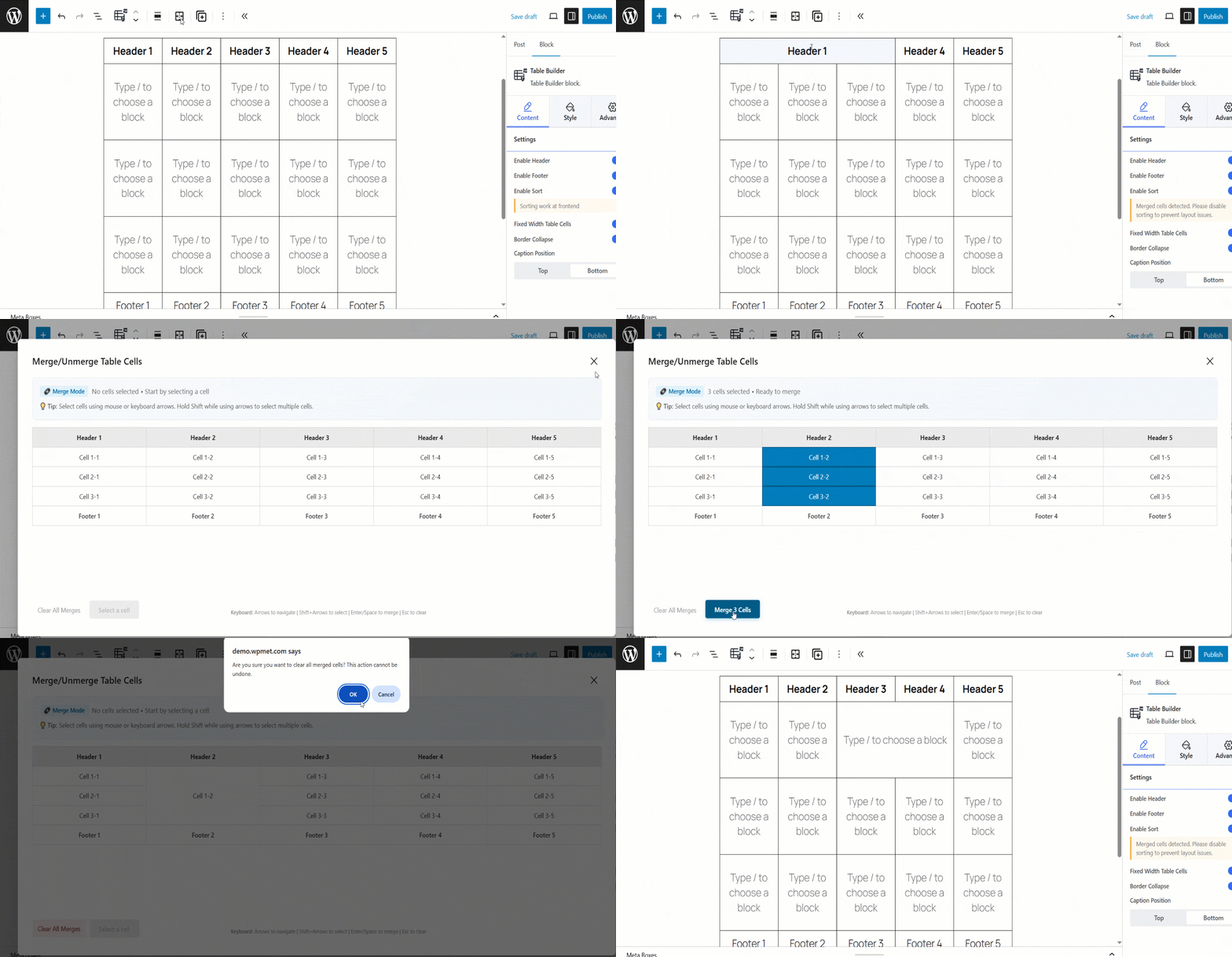
- Flexible Selection: You can merge cells in the Header, Cell (body), or Footer areas of your table.
- Easy Controls: Use the Enter or Space key to merge your selection, and use Clear All Merges if you need to reset the layout.


