





This guide will walk you through the process of integrating Brevo (formerly Sendinblue) と ポップアップキット. Integrating these two tools allows you to capture leads through your WordPress popups and sync them directly to your Brevo contact lists.
How to Integrate PoupKit with Brevo (Sendinblue) #
Follow our step-by-step tutorial on connecting PoupKit with your Brevo (Sendinblue) account.
Step 1: Get Brevo API Key #
To connect PopupKit to your Brevo account, you first need to generate an API v3 key:
- ログイン あなたへ Brevo account.
- Click on your Profile name in the top-right corner of the dashboard.
- From the dropdown menu, select SMTP & API.
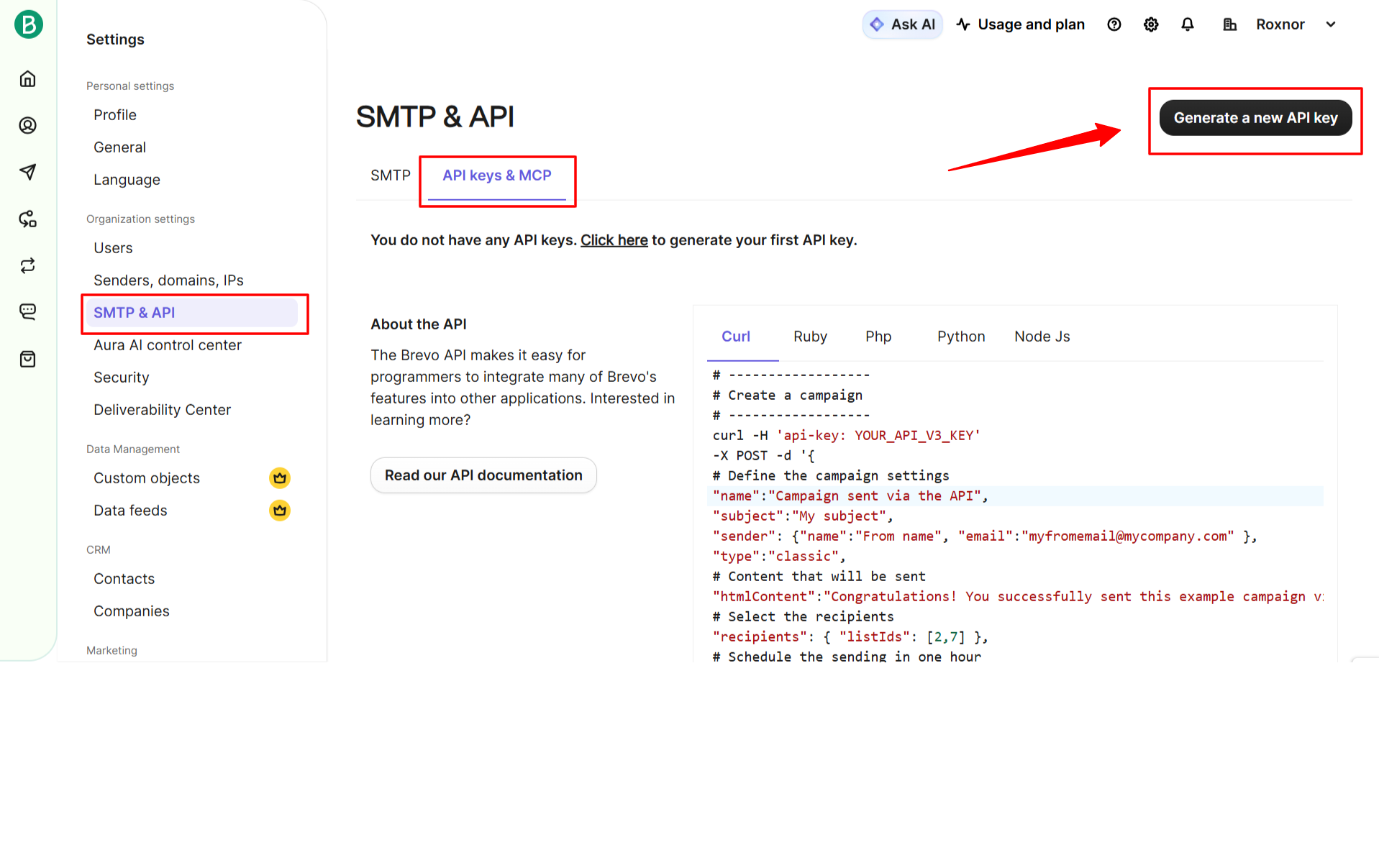
- クリックしてください API Keys タブ。
- クリック Generate a new API key ボタン。
- Name your key: Provide a clear name like “PopupKit WordPress” so you can identify it later.
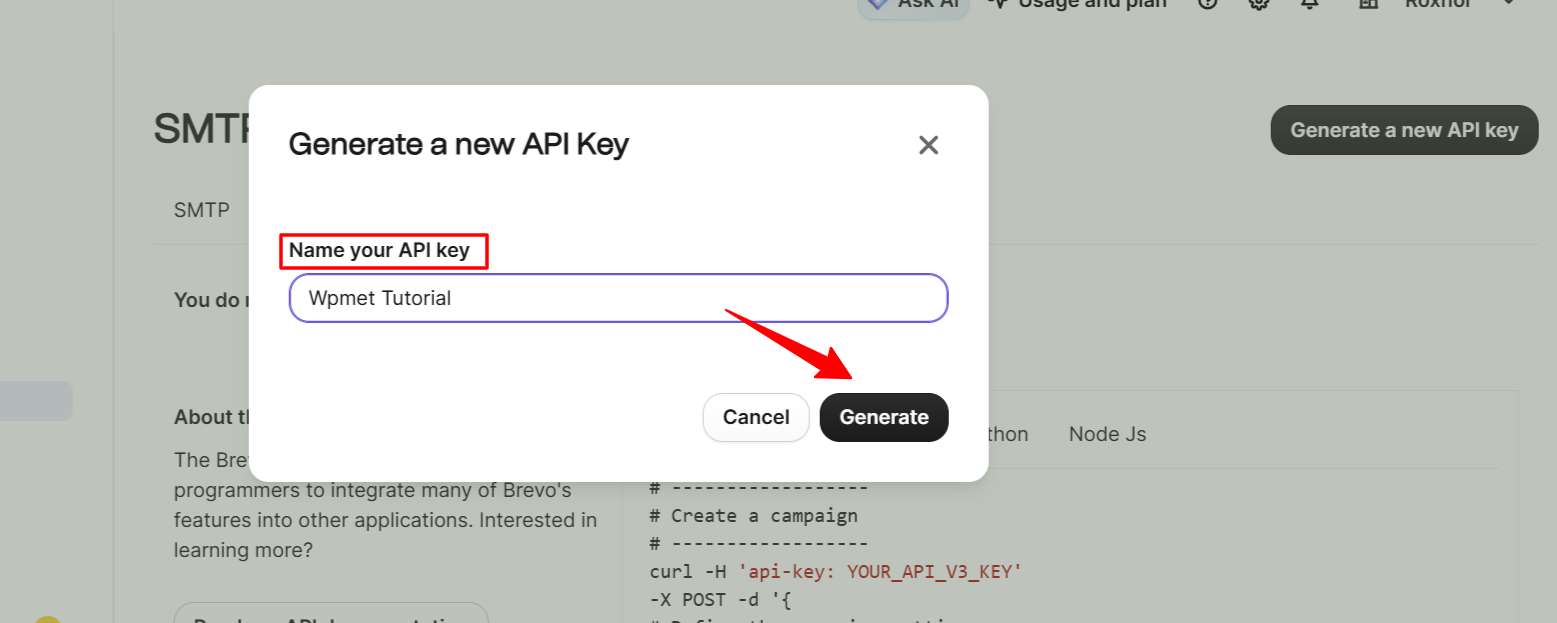
- クリック 生成する.
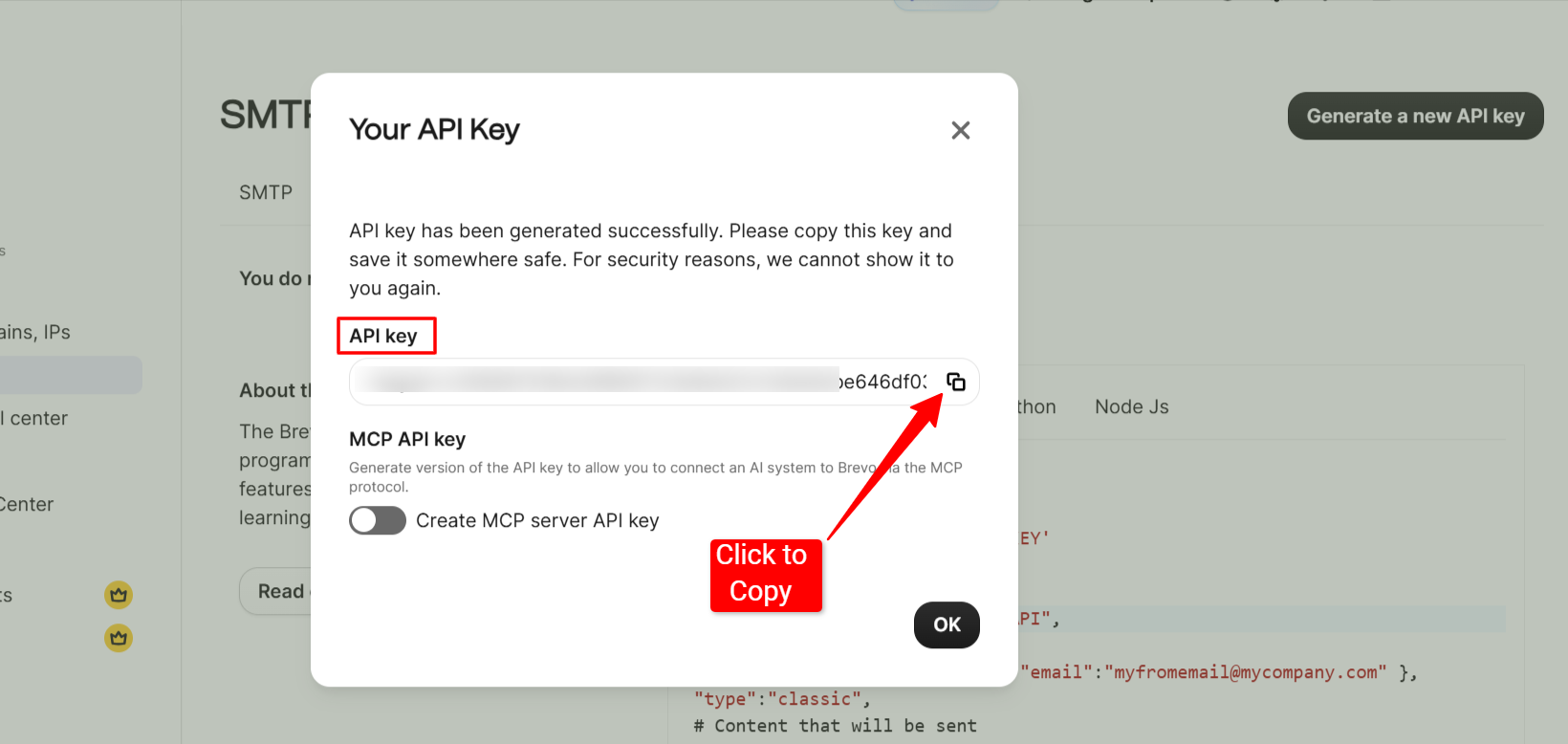
- Copy the API Key: Ensure you copy the full key immediately. For security, Brevo will not show this key again once you close the window.
Step 2: Add API Key to PopupKit Settings #
After obtaining your key, you must authorize the connection within WordPress:
For this, log in to your WordPress ダッシュボード。 クリックしてください ポップアップキット from the sidebar. Move to the 統合 タブ。
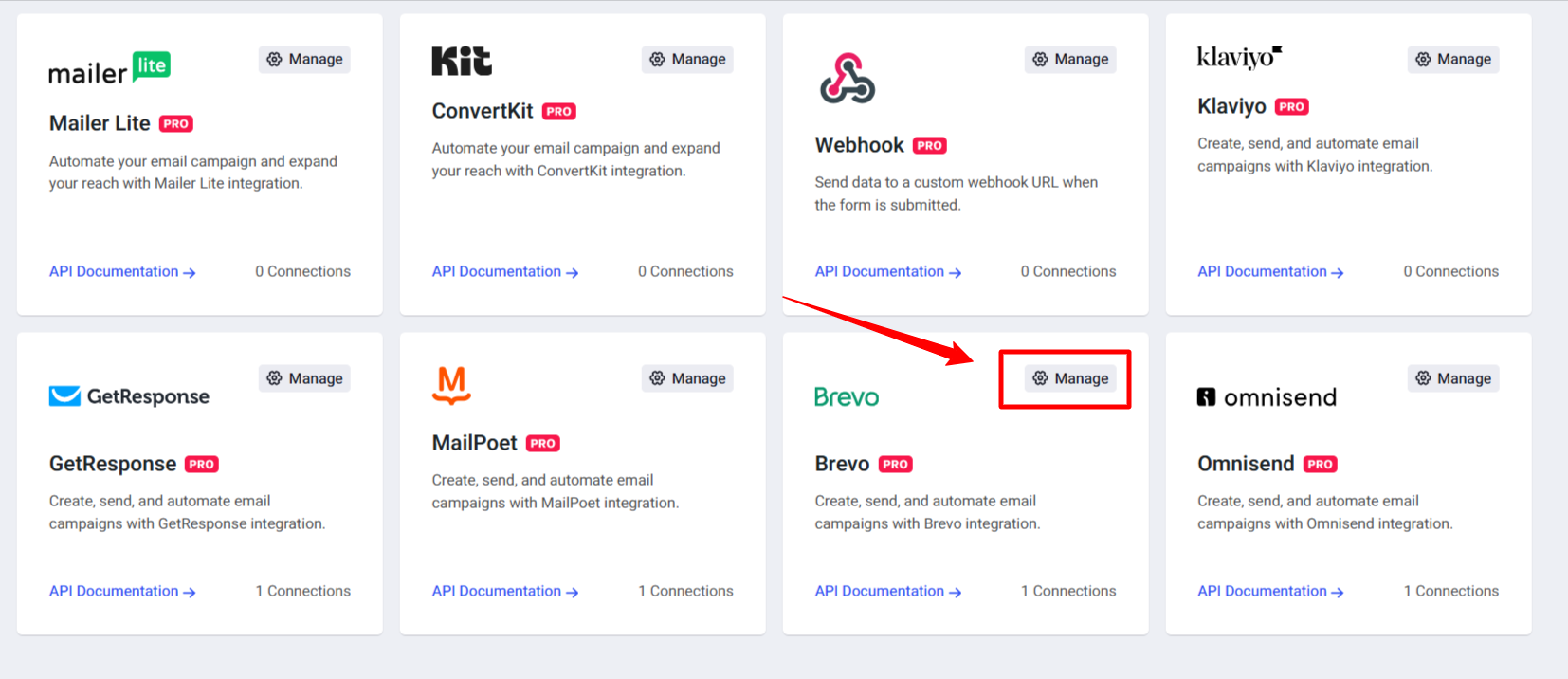
位置を特定する Brevo (Sendinblue) in the list of marketing providers and hit the 管理 オプション。
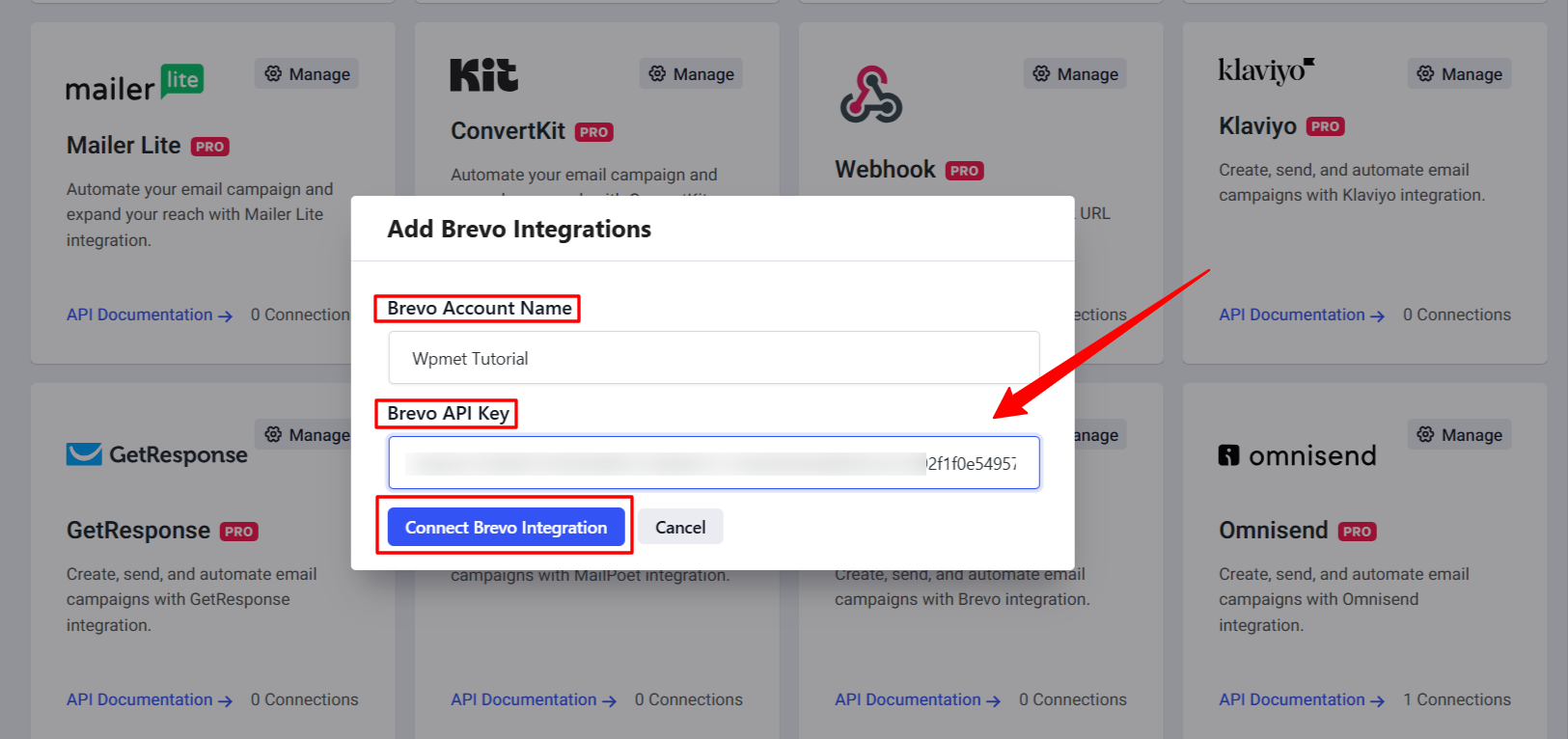
And, you’ll find a popup screen to select your Brevo Account and paste your API Key. Enter them into the provided field and hit the “Connect Brevo Integration” ボタン。
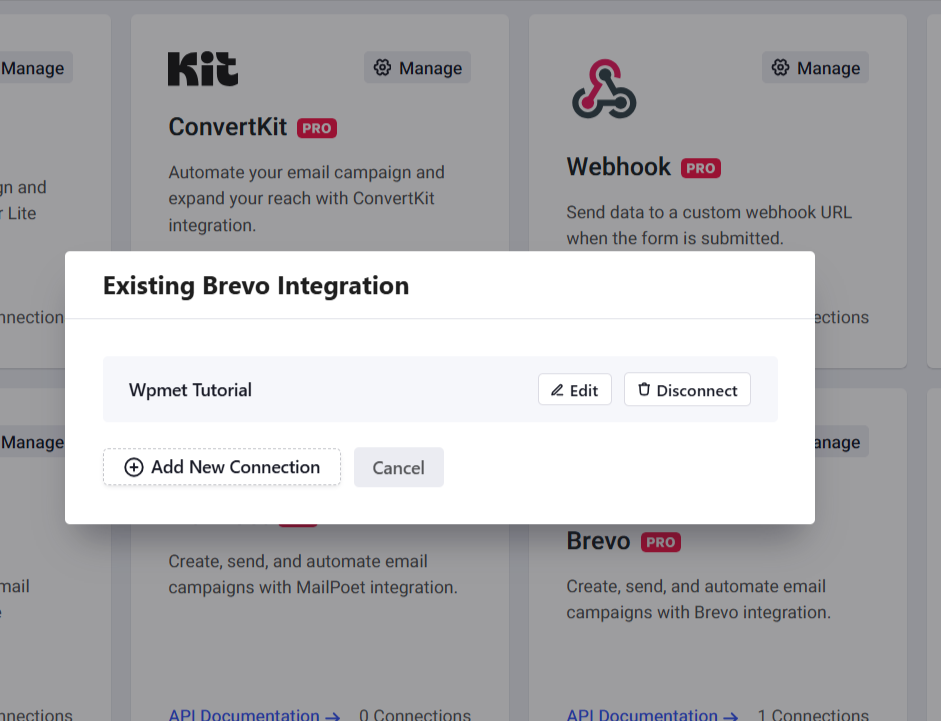
This step will make sure your Brevo (Sendinblue) API attachment with PopupKit.
Step 3: Configure Brevo in the Popup Editor #
Once the connection is established, you can link specific popups to your Brevo lists:
Create a new popup campaign or enter an existing one with PoupKit. Once you land in the editor canvas, add the 形状 ブロック。
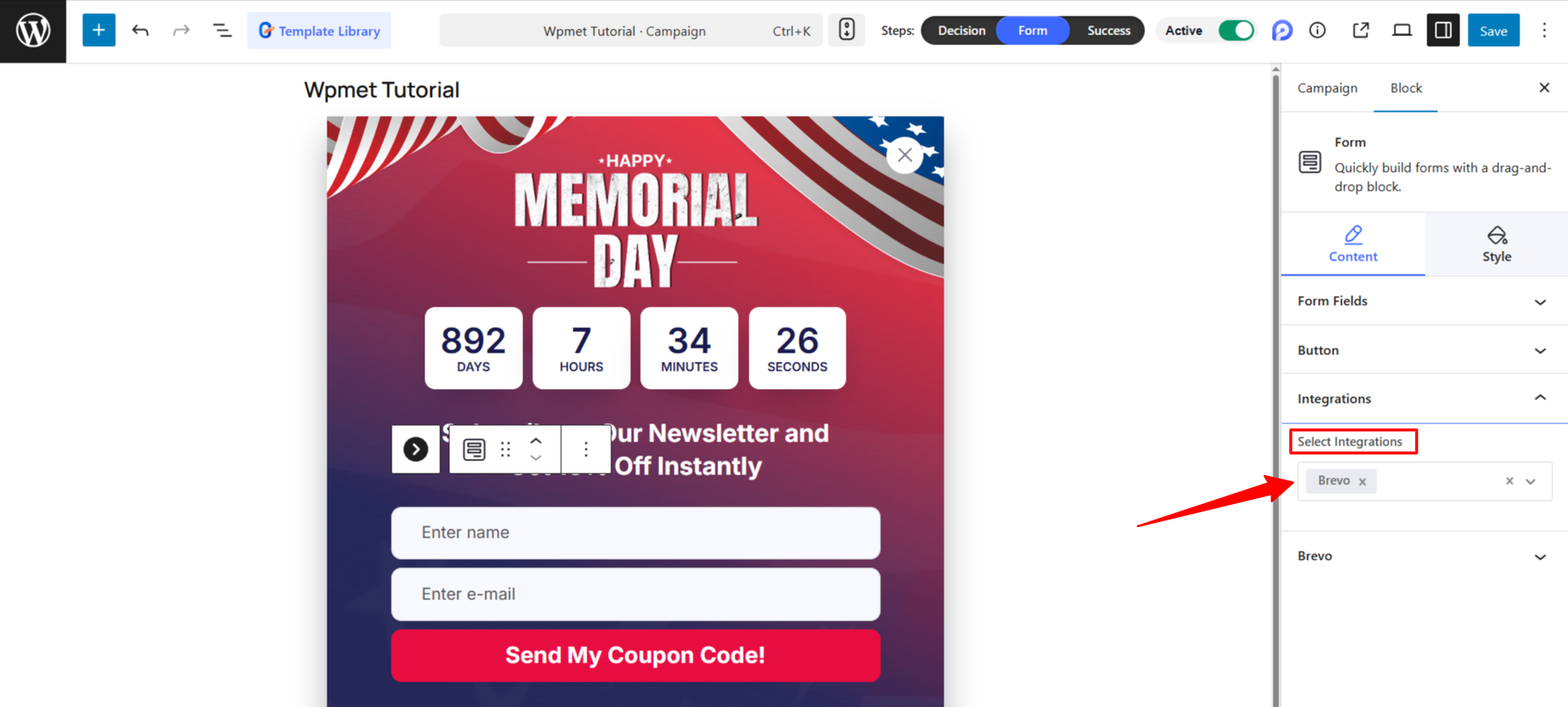
In the settings panel on the left, open the 統合 section. Then, select Brevo from the “Select Integration” dropdown.
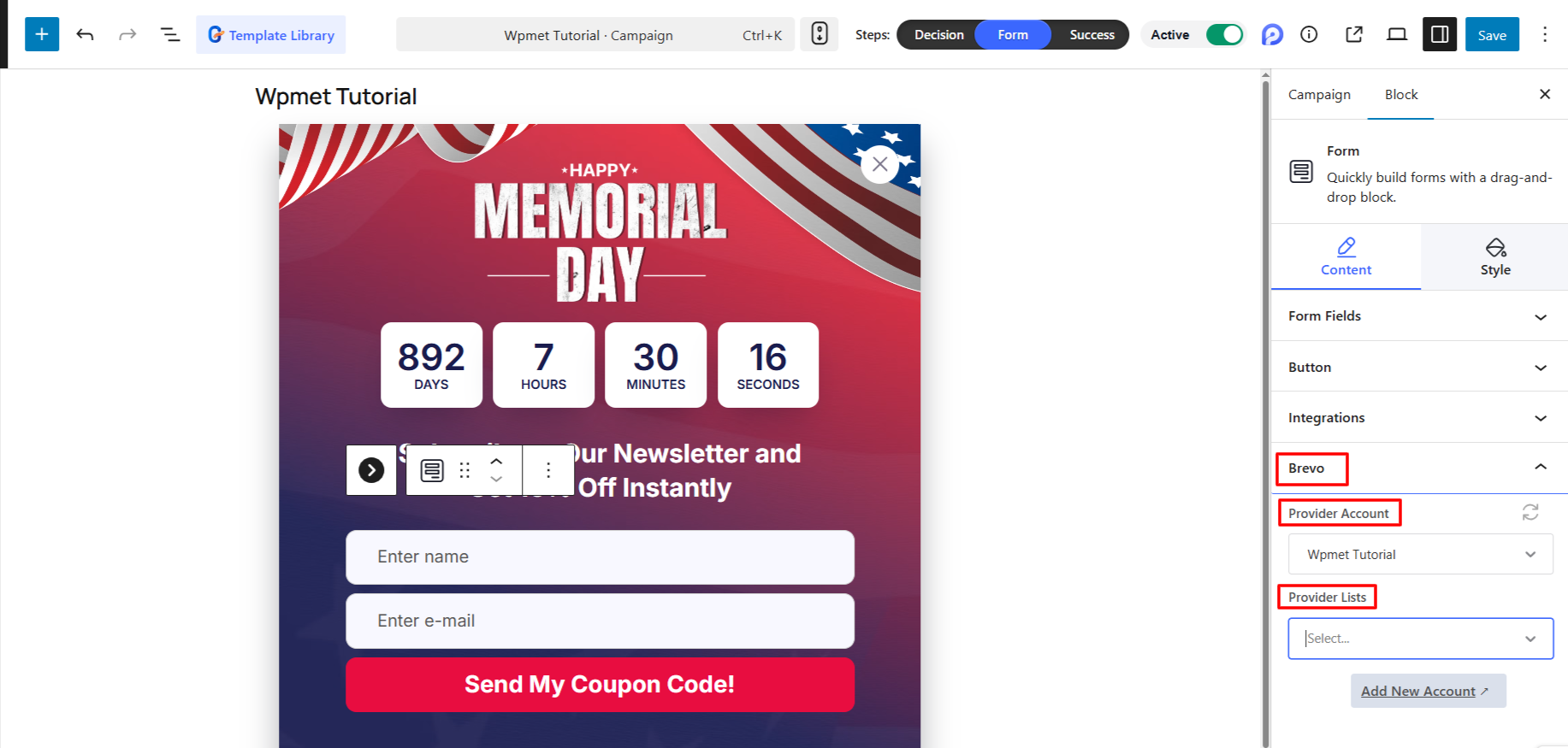
選択してください アカウント and then select the Brevo List where you want to store new subscribers. When your popup campaign design is finished, just publish it.
Your PopupKit forms are now synchronized with Brevo! New leads will be automatically added to your selected list as soon as they subscribe.


