Mailchimp integrates with different form tools to automatically collect and update subscriber data when a form is submitted. These integrations usually work through secure connections such as API keys or authorized access.
Mailchimp integration options include:
- WordPress form plugins: Tools like メットフォーム, Fluent Forms, and WPForms allow direct integration with Mailchimp, making it easy to sync form submissions with audiences, tags, and custom fields, without third-party automation.
- Google Forms: Google Forms does not connect to Mailchimp natively. Services like ザピエル are required to send form responses to Mailchimp automatically.
- Mailchimp native forms: Mailchimp offers its own built-in form builder that generates embeddable HTML forms, suitable for basic signup needs with limited design flexibility.
Important Before You Start #
Before creating or configuring any form, Mailchimp must be connected to your form builder. Without this connection, subscriber data won’t sync, no matter how well the form is designed.
See the Basic Setup Process (Using MetForm) #
Check the video for details:
Here is the steps for you:
- Generate a Mailchimp API Key: Log in to Mailchimp and go to Account → Extras → API Keys, then create a new API key.
- Connect Mailchimp to MetForm: In your WordPress dashboard, navigate to MetForm → Settings → Integrations, choose メールチンパンジー, and paste the API key to establish the connection.
- Create or Edit a Form: へ移動 MetForm → Forms, create a new form, or open an existing one in the Elementor editor.
- Enable Mailchimp as a Submission Action: From the form settings, add メールチンパンジー as an action after submission.
- Select an Audience and Map Fields: Choose your Mailchimp audience and map required fields like email, name, and any custom fields or tags.
- Configure Subscriber Options: Enable features such as double opt-in, audience tags, or merge fields to better organize contacts.
- Publish and Test the Form: Publish the form and submit a test entry to confirm the subscriber appears correctly in Mailchimp.
For detailed procedure, check the documentation.
前提条件:
メットフォームプロ, install and activate the premium form builder plugin for Elementor.
Mailchimp を設定する #
MetFormでフォームを作成する必要があります。ここで、フォームに少なくとも1つ メールウィジェット そしてそれは 必須
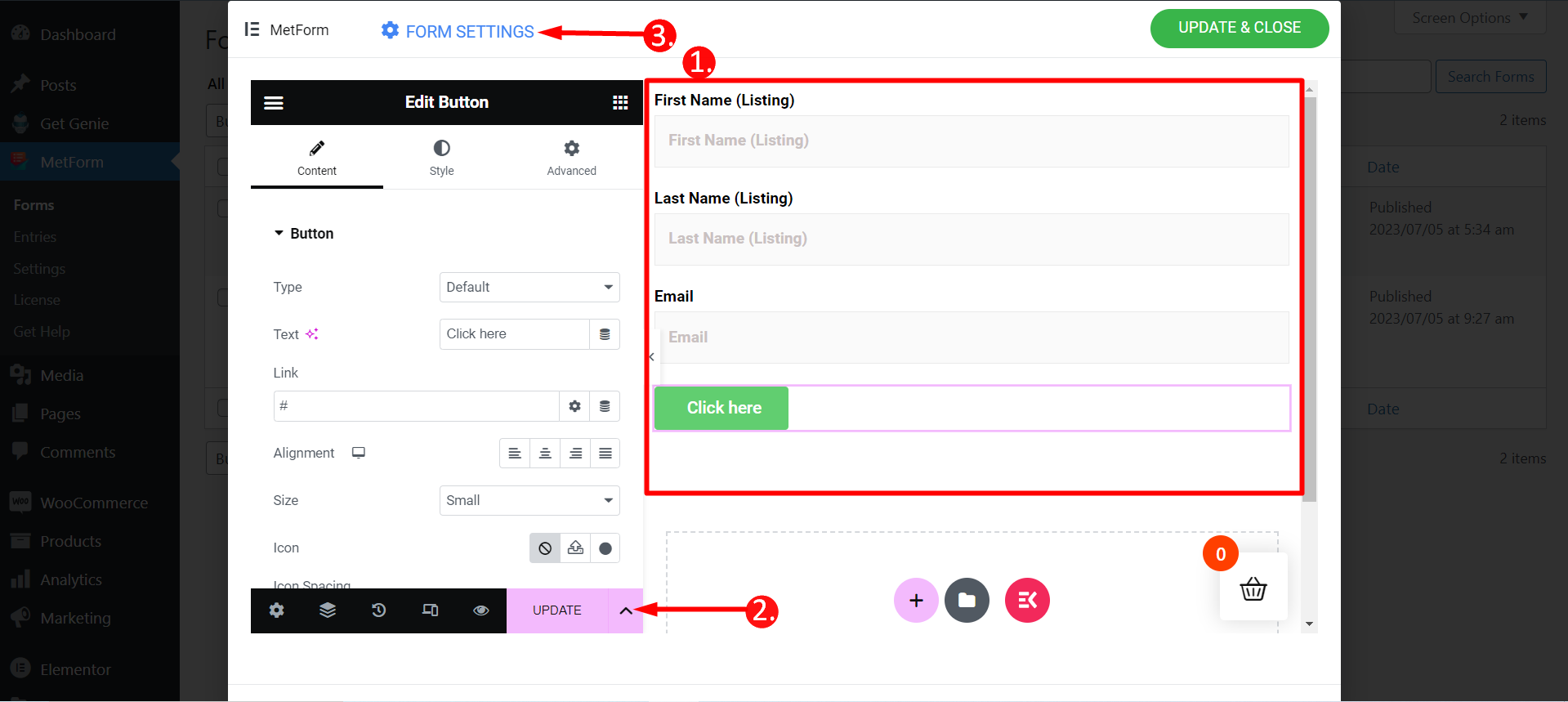
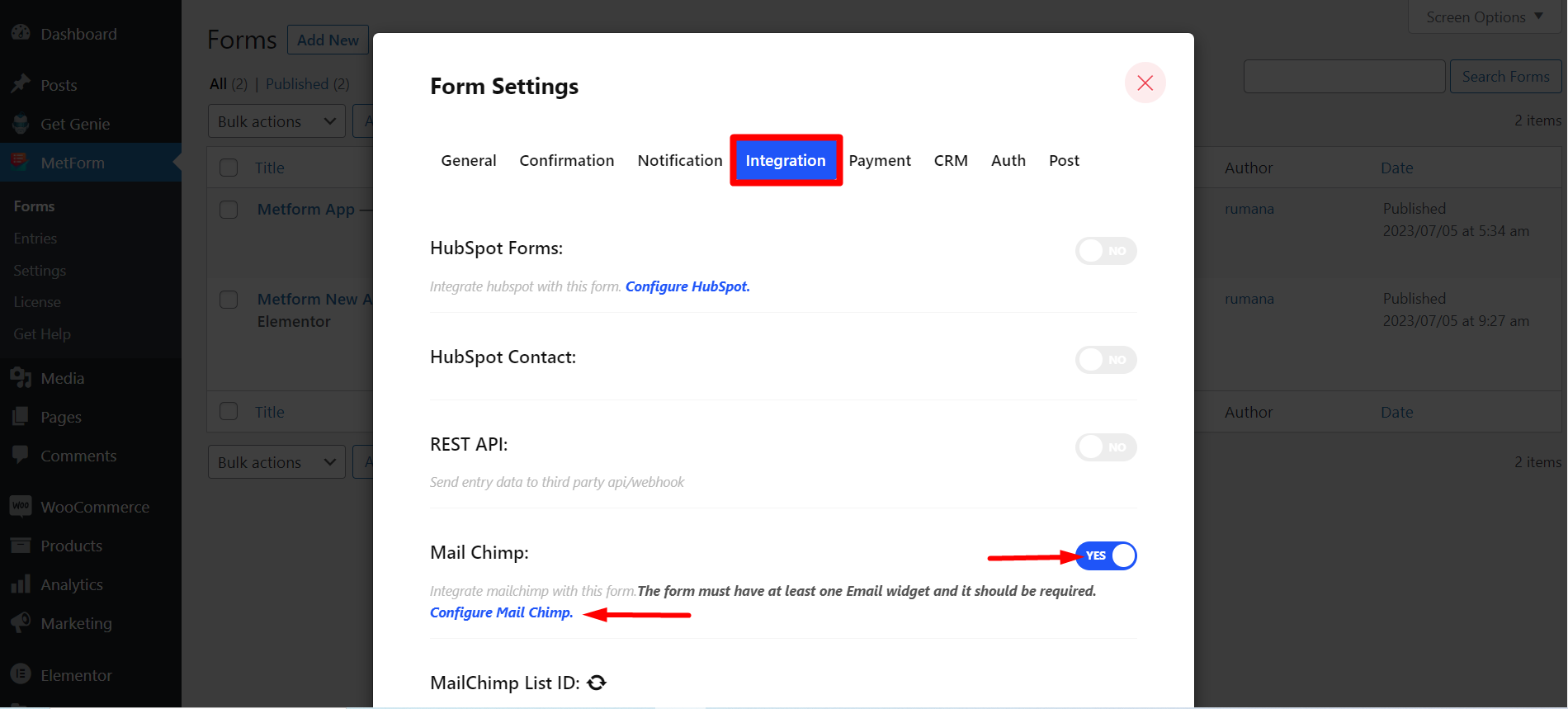
ステップ=>1: 案内する フォーム設定 → 統合
- を切り替えます メールチンプ オプション
- クリック Mail Chimp の設定
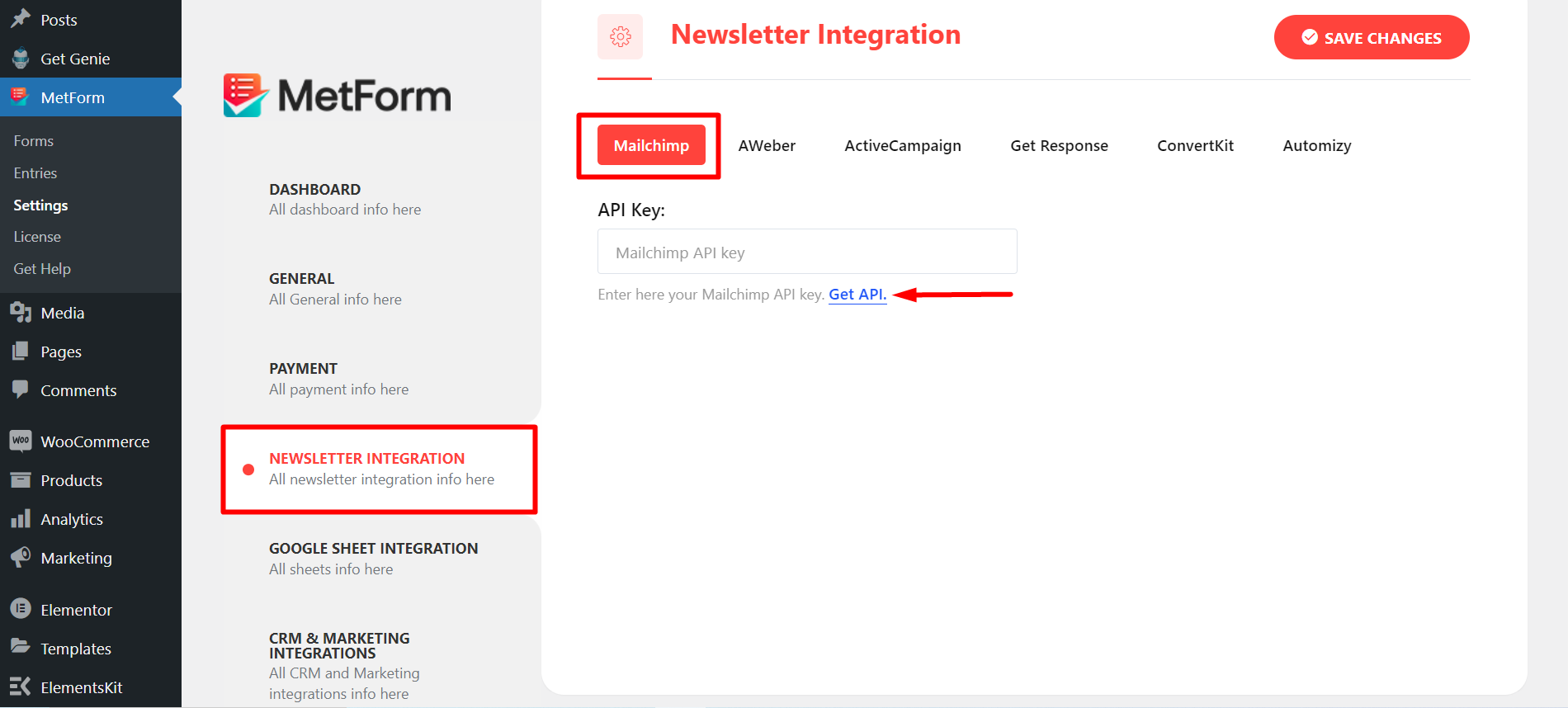
ステップ=>2: に移動します MetForm=>設定ページ
- クリック メール統合
- 次に、をクリックします API を取得 新しいタブでページを開き、APIキーを作成/取得する
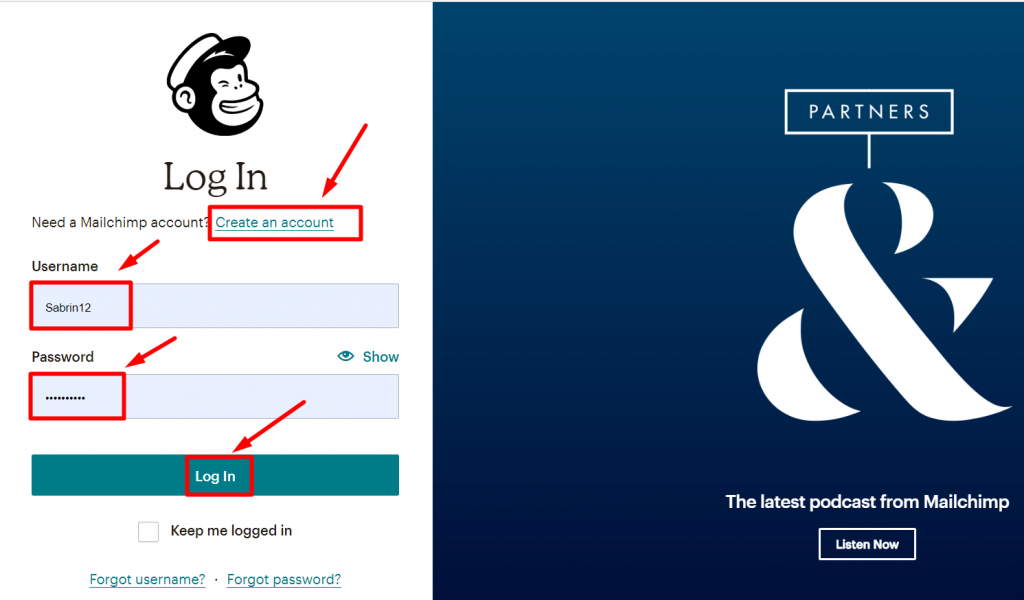
ステップ=>3: APIキーを取得するには 作成する Mailchimp アカウントを作成してログインします。 ユーザー名とパスワード
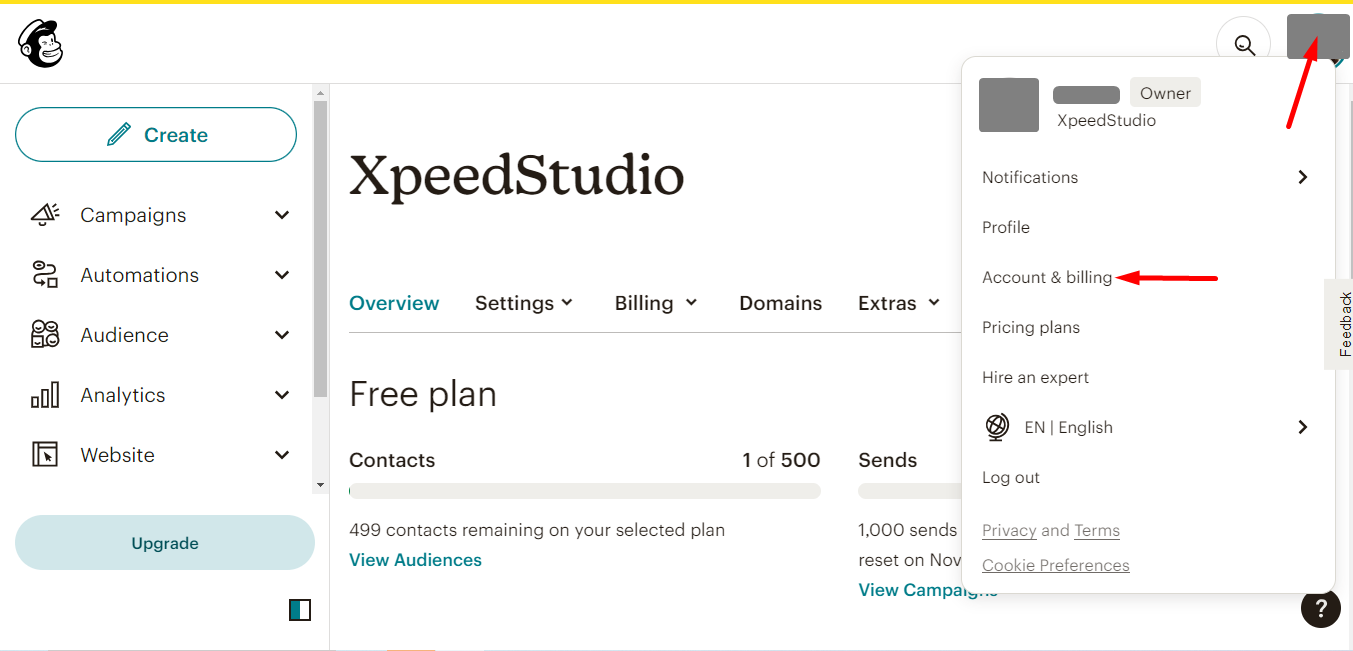
アカウントの写真に移動し、「アカウントと請求」をクリックします。
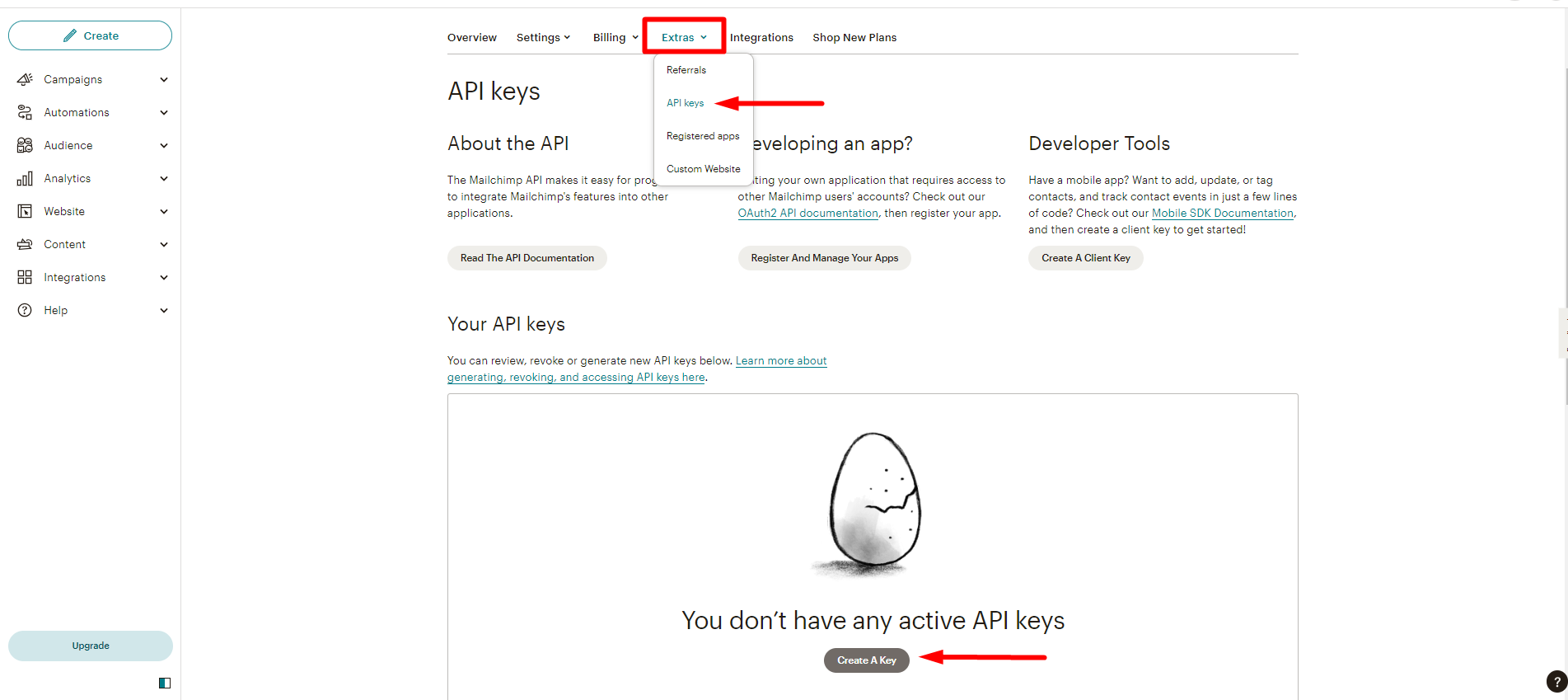
- 追加情報を探す
- Click API keys
- Now, click Create A key
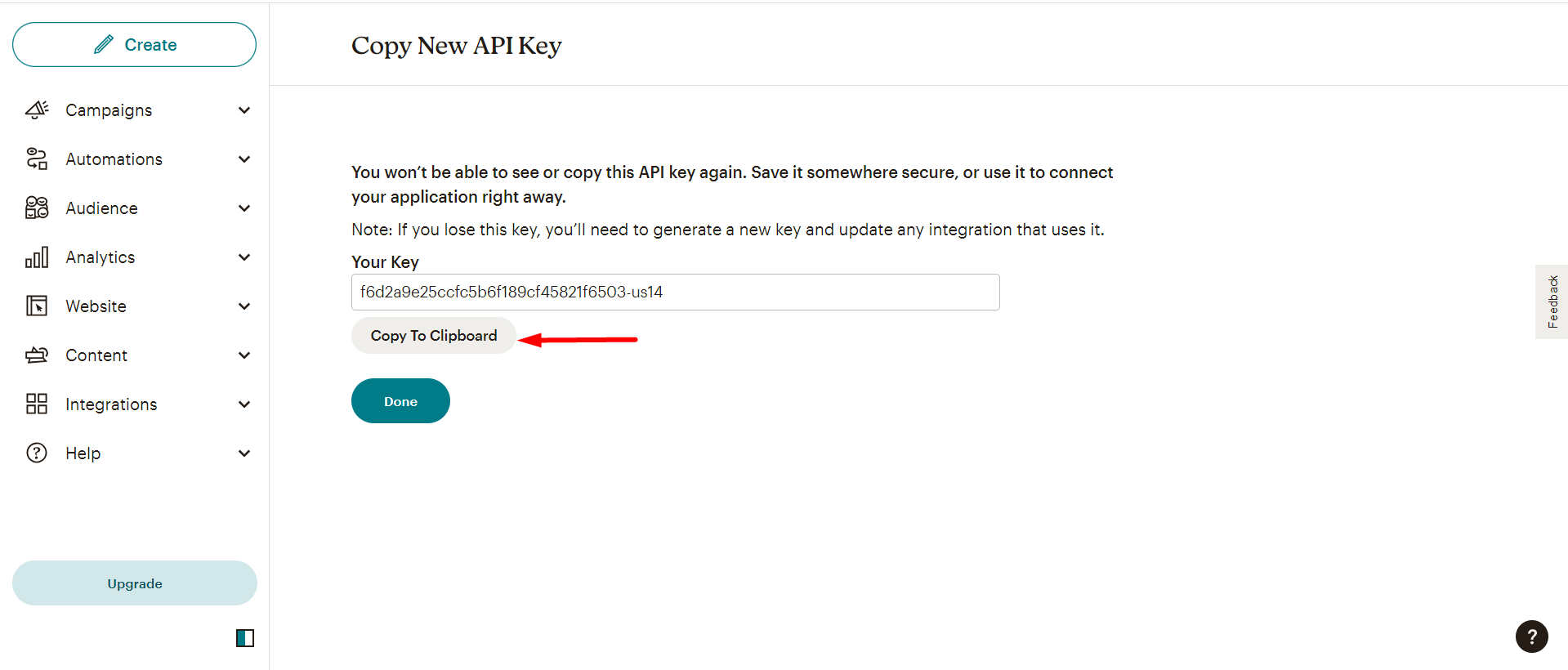
Next, copy the Key
ただし、 作成されたリスト このような -
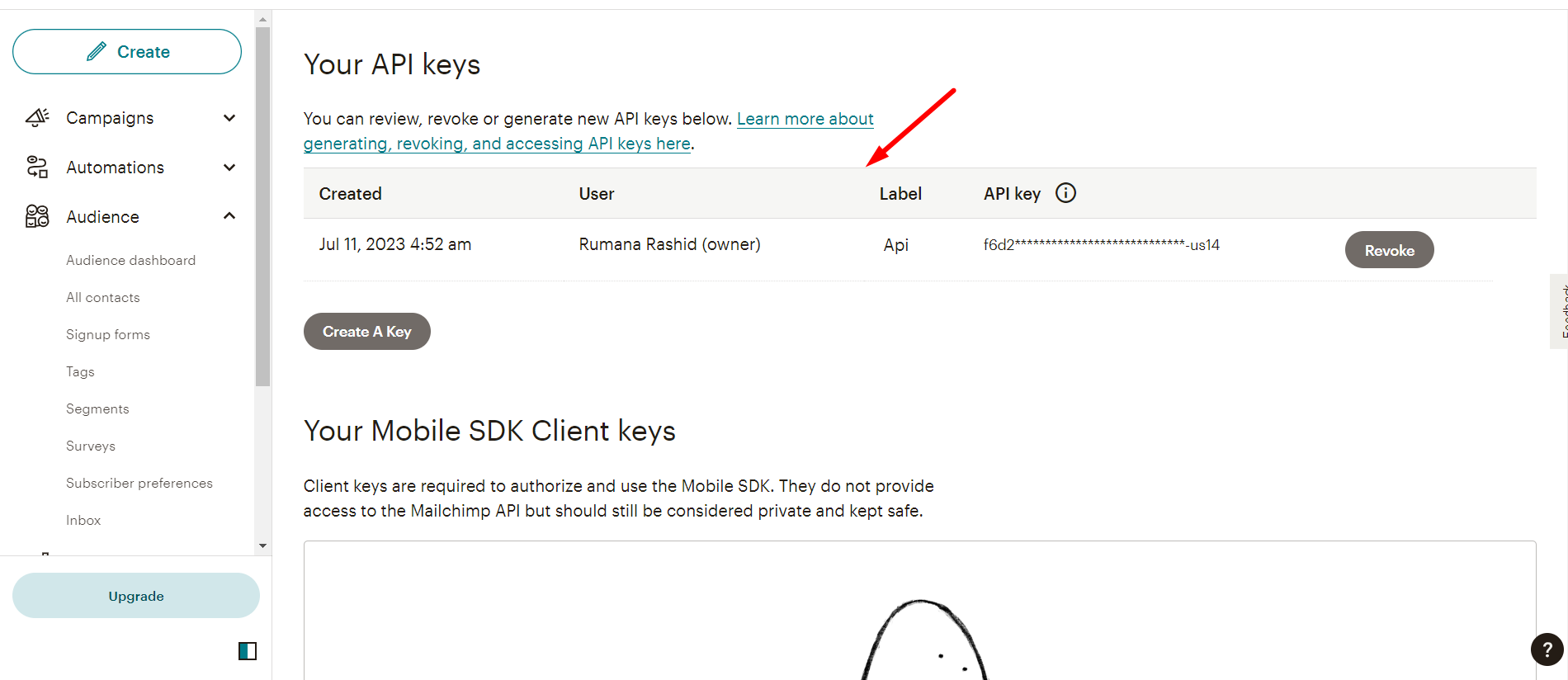
ステップ=>4: Now, return back to ニュースレターの統合 and utilize the copied Key
- ここにキーを貼り付けます
- 変更内容を保存
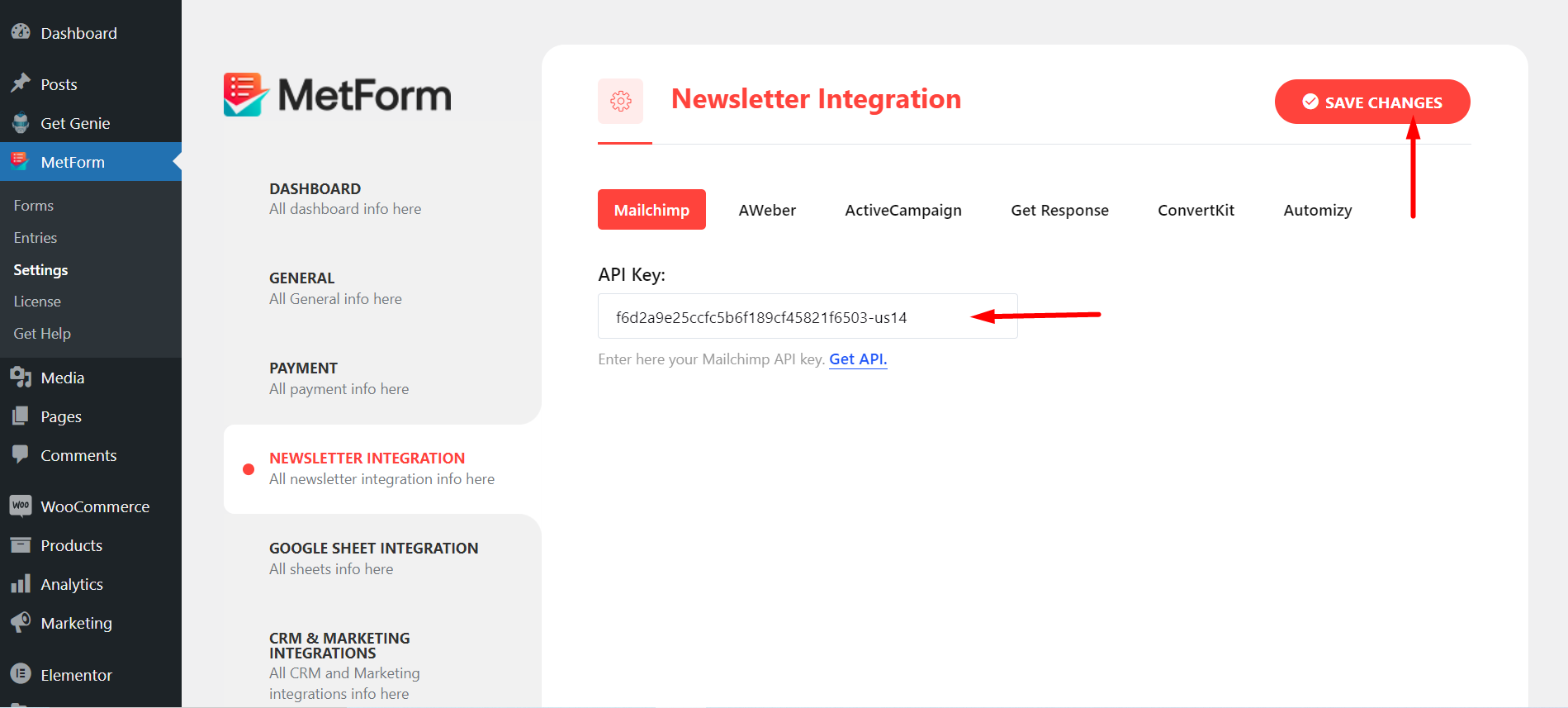
ステップ=>5: に行く 統合 セクション あなたのフォームの
をクリックして更新します 更新アイコン
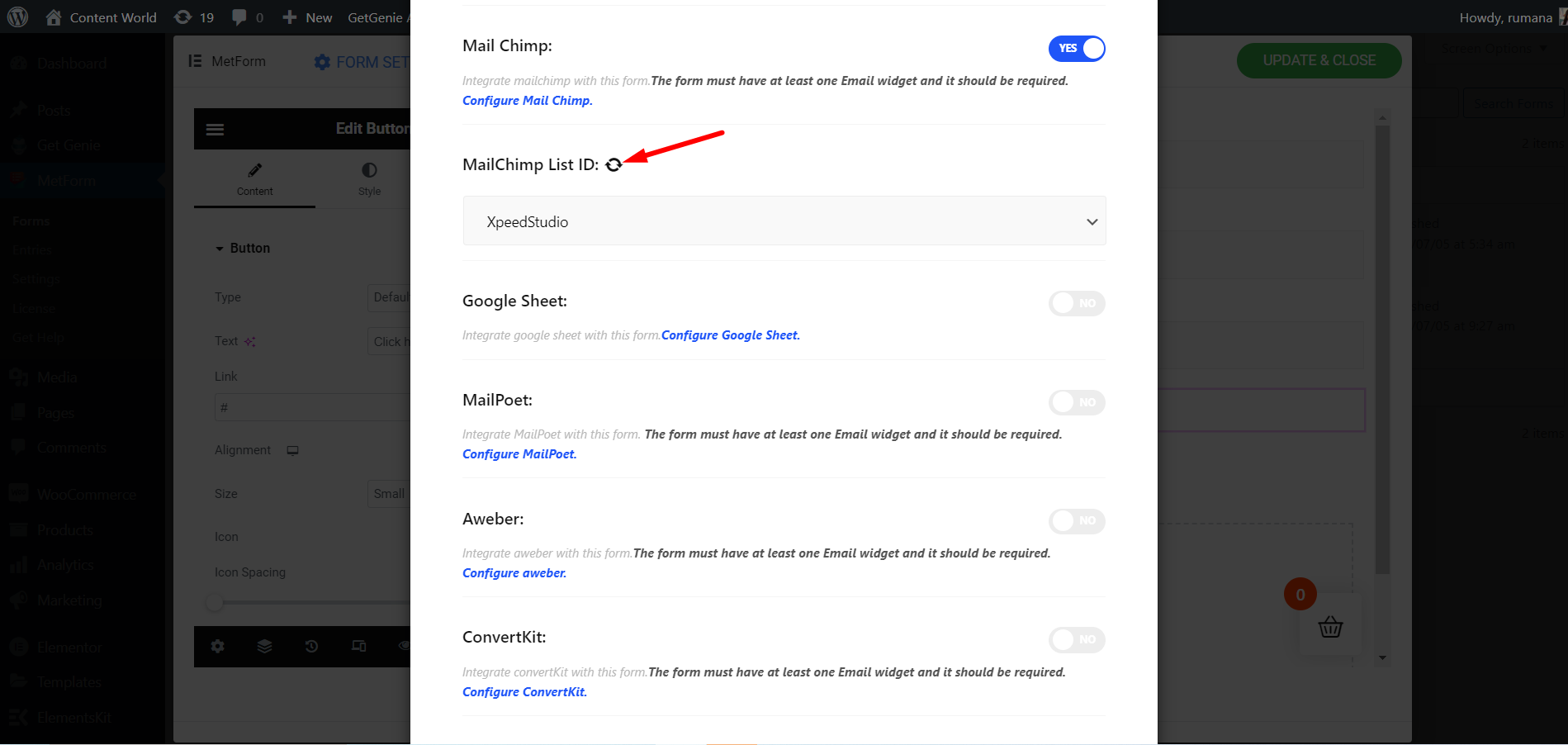
最後にフォームを保存します
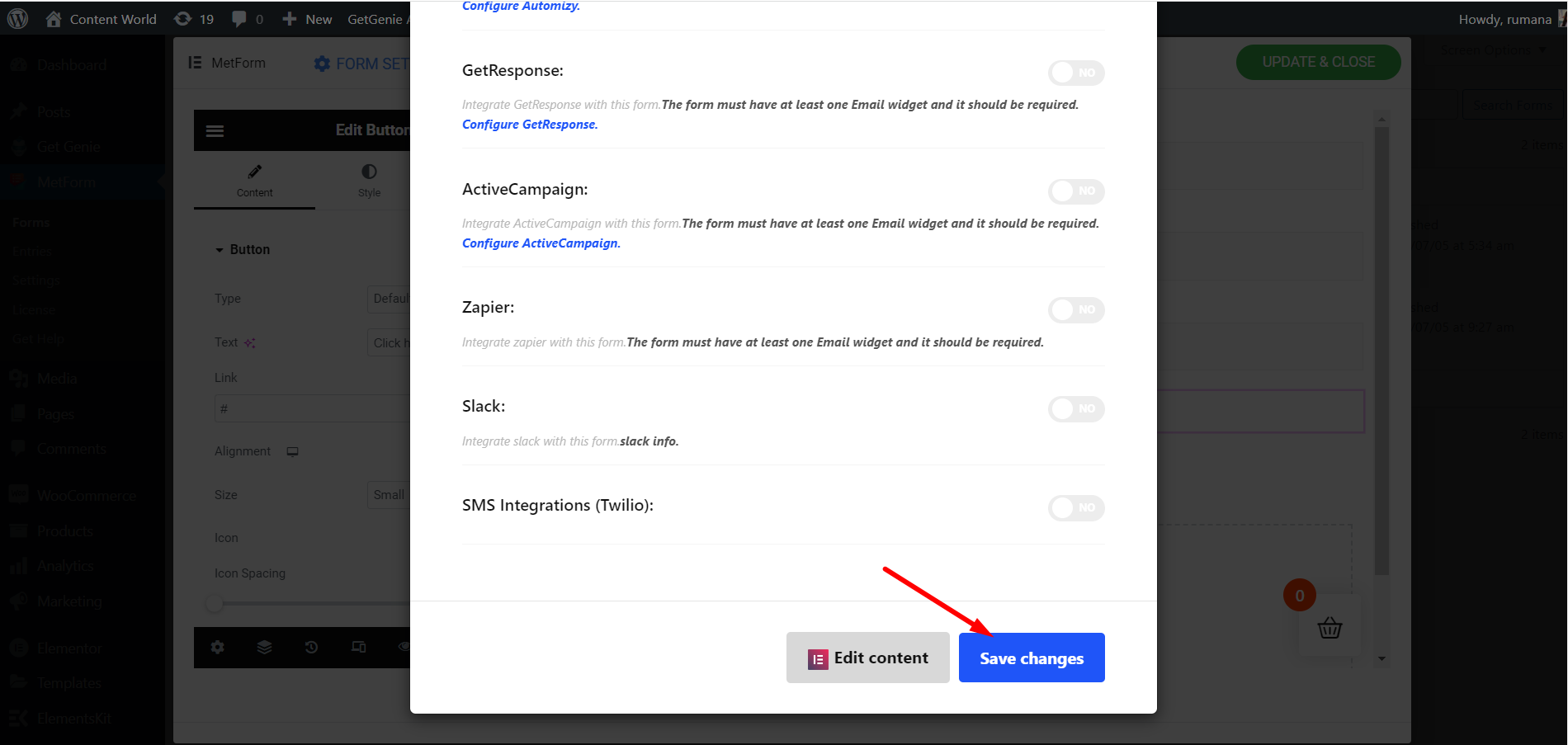
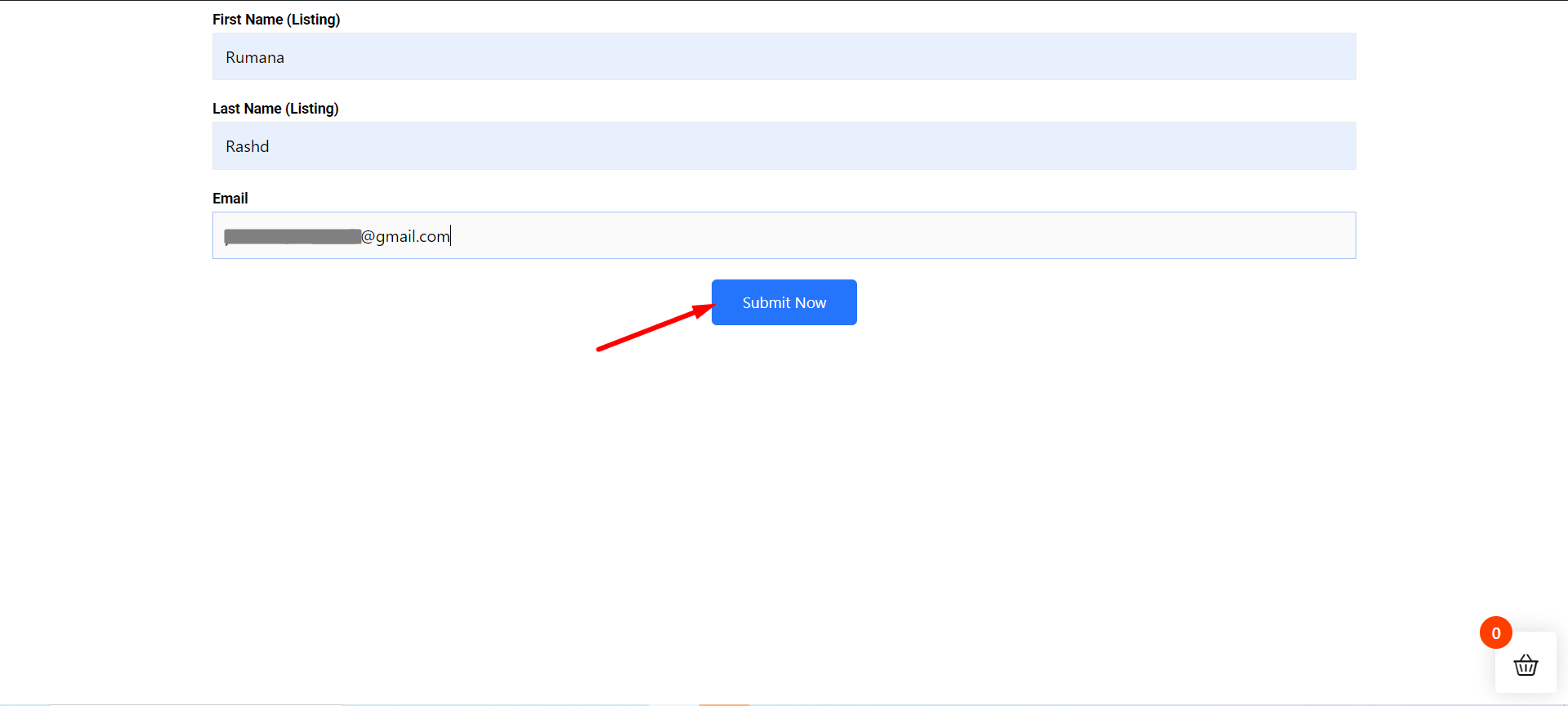
行く サイトへ=> フォームに記入してください をクリックして、 送信ボタン
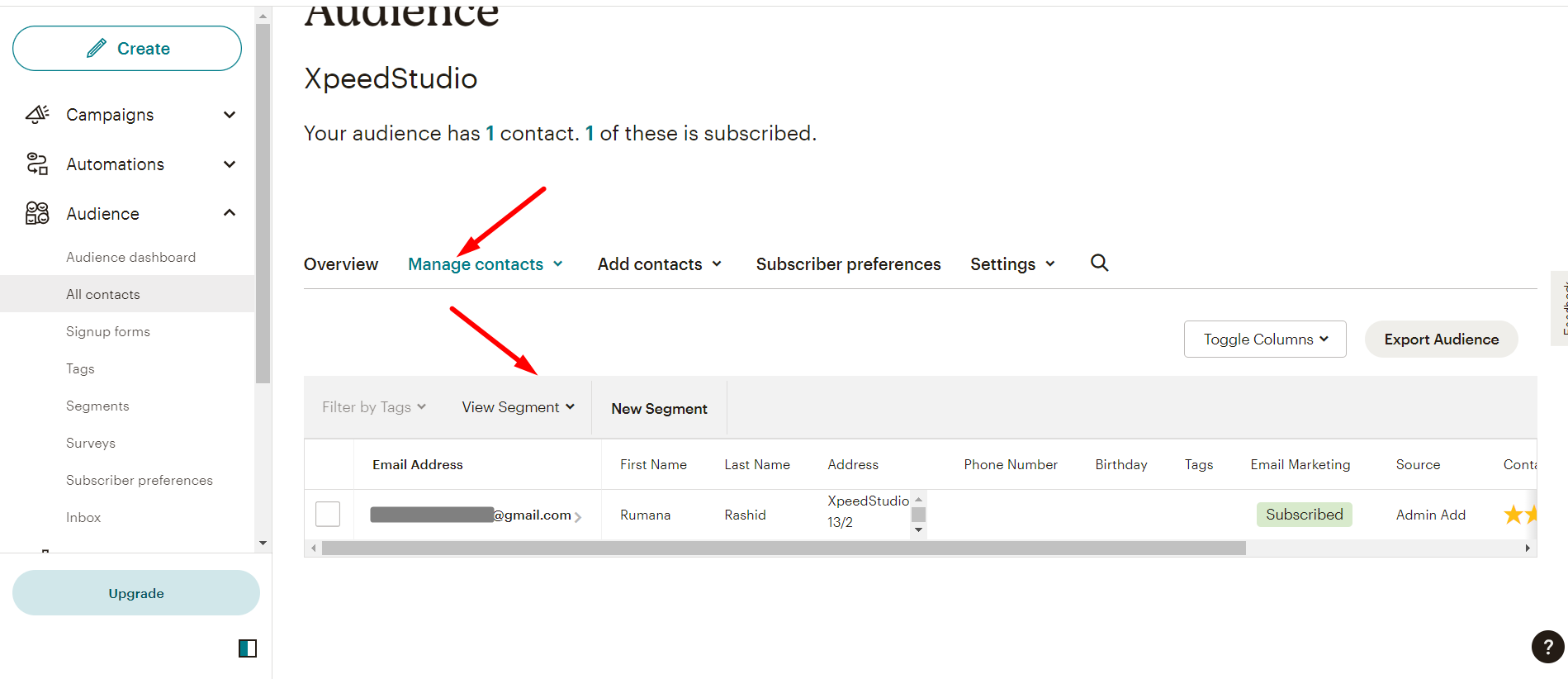
Mailchimp オーディエンスリストに Metform 送信データを表示する
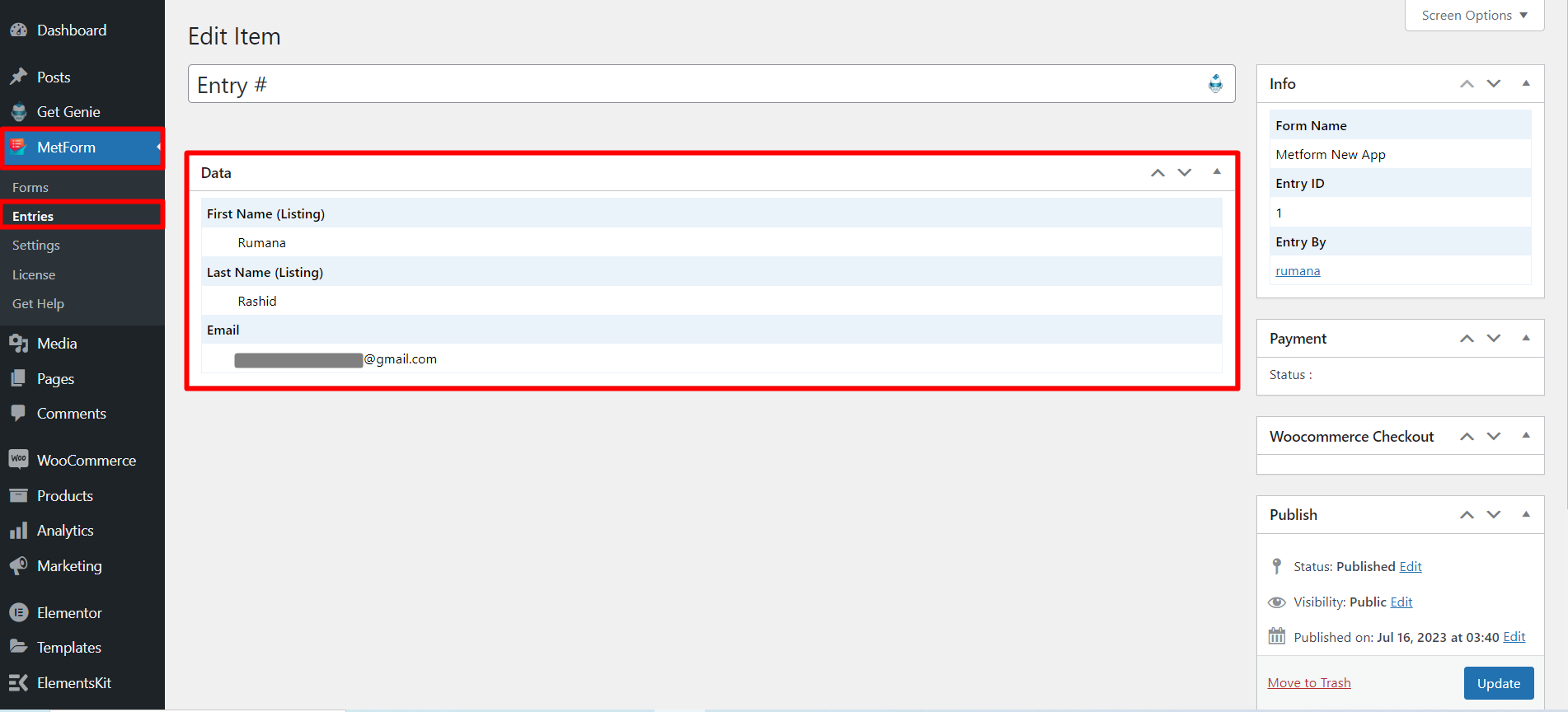
また、 提出されたデータ メトフォームで エントリーリスト