




Web サイトの所有者として、クライアントや顧客に特別割引を提供したい場合があります。そして、これを行う最も効果的な方法の 1 つは、顧客満足度の向上につながるクーポン コードをクライアントに提供することです。 WordPress でクーポンコードを追加および管理するには、複数の方法があります。
ただし、このガイドではコード不要のソリューションを共有します。 プラグインを使用してWordPressでクーポンコードを作成する方法を示します。メインのプロセスに入る前に、クーポンコードの基本から始めましょう。
Quick Overview
To create a coupon code in WordPress, you need to first install ElementsKit that offers a coupon widget for seamless integration. As ElementsKit is an Elementor addon, you will need Elementor free as well to access this solution.
Method to follow to create coupon code in WordPress:
Step 1: Activate ElementsKit’s Coupon Code widget.
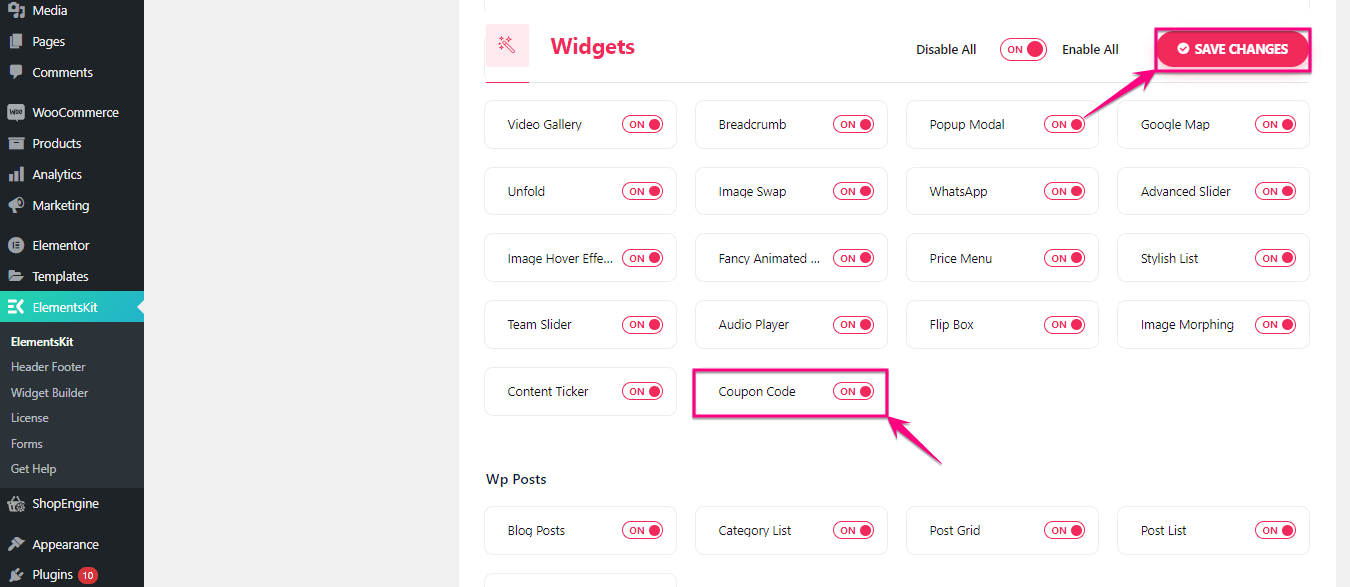
- Navigate ElementsKit >> Widgets and activate the Coupon Code.
- Click the “Save Changes” button.
Step 2: Add the Coupon Code widget.
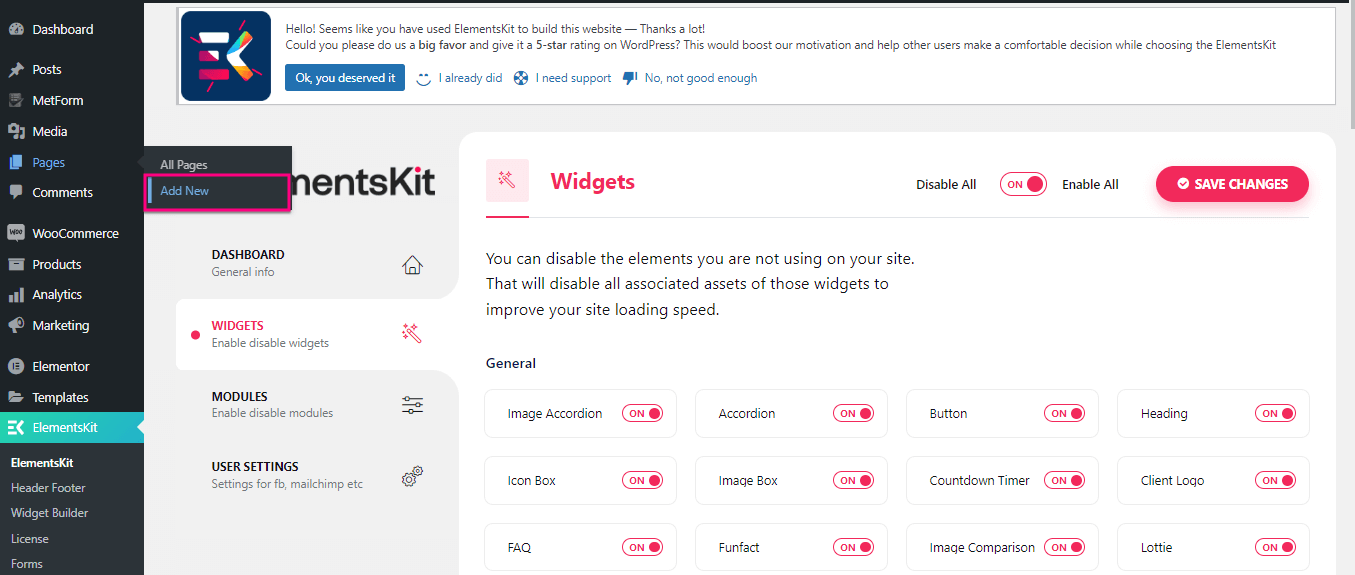
- Visit Pages → All Pages and edit the page where you want to add coupon.
- Search and drag-and-drop the Coupon Code widget.
- Edit coupon content such as style, label, coupon, button icon, icon position, etc.
Step 3: Launch coupon code.
- Press the “Publish” button.
デジタルクーポンコードとは何ですか?
デジタルクーポンコードとは、 オファーまたは割引 顧客ができること ウェブサイトから引き換える、 モバイルアプリまたはデジタルチャネル。従来の紙のクーポンとは異なります。目的は同じですが、割引を提供します。
割引を引き換えるのに必要なコードを入力すると、注文に自動的に適用されます。これにより、顧客は割引やセールを簡単に享受できます。
ウェブサイトにクーポンコードを追加する理由は何ですか?
Using coupon codes on a website has significant importance and benefits to efficiently running a business and achieving marketing goals. Here are the top reasons for adding coupon codes to your WordPress website:
- 忠実な顧客に報酬を与える: クーポン コードを追加することで、忠実な顧客に報酬を与えることができます。これにより顧客満足度が向上し、強力な関係が構築されます。
- 魅力的な割引: 顧客にとって魅力的な割引や特別な特典を設定するのに役立ちます。したがって、顧客はより積極的にあなたからサービスを受けるようになります。
- コンバージョンを増やす: クーポン コードは、コンバージョン率を高め、ビジネスに新たな高みをもたらすのに役立ちます。それは人々があなたからサービスを受けることを奨励するからです。
- 成功したマーケティング キャンペーン: クーポン コードを提供すると、特別割引を提供できるだけでなく、成功したマーケティング キャンペーンの実行と追跡も容易になります。クーポン コードは視聴者を引き付け、マーケティング キャンペーンへの高い参加を保証します。
- リピーターを増やす: クーポン コードを使用すると、顧客は製品やサービスを最良の価格で購入できるようになり、最終的に顧客満足度が向上します。したがって、顧客はあなたからサービスを受けるためにやって来ます。
💡Highlights: Visual coupons vs WooCommerce discounts
Here are the core differences explained between visual and WooCommerce coupons:
- Visual coupons are only used to show discount codes, not guarantee to be applied at checkout.
- Marketing coupons are used only for promotion.
- Visual coupons are used for marketing, and WooCommerce coupons are used for transactional discounts.
クーポンコードを作成するための前提条件
There are some prerequisites to adding coupon codes to your website. You will need a few essential plugins for launching coupon codes. So, before jumping into the main method, install and activate the plugins on your WordPress website:
- エレメンター (無料):ElementsKitのクーポンコードウィジェットを利用するには、Elementorをインストールする必要があります。 ElementsKit はオールインワンの Elementor アドオンであるためです。
- ElementsKit (無料 & プロ): クーポン コードはプレミアム ウィジェットであるため、ElementsKit の無料バージョンと有料バージョンが必要になります。したがって、あなたが ElementsKit のプロ ユーザーであることを確認してください。
上記のプラグインをインストールしたら、WordPress ウェブサイトにクーポンコードを追加するメインプロセスに移りましょう。
WordPressでクーポンコードを作成する方法
デジタルクーポンやプロモーションコードの使用は、仮想ストアで人気があり、最もよく使用される戦略です。結果から、クーポンコードの追加は大きな意味を持つことがわかります。ただし、Web サイトにクーポンコードを追加する方法は非常に簡単です。
クーポンコードを追加してみませんか?以下をチェックしてください WordPress でクーポンコードを作成するための 3 つの簡単なステップ:
ステップ 1: クーポン コード ウィジェットを有効にします。
まず、ElementsKit のクーポン コード ウィジェットを有効にする必要があります。そうするために、 管理者ダッシュボードに移動します そして ElementsKit にアクセス >> ElementsKit.
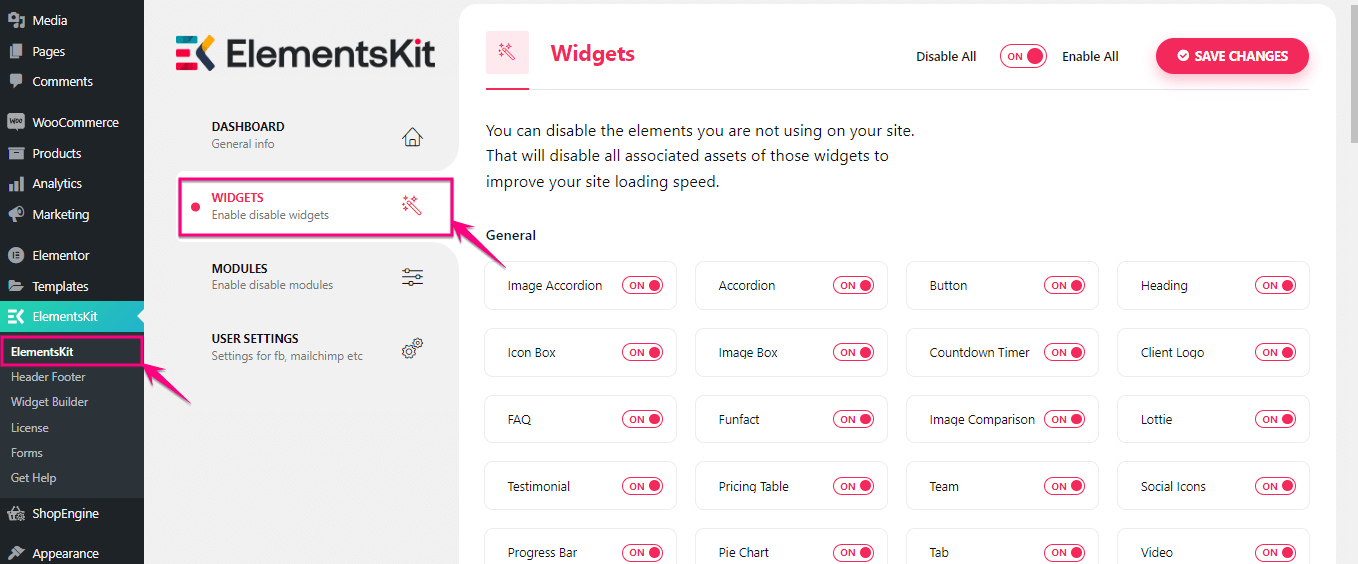
今 クーポンコードを有効にする ウィジェット。その後、 「変更を保存」をクリックします ボタン。
ステップ 2: ウェブサイトのクーポンを作成します。
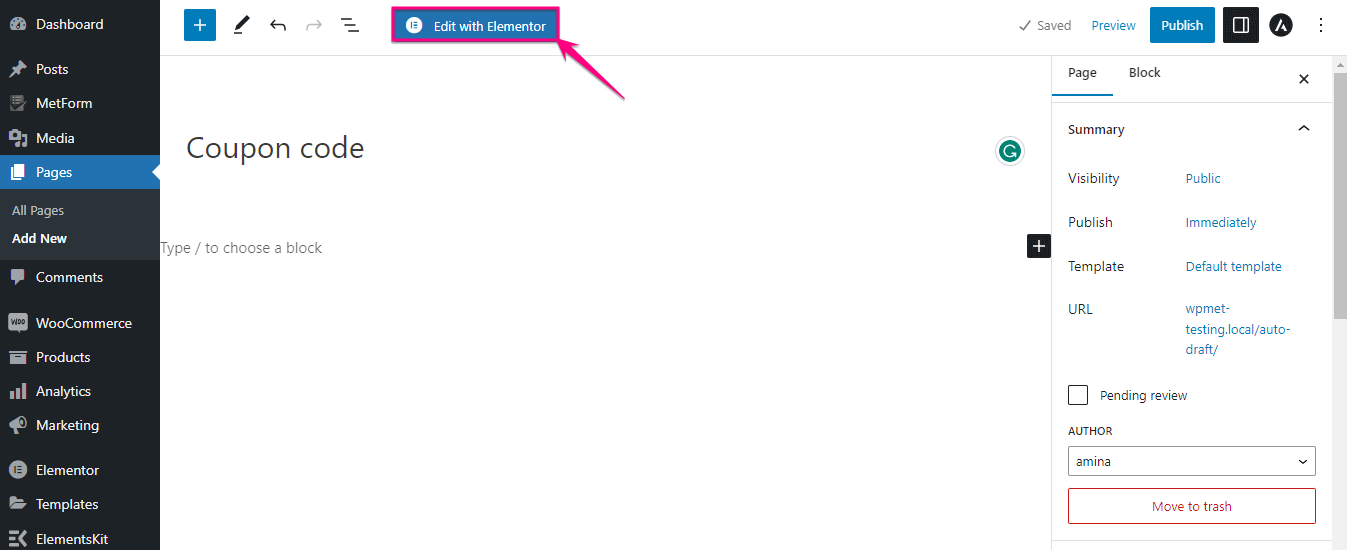
2 番目のステップでは、まず次のことを行う必要があります。 「ページ >> 新規追加」にアクセスしてページを追加します。.
今、 「Elementorで編集」をクリックします ボタンをクリックしてクーポン コードをウェブサイトに追加します。
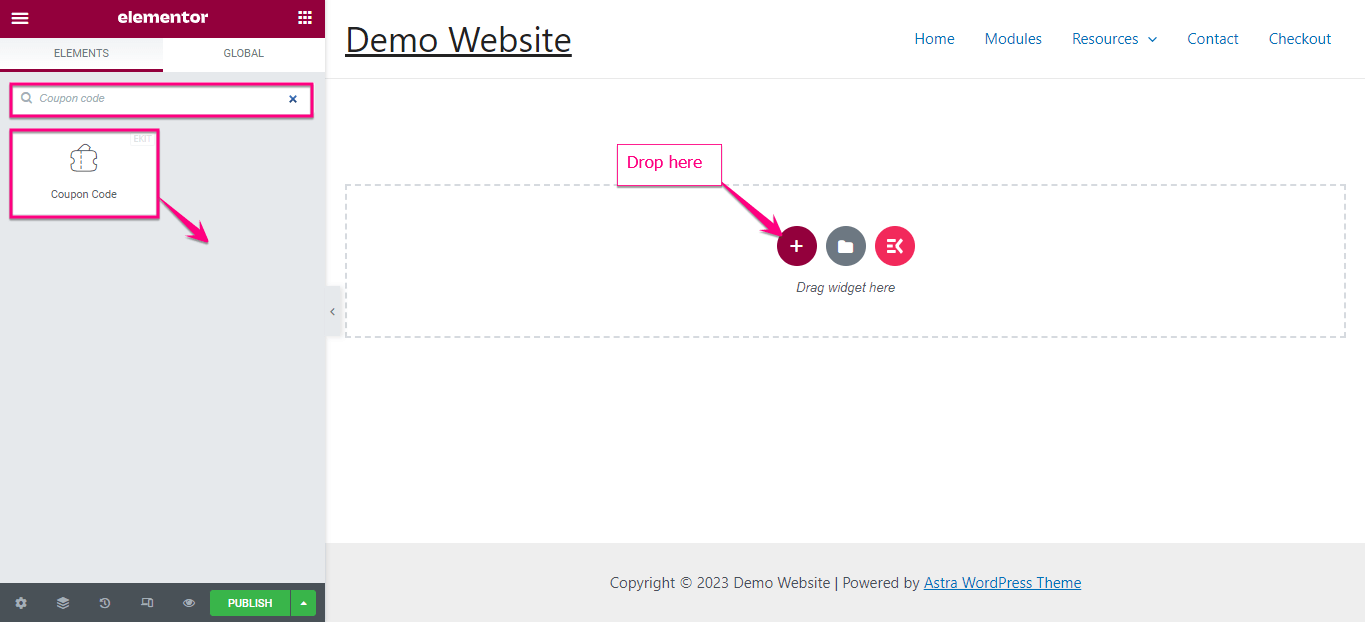
ここ 「クーポンコード」を検索してください 検索ボックスのウィジェットと 「+」の上にドラッグ&ドロップします。 アイコン。
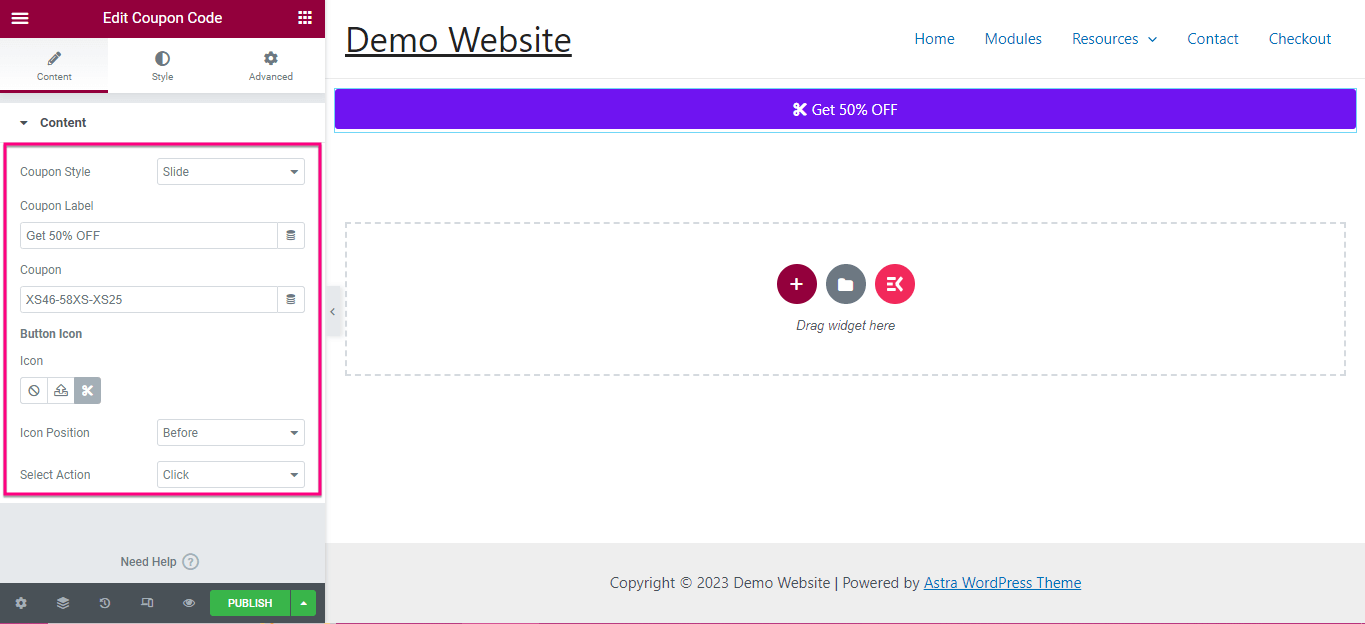
この時点で、追加したクーポンの内容を編集する必要があります。ここにあります 田畑 そうする必要があること 調整する:
- クーポンスタイル: 作成または追加したクーポンのスタイルを設定します。
- クーポンラベル: Enter the coupon text for WordPress promo code.
- クーポン: ここにクーポンを追加してください。
- ボタンアイコン: ライブラリからアイコンを選択するか、SVG からアップロードします。
- アイコンの位置: ここからアイコンの位置を設定します。
- アクションの選択: クリックまたはホバーするアクションを選択してクーポンを表示します。
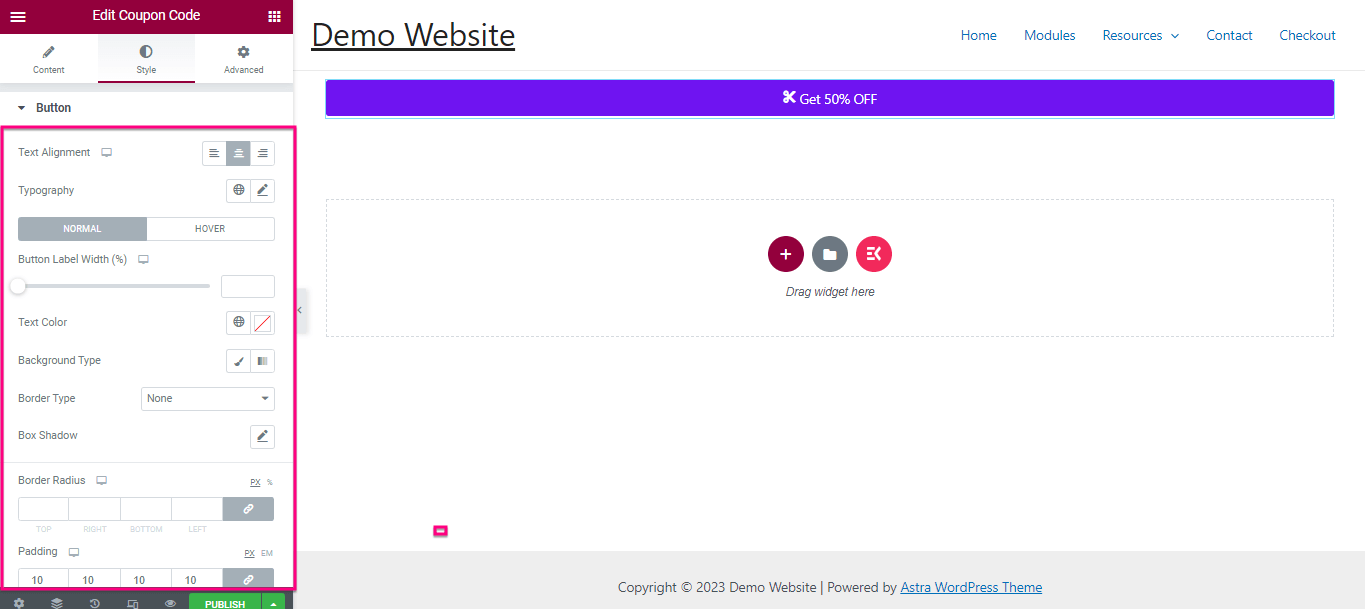
Also, you can change the style of your button by adjusting Text Alignment, Typography, Button Label Width,Text Color, Background Type, 枠線の種類, ボックスシャドウ, 境界半径、 そして パディング.
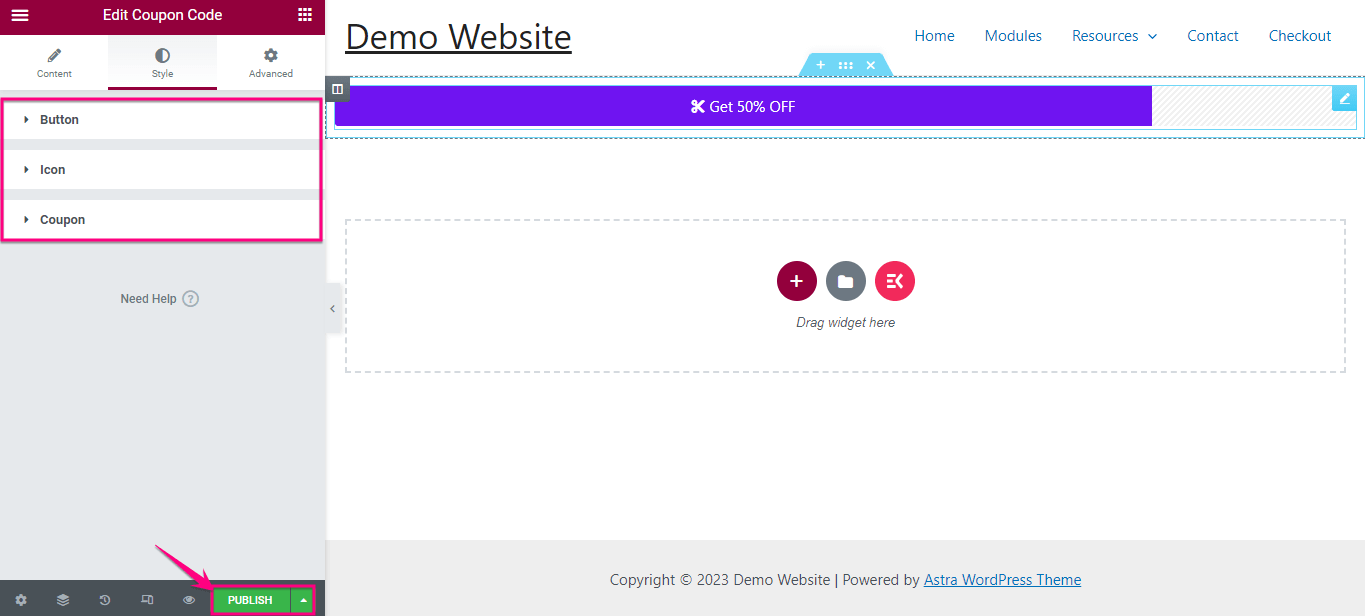
ステップ 3: WordPress でクーポンコードを起動します。
同じプロセスを経て、 スタイルを編集する の アイコン そして クーポン。最後に、すべての調整が完了したら、 「公開」をクリックします ボタンをクリックしてクーポン コードを有効にします。

How to measure success after integrating coupon code?
After living your WordPress coupon, you can measure success by:
- Checking click-through-rate of the coupon button.
- Monitoring before and after conversion rate.
- Analyzing page engagement after coupon integration.
- Checking clicks of the email button linked to coupon.
When to use WordPress coupons?
Use ElementsKit’s coupon widget if:
- You want to promote discounts visually.
- The purpose is not for auto price reduction.
- You are running a lead generation campaign.
Don’t follow this coupon method if:
- You are looking solution for applying discounts at checkout.
- You need expiry enforcement.
- You are running a discount at checkout.

コーディングなしでクーポンを作成できますか?
Yes, you can create coupons online without coding。 WordPress プラグインには、すべてに対するソリューションが付属しています。コードをまったく必要としないクーポンを追加するプラグインもあります。上記では、オールインワンの Elementor アドオンである ElementsKit を使用してクーポン コードを追加する最も簡単なプロセスをすでに示しました。
クーポンを追加するには数分もかかりません。 WordPressクーポンプラグイン.
その他のチュートリアル:
1. WordPressでページリストを作成するにはどうすればよいですか?
2. Paypal を WordPress ウェブサイトに統合するにはどうすればよいですか?
WordPress クーポンを始めよう
Done with going through the whole process of how to create coupon codes in WordPress? Now, it’s high time to follow this coupon code method if your goal is to visual promotion not transactional control. If you need checkout enforcement, use a transactional or WooCommerce coupon system instead. Above, we have shown the simplest method of adding marketing coupon codes using ElementsKit.
したがって、3 つの簡単な手順を採用して、コーディングや技術的専門知識を必要としない Web サイト向けのクーポンの発行を開始してください。

コメントを残す