

 Japanese
  English
  German
  Spanish
  Italian
  French
  Danish
  Portuguese
  Swedish
  Polish
  Korean
 FluentCRM は、WordPress 用のセルフホスト型メール マーケティング自動化プラグインです。このプラグインを使用すると、リードや顧客、メール キャンペーンなど、さまざまなものを管理できます。MetForm の Fluent CRM 統合機能を使用すると、プラグインを統合して、MetForm のデータを FluentCRM で表示できます。
注: 必要なもの FluentCRMプロ そして メットフォーム プロ この機能を活用するには。
FluentCRM と MetForm を統合する方法 #
FluentCRM と MetForm を統合するには、以下の 6 つの手順に従ってください。
ステップ1: FluentCRMで新しい連絡先リストを作成する #
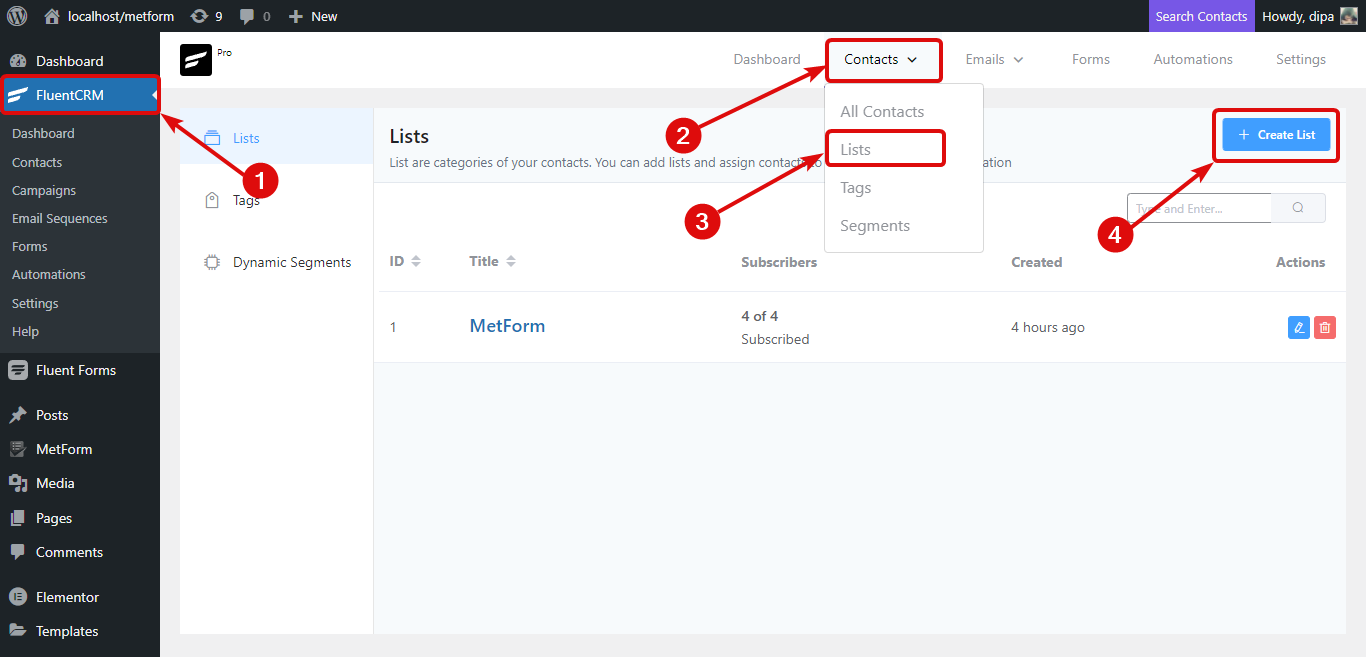
このためには、FluentCRMダッシュボードに移動し、上部のメニューで 連絡先にマウスを合わせるドロップダウンメニューが表示されたら リストをクリックリストページに移動すると、 [+リストを作成]ボタンをクリックします。
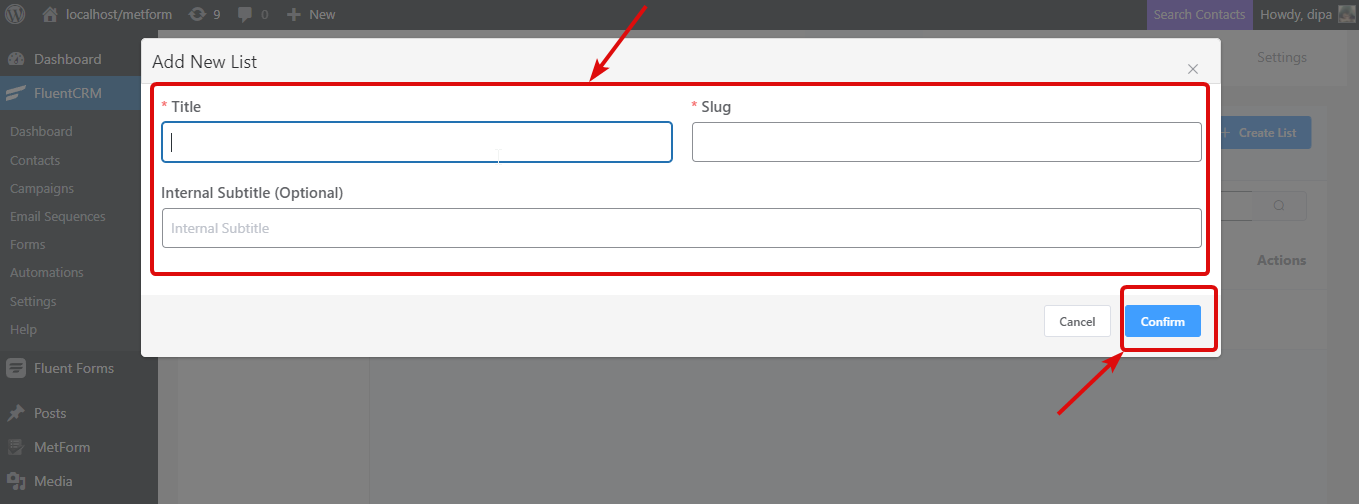
タイトルを入力すると、システムは自動的にタイトルをスラッグとして扱います。内部サブタイトルはオプションです。必要に応じて入力できます。情報を入力したら、[確認] をクリックします。
ステップ2: 受信Webhookをコピーする #
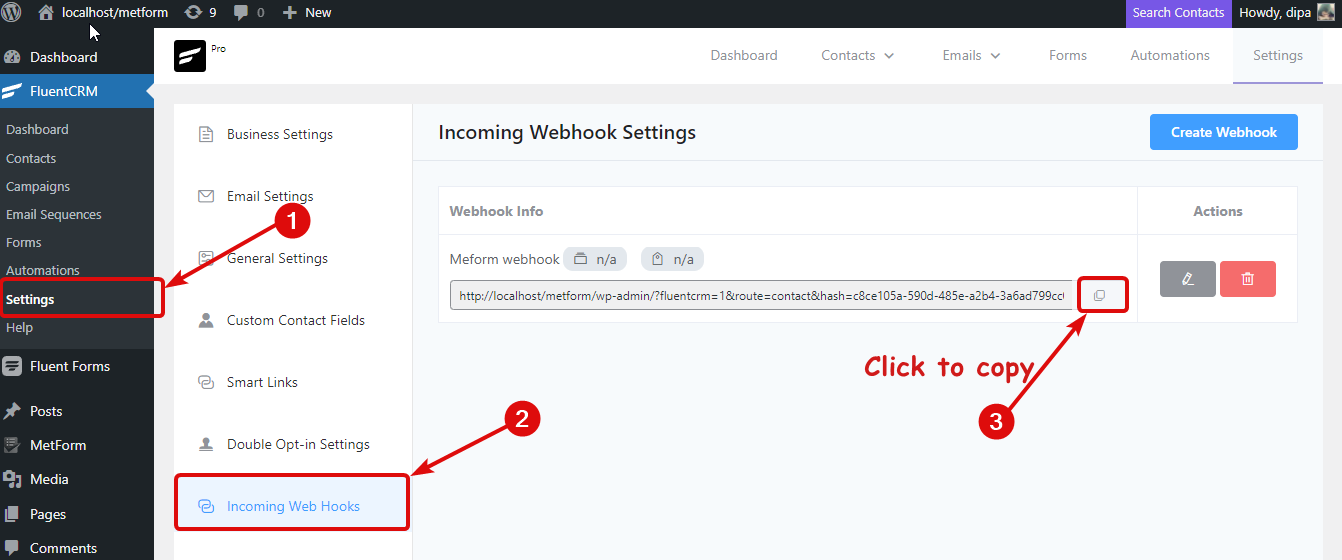
FluentCRMメニューから、 設定 ⇒ 着信 WebHooks をクリックし、Webhook をコピーします。
ステップ3. MetFormを使用してフォームを作成し、Webhookを貼り付けます #
MetFormを使用して新しいフォームを作成するには、 MetForm ⇒ フォーム そしてクリックしてください 新しく追加する。 ウィンドウがポップアップしたら、 タイトルを付けます。CRM タブに移動し、Fluent オプションをオンにします。次に、コピーした Webhook 値を貼り付けて、変更を保存をクリックします。
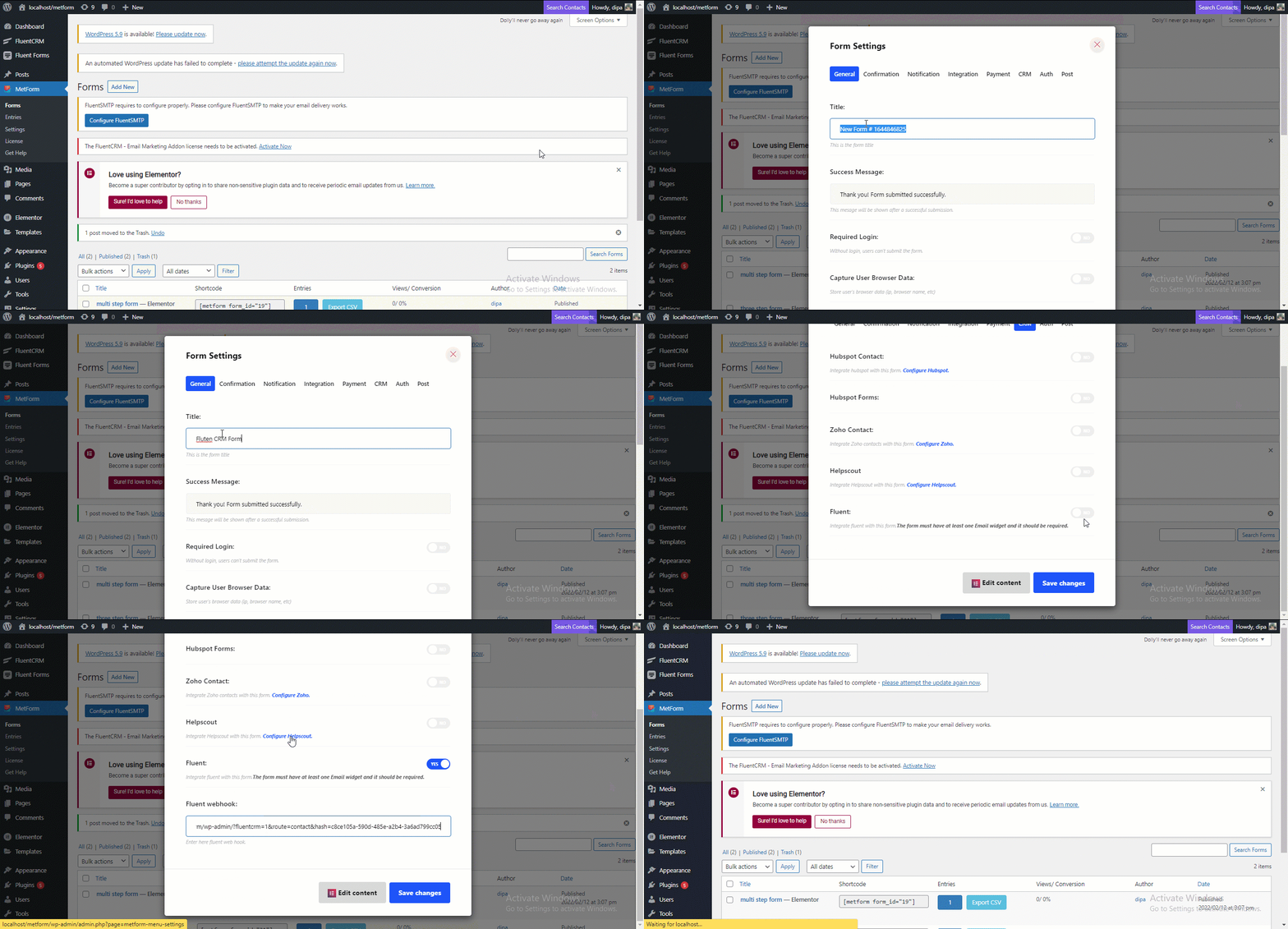
ステップ4. フォームを作成する #
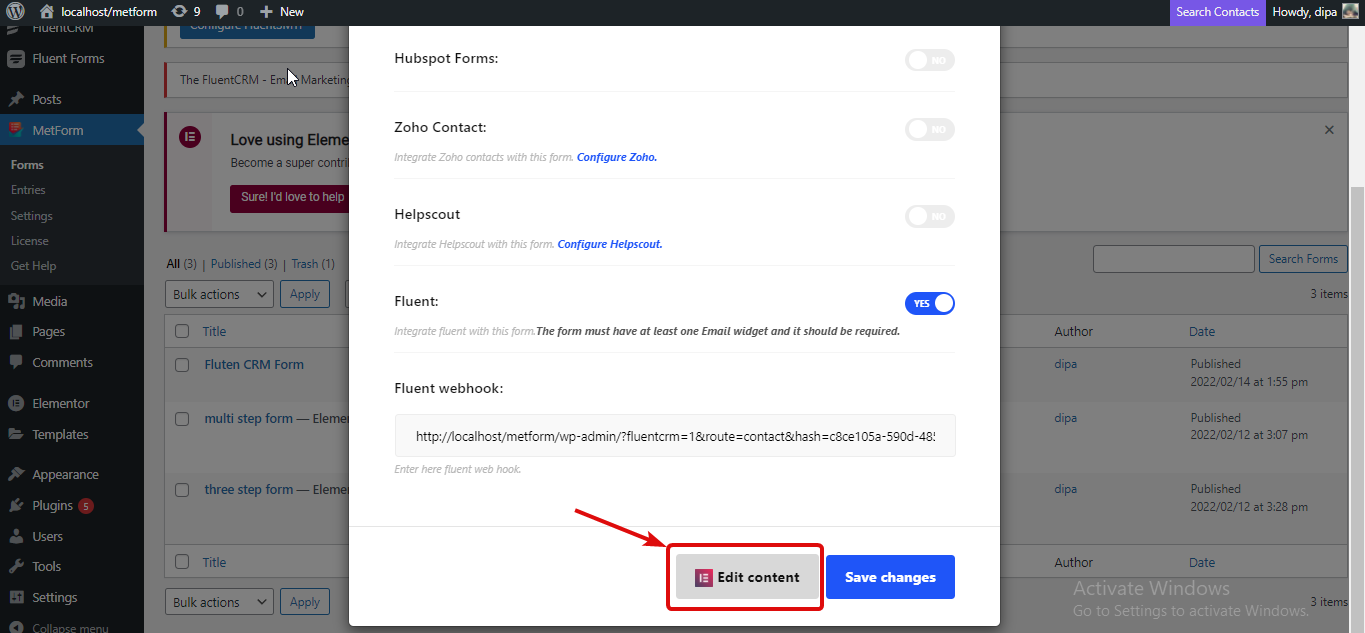
次に、「Elementor で編集」オプションをクリックしてフォームを作成します。
MetFormフィールドを使用してフォームを作成します。ただし、次の点に注意してください。 FluentCRMが提供するキーにフィールド名を変更する 各お問い合わせフォームごとに FluentCRM ⇒ 設定 ⇒ 受信 Webhooks からキーを見つけて、編集アイコンをクリックします。 ウィンドウが開いたら、少し下にスクロールして、使用可能な各連絡先フィールドのキーを見つけます。
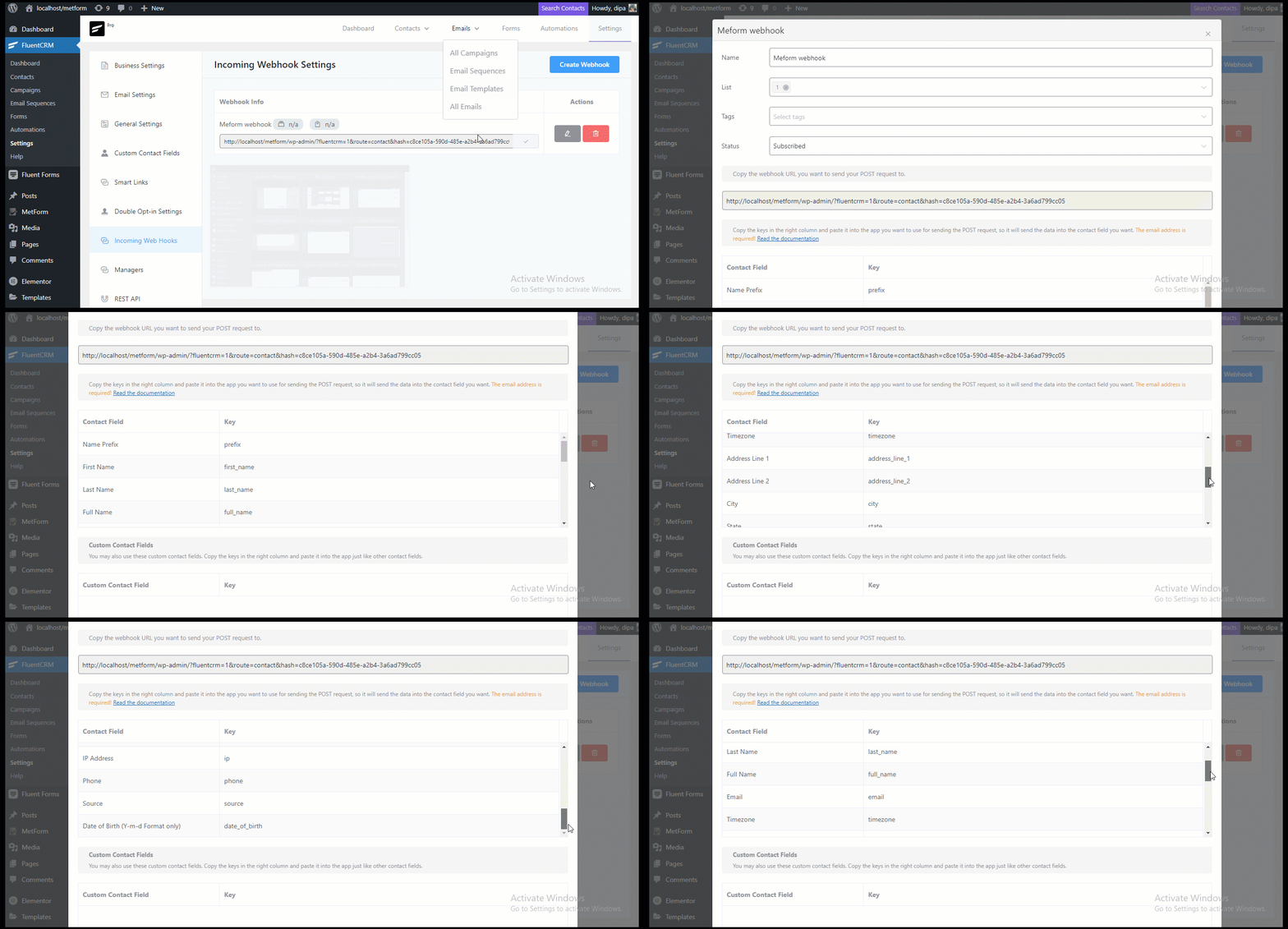
注意: 連絡フォームにはメール フィールドが必要です。MetForm の名と姓のフォーム フィールドは、名前を変更せずにそのまま使用できます。
使用するウィジェットを検索し、ページにドラッグ アンド ドロップします。選択したフィールドに応じて、Webhook のキーを使用してフィールドの名前を変更します。このチュートリアルでは、メール、名、姓を使用します。フォームの作成が完了したら、[更新] をクリックして保存します。
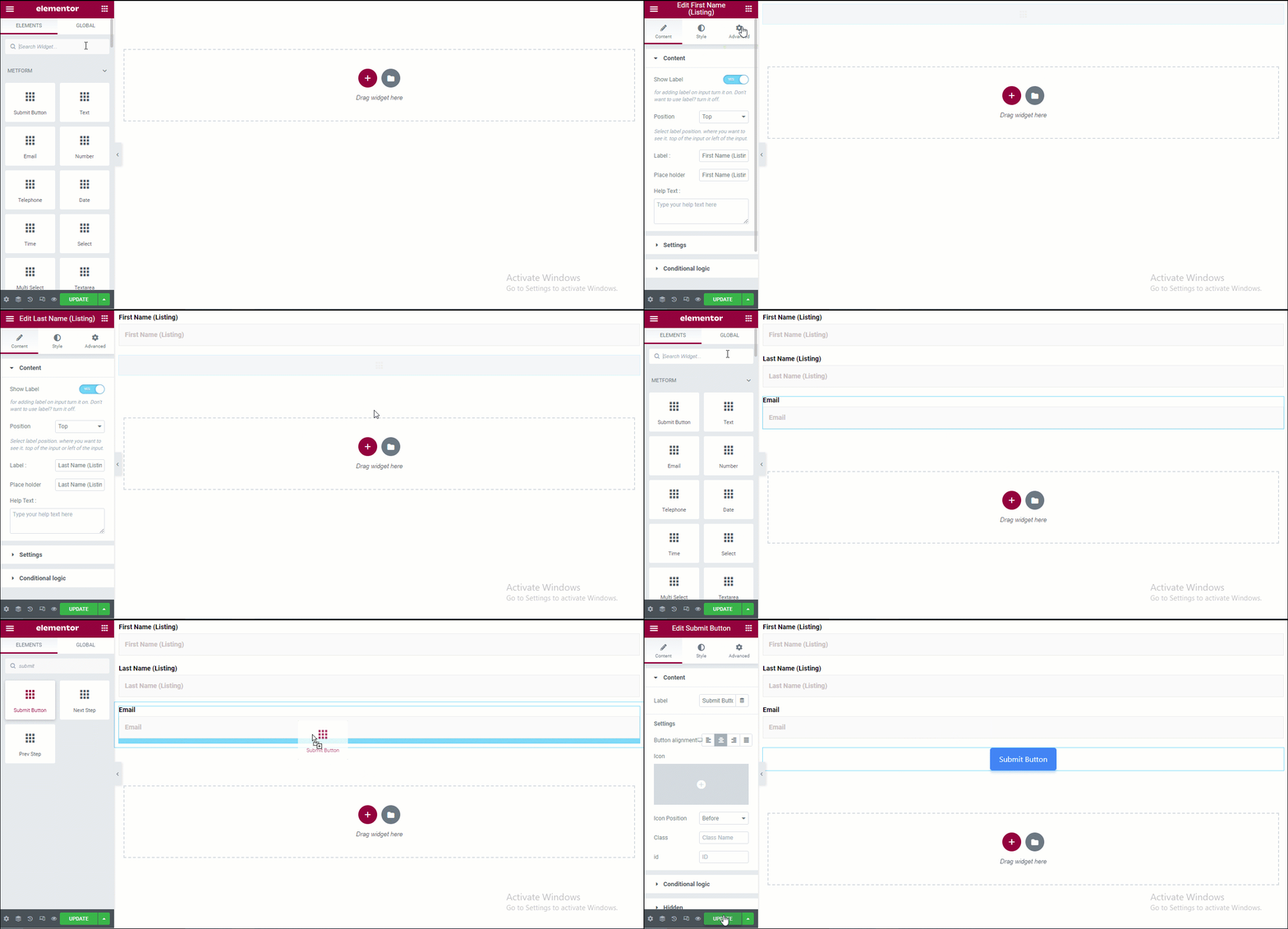
ステップ5. 作成したフォームをページに追加する #
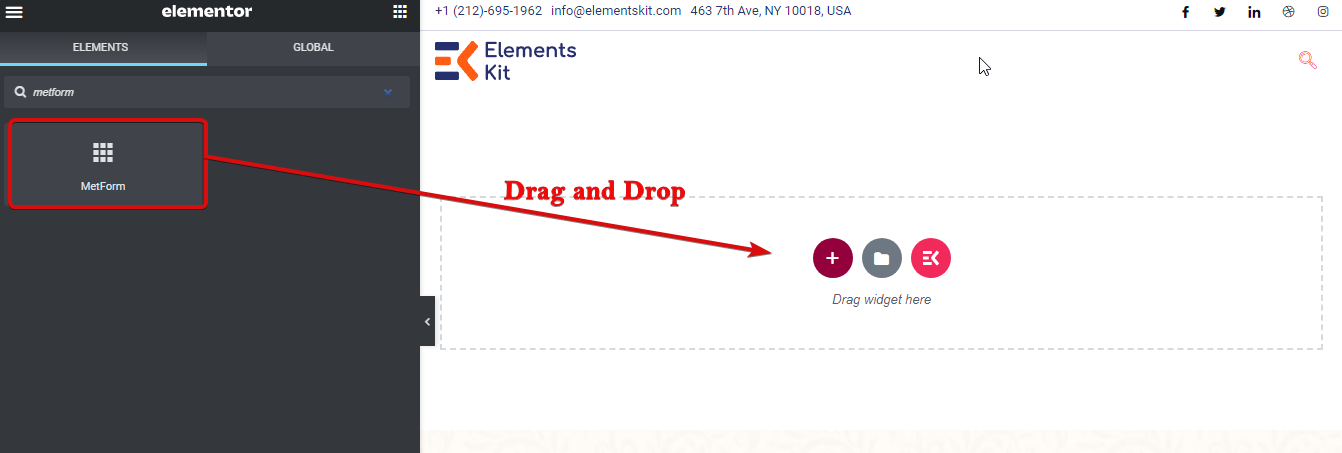
いいえ、Elementor モードで編集してフォームを追加するページに移動します。次に、MetForm を検索し、ページにドラッグ アンド ドロップします。
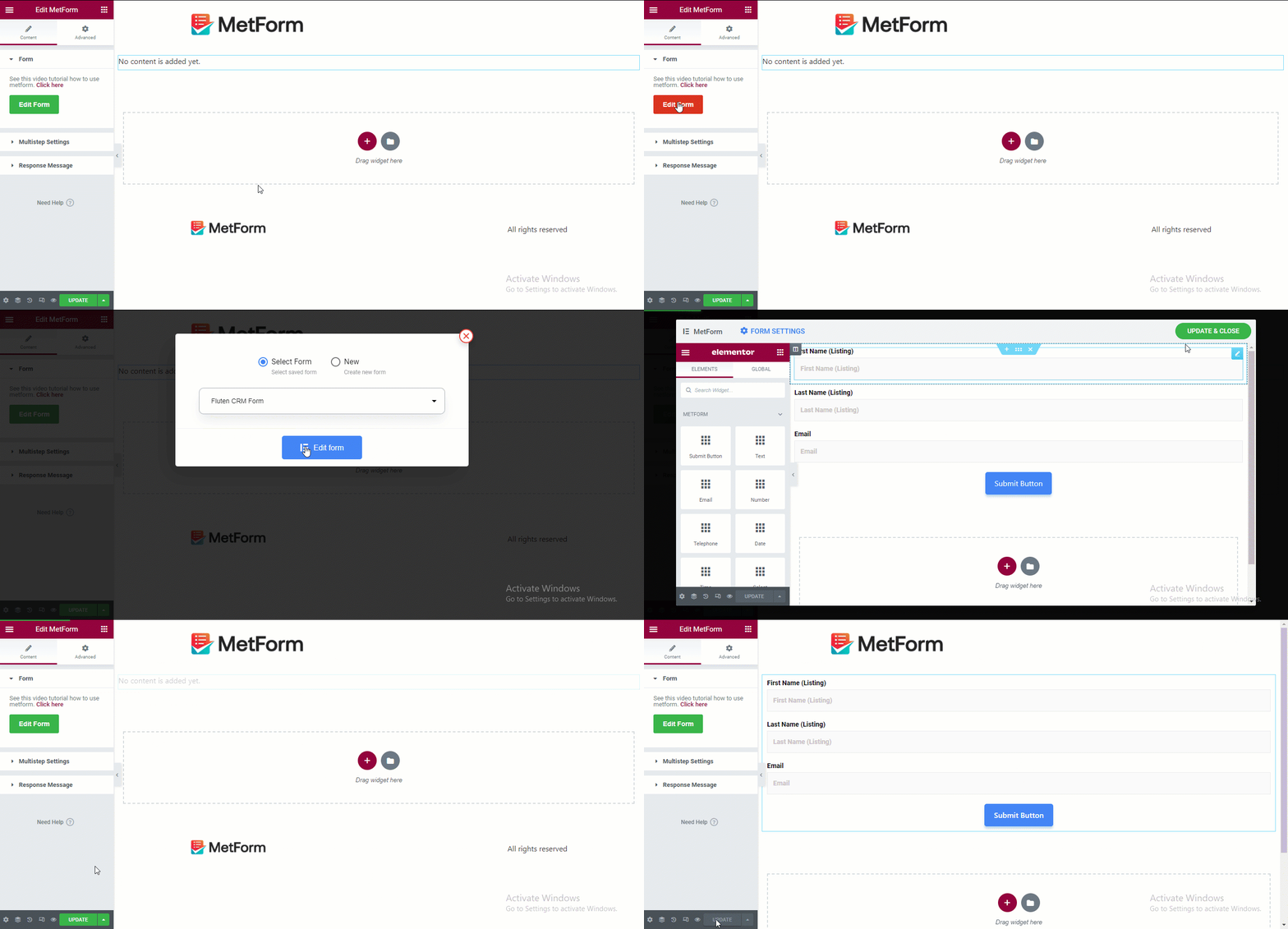
作成したフォームを選択するには、左側の「フォームの編集」をクリックします。次に、ドロップダウンからフォームを選択し、「フォームの編集」をクリックして、最後に「更新して閉じる」をクリックします。
ステップ6. 更新して最終結果を確認する #
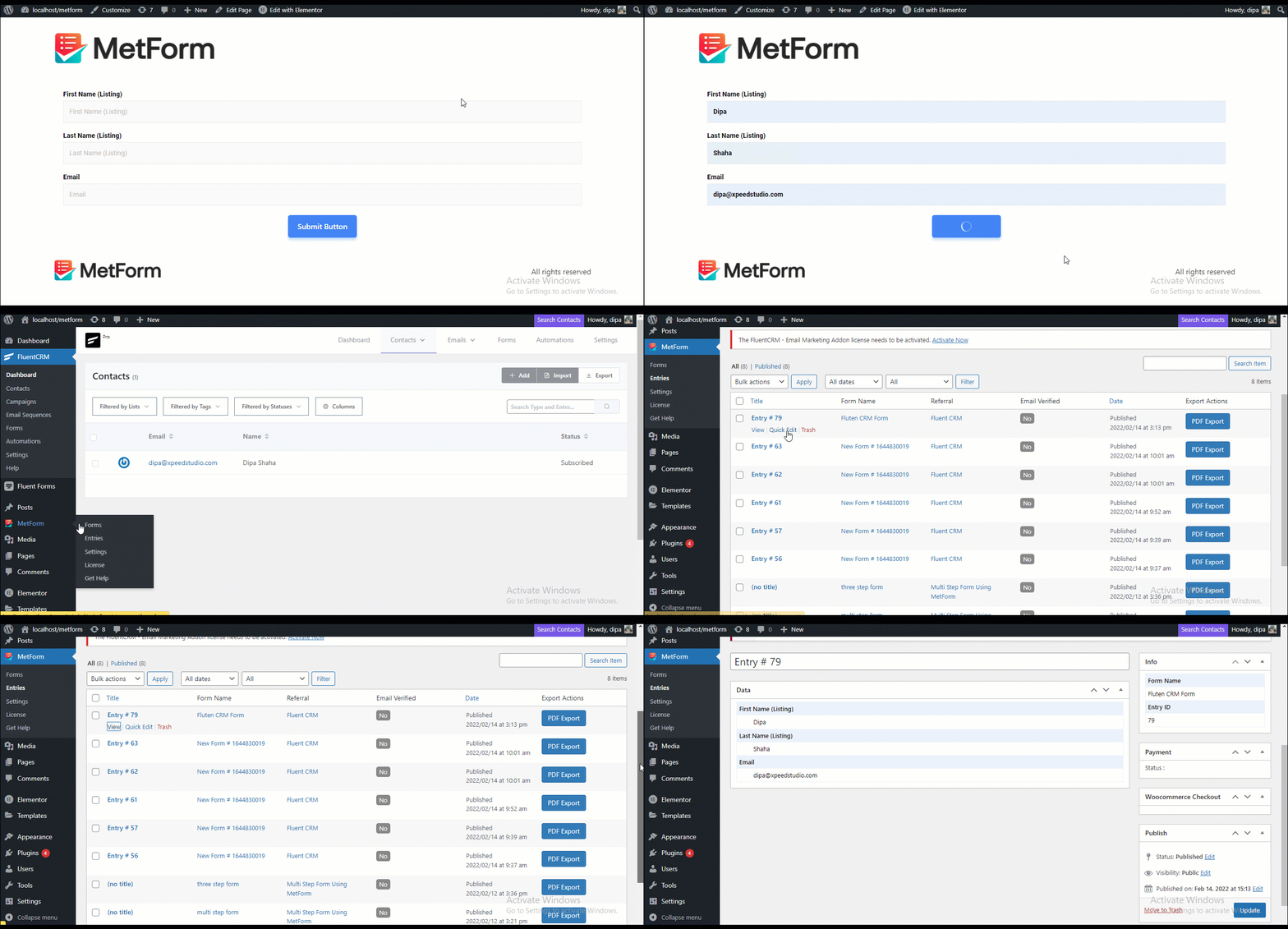
下のページの「更新」ボタンをクリックして最終結果を確認してください。MetFormを使用してフォームを送信すると、 FluentCRM 連絡先のエントリと MetForm エントリは同じです。