Wpmet Flash Sale!

文章
で終わります:
Wpmet シンボル
00
日々
:
00
時間
:
00
:
00
Discount Still Available For You.

Facebook フィード API

ElementsKit Facebook Feed widget connects your WordPress site with Facebook using the official Graph API, allowing you to automatically display page posts inside Elementor.

How to Use ElementsKit Facebook Feed widget #

  • Create an App – Go to Meta for Developers and create a Facebook app to enable API access.
  • Generate Access Token – Create a valid Graph API token to securely fetch your page data.
  • Add Token in Widget – Paste the token inside the Facebook Feed widget settings in Elementor.
  • Customize & Publish – Adjust layout and display options, then publish to show posts automatically

ビデオガイドをご覧ください:

Follow the detailed steps:

After log in to your Meta account, click My Apps.

Click My Apps

Press the create App button.

Click the Create App button

Provide App details and click next.

Provide App details and click Next

Select Authentic and request data from users with Facebook Login and click next.

Select Authentic and request data from users with Facebook Login and click next

Select your ID and click Next.

Review your given details and click the Create App button.

Select Graph API Explorer from Tools

Select Graph API Explorer from Tools

Facebook APIキー生成 #

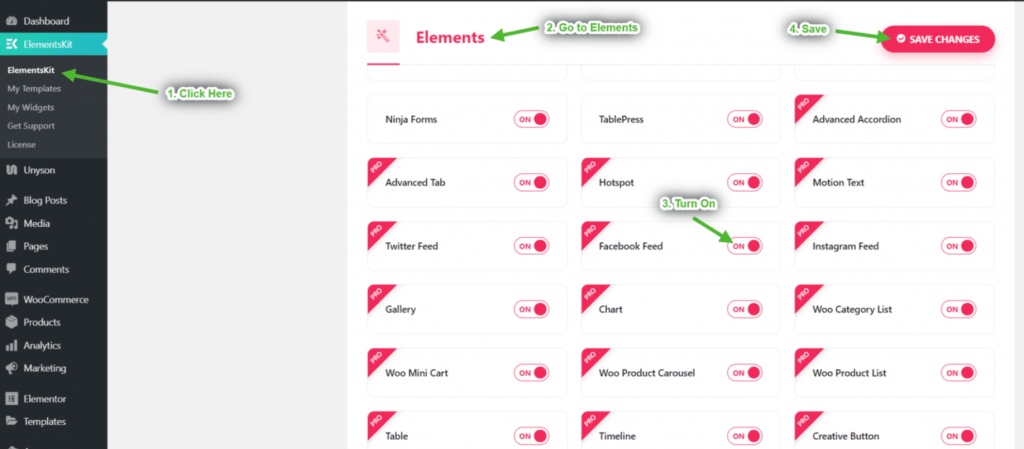
  • Access your WordPress dashboard and go to ElementsKit プラグイン。
  • クリック ElementsKit そしてに行きます ウィジェット
Go to ElementsKit Widgets

Scroll down and find フェイスブックフィード > toggle it to オンにする.

Find Facebook Feed and toggle the button to turn it ON
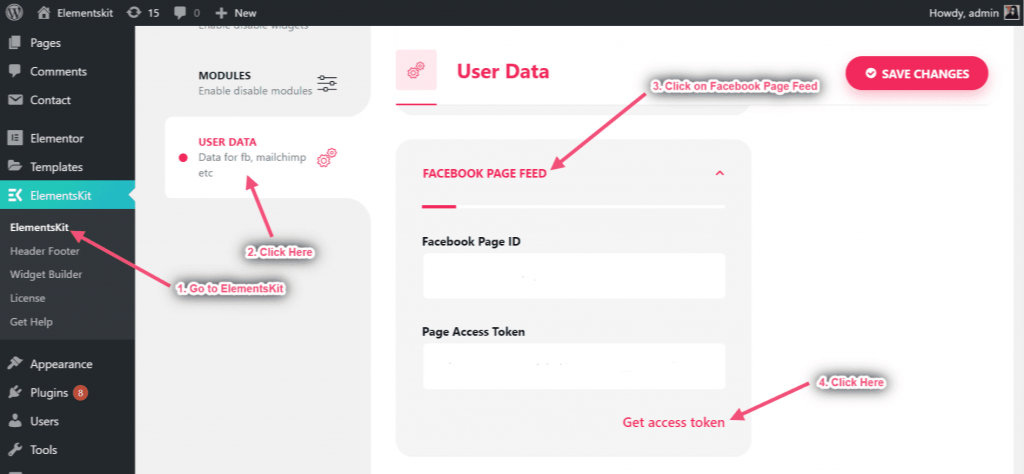
  1. に行く USER SETTINGS from ElementsKit
  2. Enpand FACEBOOK PAGE FEED
  3. クリック アクセストークンの取得 アクセストークンを取得する
Access Facebook user data User Settings

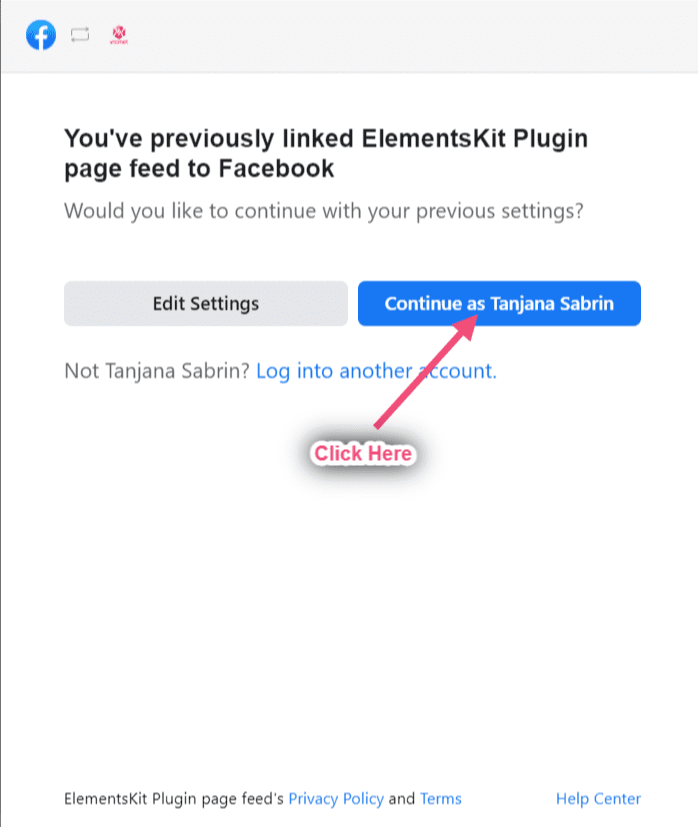
You’ll be redirected to Facebook log in page, log in now.

Log in to your Facebook account

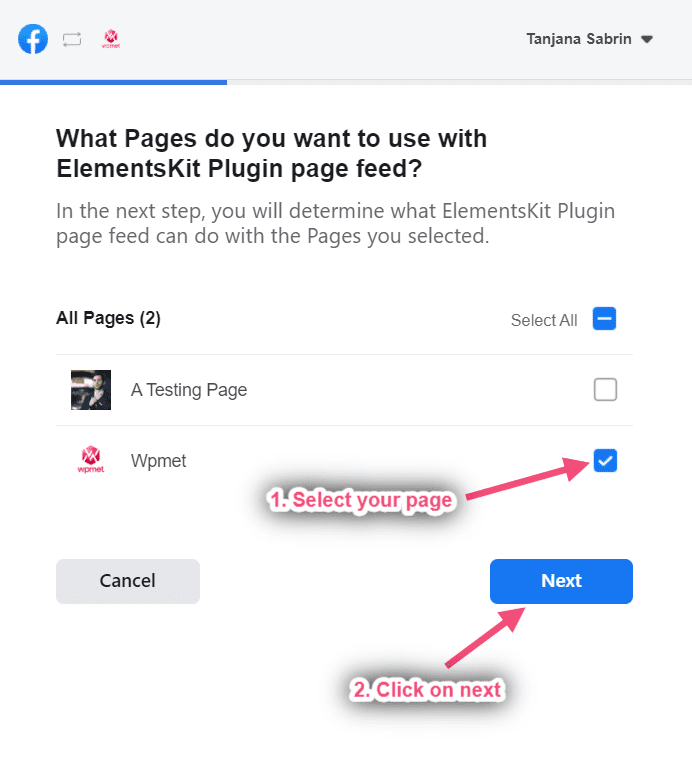
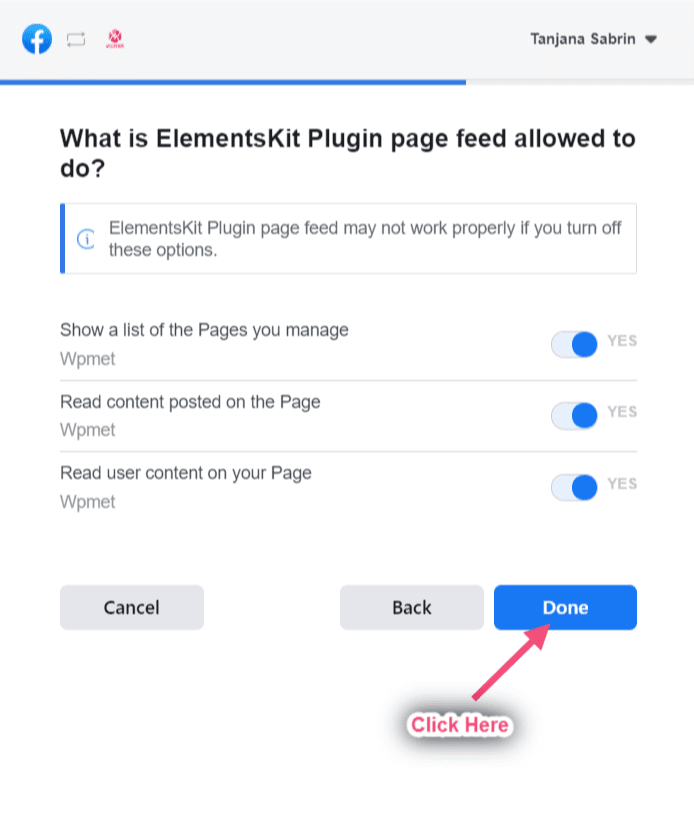
ステップ=>4: ページを選択 => クリック

ステップ=>5: クリック 終わり

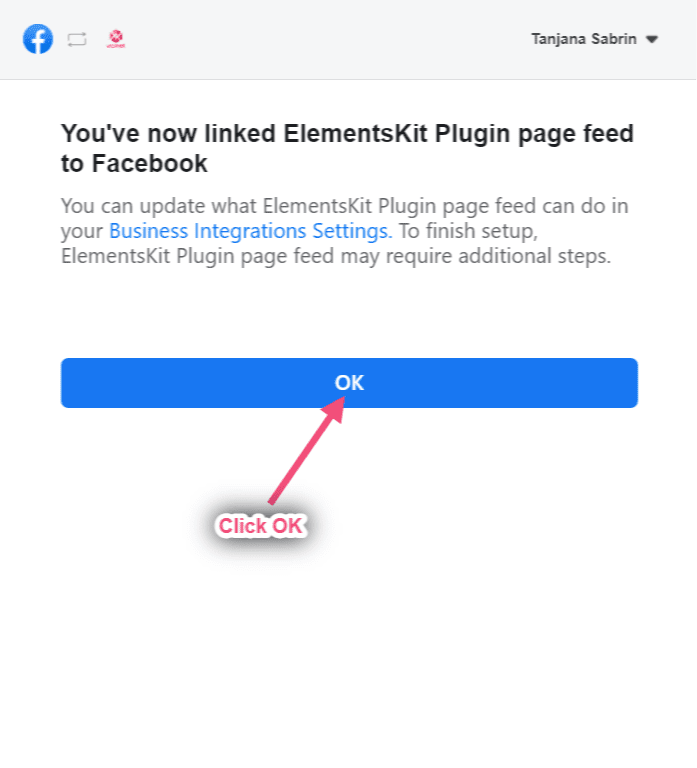
ステップ=>6: クリック わかりました
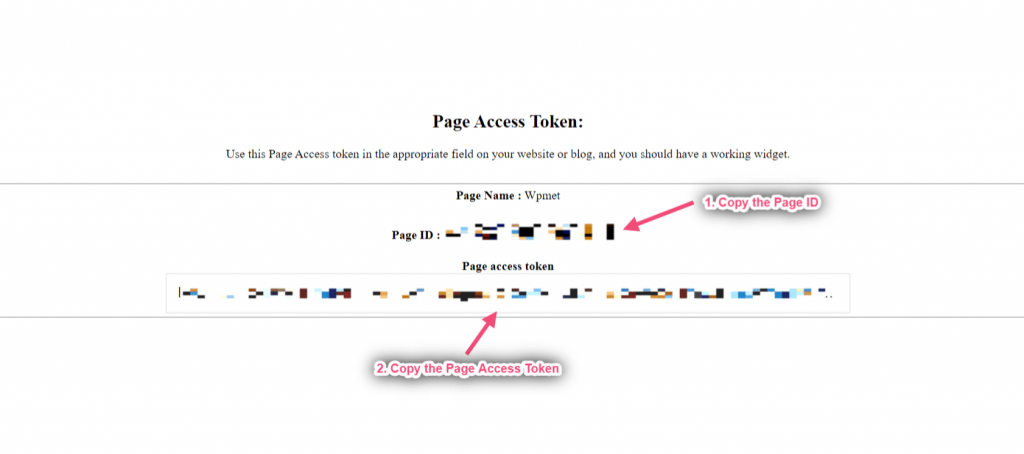
ステップ=>7: これでページIDとアクセストークンが取得できます。 両方コピー
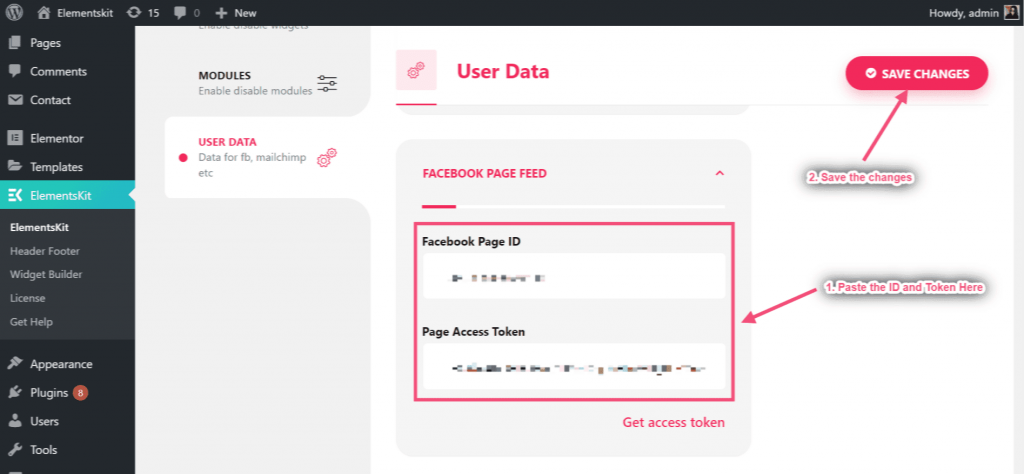
ステップ=>8: 今すぐに行きます Facebookページフィード=> ページIDを入力してください=> ページアクセストークン=> 変更内容を保存
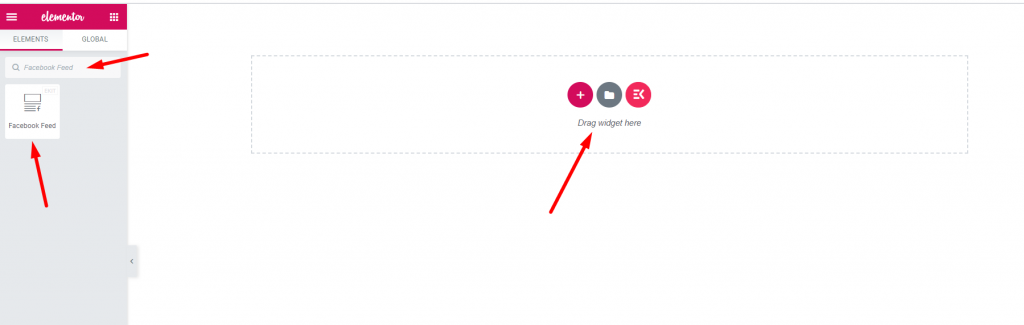
ステップ=>9: に行く エレメンター=> 検索 フェイスブックフィード=> ただ フィールドをドラッグ アンド ドロップします
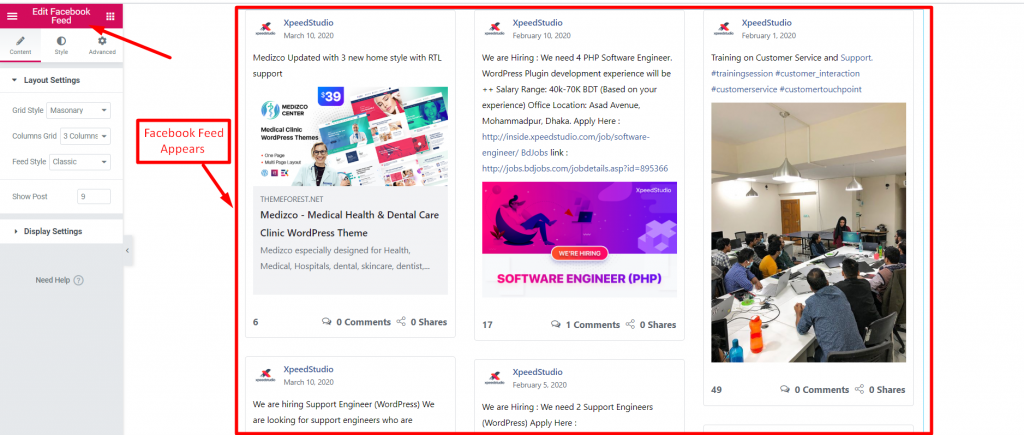
Facebookの投稿をFacebookフィードウィジェットに表示できるようになりました
機能 #

コンテンツ #

レイアウト設定 #

ステップ=>1: に行く 要素=> 検索 フェイスブックフィード=> ただ フィールドをドラッグ アンド ドロップします

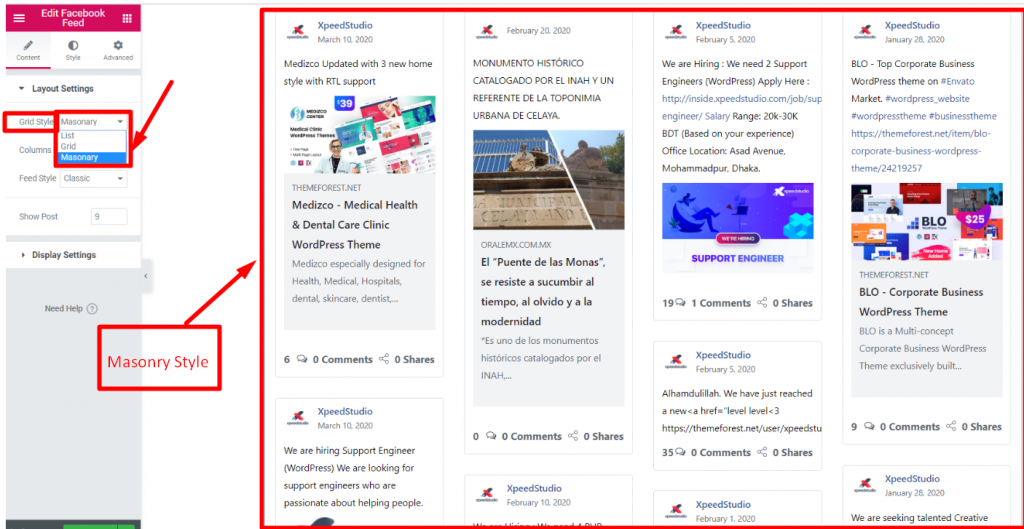
ステップ=>2: クリック レイアウト設定=> 選択 グリッドスタイル リスト、グリッド、またはメイソンリー
ステップ=>3: を選択してください 列グリッド 1、2、3、または 4 画像を表示するために選択する列の数を意味します。
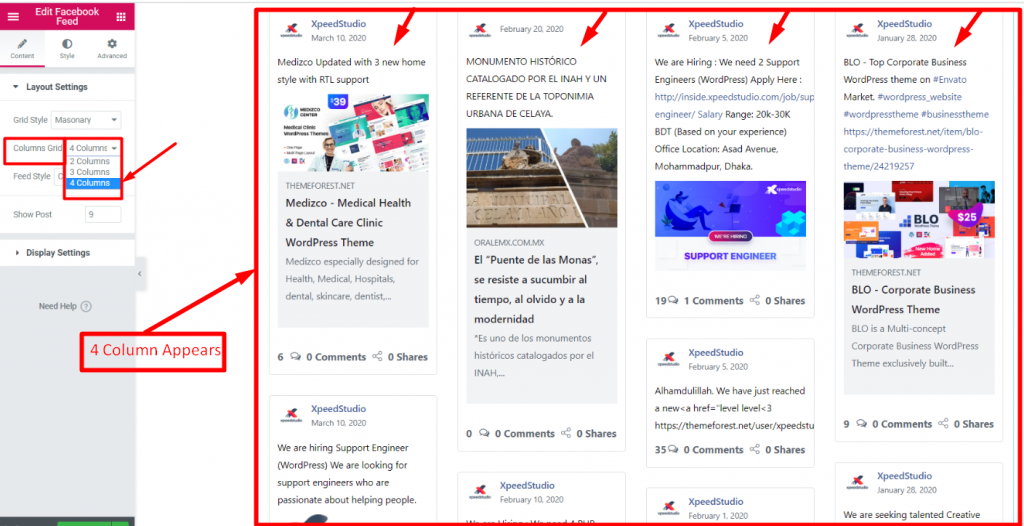
ステップ=>4: 選択する フィードスタイル クラシック または 写真
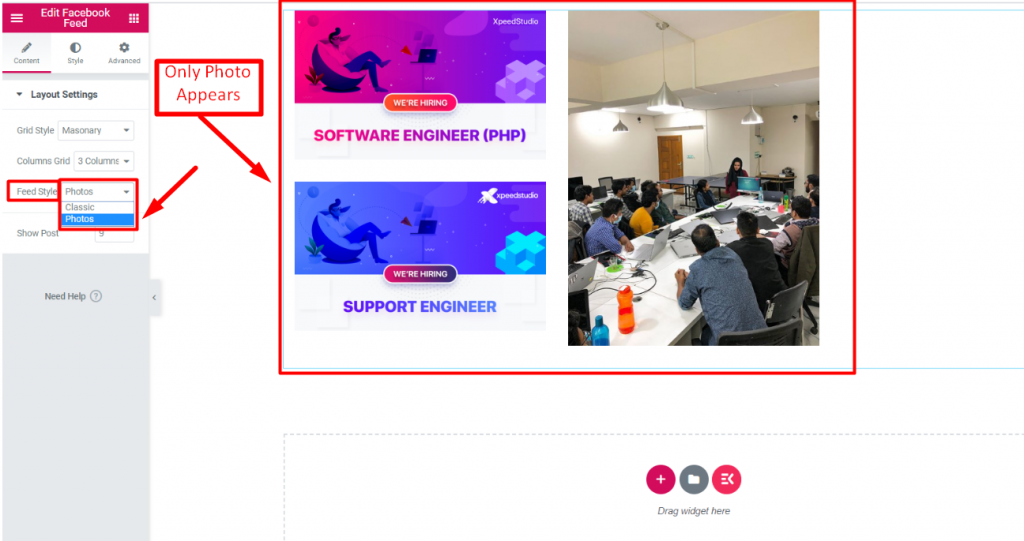
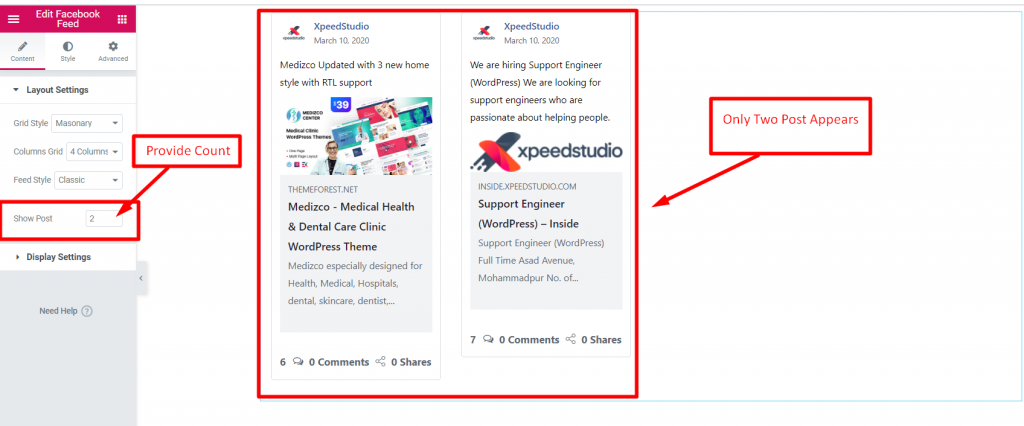
ステップ=>5: 提供する カウント値投稿数 表示したい

ディスプレイの設定 #

ステップ=>1: 著者の表示を有効にする 表示する 著者情報 あなたの投稿に
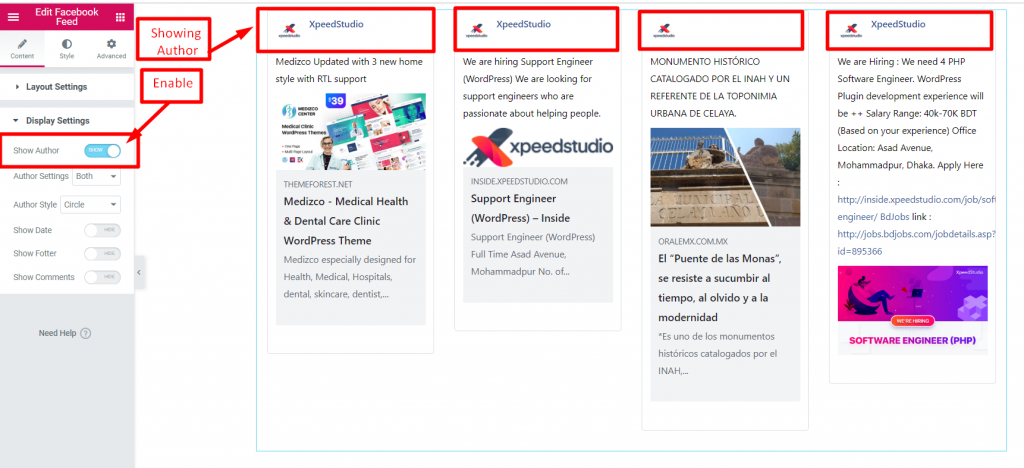
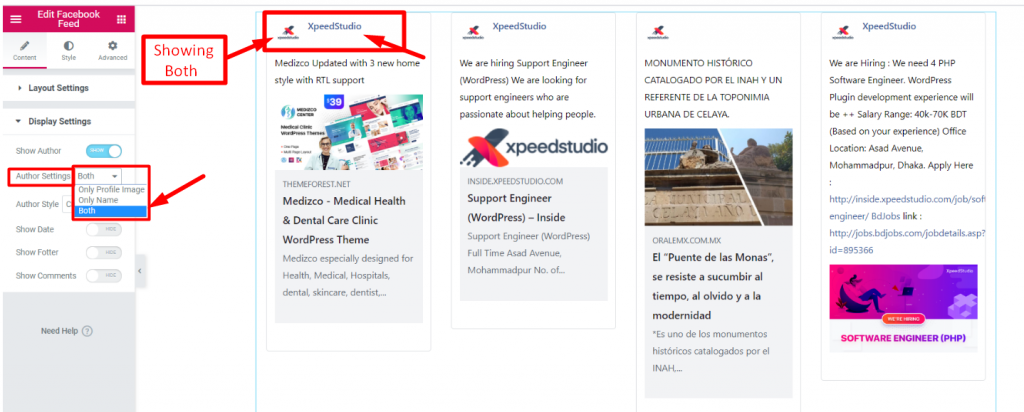
ステップ=>2: 著者設定=> 選択 プロフィール画像のみ, 名前のみ または 両方
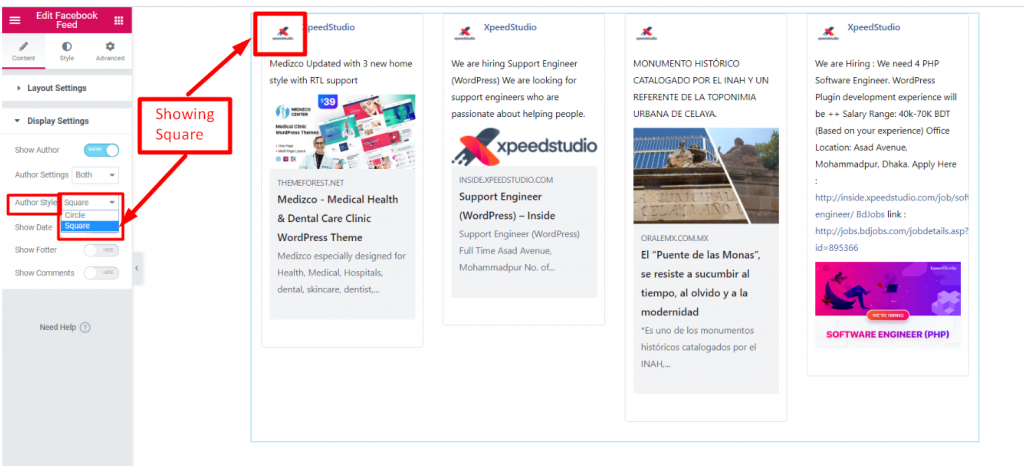
ステップ=>3: サムネイルのスタイルを選択してください 円形または四角形
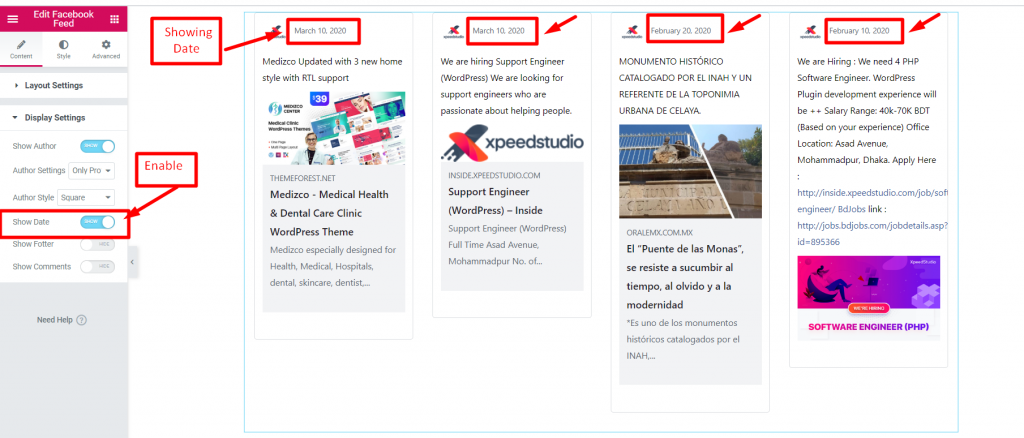
ステップ=>4: 日付の表示を有効にする 投稿のアップロード日を指定する
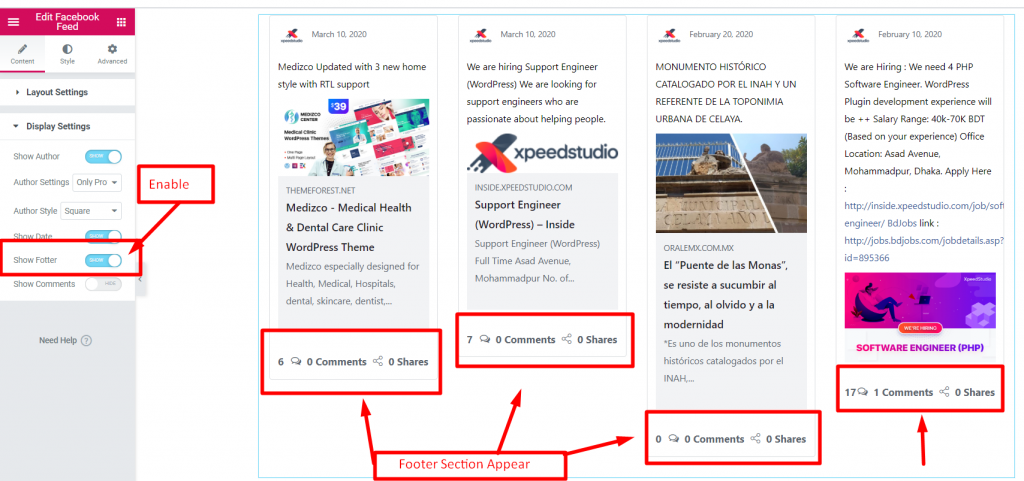
ステップ=>5: フッターの表示を有効にする フッターセクションを表示する
ステップ=>6: コメントボックスを有効にする あなたの投稿に対するユーザーのコメントや反応を紹介する

あなたの気持ちは

Updated on 6月 4, 2026