






If you’re facing the WordPress error “Allowed Memory Size Exhausted”, the fastest solution is to increase the WordPress memory limit by updating your wp-config.php, php.ini, .htaccess file or by requesting a higher limit from your hosting provider.
In most cases, setting the WordPress PHP memory limit to 128MB or 256MB immediately resolves fatal errors, improves stability, and restores normal site performance, especially on hypermedia-heavy websites.
In this article, we’ll guide you on how to increase the WordPress PHP memory limit to correct memory exhaustion error in five methods. So, let’s dive into all these methods one by one after exploring the basics of WordPress memory limit.
Quick Overview
To resolve WordPress “Allowed Memory Size Exhausted” error, the fastest solution is to increase the WordPress memory limit by updating your wp-config.php, php.ini, .htaccess file or by requesting a higher limit from your hosting provider.
Here are the methods of how to increase WordPress memory limit in short:
Method 1: Increase WordPress memory limit via wp-config.php
- Edit the wp-config.php file and increase the value of WP_MEMORY_LIMIT from 64M to 128M or 256M. This is the most reliable and beginner-friendly method.
Method 2: Increase PHP memory limit using php.ini
- If the issue persists, update the PHP memory limit in the php.ini file by setting memory_limit = 256M or higher.
- Restart the server after saving changes.
Method 3: Modify the .htaccess file
- When php.ini access is restricted, add memory limit rules to the .htaccess file to increase PHP memory allocation at the server level.
Method 4: Use a WordPress memory extend plugin
- Install a memory extend plugin such as WPMemory and WP Tools to increase the WordPress memory limit without editing core files. This method is ideal for beginners and non-developers.
Method 5: Contact your hosting provider or upgrade hosting
- If none of the above methods work, your hosting plan may be enforcing strict limits. Request a higher memory allocation or upgrade your hosting plan to unlock better performance and scalability.
What is WordPress memory limit?
WordPress memory limit is the maximum amount of server memory (RAM) that a WordPress site is allowed to use while executing PHP scripts.
Why WordPress memory limit matters for your site performance?
The WordPress memory limit directly impacts how efficiently your site handles PHP processes, plugins, and dynamic content. When the memory allocation is too low, WordPress struggles to execute essential tasks.
Learn more why memory limit matters for your site performance:
- Smooth operation: It ensures WordPress has enough PHP memory to run complex operations without interruption.
- Minimizes errors: It Reduces the risk of critical errors such as “Allowed memory size exhausted”.
- Heavy tool support: It supports heavy plugins and builders that demand more memory.
- Loading time: Memory limit reduces slowdown while high traffic or complex request (e,g. backups, imports).
- Sudden failure: this keeps theme and plugin features fully functional without unexpected failures.
- Consistent site performance: It improves consistency of site performance across different environments.

Come aumentare il limite di memoria PHP e il limite massimo di caricamento in WordPress:

There are five options you can use to resolve WordPress Memory Exhausted Errors and raise the memory capacity and upload limit in WordPress.
Let’s have a look in detail on how to increase the PHP memory limit in WordPress! 😃
Nota: Always keep a new backup dei file e del database del tuo sito prima di apportare modifiche significative in modo da poter ripristinare il sito in caso di errore.
1. Increase WordPress memory limit via wp-config.php
Poiché contiene le informazioni di configurazione di base, la memoria wp-config.php è uno dei file essenziali per un sito Web WordPress. Questo file del limite di memoria di configurazione WP si trova nella directory principale del file system WordPress.
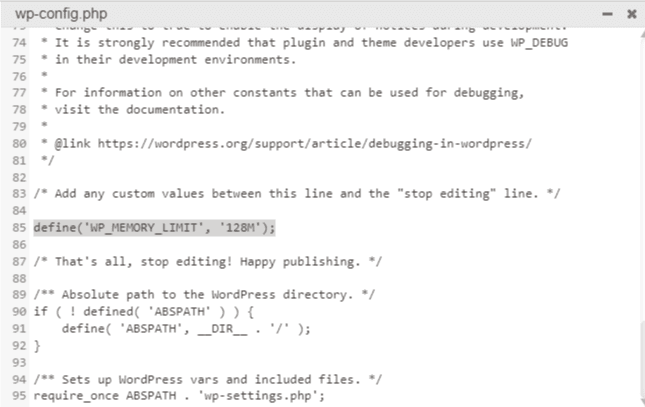
- Look for this line to edit the memory and upload limits on the wp-config.php memory limit file. Here is the WordPress minimum memory limit:
define('WP_MEMORY_LIMIT', '64M');
- Modifica the value to a higher limit, such as ‘128M’ or ‘256M’.
- Salva the WP config PHP memory limit file and check if the error is resolved.
- Note that some hosting providers may limit the maximum WordPress memory you can allocate, so you might not be able to set it to an arbitrarily high value.
define('WP_MEMORY_LIMIT', '128M');
Nota: You’re good to go with this WP config.php memory limit increase method. However, If you’re still having a fatal error, you might need to increase it again. But don’t go too far or il tuo server andrà in crash. Oppure puoi chiedere assistenza al tuo host.
2. Edit your PHP.ini file to increase WP memory limit
If changing the wp-config.php file doesn’t solve the problem, you’ll have to deal with the problem in your server settings. WordPress’s PHP memory limit increase method may work here.
Non sarai in grado di accedere al tuo file PHP.ini se utilizzi l'hosting condiviso. Se hai accesso a PHP.ini. Molto probabilmente si trova nella cartella principale, ma la posizione del file varia a seconda dell'host.
Ecco cosa devi fare:
- Locate or find your php.ini file. If you can’t find it, simply build your php.ini file E salva it in the WordPress installation’s root directory.
- Utilizzo your favorite editor to open and modificare your php.ini file.
- Look for the line that says ‘memory limit = 32M’.
- Modifica the 32M or some other number to the desired limit (e.g. 256M or 512M).
- Restart your local host or server after saving your changes.
Nota: Se hai creato il tuo file php.ini, dovrai aggiungervi la seguente riga:
limite_memoria = 256 MB (o 512 milioni)
In alcuni casi, man mano che avanzi nell'elenco dalla riga uno alla riga tre, i valori aggiunti possono aumentare. IL 'limite di memoria' dovrebbe essere il più grande, mentre il 'carica la dimensione massima del file' dovrebbe essere il più basso. E il 'pubblica la dimensione massima' dovrebbe essere la mediana.
Clear your browser’s cookies before checking if the WordPress memory limit error has disappeared.
3. Edit your .htaccess file
If you don’t have access to PHP.ini, you’ll have to take the following attempts:
- Modificare your WordPress .htaccess memory limit file as a last resort. Since it is a secret file, the .htaccess file begins with a mark.
- Controllo to see if your SFTP file manager is keeping some files hidden from view if you don’t see them in your root folder.
- Here are the details you need to add to your .htaccess file to increase the WordPress memory limit:
php_value memory_limit 256M php_value upload_max_filesize 12M php_value post_max_size 13M- Increase the WordPress PHP memory capacity if it hasn’t already been set. You can utilizzare il seguente codice to increase the PHP WordPress memory limit:
ini_set('limite_memoria', '512M'); Tuttavia, funziona solo per il file in cui è scritto.4. Use the memory extend plugin
Other than editing wp-config.php, PHP.ini, and .htaccess files, you can extend the limit by utilizing the WordPress PHP memory limit increase plugin. There are numerous memory extend plugins such as WPMemory, Strumenti WP, ecc. Questi Plugin per limitare la memoria di WordPress let you improve limits without touching your memory limit files. It is a friendly process for beginners and non-coders. So, try to optimize the memory limit by adopting a memory extend plugin if you want to avoid coding hassle.
5. Through the hosting provider
Contacting your hosting provider to increase your memory limit is the easiest among all methods. Most of the popular hosting providers include this service. However, their services may vary depending on the type of package you’re using. Also, some might not include this option. In this case, you need to adopt any one of the four methods mentioned above to enhance the memory capacity of your WordPress site.
6. Upgrade hosting service:
Upgrading your hosting plan becomes essential when your WordPress site starts demanding more server resources than your current hosting environment can provide. A higher-tier hosting plan offers increased PHP memory limits, better resource allocation, and improved scalability which ensures your site runs smoothly without constant technical interupption.
You should upgrade your hosting plan when:
- You frequently encounter memory exhausted or fatal errors despite increasing the WordPress memory limit.
- Your site has outgrown shared hosting limitations.
- You are running WooCommerce, page builders, or multiple resource-intensive plugin.
- High traffic causes slow loading times or server timeouts.
- Site operations like backups, imports, or updates fail or take too long.
- You need better performance, reliability, and room for future growth.
How to Fix Memory Limit While Migrating to a Live Server?
As PHP is a server-side linguaggio di programmazione, and WordPress is written in it. For PHP to work properly, every website needs a hosting server.
So, when you move a local WordPress site to a live server, it’s quite common to run into PHP memory limit errors. This usually happens because your local machine has more flexible resources, while most hosting environments (especially shared hosting) set strict limits to keep things under control.
Here’s a breakdown of why this happens and how to fix it:
1. Increase PHP memory limit in wp-config.php:
- You can increase the WordPress memory limit by adding a line to your
wp-config.phpfile.
define( 'WP_MEMORY_LIMIT', '256M' );- The ‘256M’ (256 mega bites) here is the PHP memory limit. You can replace this to a higher value like ‘512M’ to increase the memory limit.
2. Update php.in file:
If updating your wp-config.php file doesn’t fix the issue, it could be that your server’s global PHP memory limit is set lower. In that case, you will need to:
- Aggiusta il php.ini file if you have the edit access to it.
- The location of this file can vary depending on your hosting setup. Find it inside your hosting control panel (like cPanel).
- If you can’t locate it, your hosting provider can point you in the right direction.
- Once you’ve opened the file, search for the following line that says memory_limit and increase the value to a higher limit.
Before:
memory_limit = 256M;Dopo:
memory_limit = 512M;3. Edit .htaccess File
Some hosting providers (mostly Apache servers) let you to override PHP settings right from the .htaccess file in your WordPress root folder.
- Add this line to edit .htaccess file:
php_value memory_limit 512MDi quanta memoria ha bisogno WordPress?
I requisiti di memoria per WordPress possono variare in base a diversi fattori come le dimensioni e la complessità del tuo sito web, il numero di plugin e temi che utilizzi e la quantità di traffico ricevuto dal tuo sito. Pertanto non è così semplice rispondere di quanta memoria ha bisogno WordPress.
Lo stesso WordPress ha un requisito di memoria minimo di 64 MB, ma in genere non è sufficiente per la maggior parte dei siti Web. Il minimo consigliato è di circa 128 MB, anche se molti provider di hosting consigliano di allocare 256 MB o più per prestazioni ottimali.
Se hai un piccolo sito web con funzionalità di base e un basso livello di traffico, 256 MB di memoria dovrebbero essere sufficienti. Tuttavia, man mano che il tuo sito web cresce e aggiungi più plugin, temi e aumento del traffico, potrebbe essere necessario allocare più memoria.
It’s worth noting that memory requirements can also vary depending on the hosting environment. Shared hosting plans may have stricter memory limitations compared to dedicated or cloud hosting solutions, such as Kinsta.
Per determinare gli esatti requisiti di memoria per il tuo sito Web WordPress, puoi monitorare l'utilizzo della memoria del tuo sito utilizzando gli strumenti forniti dal tuo provider di hosting o i plug-in WordPress. Questi strumenti possono aiutarti a identificare se il tuo sito sta esaurendo la memoria e se è necessario allocare risorse aggiuntive.
Ti consigliamo sempre di consultare il tuo provider di hosting o l'amministratore di sistema per determinare l'allocazione di memoria ottimale per il tuo installazione specifica di WordPress, poiché possono fornire indicazioni in base ai requisiti del tuo sito web e all'ambiente di hosting.
Che cos'è un errore di memoria esaurita di WordPress?
Per informazioni più dettagliate guarda il nostro video su Soluzione dell'errore fatale sotto:
I server Web funzionano allo stesso modo di qualsiasi altro dispositivo. Hanno bisogno di memoria per eseguire più applicazioni in modo efficace contemporaneamente. A diversi programmi in WP vengono assegnate quantità diverse di limiti di memoria da parte degli amministratori del server.
Quando WordPress è in esecuzione, ha bisogno di una certa quantità di memoria (RAM) per gestire varie attività, come l'elaborazione di temi e plugin e l'esecuzione di script PHP. Per impostazione predefinita, WordPress imposta un limite alla quantità di memoria che può utilizzare. Se il tuo sito web supera questo limite, riscontrerai l'errore "Memoria esaurita".
| Errore fatale: WordPress allowed memory size of 67108864 bytes exhausted (tried to allocate 2348617 bytes) in /home4/xxx/public_html/wp-includes/plugin.php on line xxx O Errore fatale: Dimensione di memoria consentita di 41943040 byte esaurito errore fatale dimensione di memoria consentita WordPress |
Questo messaggio di errore viene visualizzato quando il codice WordPress richiede un limite di memoria maggiore rispetto al limite di memoria allocata predefinito.
Che cos'è la "dimensione di memoria consentita in byte esauriti" in WordPress
Il messaggio di errore “Dimensione memoria consentita in byte esaurita” in WordPress indica che il tuo sito WordPress ha superato il limite di memoria ad esso assegnato. Ogni sito WordPress ha un limite di memoria predefinito che limita la quantità di memoria che PHP può utilizzare durante l'esecuzione degli script.
When a script, such as a plugin or a theme, tries to allocate more memory than the WordPress allowed memory size or limit, this error occurs. The error message usually includes the specific memory size that has been exhausted.
Ad esempio, il messaggio di errore potrebbe essere simile al seguente:
Errore fatale: Dimensione di memoria consentita di 67108864 byte esaurita (tentativo di allocare 123456 byte) in /path/to/wordpress/wp-includes/some-file.php alla riga 123
Qual è il limite di memoria PHP di WordPress?
PHP è il linguaggio di programmazione lato server che crea le pagine HTML del sito web.
PHP è un linguaggio di programmazione versatile e dinamico in grado di elaborare interrogazioni WordPress, eseguire calcoli e altro ancora, ma per farlo richiede memoria.
WordPress’s default defined memory limit is 32 MB, ma è normale se hai bisogno di alzarlo. Ad esempio, WooCommerce consiglia un limite di memoria di WordPress di 64 MB.
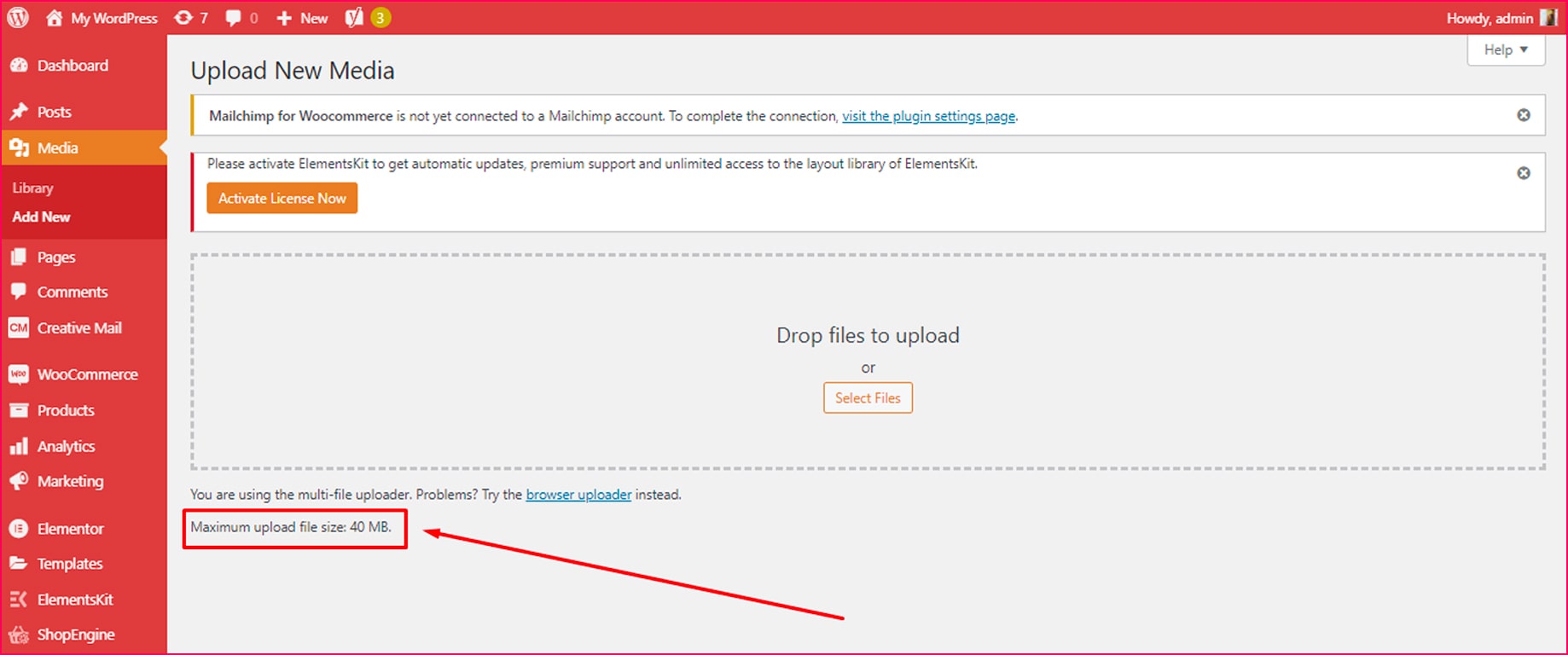
Quando WordPress raggiunge il limite di memoria predefinito, proverà ad aumentarlo 40 MB per installazioni a sito singolo E 64 MB per installazioni multisito. Se ciò non bastasse, verrà visualizzata una riga di messaggio di errore irreversibile.
A meno che tu non abbia installato un plug-in che richiede più memoria, un limite di memoria di 128 MB dovrebbe essere sufficiente per la maggior parte delle pagine. Installa il Visualizzazione dell'IP del server e dell'utilizzo della memoria plugin per vedere quanta memoria consuma ciascun plugin.
Puoi disattivare i plugin per vedere come influiscono sull'utilizzo della memoria dopo aver attivato il Visualizzazione dell'IP del server e dell'utilizzo della memoria collegare. Per evitare di sovraccaricare il tuo server, alta qualità, plugin tutto in uno può fare un uso efficiente della memoria.
Perché WordPress richiede un limite di memoria maggiore, tanto per cominciare?
Per aumentare il limite di memoria è necessario aumentare la dimensione massima di caricamento nel file del limite di memoria wp-config.php di WordPress.
Tuttavia, c'è un problema su cui dovresti essere cauto. Aumentare il limite di memoria renderà più difficile identificare le inefficienze di WordPress.
Prima di aumentare il limite di memoria di WordPress, ti consiglio di farlo prima prova a capire cosa sta consumando più memoria. Maggiori risorse destinate a un problema a volte possono costare molto di più a lungo termine, in particolare se si prevede di aggiornare l'host.
Le inefficienze in WordPress possono portare a un sito lento e a una cattiva esperienza utente. Ma per ottenere la soluzione è necessario identificare la radice del problema, che può aiutarti a risolvere una serie di problemi lungo il percorso.
Appena 4.4% di Siti web WordPress utilizzare la versione più recente di PHP, E 64% utilizza la versione precedente che non riceve più aggiornamenti attivi.
Aggiornare il PHP del tuo server di hosting alla versione più recente renderebbe WordPress più efficace ed eliminerebbe la necessità di aumentare la capacità di memoria in WordPress.
Qual è il limite massimo di caricamento in WordPress?
Il limite massimo di caricamento in WordPress si riferisce alla dimensione del file più grande che WordPress può accettare per i caricamenti. La capacità massima di caricamento in WordPress può essere trovato nella schermata di caricamento del catalogo multimediale.
Sebbene ciò sia vantaggioso per il tuo host, migliora anche l’efficienza del tuo sito. I caricamenti di file di immagini di grandi dimensioni, ad esempio, hanno prestazioni scadenti sul tuo Web perché richiedono molto tempo per essere scaricati e presentati.
🤷♀️ Tieni presente:
Prima di spendere più soldi per il problema e aumentare il limite di memoria WP, verifica se c'è qualcosa che puoi fare per ridurre prima la dimensione del file, proprio come hai fatto con il limite di memoria.
Se le tue immagini sono un po' troppo grandi per il loro contenitore o non le hai compresse, puoi prima risolvere questi problemi perché risolvono la radice del problema, ovvero non migliorare adeguatamente le tue risorse. Per maggiori dettagli consultare la nostra guida su come velocizzare il tuo sito web.

Domande frequenti
Does WordPress memory limit effect performance?
Yes. A low WordPress memory limit slows down PHP execution, causes fatal errors, and prevents plugins and themes from running smoothly that directly impact site performance.
Is 256M enough?
For most WordPress sites, 256M is sufficient. However, hypermedia-heavy sites, WooCommerce stores, or sites using advanced page builders may require more memory.
How to check current WordPress memory limit?
You can check the WP memory limit from wp-config.php file. In this file, you will find a line similar ( ‘WP_MEMORY_LIMIT’ , ‘128MB’ ). This means your WordPress memory limit is 128MB that you can further change by editing your WordPress PHP or other files.
Qual è la differenza tra WP_memory_limit e WP_max_memory_limit?
WP_memory_limit indica il limite di memoria del frontend. D'altra parte, WP_max_memory_limit si riferisce al limite di memoria PHP allocata per lo sviluppo del backend.
What does Memory_limit=-1 mean in PHP?
Memory_limit= -1 è impostato per evitare di utilizzare tutta la memoria da script PHP scritti male. Significa che allo script PHP non è consentito utilizzare risorse eccessive del server e causare problemi di prestazioni.
Avvolgendo
Può essere snervante configurare il server e gestire errori fatali legati all'aumento del limite di memoria nel sito Web WordPress. La procedura che devi seguire dipende fortemente dalla società di hosting che scegli, motivo per cui ottenere un host affidabile è così fondamentale. Ti aiuteranno a individuare e modificare le impostazioni che devono essere modificate per aumentare il limite di memoria di PHP WordPress.
Tuttavia, aumentando il limite di memoria wp per il tuo sito web tramite il file wp-config memory limit è il metodo più semplice su cui puoi contare, gli altri due possono essere un po' in ritardo.



Lascia un commento