





This article will show you how to integrate Omnisend con Kit Popup. By following this doc, you can automatically sync your popup leads directly to your Omnisend contact lists.
Prerequisito:
Accessing MailerLite integration requires a PopupKit Pro subscription.
How to Integrate PoupKit with Onmisend #
Let’s go through the step-by-step process of connecting Ominsend with PoupKit.
Step 1: Get Omnisend API Key #
To get started, you need to generate an API key from your Omnisend account:
- Login alla tua Omnisend pannello di controllo.
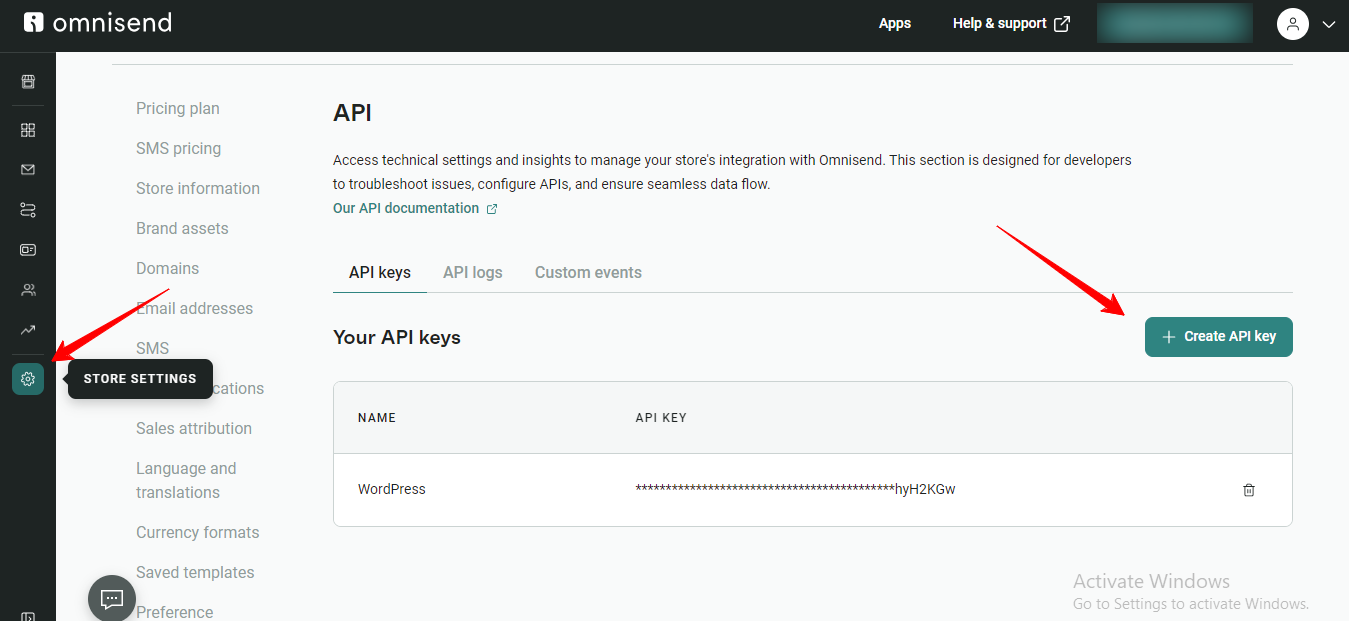
- Click on your Profile name in the top-right corner and select Store Settings.
- On the left sidebar, navigate to API e fare clic su API Keys.
- Clicca il Create API Key pulsante.
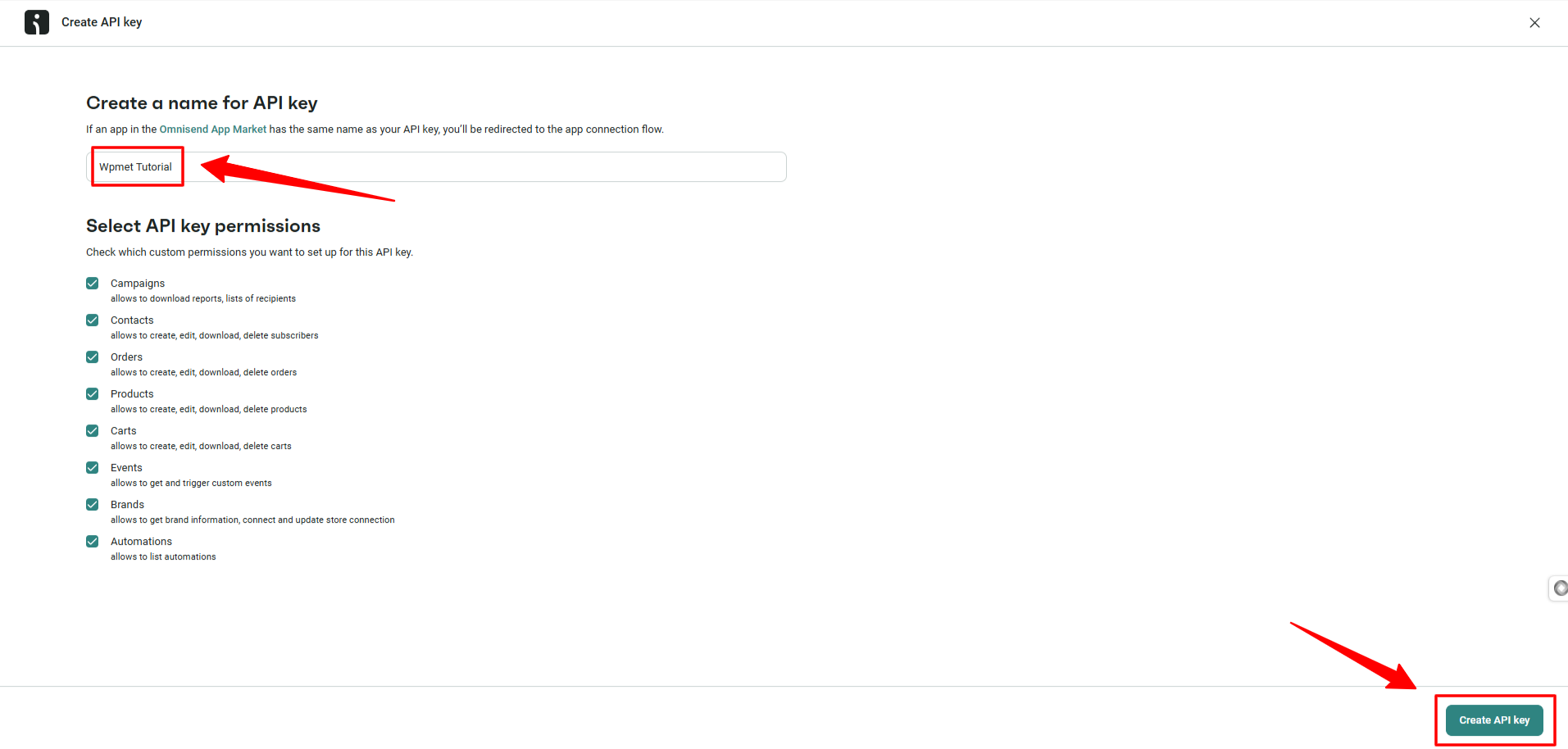
- In the next screen, you need to Name your key (e.g., “PopupKit Integration”).
- Clic Generate API Key. And, your API Key will appear.
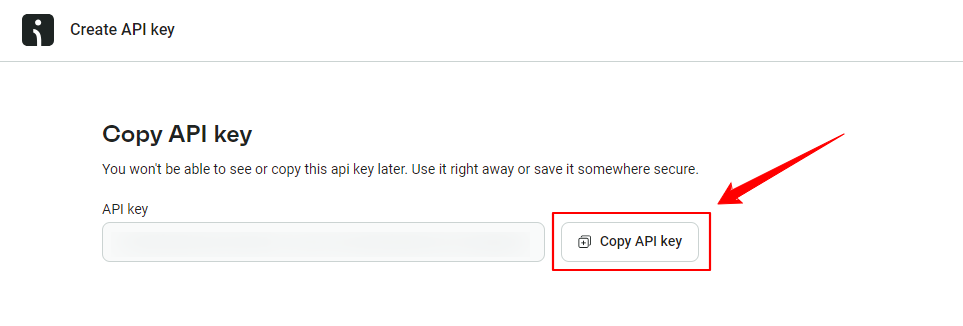
Copy the API Key immediately and store it safely, as Omnisend will not show the full key again.
Step 2: Add API Key to PopupKit Settings #
Once you have your API key, you need to connect it to the PopupKit plugin:
- Vai al tuo Pannello di controllo di WordPress.
- Navigare verso PopupKit > Integrations
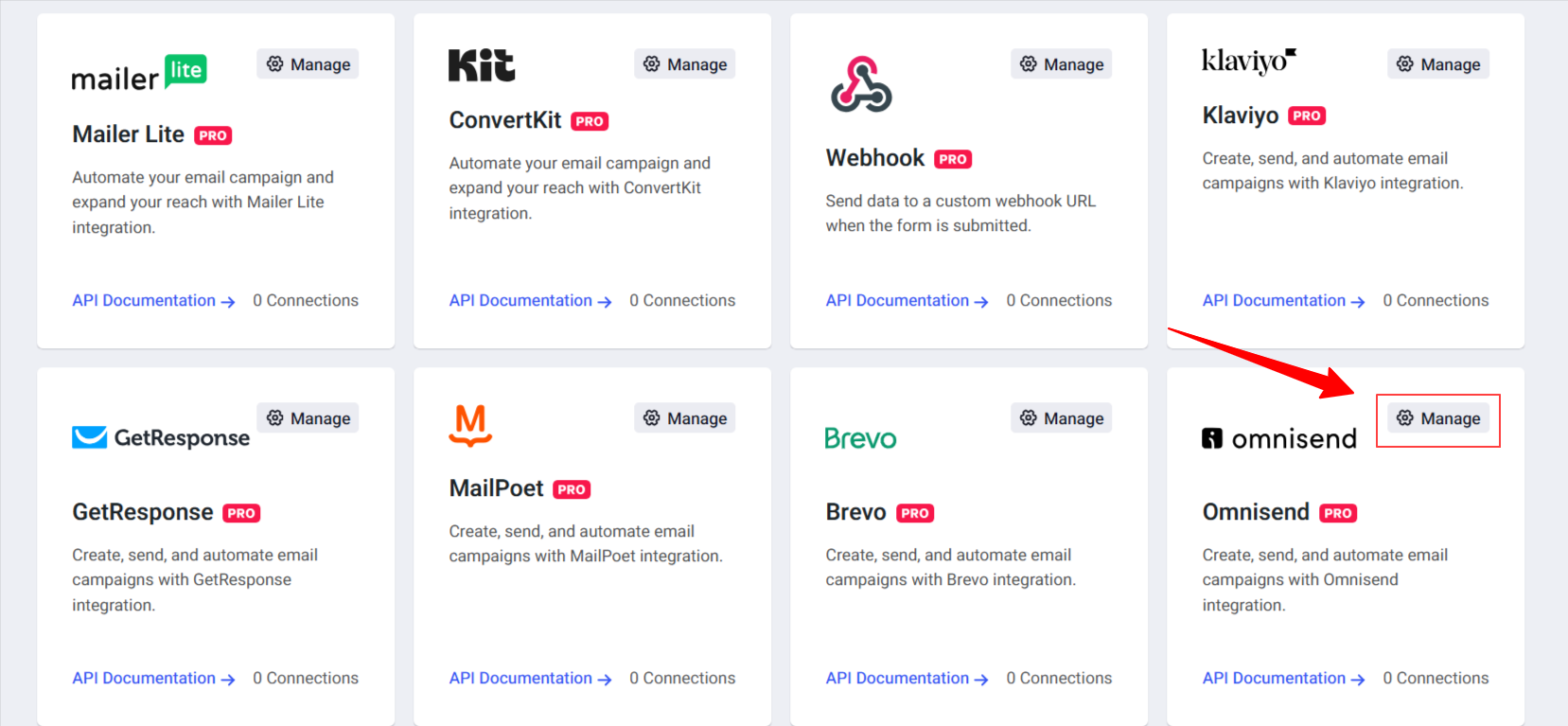
- Trovare Omnisend in the list of available integrations.
- Once you see it. Click the “Manage” opzione.
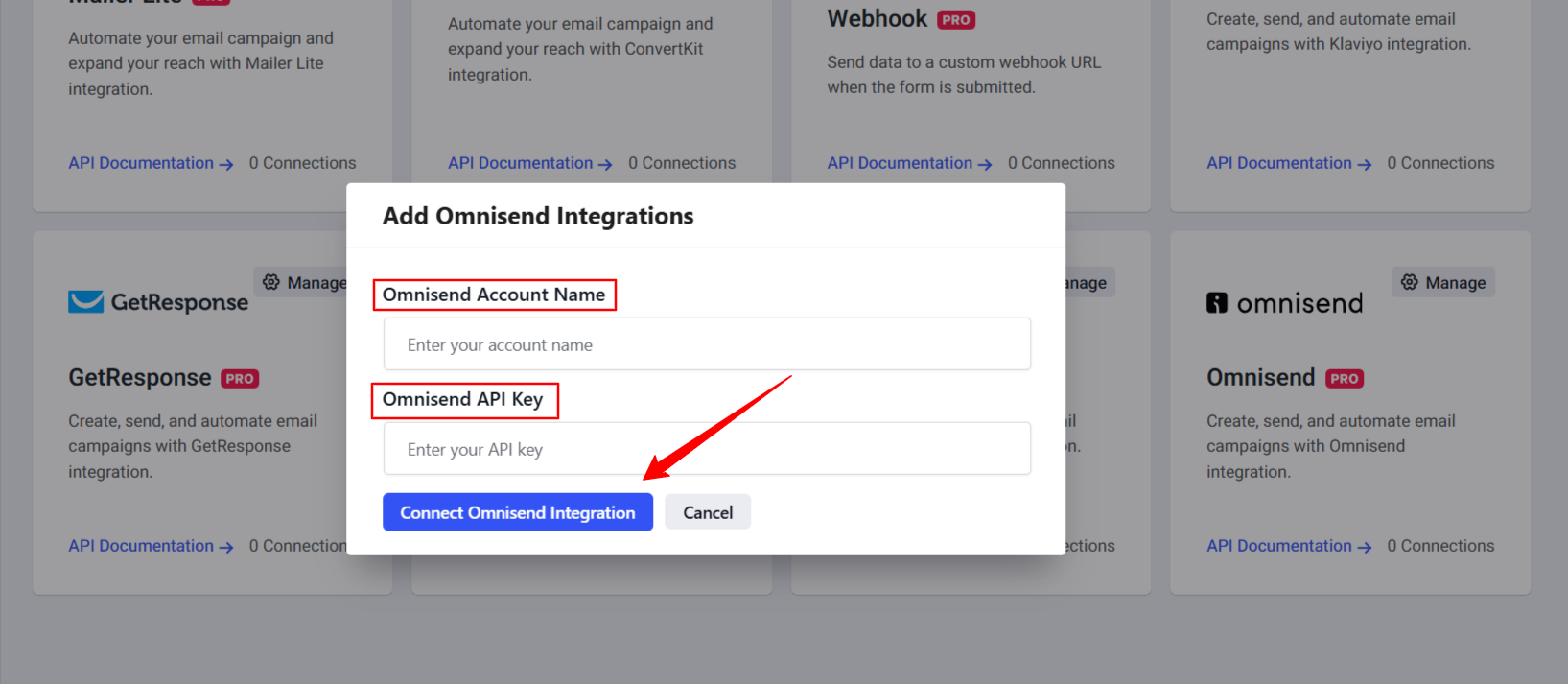
- A popup will appear. Enter your Omnisend Account Name and paste your Chiave API into the designated field.
- Quindi, premi il Connect Omnisend Integration pulsante.
And, from now on, you can link a specific popup form to your Omnisend account.
Step 3: Configure Omnisend in the Popup Editor #
In this step, you’ll see how to set up Omnisend in the popup editor interface.
Start designing a new popup campaign or edit an existing one. Once you’re in the editor panel, design a popup with a Modulo bloccare.
Seleziona il Modulo element within your popup layout. In the left-hand settings panel, look for the Integrazioni opzione.
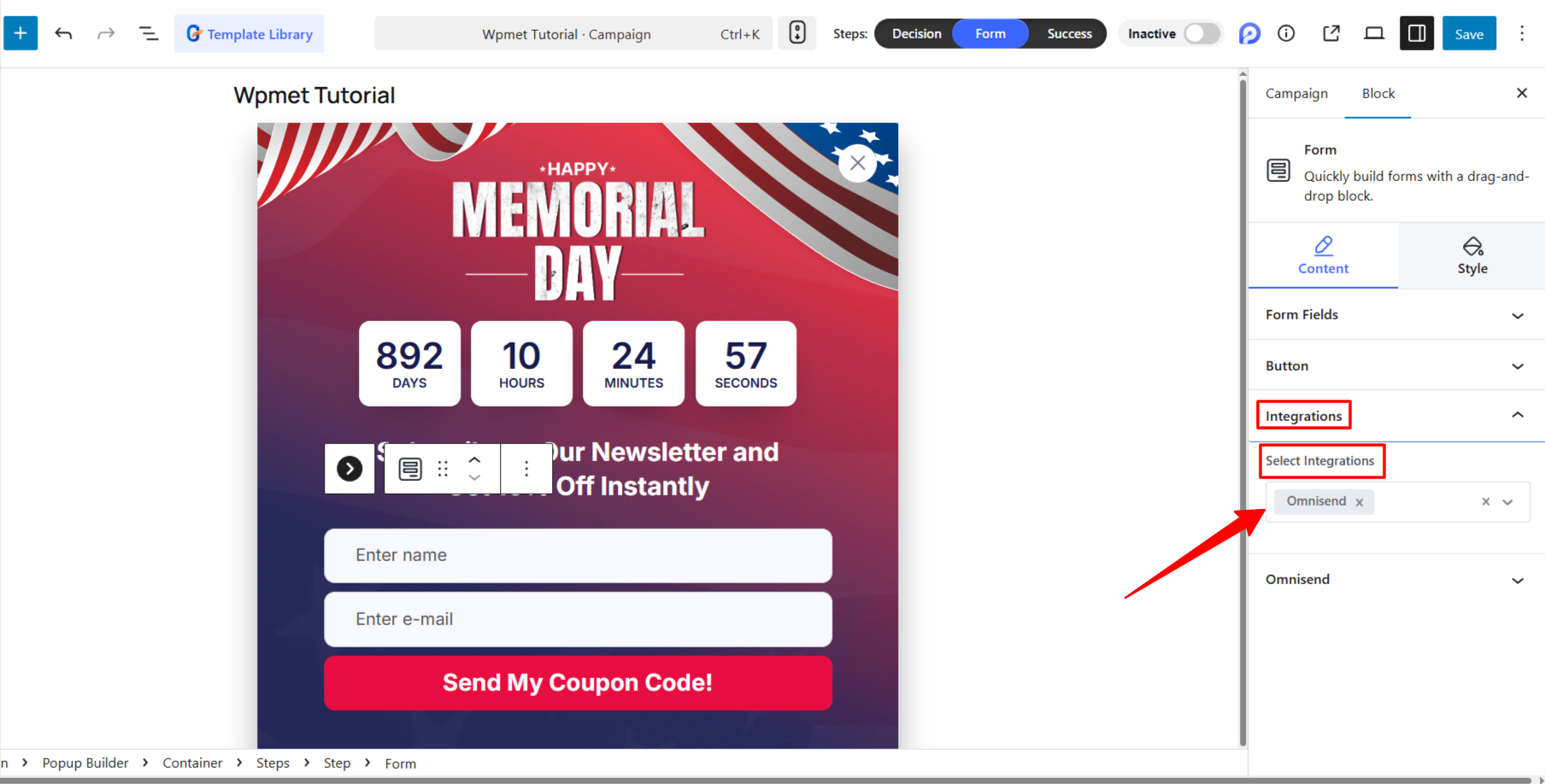
Scegliere Omnisend from the “Select Integration” dropdown menu.
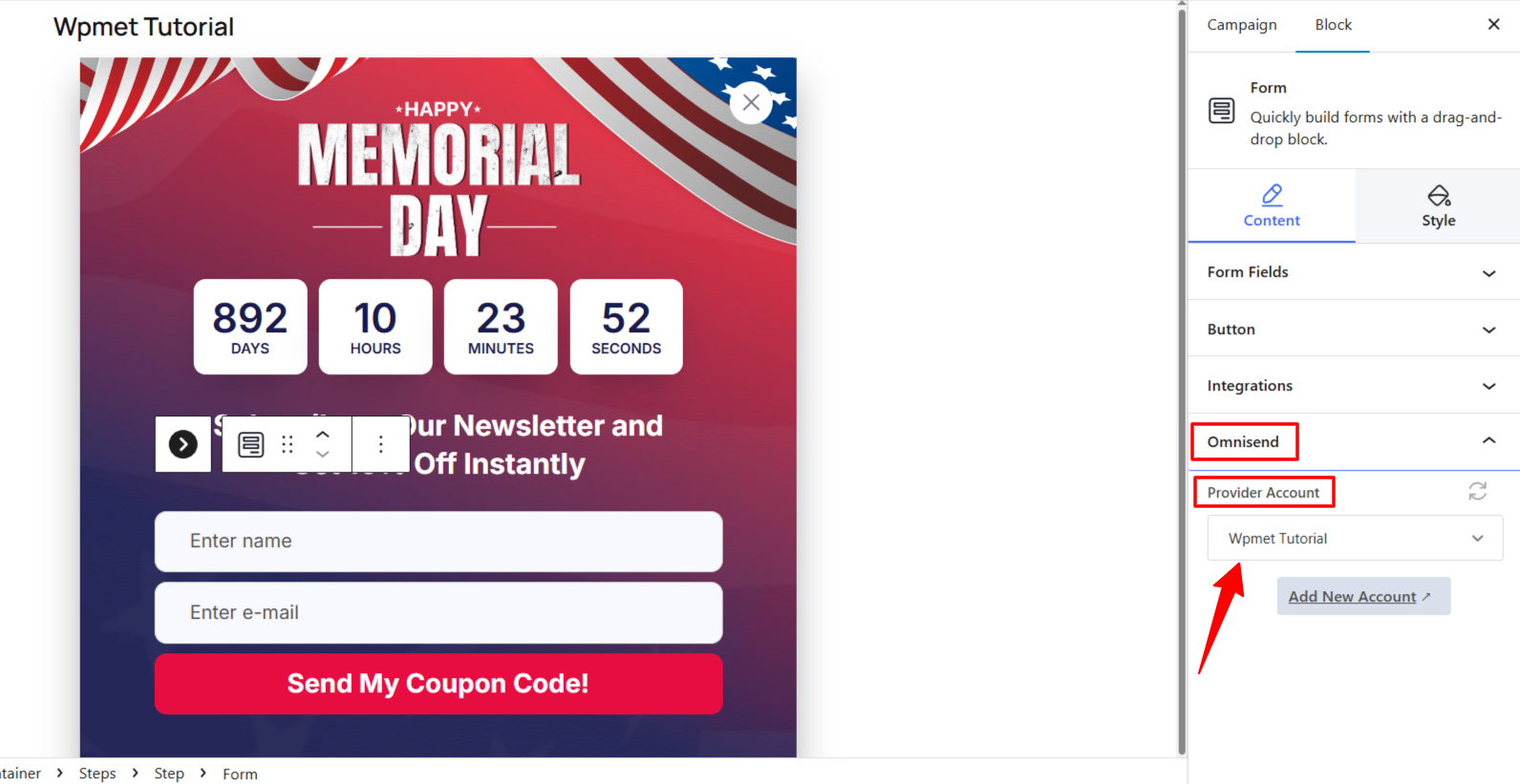
Add your Provider Account (the one you authorized in Step 2). Also, choose the Omnisend List O Segment where you want to send the leads.
To ensure the data is transferred correctly, check the Omnisend dashboard and move to the API scheda e clicca API Logs opzione.
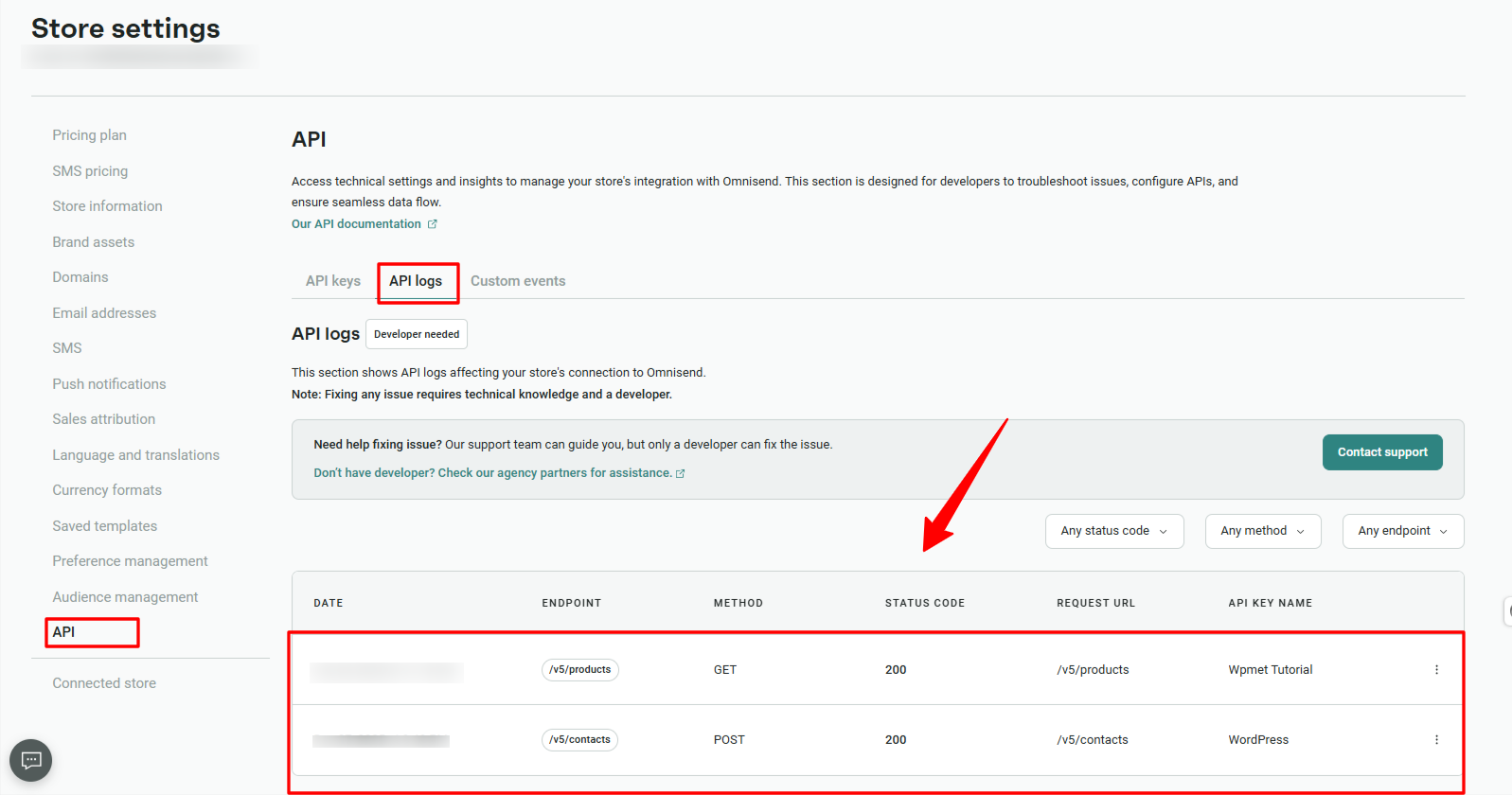
Your PopupKit form is now fully integrated with Omnisend! Every time a visitor signs up through your popup, their information will be instantly synchronized with your Omnisend audience.


