




Pabbly connect is an automation tool that links different apps together.The PopupKit integration with Pabbly allows you to instantly send the data collected through your website popups.
Let’s learn how to integrate Pabbly with PopupKit.
Pabbly Integration with PopupKit #
Prérequis:
Please note that Pabbly integration is a feature included exclusively in the PopupKit Pro version. Ensure you have selected the appropriate plan that meets your needs before following the next steps.
Step 1: Log in to the Pabbly account #
Sign up or sign in to your Pabbly account.
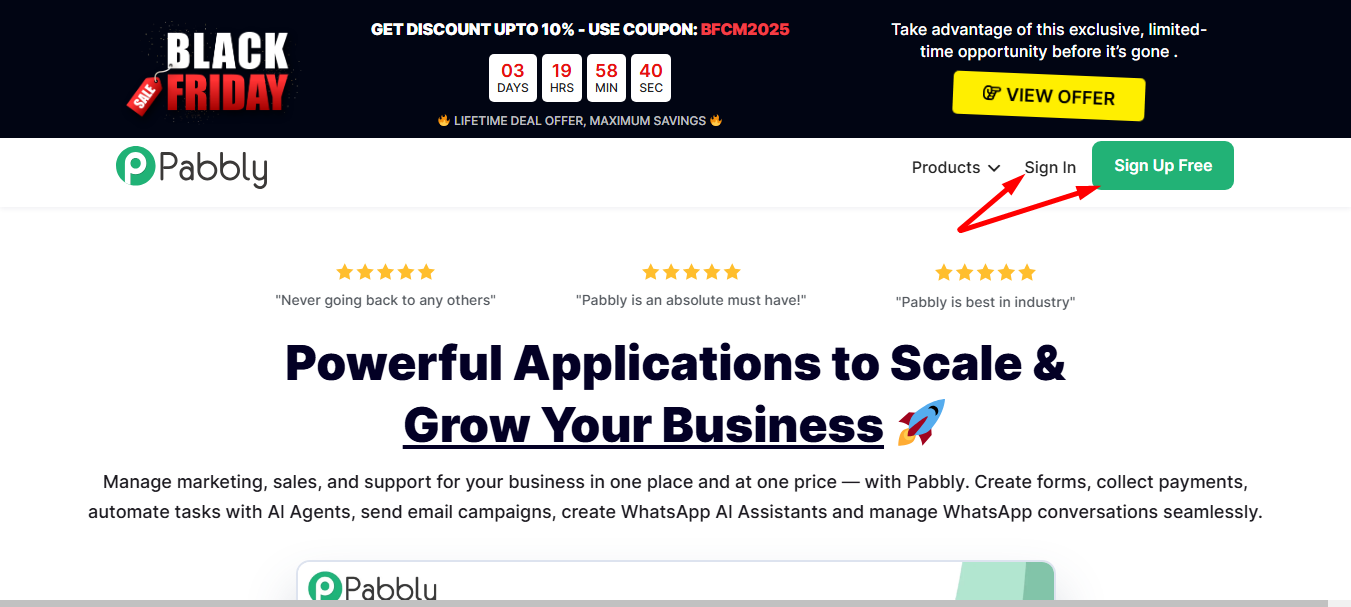
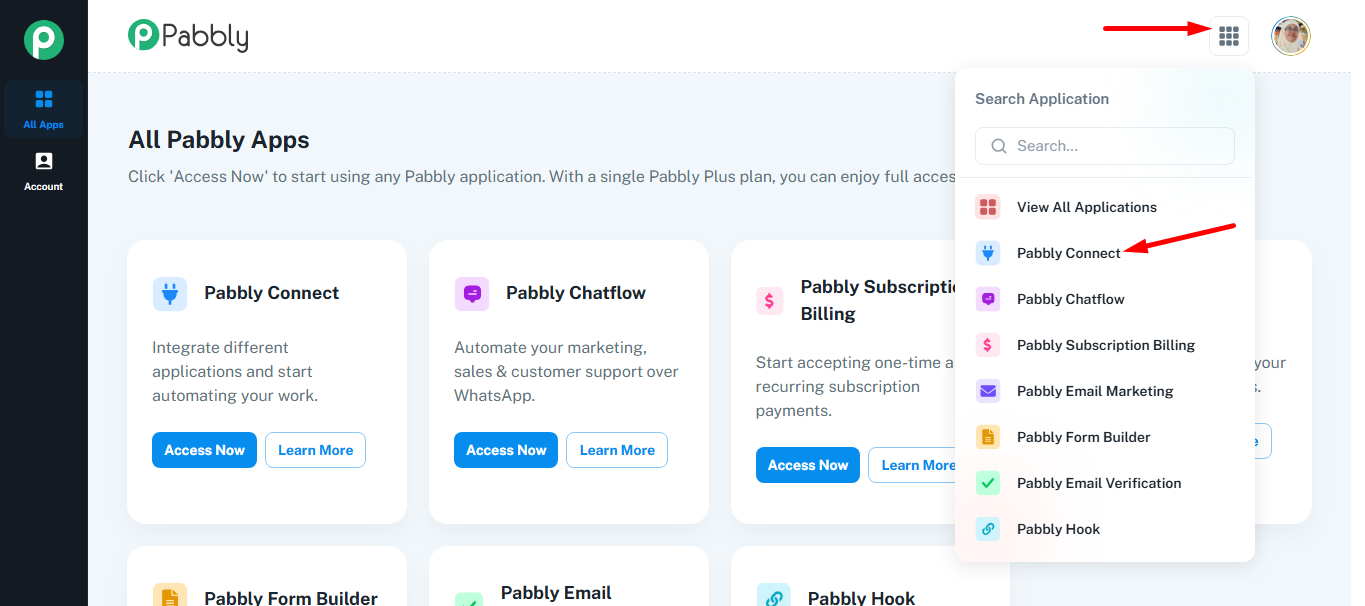
Click on the application menu icon and select Pabbly Connect from the list.
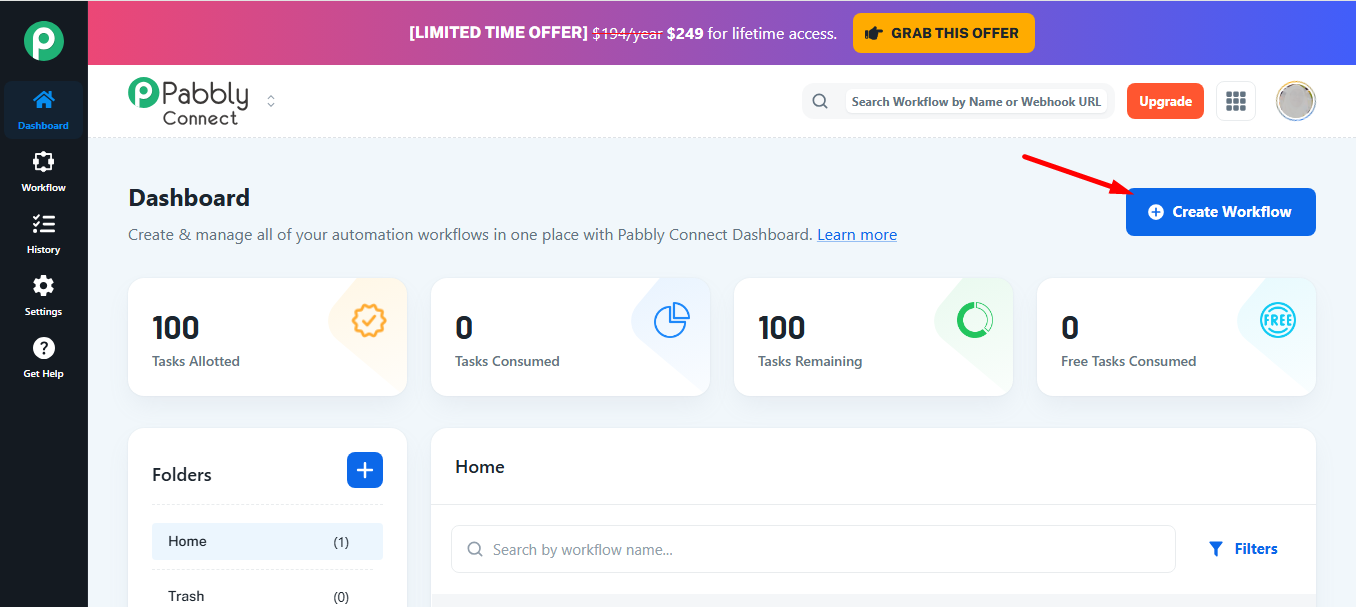
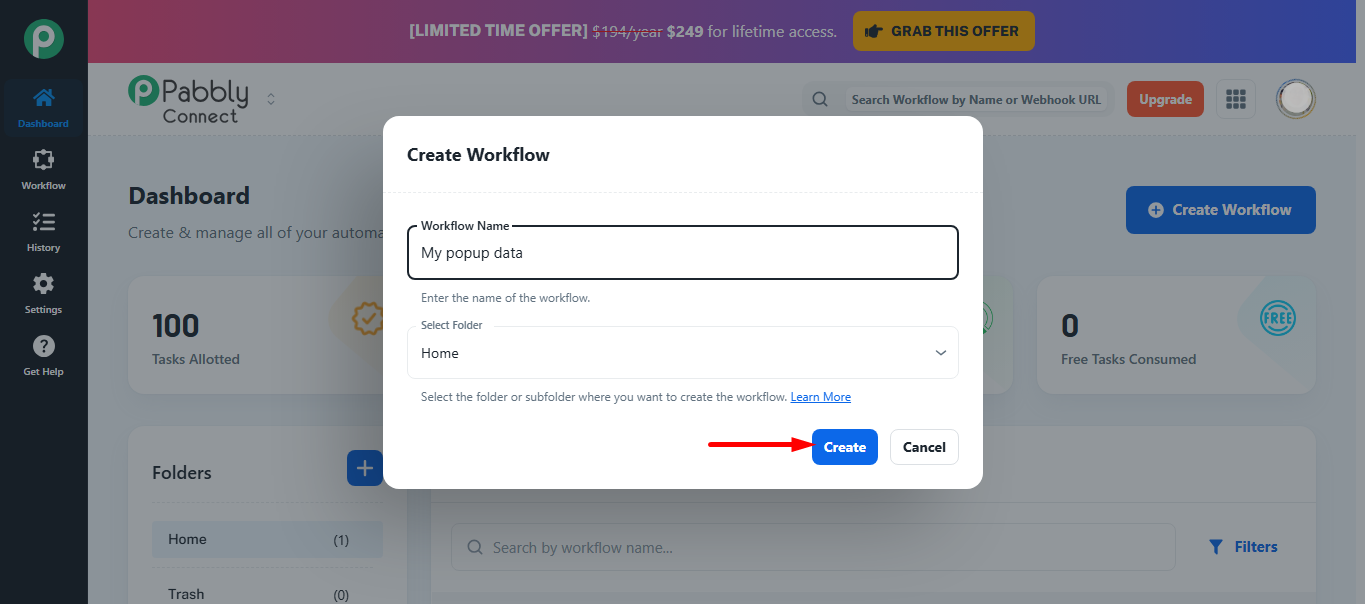
Next, click on the Create Workflow button.
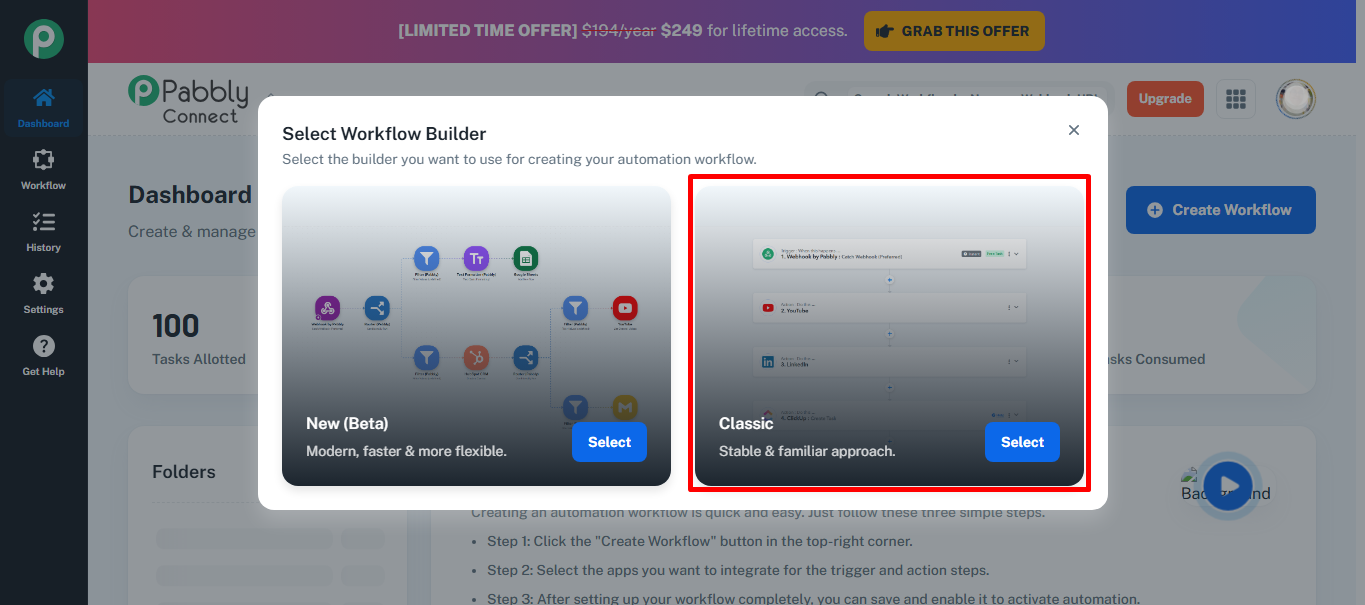
Once you click Create Workflow, you have to choose your preferred workflow builder to continue.
Give your workflow a name and click on the create button.
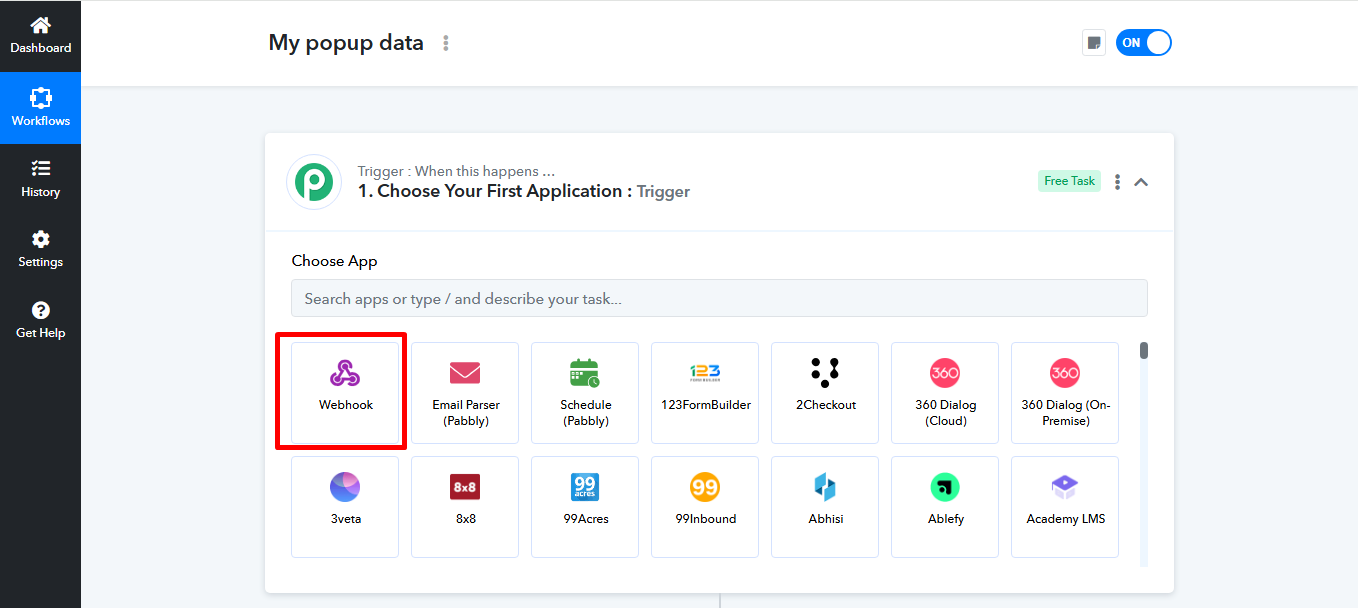
Now search and choose the Webhook App.
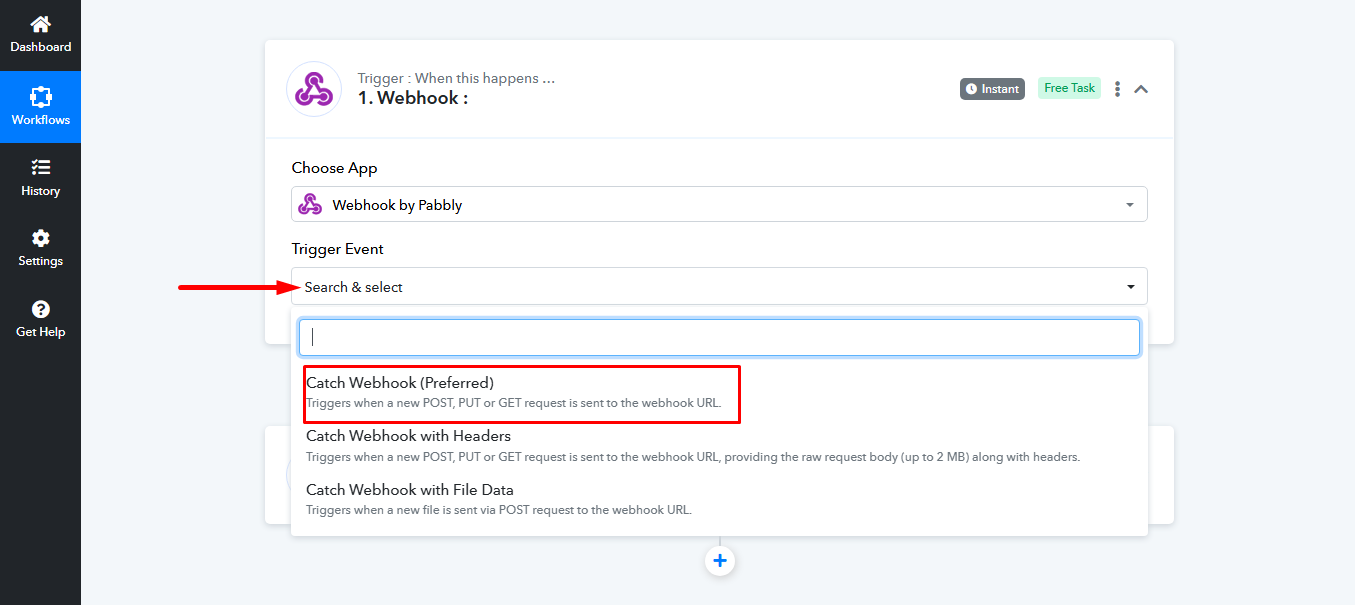
Here, you have to choose a trigger event.
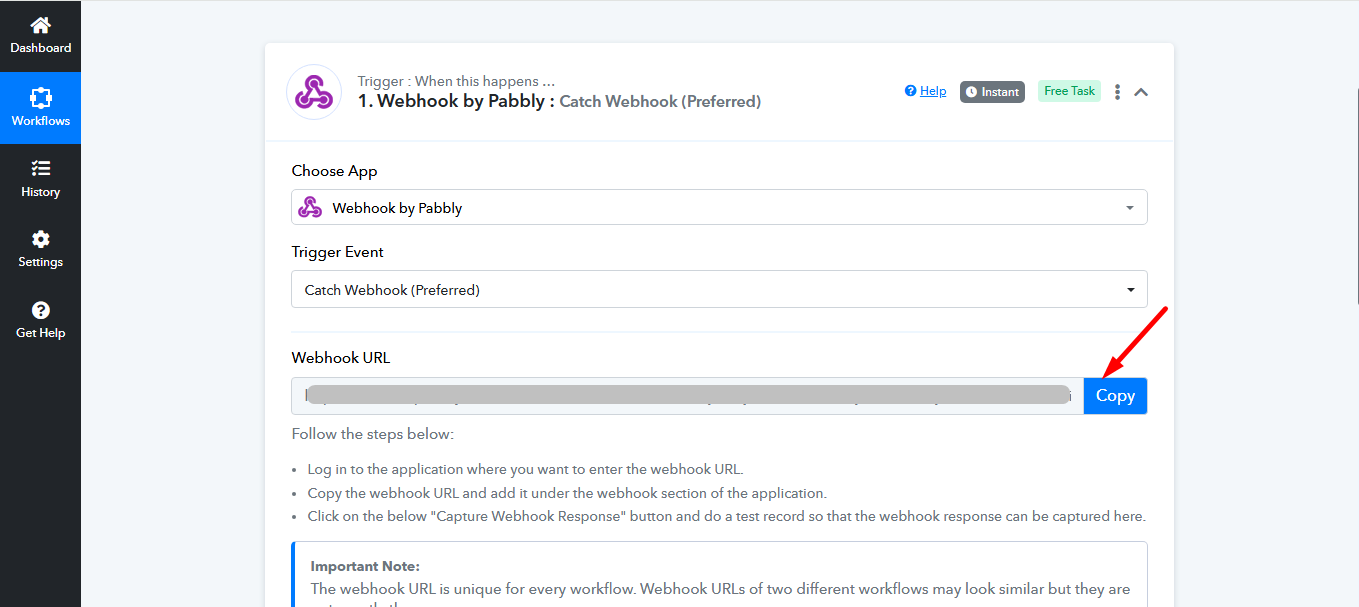
You can see the Webhook URL, copy it.
Step 2: Go to your WordPress dashboard #
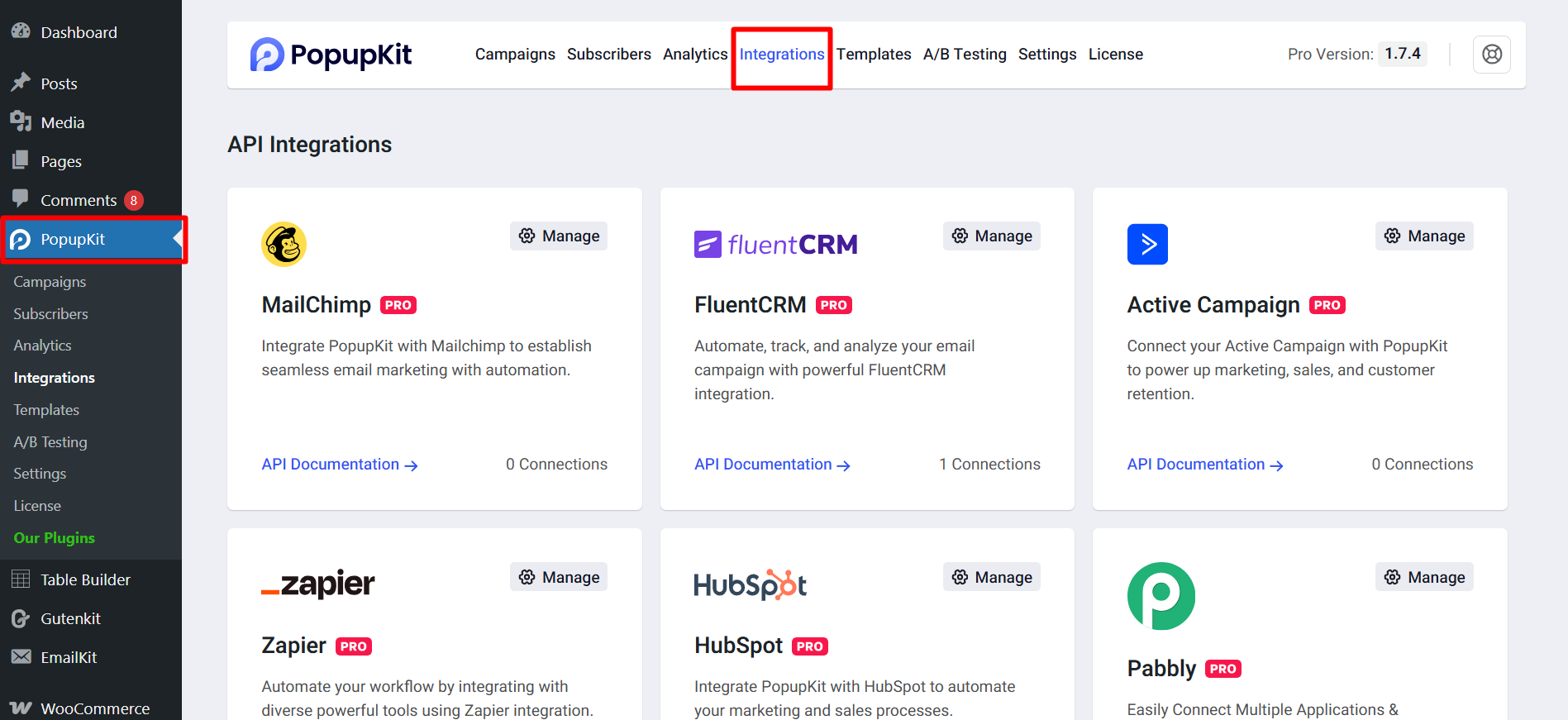
Once in the Dashboard, look for PopupKit in the left-hand navigation menu and select Integrations tab.
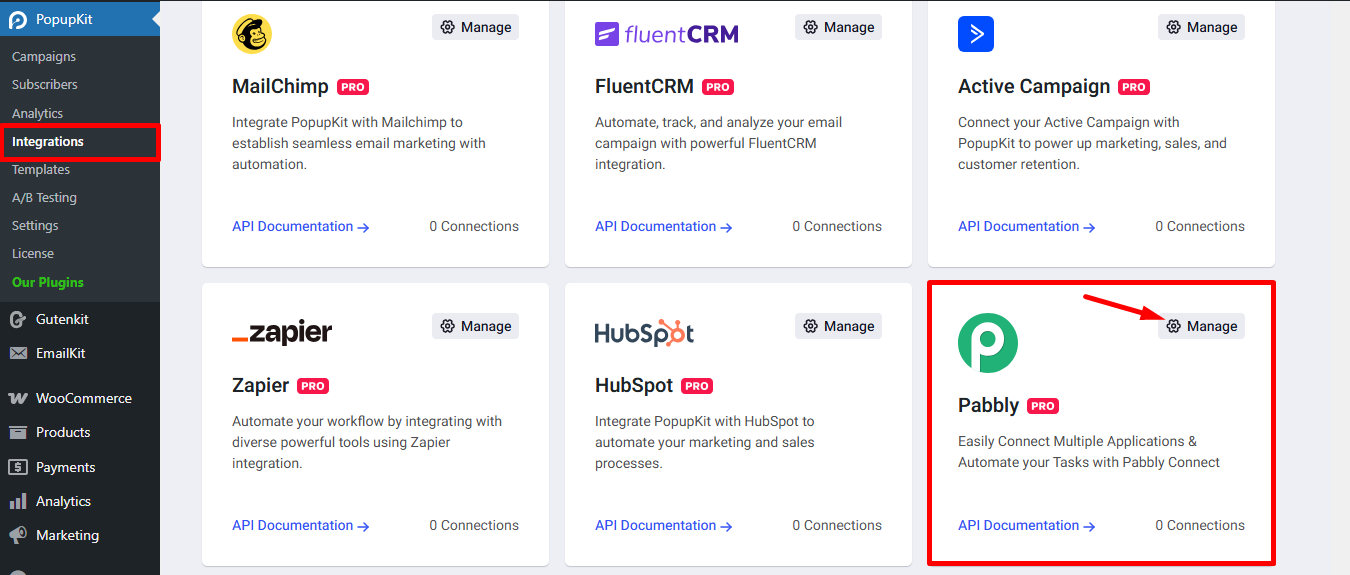
Trouvez le Pabbly Connect option and then click the associated Gérer icône to begin configuration.
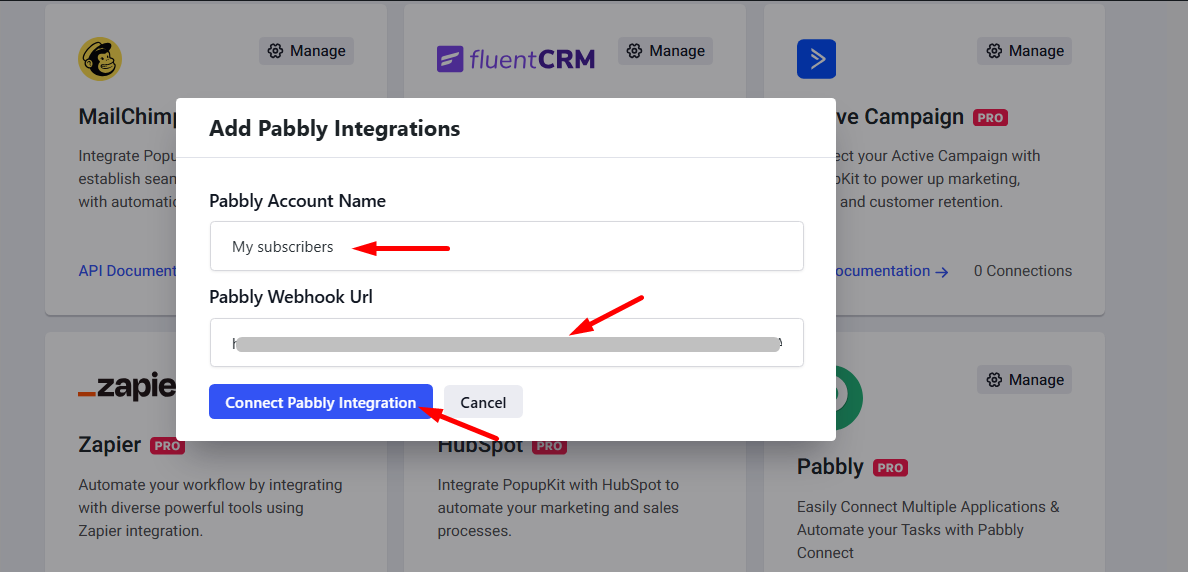
Connection steps:
- Entrer le Account Name
- Collez le clé API you copied earlier
- Cliquez sur Connect Pabbly Integration
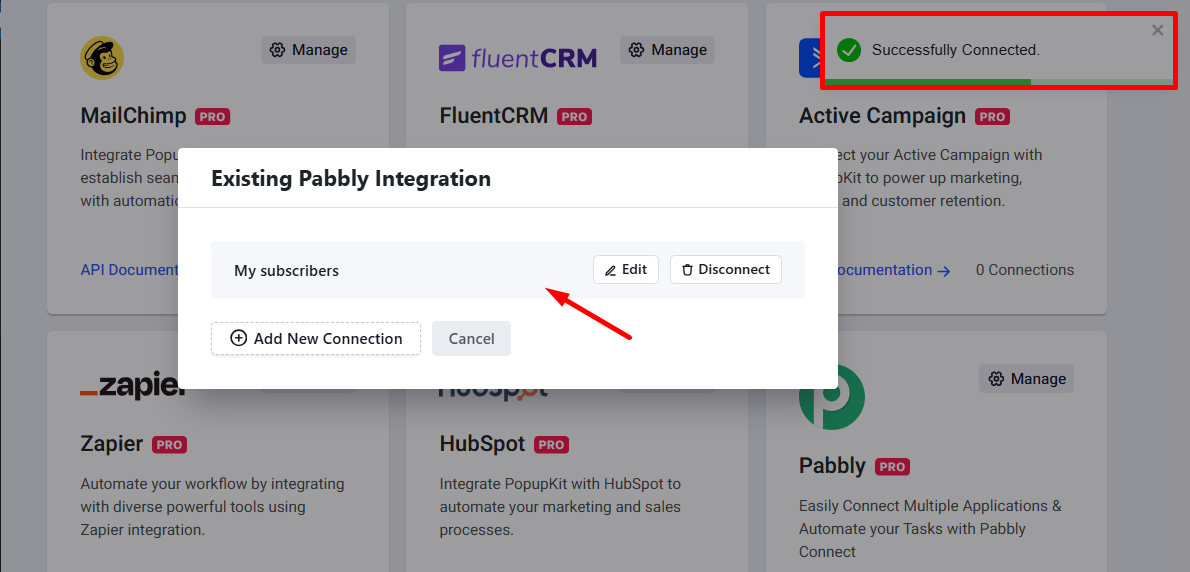
The Pabbly integration has been established successfully.
STEP 3: Create a campaign #
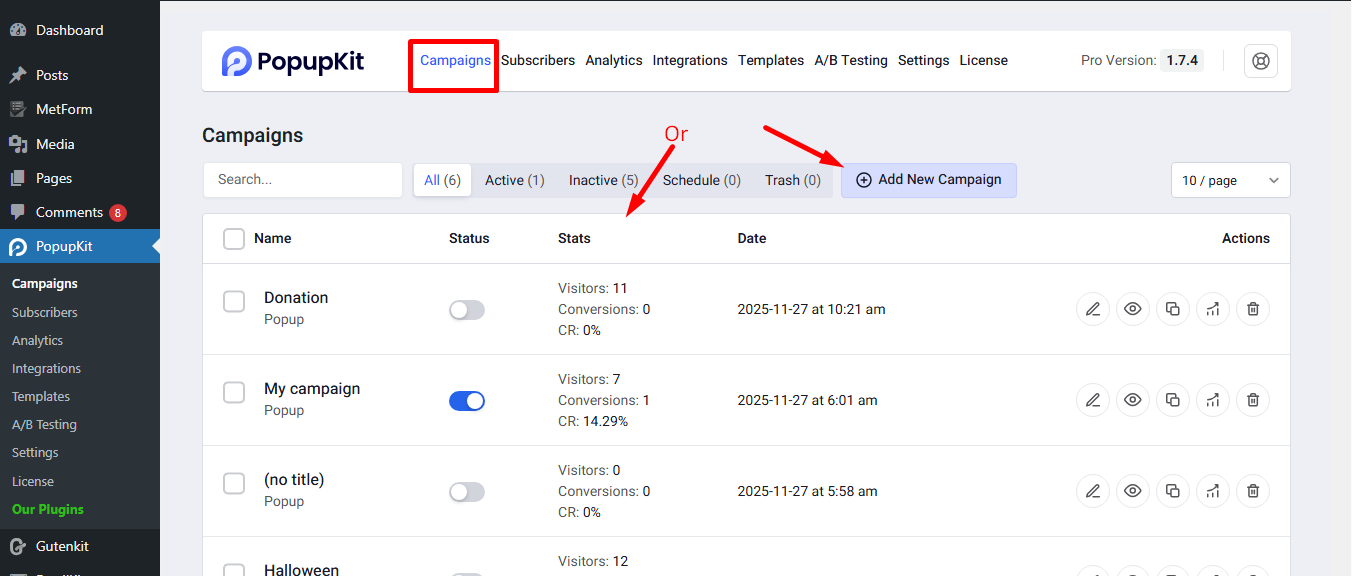
Maintenant, create a new campaign ou choose an existing active campaign to continue.
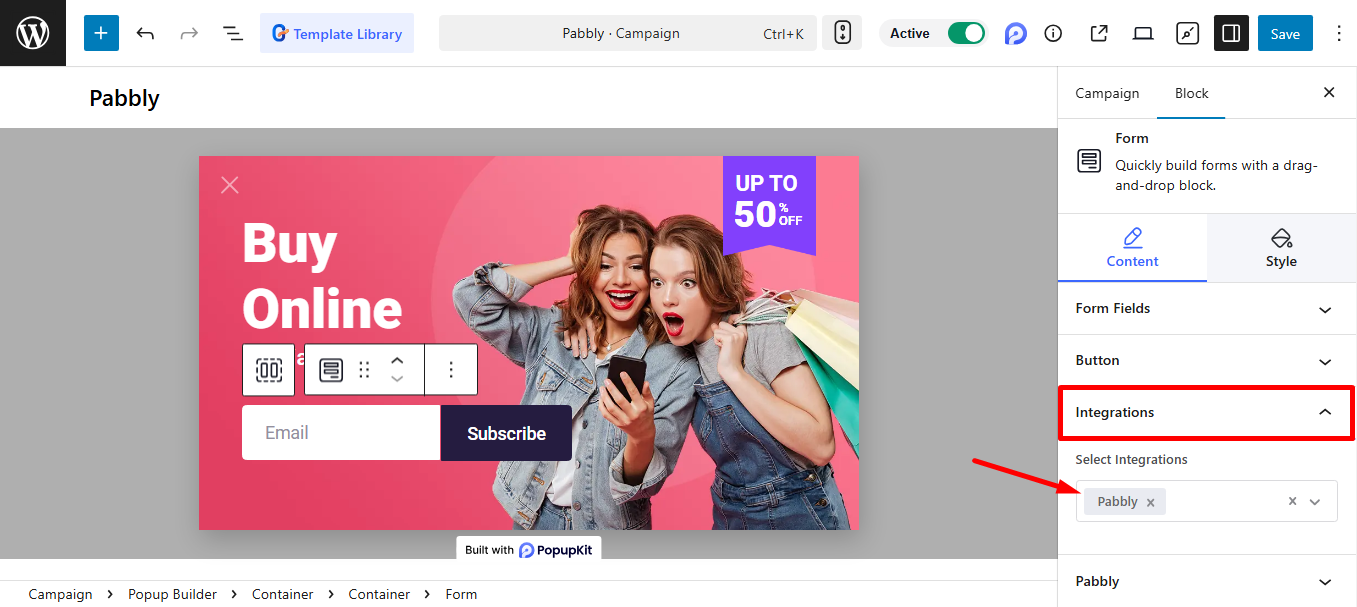
From the integrations’ dropdown menu, select Pabbly.
Note importante: Remember that a form field must be included in your popup design to enable this integration.
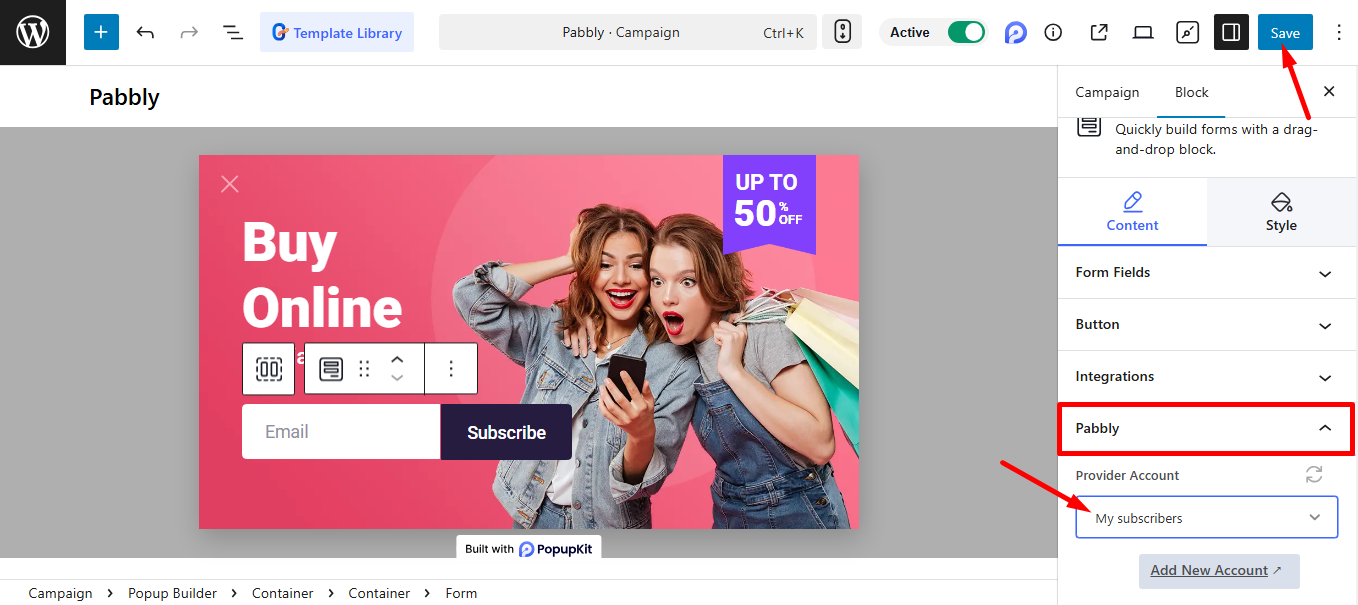
Simply select the Provider Compte et puis Enregistrez les modifications to complete the setup.
Take a moment to preview the popup and complete the form with your details to submit it.
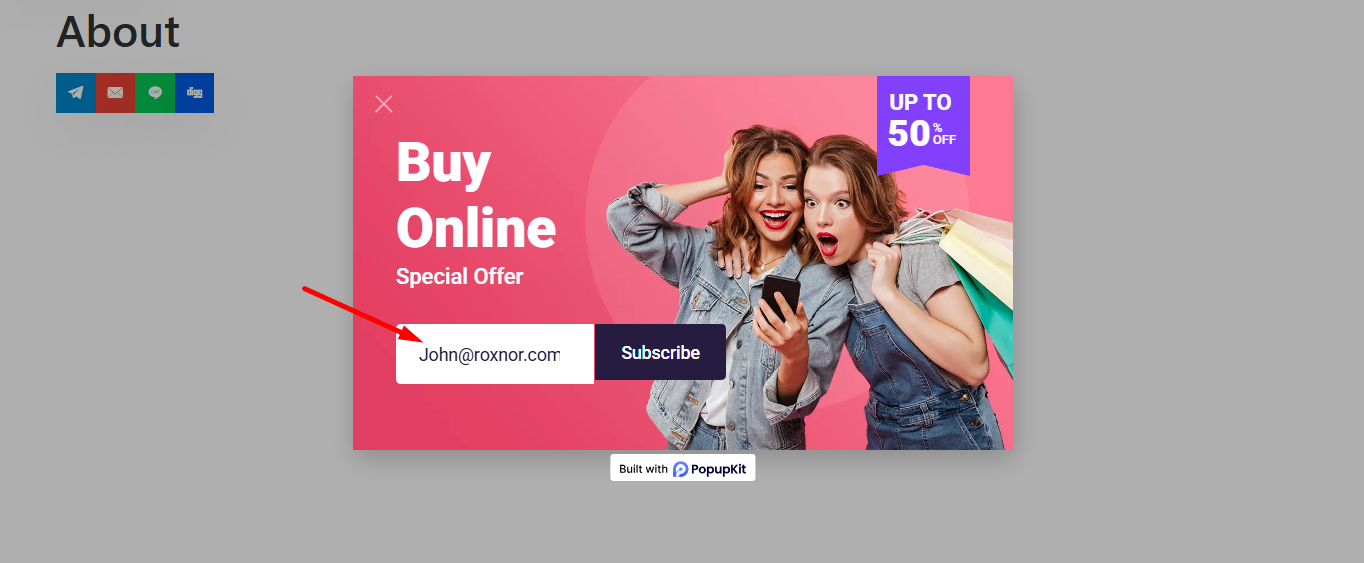
Finally, return to Pabbly. Scroll down your active workflow and check the Webhook’s response list for the email address you just submitted.
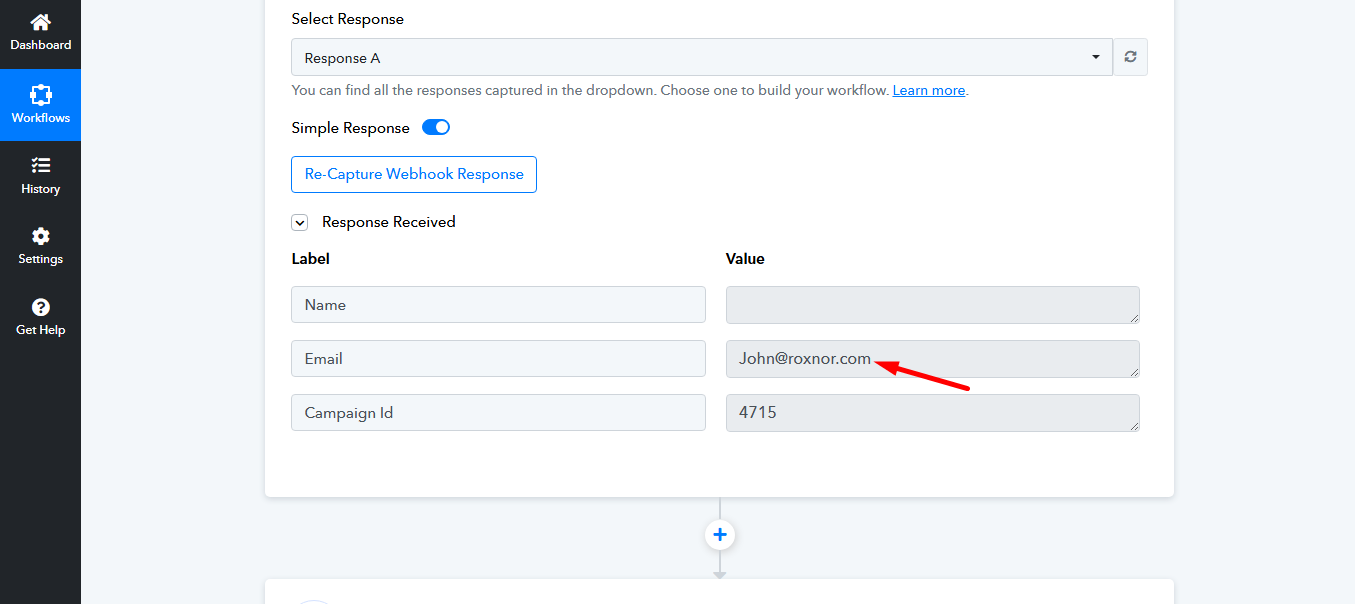
You have now fully integrated PopupKit with Pabbly and confirmed your first successful submission. Enjoy automating your lead collection!


