



When WordPress is not sending emails, the issue can usually be fixed by switching from the default PHP mail() function to SMTP, setting a domain-based sender email, disabling conflicting plugins, configuring correct form settings, using reliable SMTP services, enabling proper email authentication, and so on.
These steps ensure emails are sent through a verified mail server instead of relying on unreliable server mail settings. Once configured correctly, WordPress can consistently deliver form notifications, user emails, and WooCommerce alerts without interruption.
In this guide, we’ll discuss in detail the solutions for fixing the WordPress not sending emails issue to improve your overall email deliverability.
Quick Overview
Here are the ways to fix WordPress not sending emails issue:
✅ Switch to SMTP from PHP mail.
✅ Pick an SMTP service provider from Gmail, Amazon SES, SendGrid, etc.
✅ Use a domain-based sender email wie zum Beispiel [email protected].
✅ Enable SPF, DKIM, and DMARC to solve email deliverability issues.
✅ Enable admin notification email.
✅ Avoid salesy email to minimize chances to land on spam folder.
✅ Detect and remove conflicting plugins.
✅ Use Aktualisiert software version.
✅ Send test email to have a final check.
Reasons for WordPress not sending emails
- WordPress uses PHP mail() by default: WordPress by default relies on PHP mail(), which is unreliable, since many hosting providers disable it.
- Server email restriction: Some providers limit the number of emails sent per hour. This can prevent sending WordPress emails to your users.
- Missing email authentication: Domain lacks proper email authentication, such as SPF, DKIM, and DMARC records, which can cause mail servers to reject or flag your emails as untrusted.
- Incorrect sender email address: Using a sender email that doesn’t match your domain, such as Gmail, Yahoo, etc., can fail to send email.
- Marked as spam email: Sending salesy or spam-like content can land it on spam folder.
- SMTP is not configured: WordPress cannot reliably send emails through a dedicated mail server without SMTP configuration.
- Plugin or theme conflict: Conflict between plugins or themes can block emails from being sent.
- Incorrect form plugin settings: Wrong form plugin configuration can hamper email delivery.
Ways to fix WordPress not sending emails
Here are all the fixes that you can try out when you witness the issue of WordPress and WooCommerce emails not sending to your recipients:
Use SMTP instead of PHP mail
The most effective way to fix WordPress not sending emails is switching to SMTP from the default PHP mail, which is quite unreliable and less spam-protected.
SMTP sends emails through an authenticated mail server. As a result, the email’s deliberability and reliability both significantly improved. By using SMTP, your emails will be properly verified and less likely to be marked as spam by the receiver’s server.
For switching to SMTP, you can use any dedicated solution like WP Mail SMTP that lets your site connect to a trusted mail server.
Select a reliable SMTP service
Using a reputable SMTP provider is important for consistent email deliverability. Options for popular service providers include Gmail, SMTP, Amazon SES, SendGrid, usw.
Using these providers, you can preserve a strong sender reputation and ensure that your sent emails maintain proper email delivery standards. These providers minimize the risk of email blocking and help your emails land in the inbox instead of the spam folder.
When it still fails after SMTP setup?
WordPress emails might fail after SMTP setup if:
- Security plugins blocking SMTP connections.
- You encounter SPF, DKIM, and DMARC issue.
- Don’t have correct email settings.
- Du hast conflicting email plugin.
Set a proper sender email address
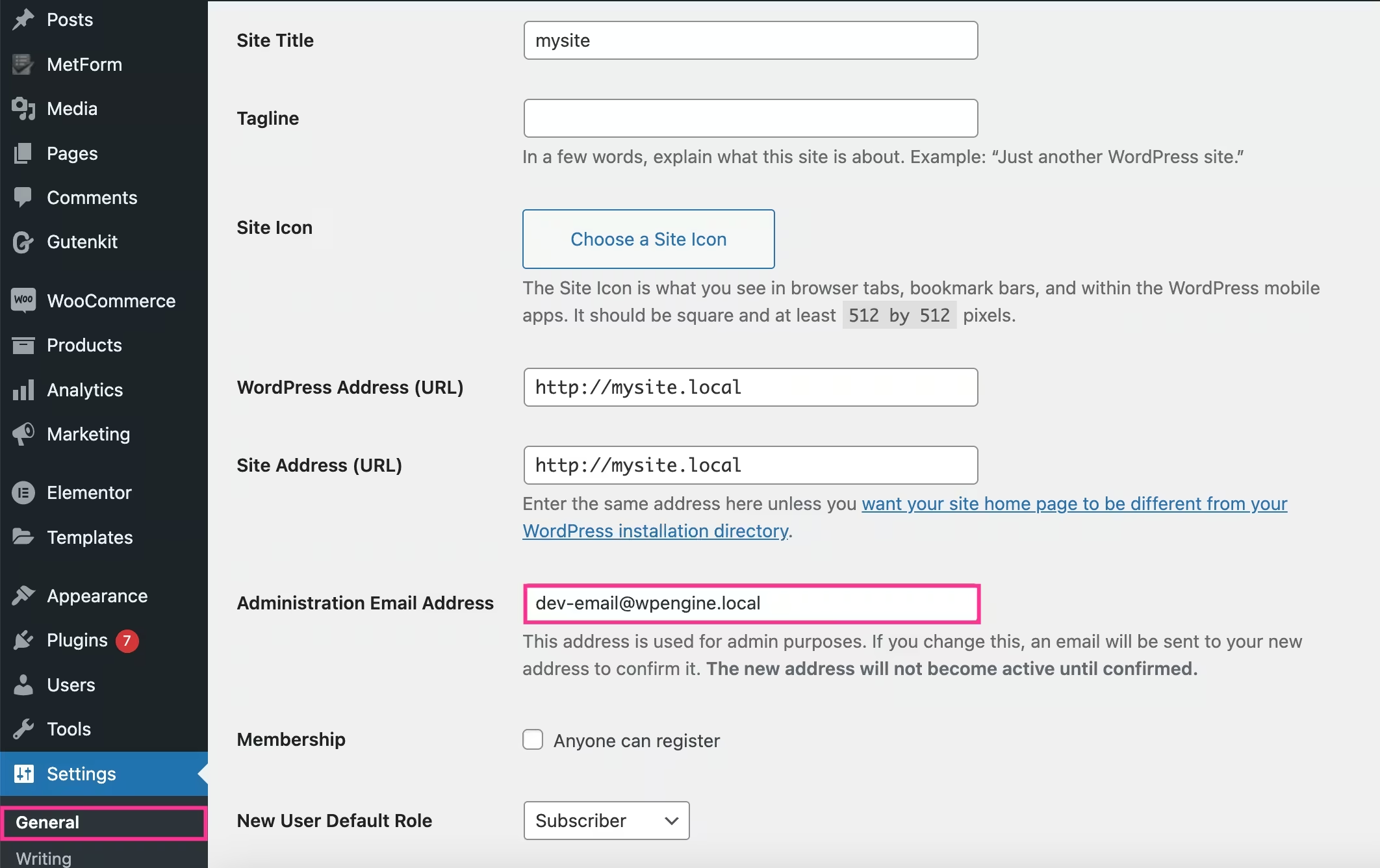
The sender’s email address should always be similar to the website domain name. For example, using a domain-based sender email such as [email protected] is more reliable and trustworthy than a random gmail.com.
Generic email addresses trigger spam filters that increase the chance of blocking your emails right away. Also, ensure that your email addresses and name are consistent across WordPress settings, SMTP plugins, and form plugins.
To check this, take the following steps:
- Visit your admin WordPress dashboard and navigate Settings → General.
- Überprüfen Sie dies “Administration Email Address” Feld.
- Aktualisieren if your email address is not domain-based.
Add email authentication
Enable SPF, DKIM, and DMARC to solve email deliverability issues. Without email authentication, your emails will be detected as spam, even with proper SMTP configuration.
So, add these authentications to your domain DNS settings and let servers receive email without any spam filter.
Adding these records to your DNS settings can drastically improve email deliverability and keep your domain protected from spoofing.
Fix form email settings
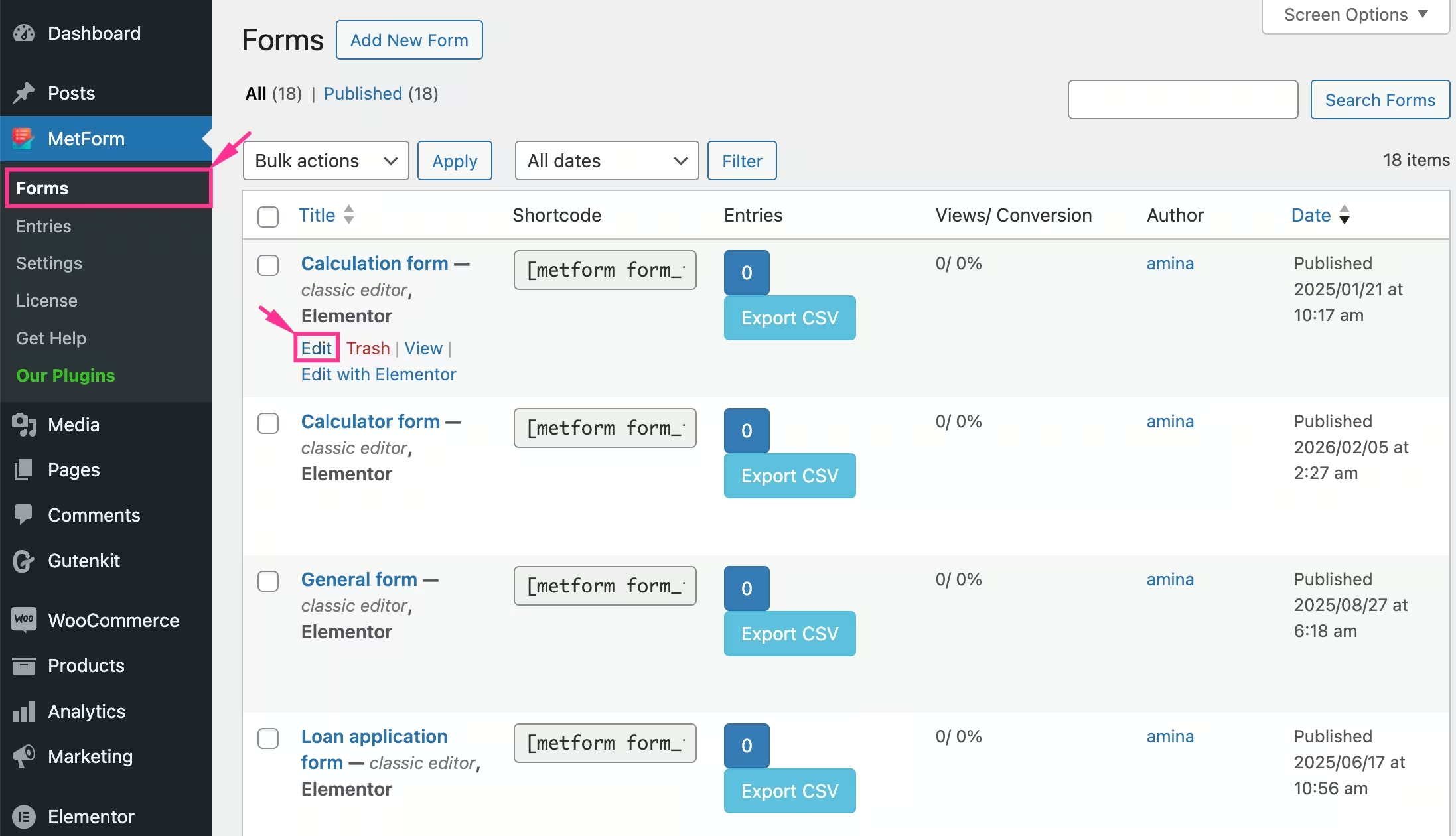
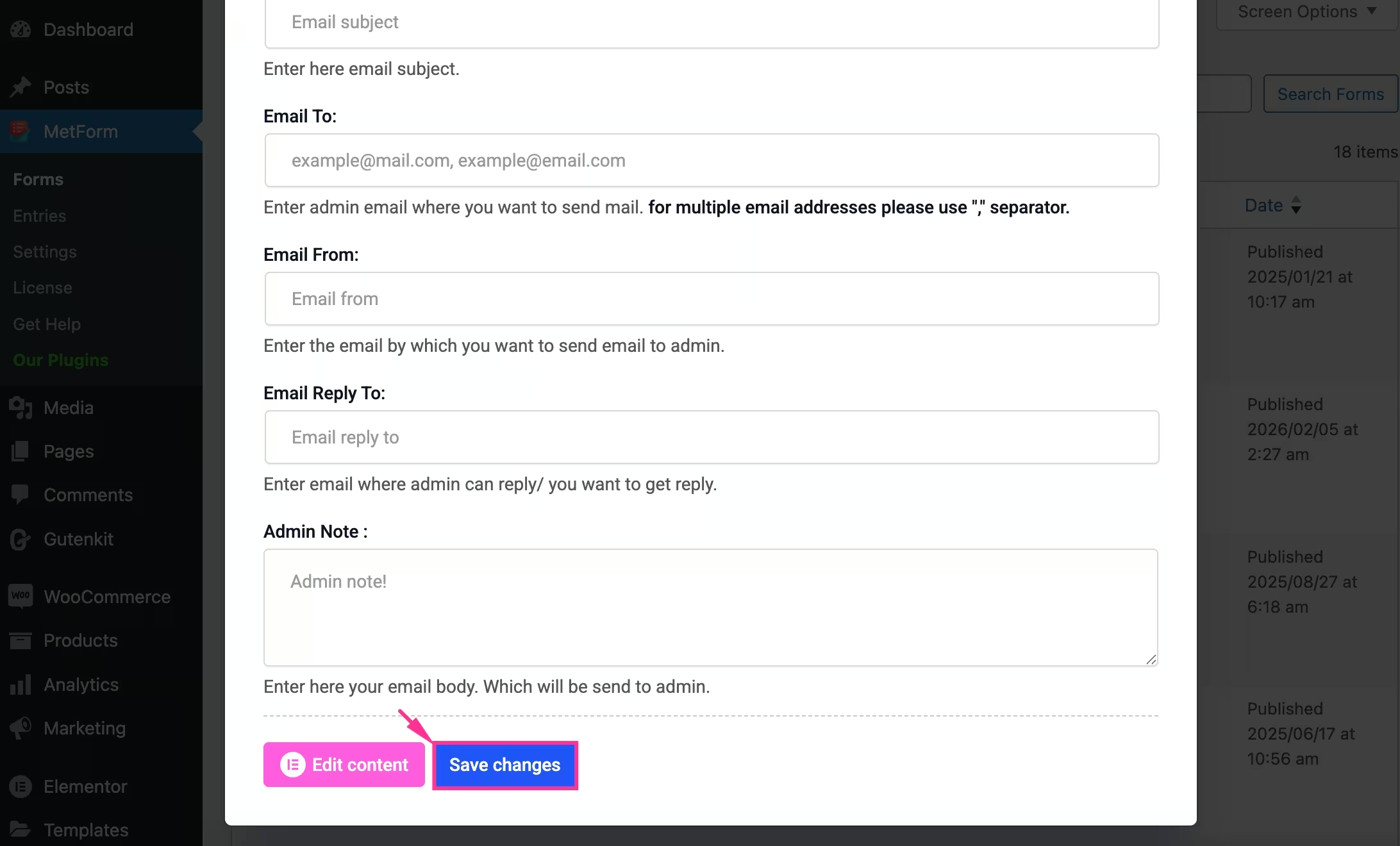
If your WordPress forms are not sending emails, incorrect notification settings are often the cause. Fix this in a few minutes by using a form builder such as MetForm:
- Open your form in Elementor and go to Form Settings → Notifications.
- Enable Admin Notification to send submission emails after form completion.
- Set a clear Email Subject Und enter a valid Email To address (use commas for multiple recipients).
- Use a domain-based Email From address (for example, [email protected]).
- Add a Reply-To email so admins can respond directly to users.
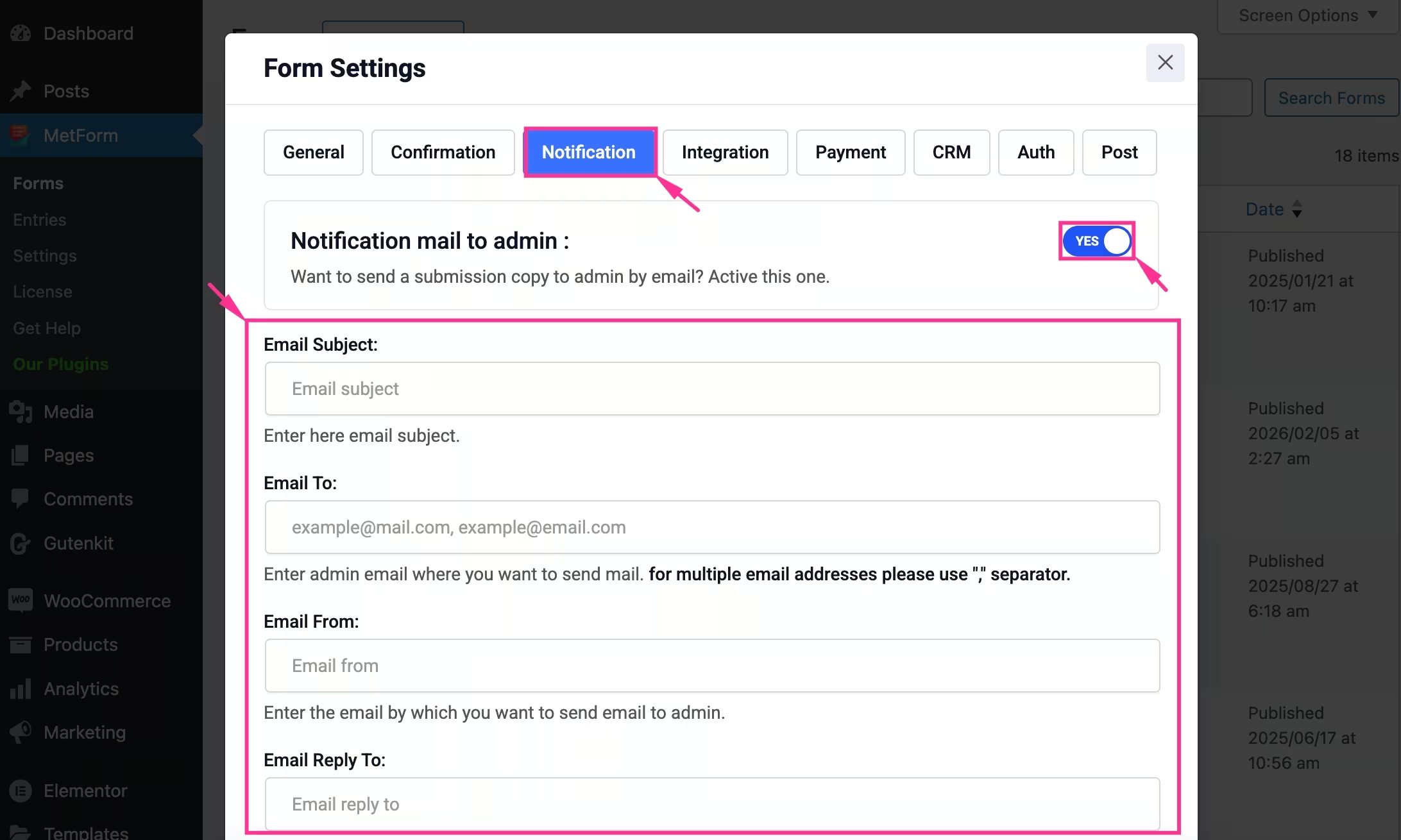
- Write your message in the Admin Note field and Speichern Sie die Änderungen.
Check the spam folder
Most of the time, WordPress emails are sent successfully, but are subject to spam filters. Thus, these emails were found in the spam folder.
So, whenever you encounter such issues, check your spam, promotion, or junk tab before taking other measures.
If your emails continuously land in the spam folder, it strongly indicates spammy or sales email copy, missing email authentication, poor sender reputation, or misconfigured SMTP settings.
Check all these issues thoroughly after receiving emails in the spam folder.
Disable the conflicting plugin
Plugin conflict can also cause the “WordPress not sending emails” issue. To resolve this issue, you have to identify and remove the conflicting plugin.
You can find the conflicting plugin by disabling all plugins except SMTP. After disabling the plugins, check whether your emails are sent or not.
If the email is sent after disabling the plugins, then re-enable plugin one-by-one and check to detect the conflicting plugin. After finding out, deactivate and remove the faulty plugin from your WordPress website.
Use the updated software version
Outdated WordPress core files, themes, or plugins come with compatibility issues that affect email delivery. Always keep your WordPress version, theme, and all plugins Aktualisiert.
Updates often include bug fixes, security patches, and compatibility improvements that help prevent email-related issues.
Before updating, don’t forget to keep a full site backup. Thus, you can restore if anything goes wrong.
Send test email
After trying any fix, always send a test email to ensure your configuration is working correctly.
Most SMTP plugins or WordPress email customizers include a built-in test email functionality that help easy delivery verification.
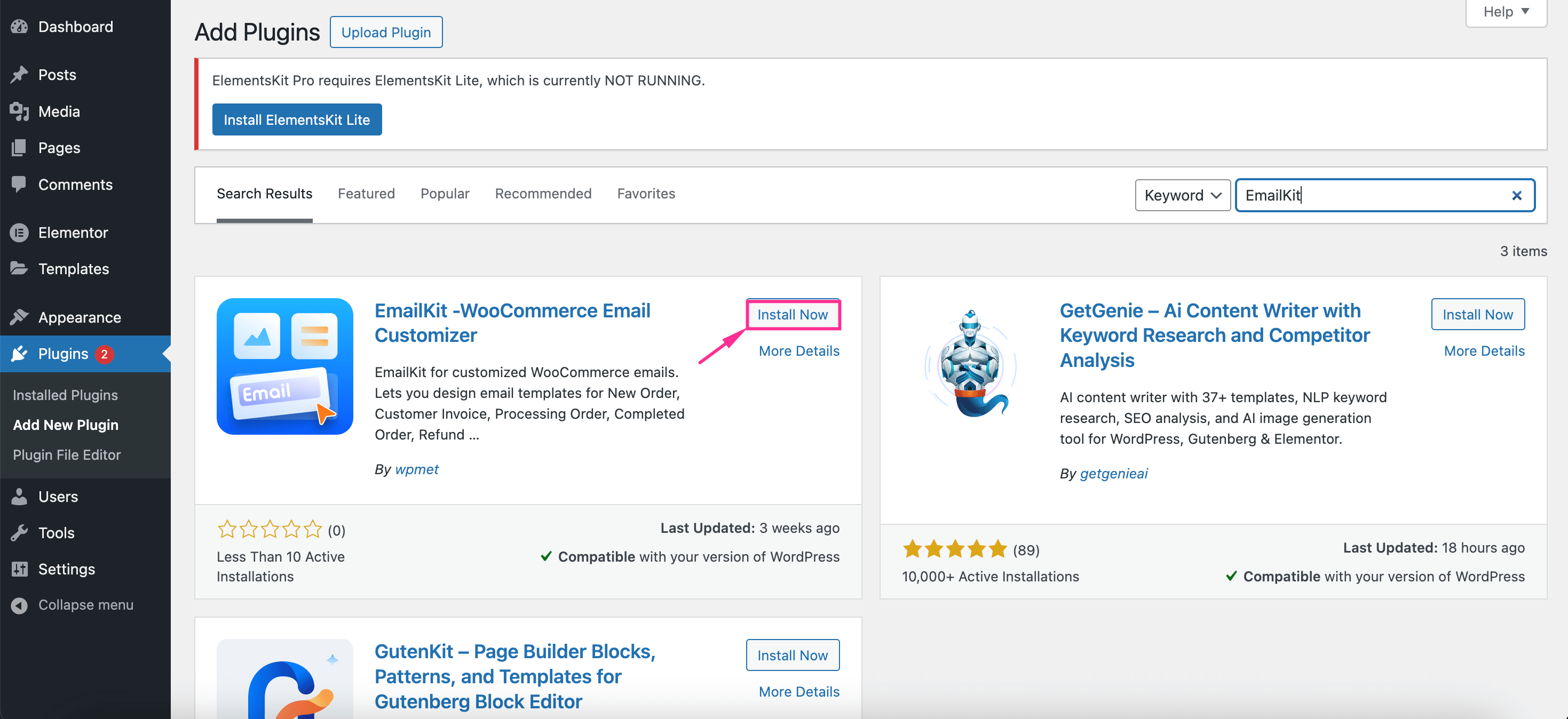
For example, you can download a free solution, EmailKit from your WordPress directory and start sending test email. For that:
- Navigieren Sie zu Plugins → Add Plugin Und search for “EmailKit”.
- Installieren und aktivieren EmailKit.
- Inside its editor, you will find an arrow icon.
- Press that icon.
- Enter email address Zu send WordPress and WooCommerce test emails.
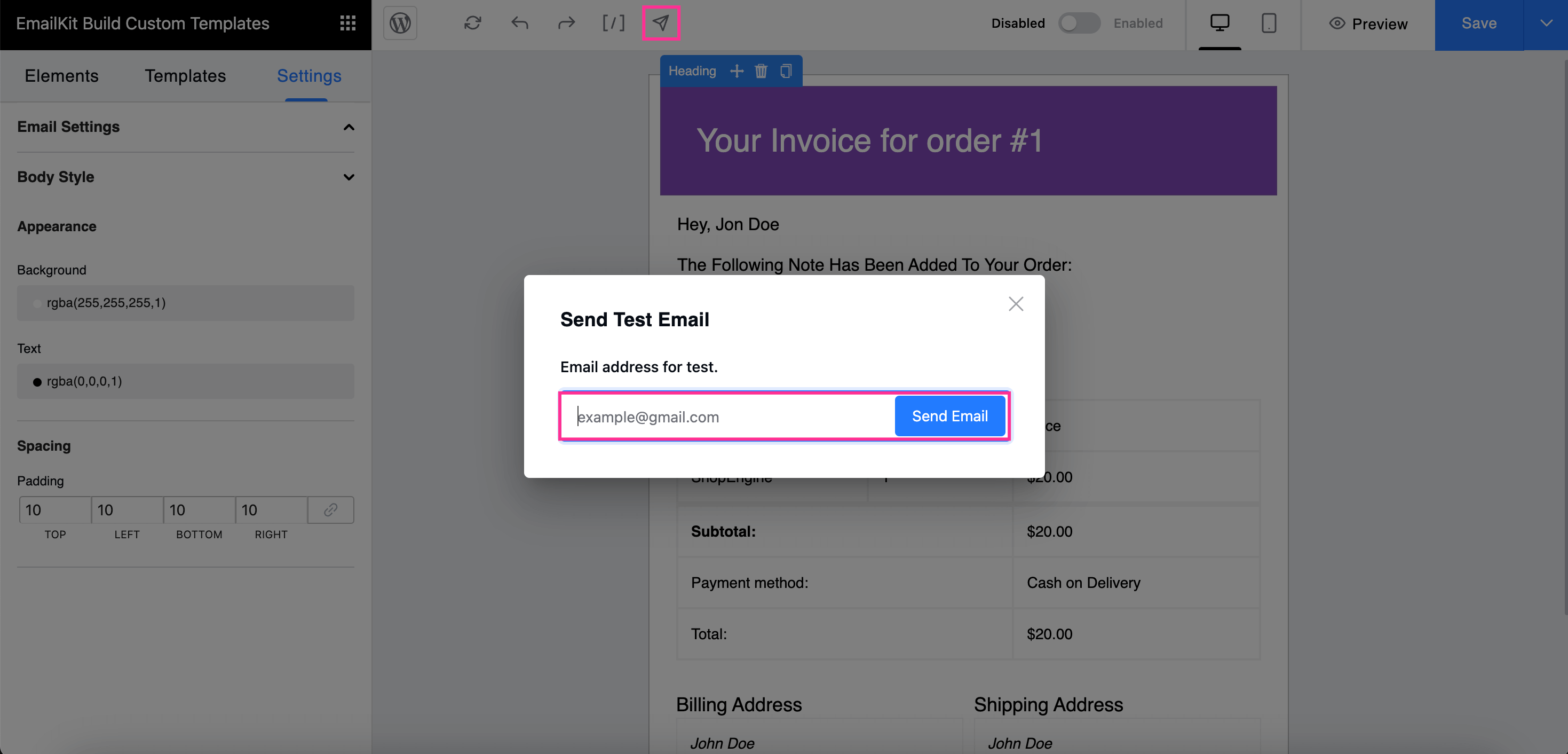
Sending test emails will allow you to figure out if your emails are being delivered successfully or not. So, apply a fix and send a test email to check whether it solves the issue.
Ways to confirm your email is production-ready
Once your email passes this checklist, your email is ready to go:
- Test emails are landing on inbox, not spam.
- Form submissions trigger notifications consistently.
- WooCommerce emails send for orders and status updates.
- Emails work after cache clears and plugin updates.
FAQs
What is SMTP plugin?
An SMTP plugin is a solution that sends email from an authenticated SMTP provider instead of the default PHP mail function.
How to test WordPress email?
You can send test emails using WooCommerce email customizer like EmailKit. It comes with an option to send test email after customizing WordPress and WooCommerce emails.
How long changes in DNS authentication take to work?
Any changes in DNS authentication need a few minutes to 24 hours for implementation. This time limit varies from provider to provider.
Why does WordPress email work on localhost but not on live site?
Unlike localhost, live servers require SMTP, domain authentication, and proper DNS records. That’s why emails may work locally but fails on live server.
Einpacken
So, you learned the straightforward solutions to fix the WordPress not sending emails issue. Now, apply the solutions discussed in this guide to get rid of this disruption. By following the above configuration, your WordPress emails will become more reliable, trusted, and less likely to end up in spam folders. This fosters smooth communication with your users and uninterrupted website operation.


Schreibe einen Kommentar