






Whether you want to add a chat button, collect subscribers, or automate messages for marketing campaigns, LINE integration helps you create a more interactive and engaging user experience.
To integrate the LINE App with WordPress, you can use a dedicated plugin like WP Social. The plugin makes the process simple without any complex coding.
In this guide, you’ll learn how to easily connect LINE with WordPress and start building stronger customer relationships.
You can integrate the LINE App with WordPress by using the WP Social plugin and configuring a LINE Login Channel in the LINE Developers Console, then connecting it via callback URLs and credentials.
Steps to Integrate the LINE App with WordPress:
- Installere WP Social on WordPress.
- Lave en LINE Developer account og en Provider.
- Set up a LINE Login Channel (Web app, country, name, description).
- Kopier Callback URL from WP Social → Providers → LINE → Getting Started and paste it into the LINE Console.
- Gå ind Channel ID & Secret in WP Social → Basic Settings and enable email permission.
- Gå ind App ID & Secret under WP Social → Social Login → LINE → Settings → Save.
- Customize button labels and optionally use kortkoder eller Simpelt link for placement.
- Test the login page to ensure LINE authentication works.
Eksempel:
If your site is example.com, the Callback URL may be https://example.com/wp-login.php?line_callback=1.
Takeaway:
This integration allows users to log in with LINE easily, improving convenience and engagement.
What is Line App?
LINE is a popular messaging app that lets users chat, make calls, share media, and interact with communities. It also offers login and notification features for websites and apps.
Why Should You Integrate the LINE App with WordPress
Integrating the LINE app with WordPress helps you –
- Communicate instantly with visitors on a trusted platform.
- Chat or send updates to users in real time through LINE.
- Users can log in with one tap and avoid long registration forms.
- Most users stay logged into LINE on their phones, making access instant.
- Boost engagement and conversions by reaching users where they’re already active.
Integrate the LINE App with WP Social in WordPress
Let’s jump into the practical side of things. You’ll find that setting up WP Social and connecting it with the LINE App is really straightforward.
Follow the steps below.
Step 1: Get WP Social Up and Running
To kick things off, you need to add the plugin to your WordPress site. You have two simple ways to do this:
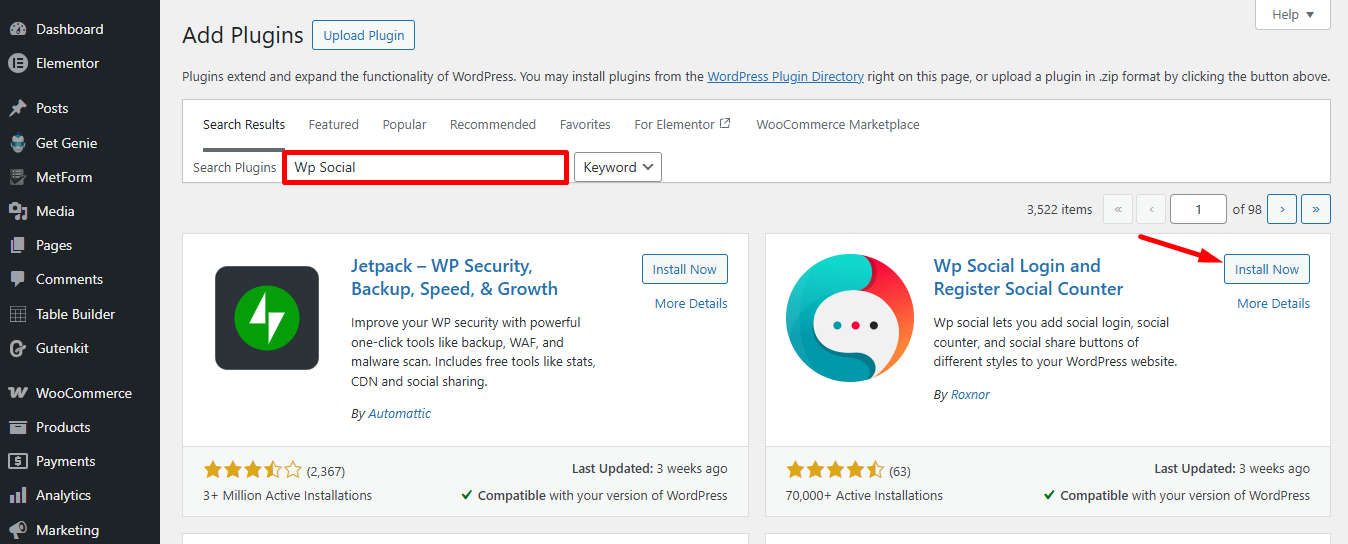
- The Dashboard Method: Head over to your WordPress admin area, navigate to Plugins > Tilføj nyt, and search for WP Social. Hit install, then click activate.
- The Manual Method: If you prefer, grab the plugin file directly from the WordPress Plugin Directory and upload it yourself.
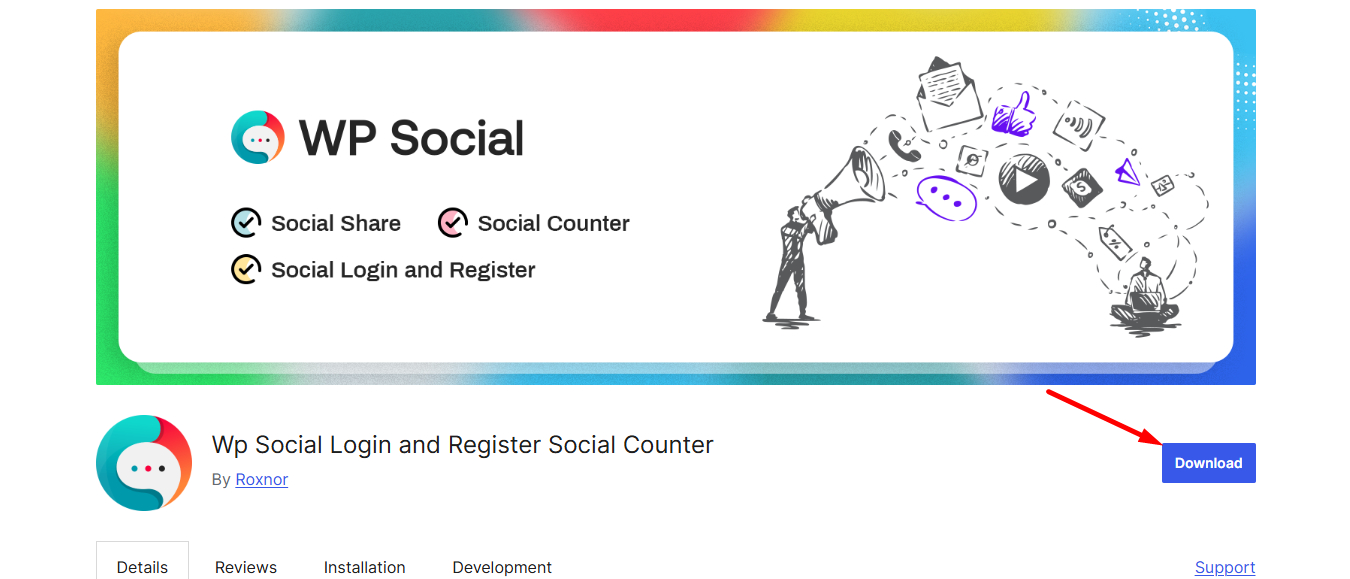
Pro plugin: To get the LINE App magic, you’ll need to gear up with the WP Social Pro version. It’s the ‘all-access pass’ that makes this integration possible!
Step 2: Create LINE App Developer Account
Let’s introduce you to the LINE platform. Here’s how to set up your developer profile in a few clicks:
- Access to the LINE Developers Console.
- Log in to your LINE account if not logged in.
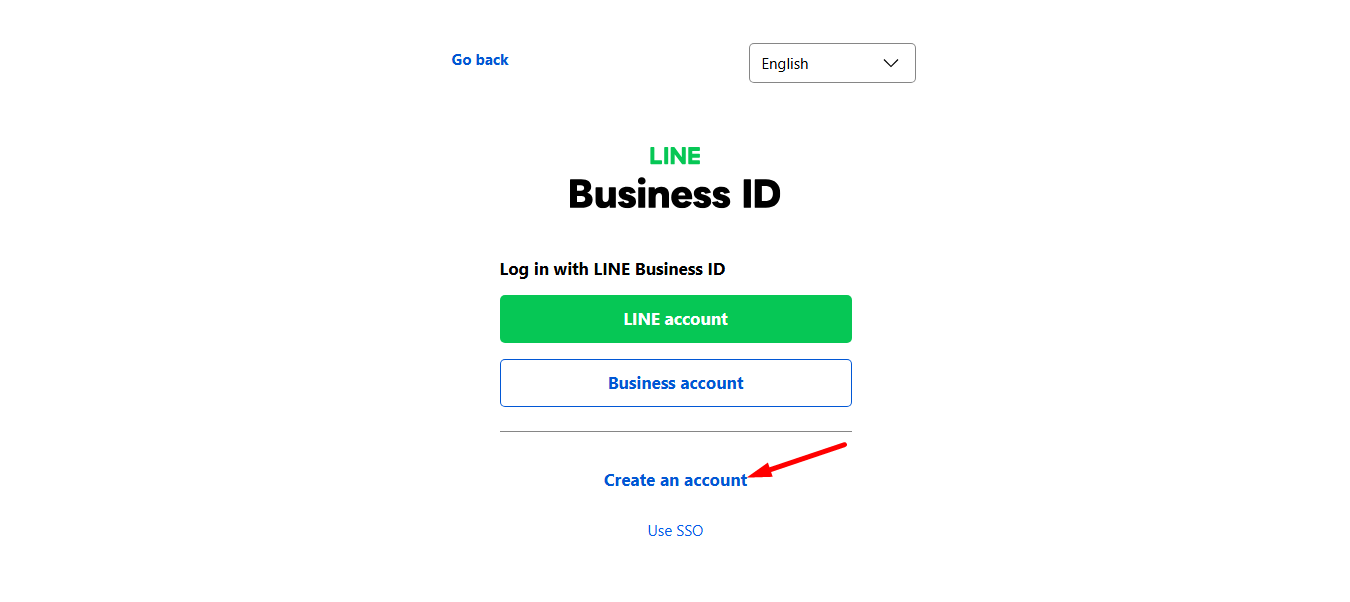
Now, set up your official LINE developer profile.
- Type in your Developer Name and a Contact Email.
- Give the LINE Developers Agreement a quick read and accept.
- Finish by hitting the Create my account knap.
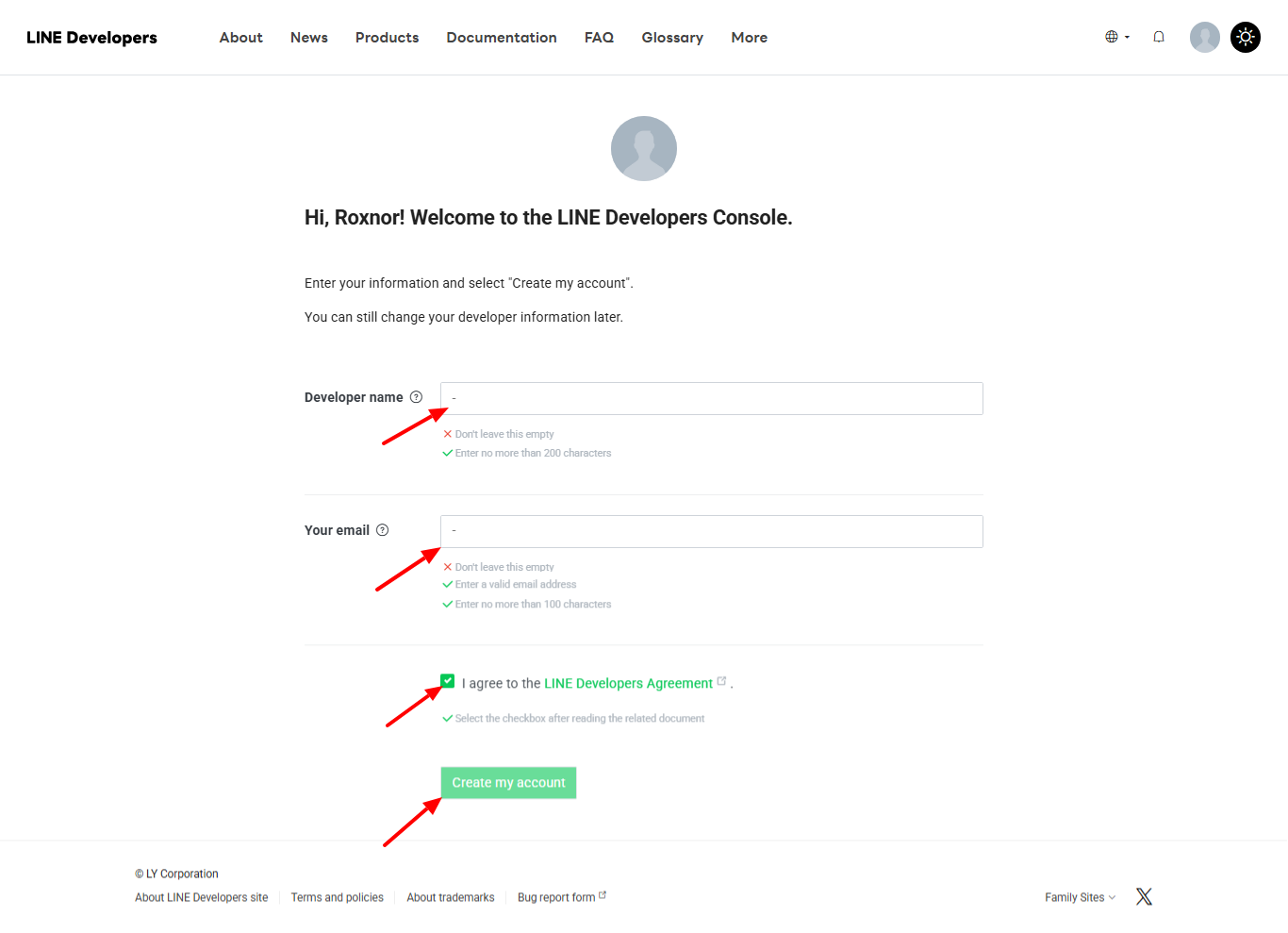
Step 3: Create a New Provider
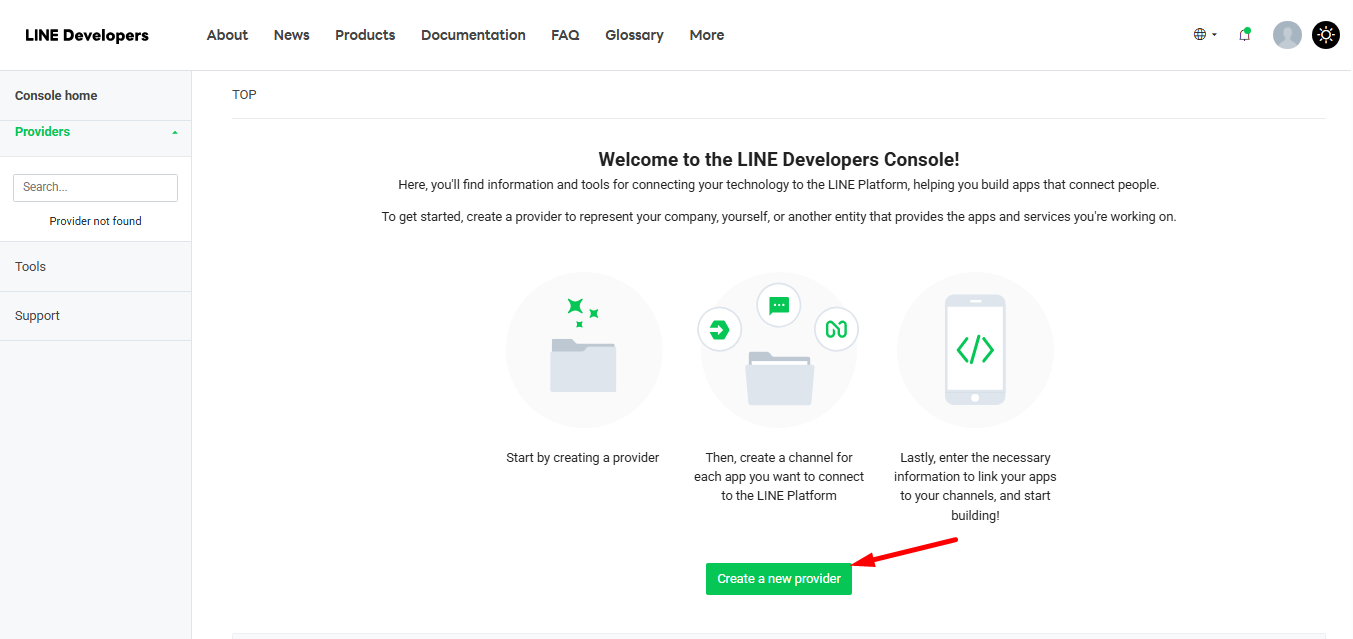
Now time to create a “Provider”. Think of this as the home base or folder where your app will live.
Once you’re inside the console, look for the “Create a new provider” button and press it.
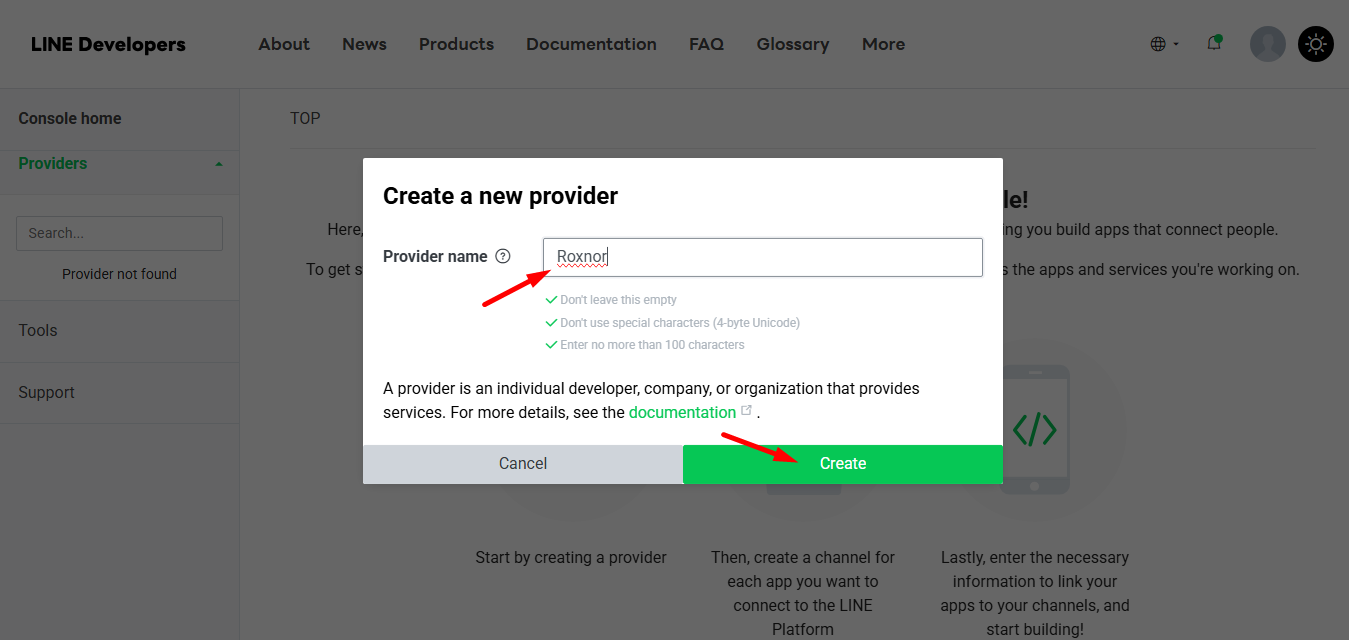
A pop-up will jump out next.
- Giv din Udbyderens navn. Just type in a name that fits your project.
- Hit skab, and your new workspace is officially live!
Step 4: Create a LINE App Login Channel
Next, you have to build the bridge to the LINE Platform by setting up a Login Channel.
- Gå over til Channels fanen.
- Klik på Create a New Channel button to get started.
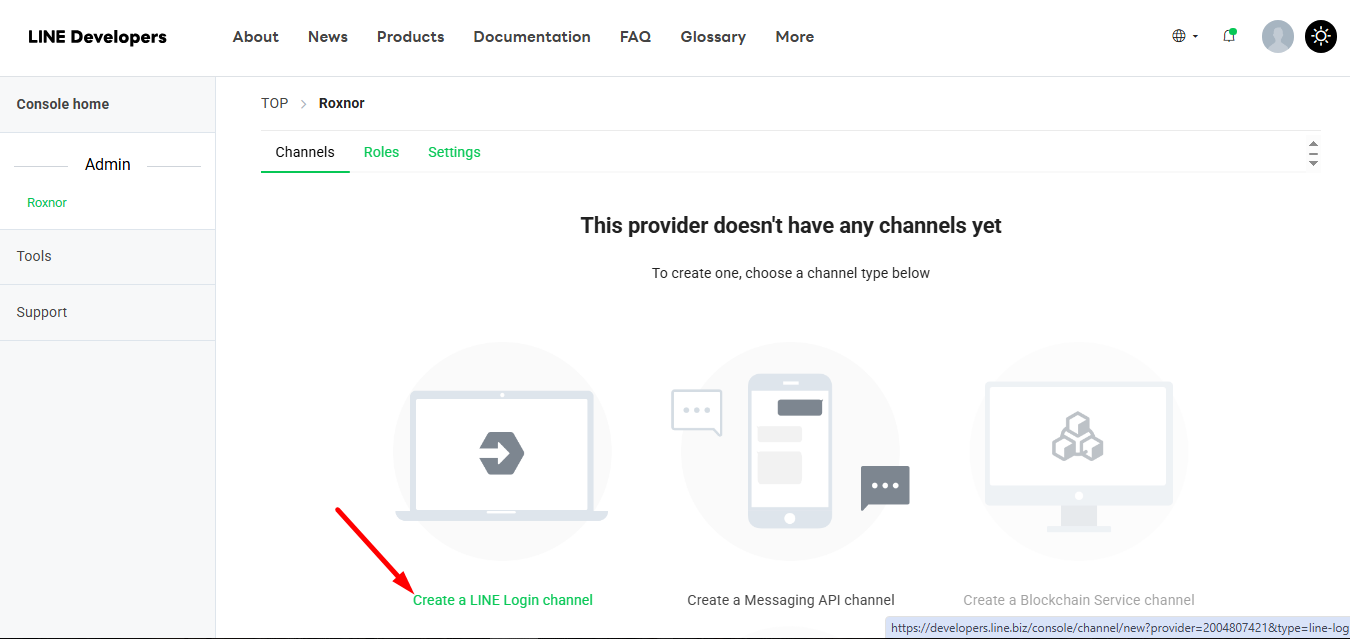
Right after that, you’ll see a new page pop up with a few empty fields like –
- Company or owner’s country or region: Select your country or where your business is based.
- Channel name: Give your app a clear and recognizable name.
- Channel description: Write a short blurb explaining what your app does.
- App types: Vælge “Web app” to ensure it works smoothly with your WordPress site.
- Require two-factor authentication: Enable if you want an extra layer of security for logins.
- LINE Developers Agreement: Give a quick read and accept.
- Create: Hit create, and your channel is ready to go!

Now it’s time to access the WP Social plugin from your WordPress dashboard. Here you can collect the Callback URL required for integrating the LINE App. To do this:
- Gå til WP Social → Social Login → Providers i dit WordPress-dashboard.
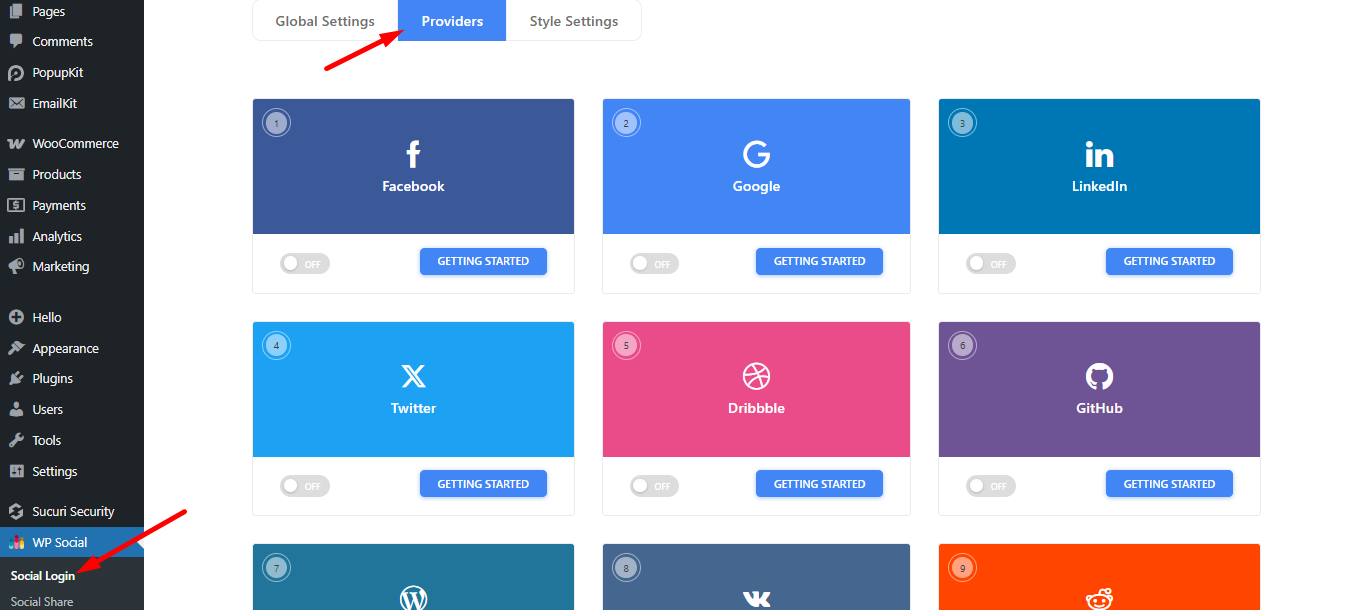
- Find the LINE App configuration.
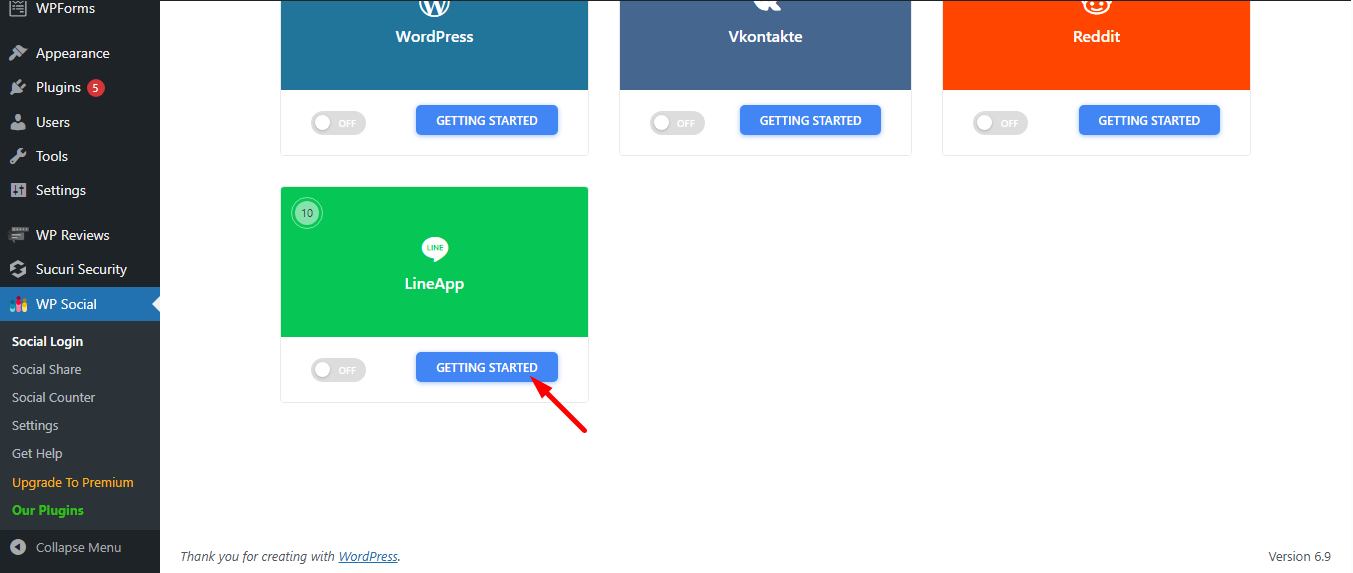
- Klik på Getting Started button under LINE login.
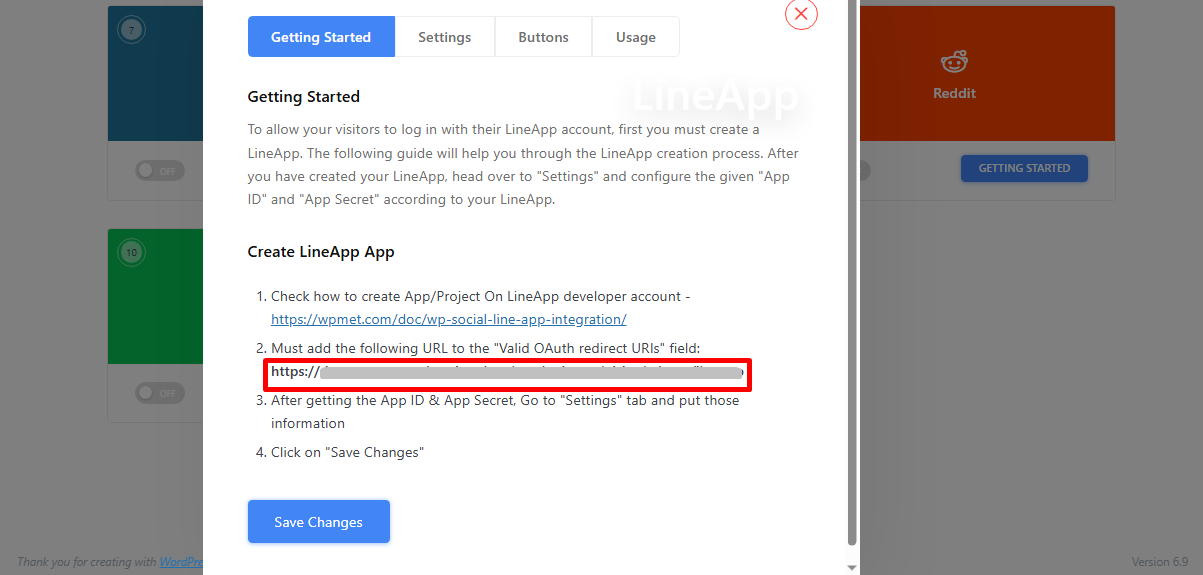
- Copy the Valid OAuth Redirect URL shown there.
Next, go back to the LINE Login channel in the developer console.
- Skift til LINE Login fanen
- Find Callback URL field and click the Redigere button to update it.
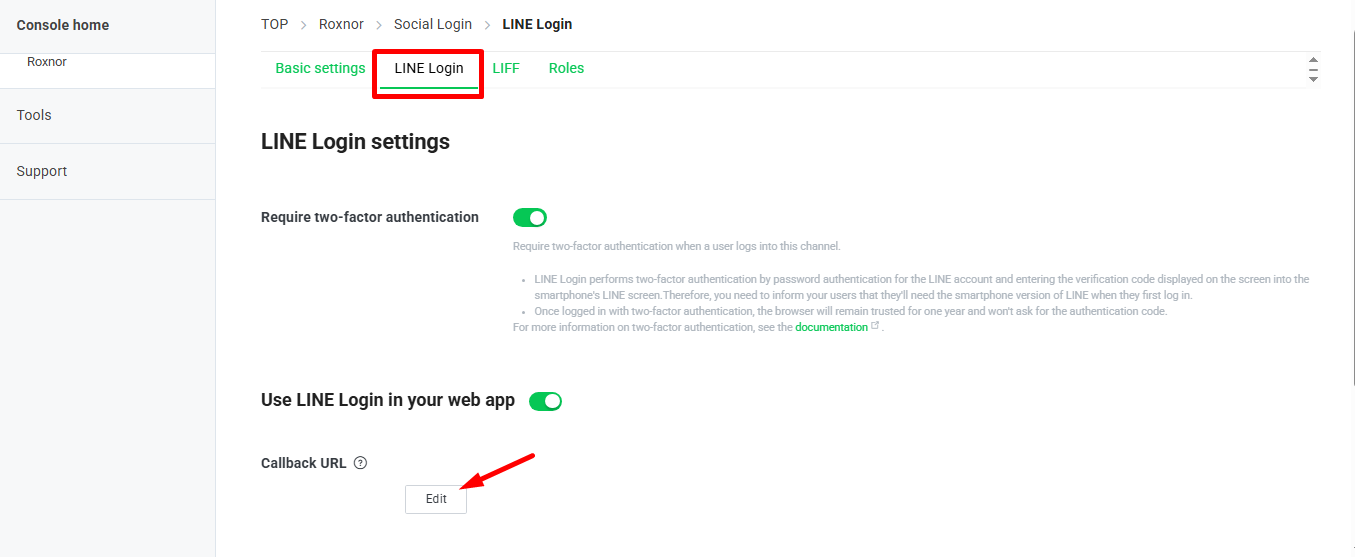
Når du klikker på Redigere knap, a field will appear where you can paste the Callback URL you copied earlier.
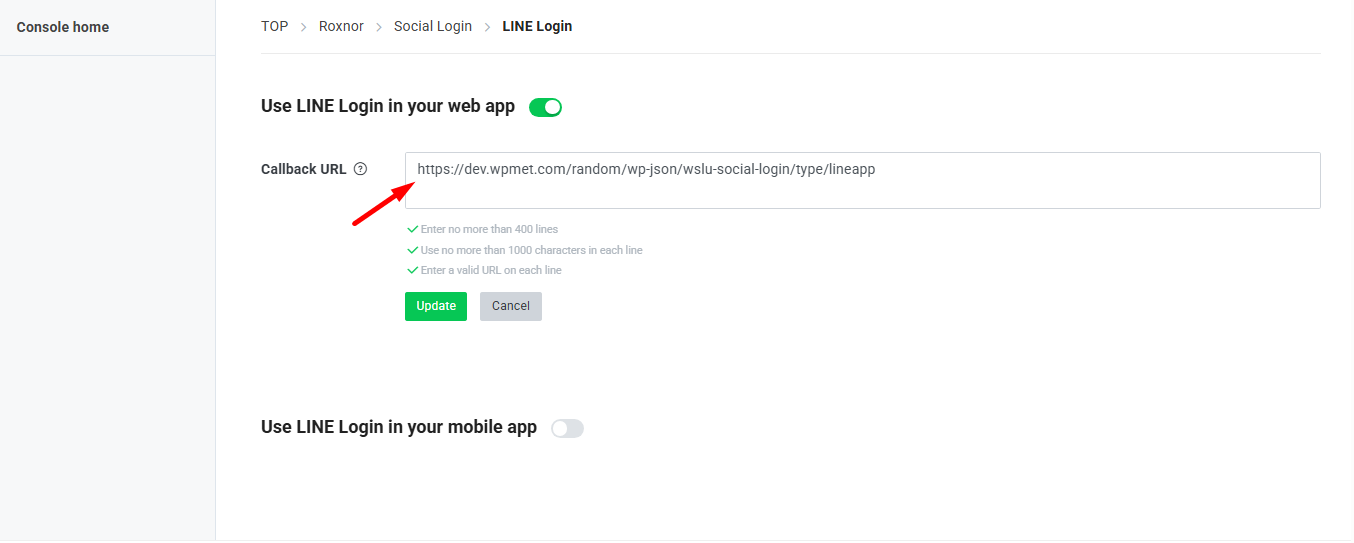
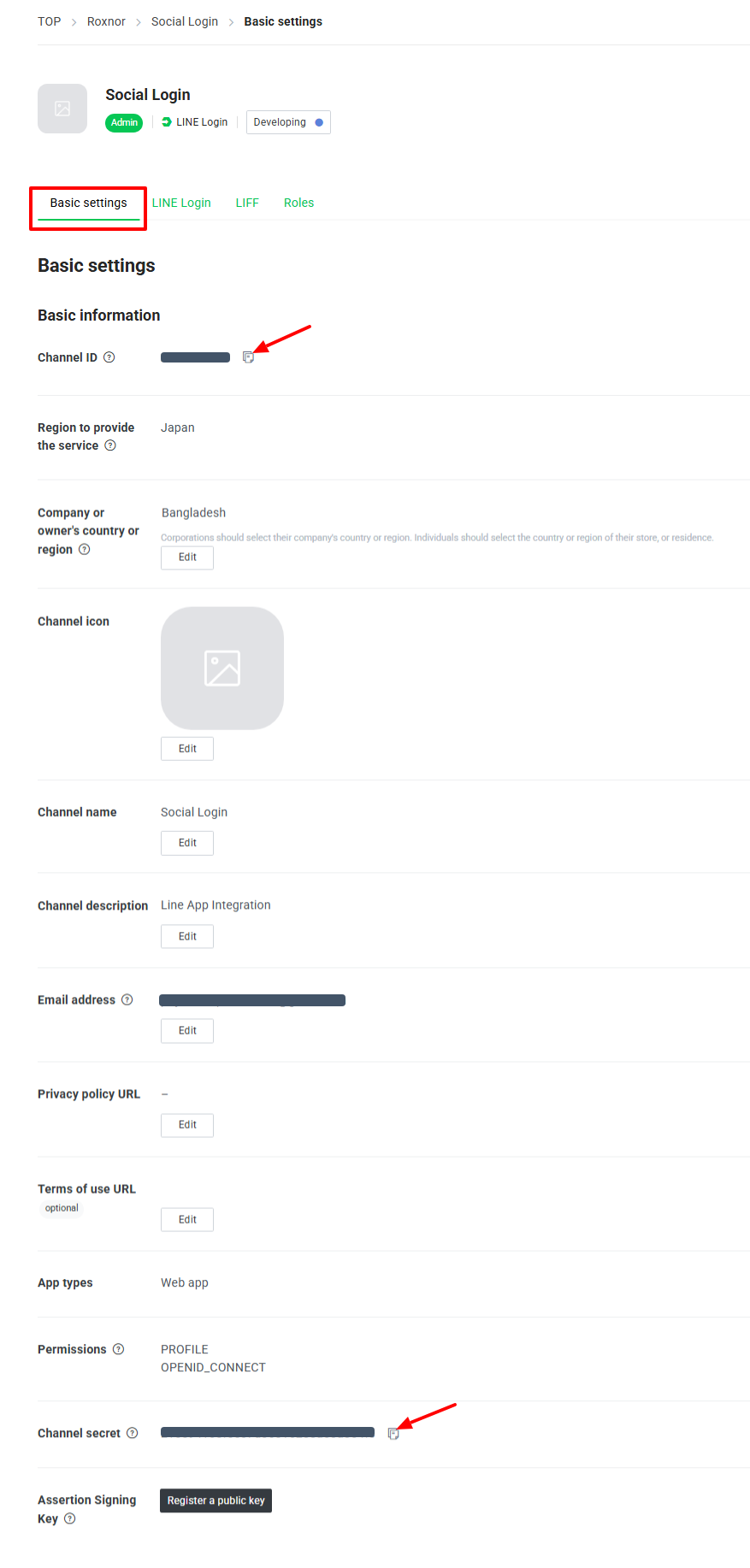
Next, grab the Kanal-id og Channel Secret from the channel details shown above and add them to the corresponding fields in the WP Social plugin. To do this:
- Flyt til Grundlæggende indstillinger fanen.
- Kopier Kanal-id.
- Kopier Channel Secret.
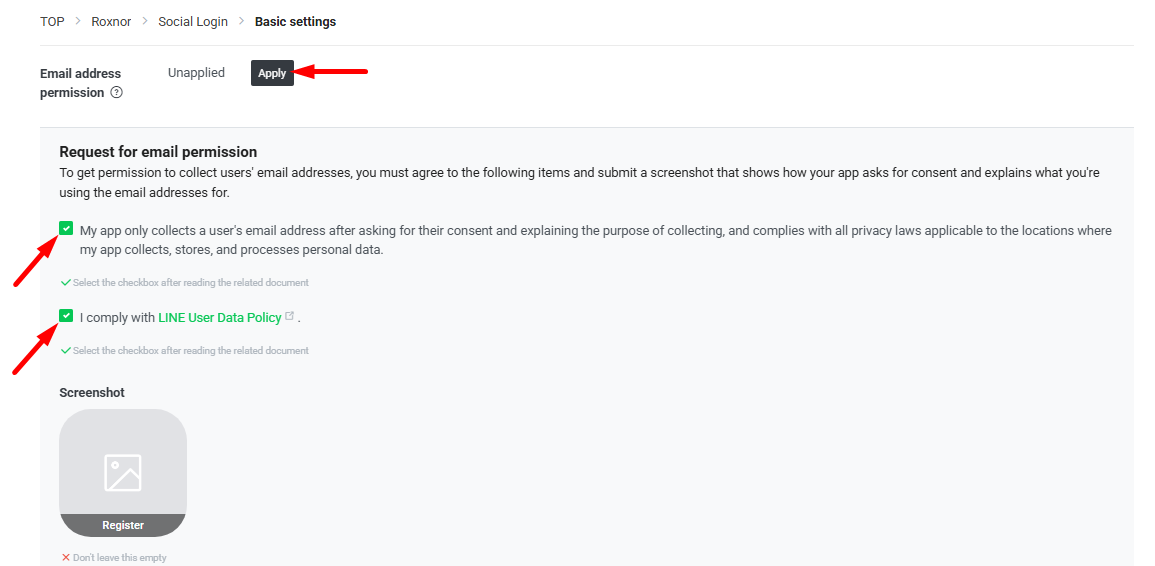
Enable the email permission by clicking Apply to avoid LINE login issues. After that, feel free to go through the remaining settings and configure them as needed.
Step 5: Connect WP Social for LINE App
Once your LINE app is successfully created, the next step is to integrate it with WordPress by adding the Client ID and Secret in the WP Social plugin.
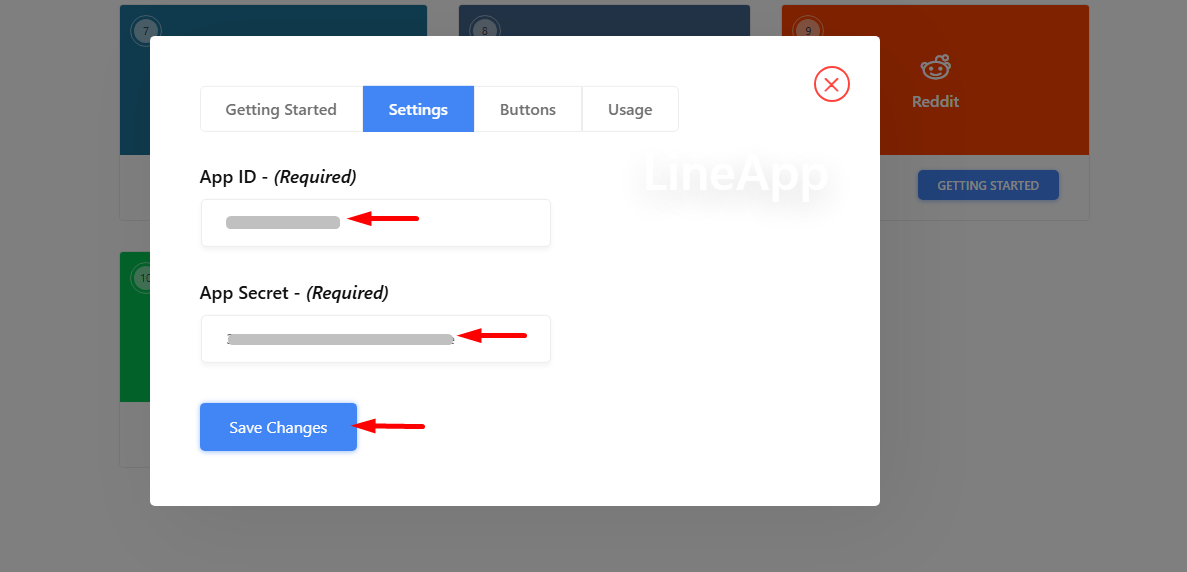
Once again, access the LINE App via the Socialt login section in WP Social from your dashboard.
- Klik Indstillinger under LINEApp.
- In the popup, switch to the Indstillinger fanen.
- Indtast dit App-id in the designated field.
- Indtast dit Appens hemmelighed in the corresponding field.
- Finally, click Gem ændringer to apply the settings.
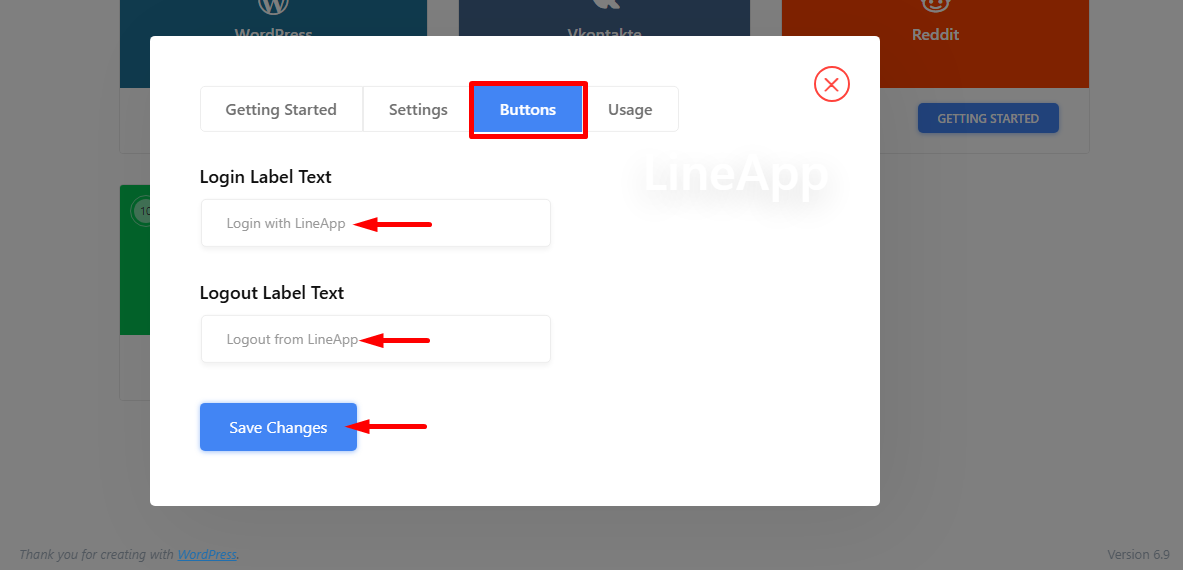
Det kan du dog customize the button labels for the LINE login button. To add/change the button label –
- Click the Buttons tab.
- Fill in the Login Label text.
- Fill in the Logout Label text.
- Then, Save Changes.
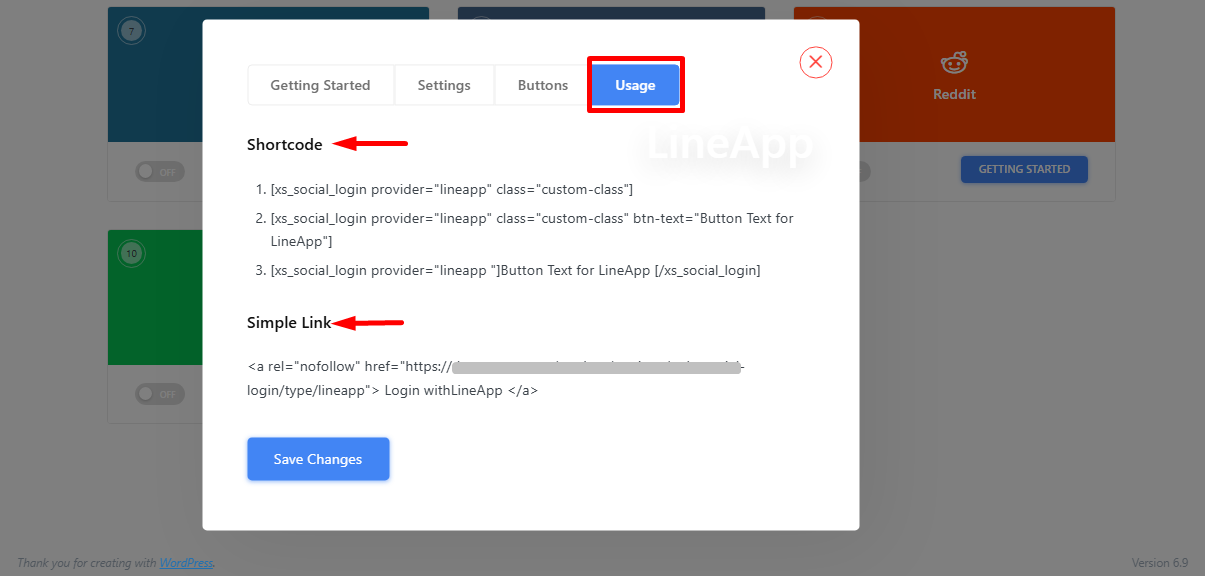
Want to add LINE Login anywhere on your site?
Use the shortcodes found in the Brug fanen, and refer to our Brug af WP sociale kortkoder guide to see how they work.
You’ll also find a Simpelt link option for integrating the LINE App with WordPress.
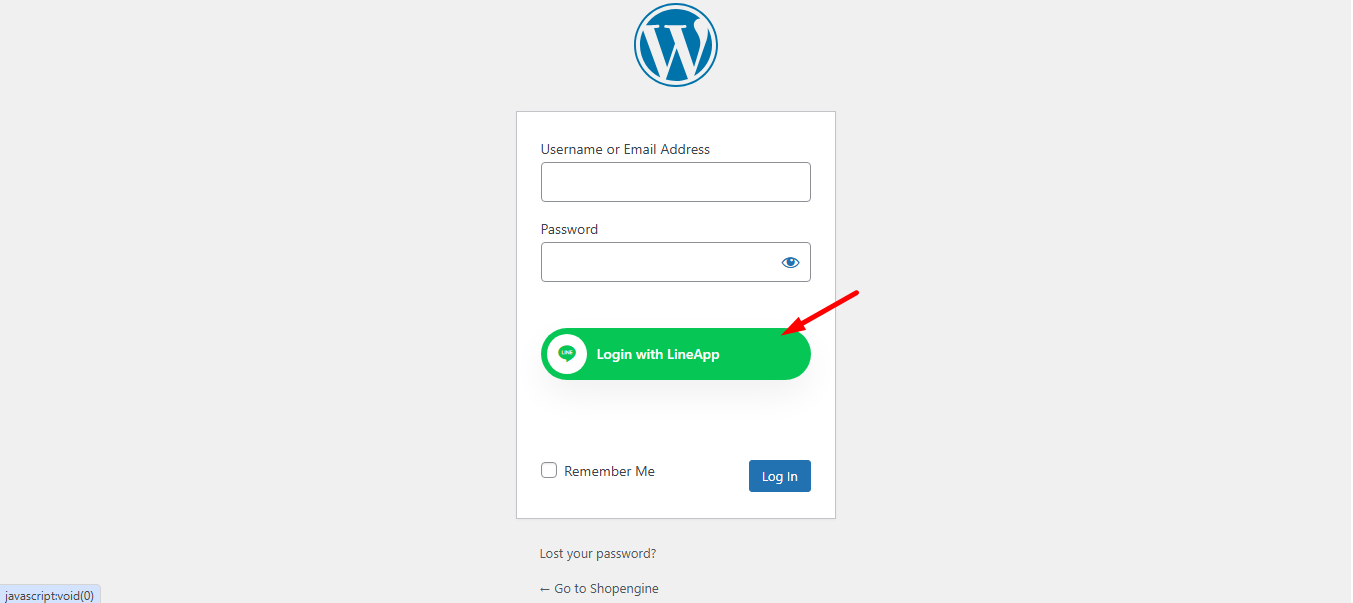
Finally, you can log in directly using your LINE account from the website’s login page.
Det LINE login button will appear there, click it, and signing in with LINE is quick and easy.
Tips to Prevent Line App Login Failure
Here are some practical tips to prevent login failure when using LINE with WordPress:
- Ensure your LINE Channel ID and Channel Secret are correctly added in the WordPress settings.
- Double-check that the Callback URL in the LINE Developer Console matches your site’s login redirect URL exactly.
- Enable the LINE Login feature from the LINE Developers dashboard.
- Make sure your website uses HTTPS (SSL certificate installed), as LINE login requires a secure connection.
- Clear browser cache and cookies before testing login.
- Disable conflicting social login plugins to avoid authentication issues.
- Keep your WordPress core, theme, and plugins updated.
- Confirm that your LINE channel is not expired or restricted.
- Check server firewall or security plugins to ensure they are not blocking API requests.
- Test login in an incognito/private browser window to rule out session issues.
When is Integrating Line App the Right Choice? When Not?
When Integrating the LINE App is the right choice:
- Mobile-first audience
- Users already active on LINE
- Target market in LINE-popular regions
When it is not the right choice:
- Email-based authentication is your primary system
- Audience outside LINE-supported regions
- Low or no existing LINE user adoption
How to Verify a Successful LINE App Integration
✓ Login via LINE works without errors
✓ User profile data (name, email, ID) syncs correctly
✓ Users are redirected properly after login
✓ Webhook events (if enabled) are received successfully
✓ Test login works on both mobile and desktop devices
Ofte stillede spørgsmål
Q1: Do I need a LINE developer account?
A: Yes. You’ll need it to get the keys and credentials that let your site connect with LINE smoothly.
Q2: Is LINE a safe App?
A: Yes. LINE uses strong encryption for chats and logins, and your data is protected when used responsibly.
Q3: Can I customize the login button?
A: Absolutely. You can style it to match your site’s look and feel perfectly.
Q4: How does WP Social make LINE integration hassle-free?
A: WP Social handles all the setup steps behind the scenes. You can enable LINE login in minutes without touching complex code.
Q5: Can I offer multiple social logins with WP Social?
A: Yes. You can let users log in with LINE, Google, Facebook, or others, giving them flexibility and a smoother experience.
Summing Up
You’ve now got everything you need to connect LINE with WordPress. Setup takes minutes, and your users can log in smoothly. Just follow along and get your integration up and running in minutes.
Let LINE handle logins, notifications, and interactions while you connect with users where they already spend their time. Try WP Social and enable LINE login on your site without the hassle.

Skriv et svar