






Med en Schedule Date and Time feature you can set when a popup should start and stop showing, and whether it follows your site’s time zone or the visitor’s local time zone.
Let’s learn how you can adjust date and time with PopupKit’s Schedule Date and Time funktion.
Schedule Date and Time with PopupKit #
Choose a new campaign or pick from your previous ones.
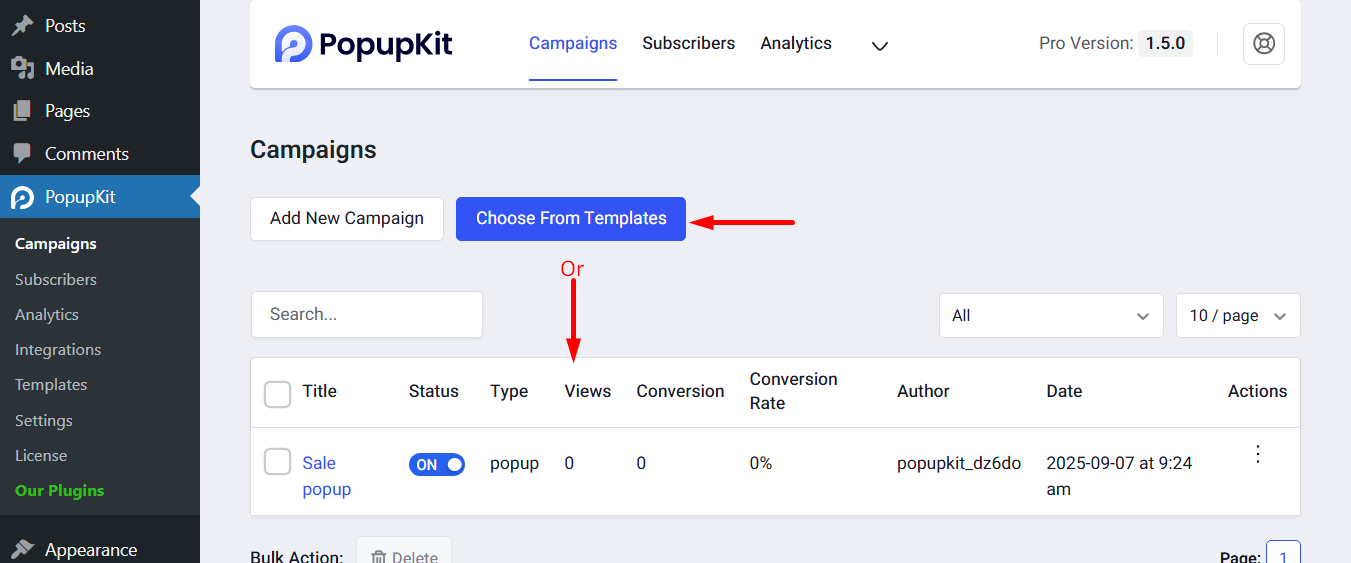
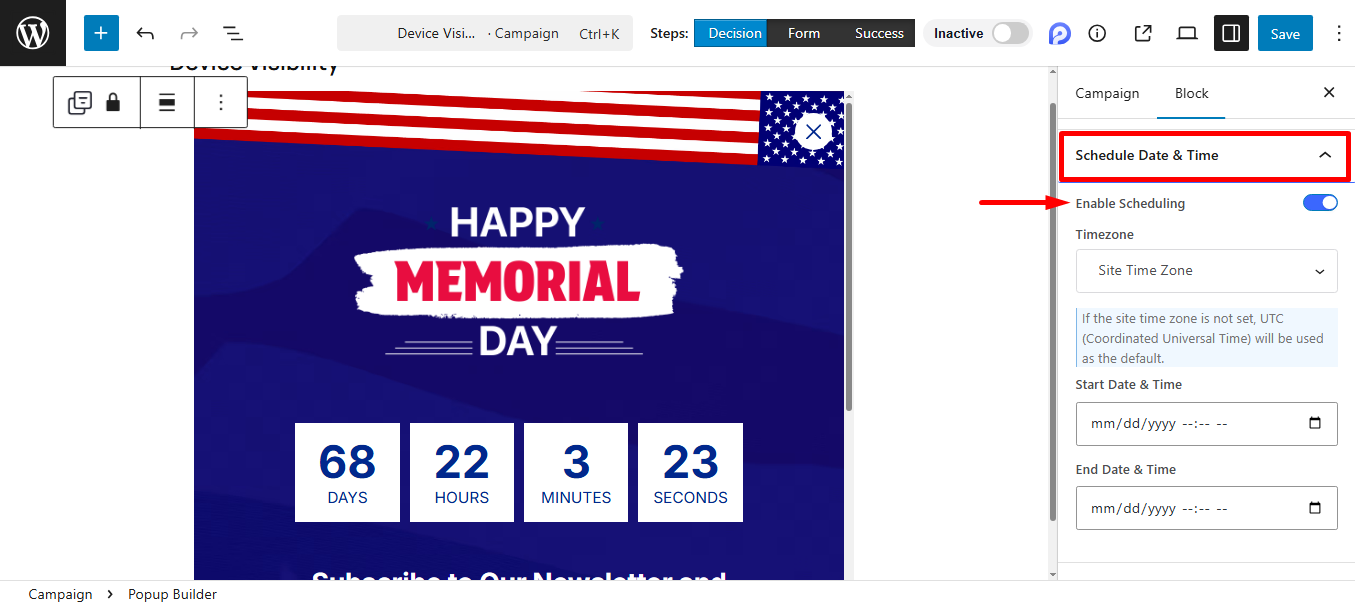
Go to the editor. Here, from the Block tab Find Schedule Date & Time.
You have to expand the tab and enable ‘Enable Scheduling’ button. The controls here are: Timezone, Start Date & Time, End Date & Time.
Timezone #
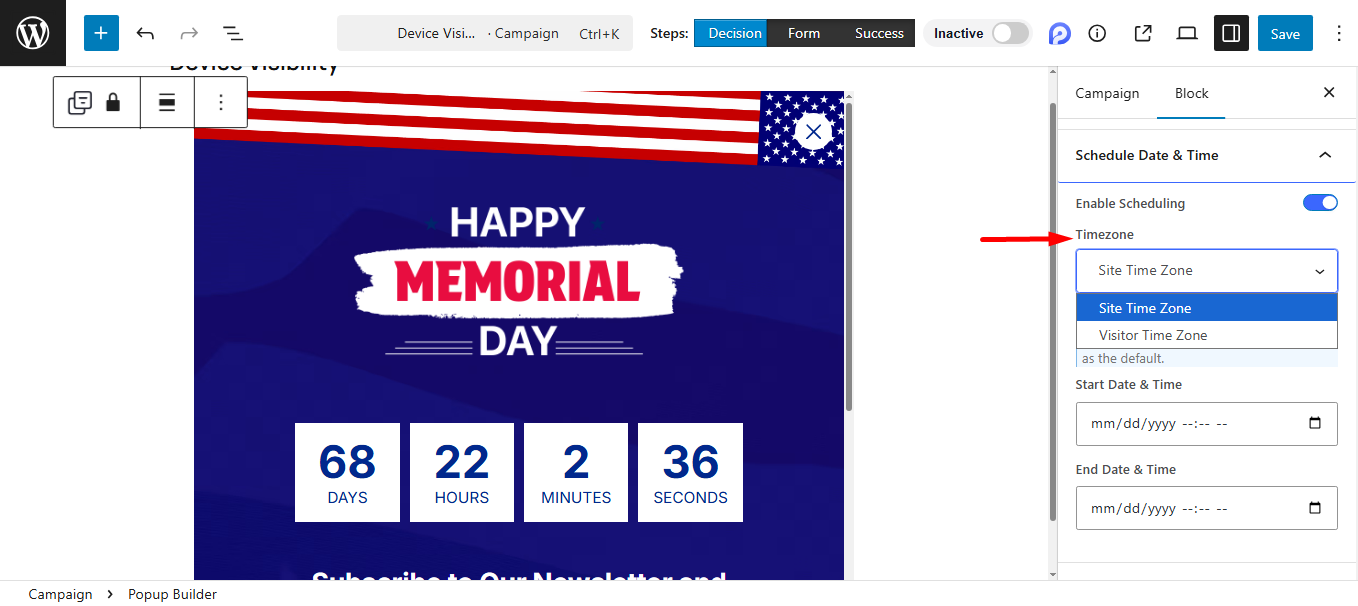
It lets you schedule popups according to either your site’s time or your visitor’s local time.
- Site Time Zone: It lets you to show the popup based on your website’s set time zone.
- Visitor Time Zone: You can display the popup based on each visitor’s local time zone.
Start Date & Time #
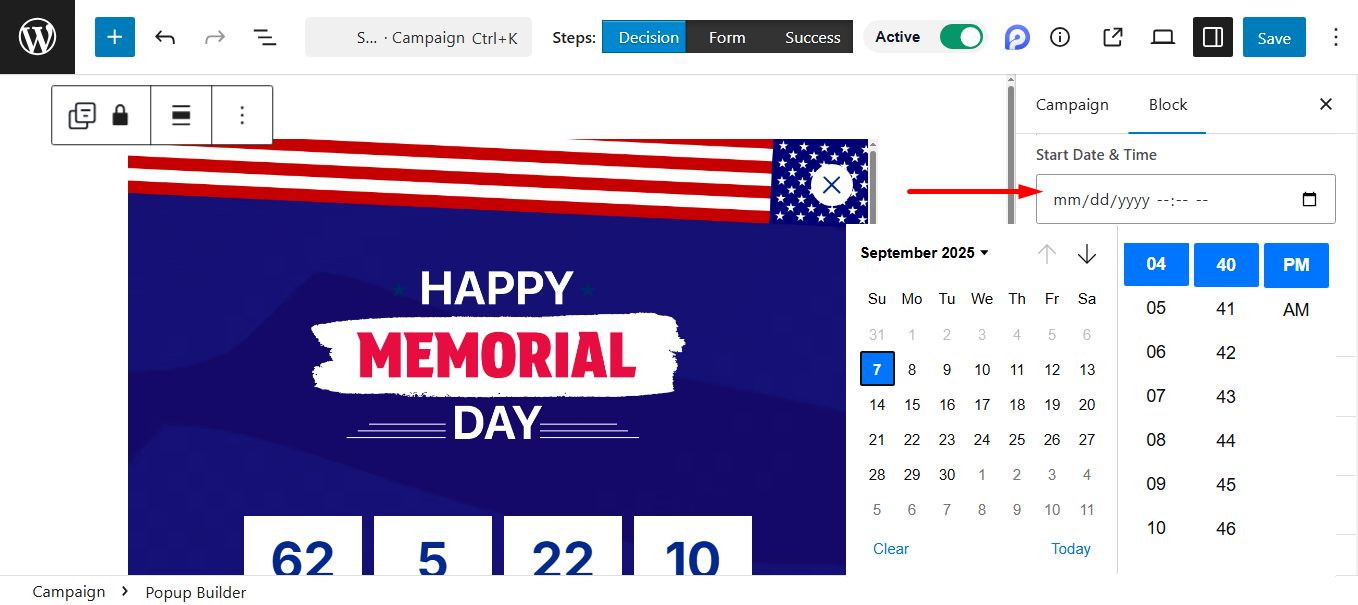
Set the time from the calendar when the popup will begin showing. For example, it’ll start from 7 September, 04.40 PM.
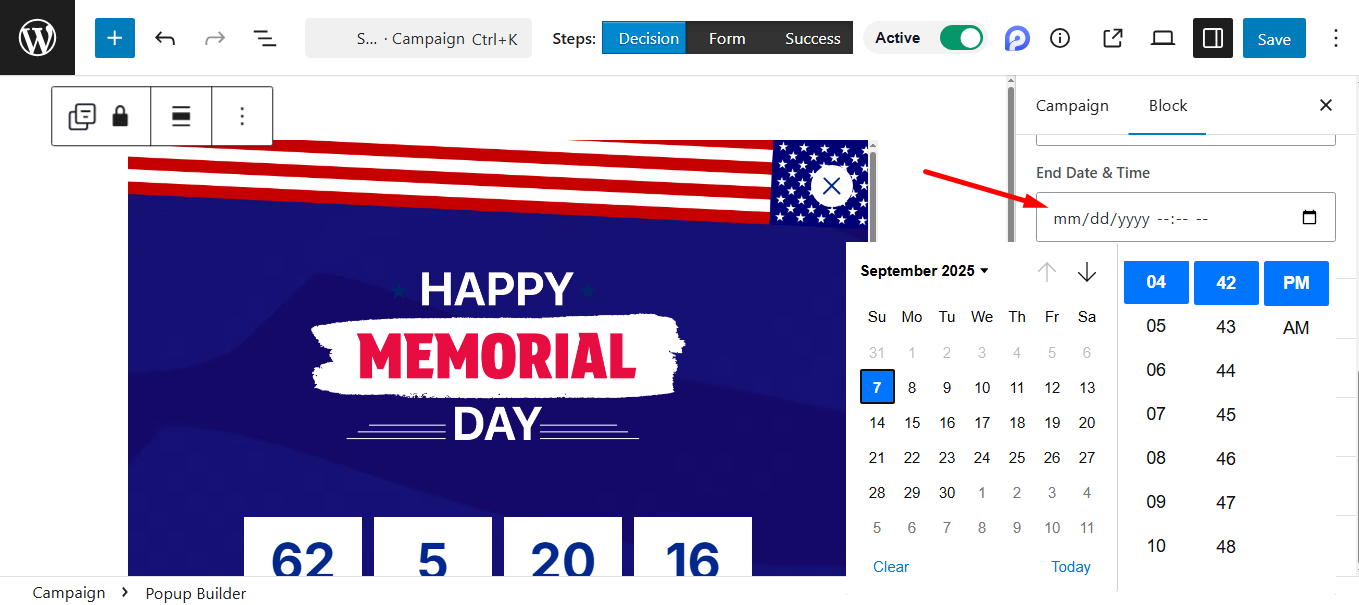
End Date & Time #
Here you need to adjust the time when the popup will stop showing. For example, it’ll end at 7 September, 04.42 PM.
That’s all for Schedule Date and Time. These settings help you control exactly when your popups show for the best impact.


