




Updating a product is never a one-way process. While we at ShopEngine always do the product-level research and testing, real-world challenges from users often have major stakes in the development of the plugins.
This is one of those stories.
A single support query from a user helped us spot a usability gap. And how adding the child category support for the ShopEngine template builder gives store owners more control over how they design and optimize their WooCommerce product templates for better conversions.
The Catalyst: A support ticket that triggered the event.
Last month, our support team received a ticket that looked routine at first glance:
❝Hi, I’m unable to select sub categories on primary categories under Applicable Category section. Is this a limitation, or is there something else I need to change? Thank you❞
On the surface, it sounded like a regular support query. But as we reviewed the request more closely, it became clear that this wasn’t just another usability concern. It was a feature gap. A real limitation that real store owners were struggling with.
This customer query led us to re-examine ShopEngine’s template builder process, particularly for category-based template creation.
What started as a support ticket quickly became the seed of a feature update.
Background: ShopEngine template builder and limitations for child category.
Before we go into the details, let’s give you a brief overview of ShopEngine’s template builder to identify the root of the problem.
Context: Template builder for WooCommerce pages
Inside ShopEngine, you can build custom templates for default WooCommerce pages, including the shop page, single product page, cart page, checkout page, archive page, and more.
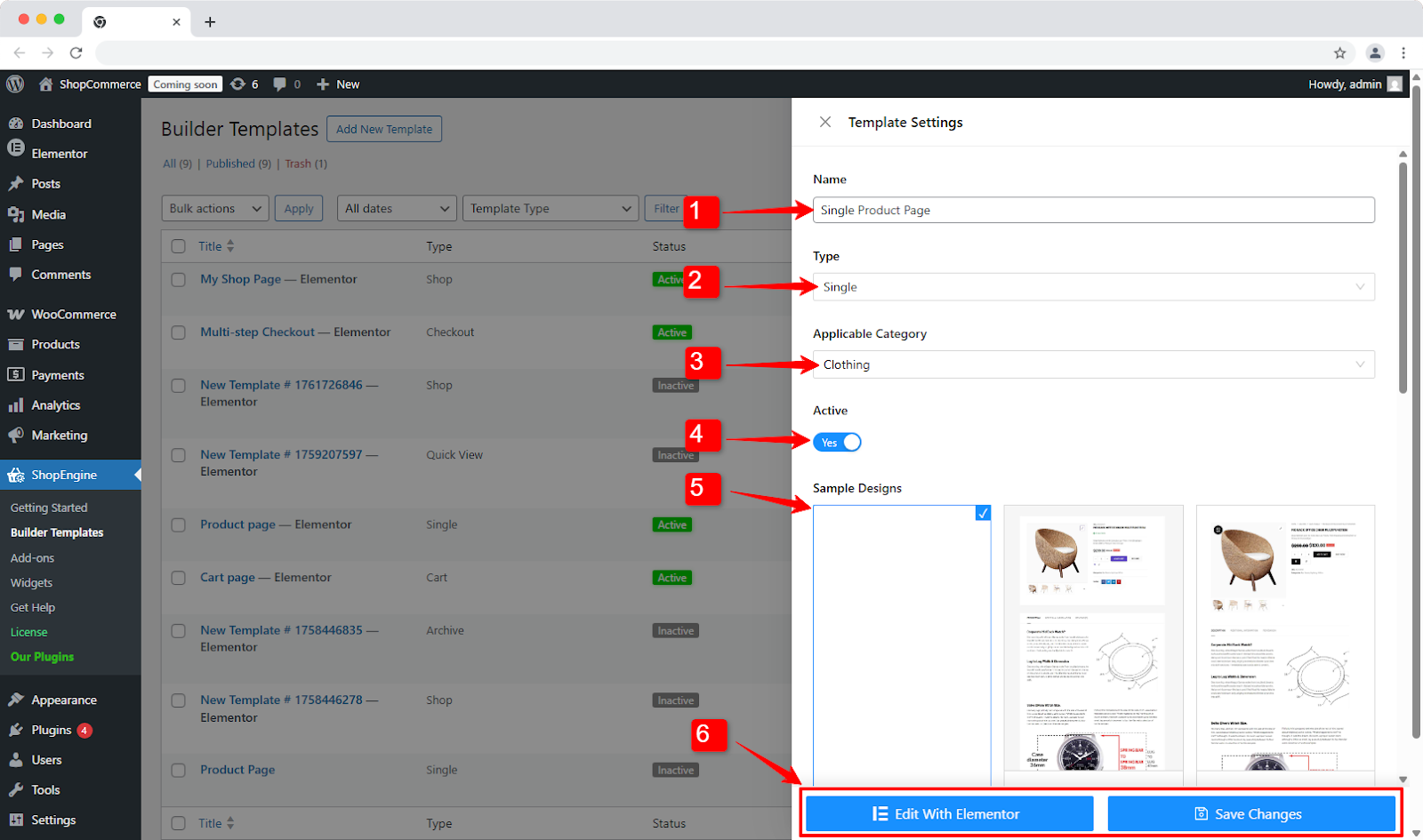
The following process is to create a WooCommerce page template with ShopEngine:
- Trin 1: Gå til ShopEngine → Builder Template fra dit WordPress-dashboard.
- Step 2: Click the “Add New Template” button to open the template settings setup window.
- Step 3: In the Skabelonindstillinger modal, configure the following:
- Navn: Assign a name for the template.
- Type: Choose the page type you want to create a template for, e.g., Shop, Archive, Single, etc.
- Gældende kategori: Select the product category this template applies to. (This is where we focus on today’s case study)
- Aktiv: Turn the toggle to ON to enable the template.
- Eksempel design: Choose a pre-designed layout template for a quick start or select the blank canvas to build from scratch.
- Save Changes/ Edit with Elementor: You can save the changes and customize the template later. Or, open the Elementor editor to instantly start editing the page design.
Limitation: Child categories inherited the parent layout
In the entire process, you could only create a template for parent product categories.
Let’s say you have a product category (parent) for Clothing. Its sub-categories are Ladies’ wear, Men’s wear, and Accessories.
Here, the constraint was that if you assign a template to Clothing (parent category), every sub-category under it inherited the same layout.
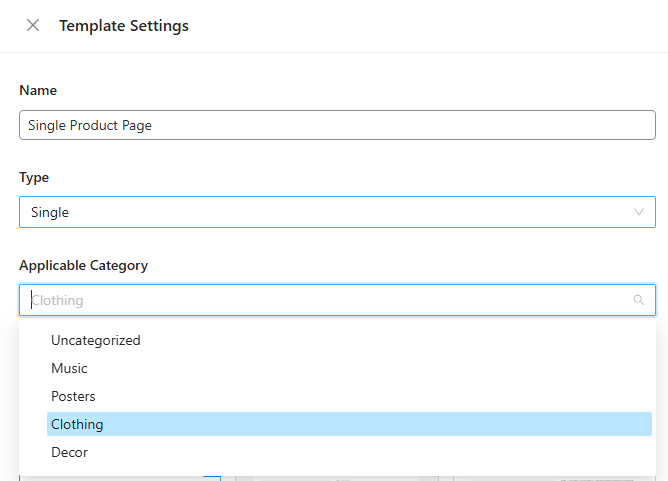
This means the same layout, styles, page elements, and overall visual experience for every segment.
For stores with diverse product segments, this quickly became restrictive.
Problem: A Real-World Challenge for WooCommerce Stores
Different product segments require different emotional triggers and presentation styles to convert effectively.
Let’s take the earlier example.
The ladies’ wear segment usually has trend-focused visuals, expressive typography, and style-driven layouts.
Whereas, men’s wear may perform better with cleaner layouts, fit-focused messaging, and more structured presentation.
| Segment | Consumer Psyche | Design Requirement |
|---|---|---|
| Ladies’ Wear | Style, inspiration, and trends. | High-fashion visuals, seasonal collection banners, and lookbook style. |
| Men’s Wear | Fit, specifications, and faster browsing. | Minimalist layouts, technical spec filters, size-first navigation. |
| Accessories | Discovery and impulse. | Cross-sell blocks, bundle offers, “Complete the Look” widgets. |
The challenge it created
But with the previous limitation, every one of those child category pages had to inherit the same template as the parent template.
This might sound like an aesthetic problem, but in reality, it affected much more than just appearance. It affected conversions.
When a customer lands on a category page, they usually have a specific intent. But they were seeing a generic design built for a broader category that fails to connect with their intent.
And when a layout doesn’t align with user intent, the chances of converting that visitor naturally drop.
The user who filed the support ticket understood this intuitively. So, what started as a simple support question turned out to be a strategic gap for business owners.
Ultimately, that insight pushed us to rethink the limitation. And ultimately, it became the starting point for a meaningful improvement.
Solution: Child category support in WooCommerce product template builder
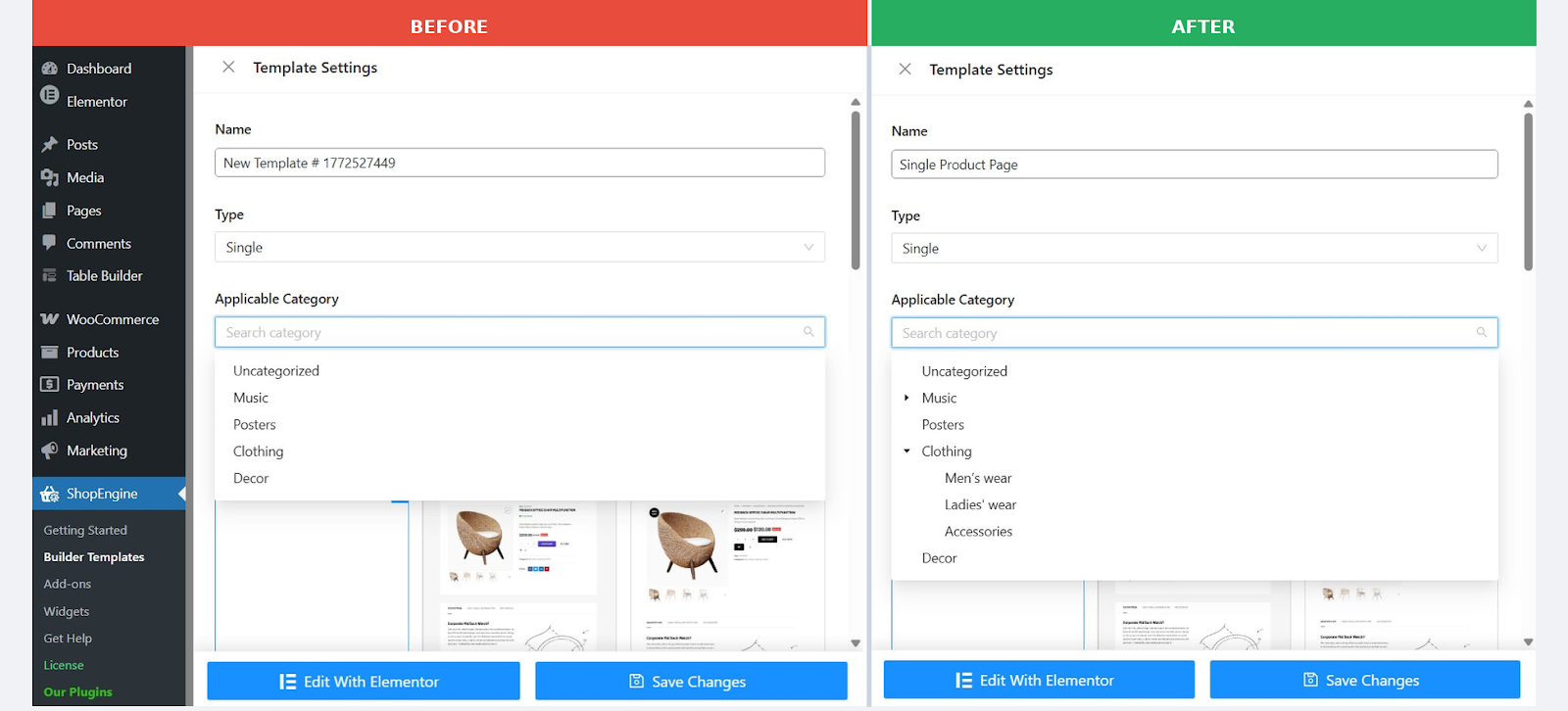
After reviewing the issue, the team came up with a straightforward solution. The full category tree is now added to the Gældende kategori. Users can now create dedicated shop page and archive page templates for the child category products.
What changed?
Templates are no longer limited to parent categories. You now have the flexibility to target sub-categories at any level.
Sådan fungerer det:
- Naviger til ShopEngine ➔ Builder Template.
- Lave en new template and choose the template type: Enkelt eller Arkiv.
- I den Gældende kategori section, select a specific Child Category.
You will now see your full category tree, including all child categories nested under their parent categories.
What does this actually mean for your store?
Here’s where the update becomes more than just a technical update and starts becoming a practical advantage for your store.
- Segment-based design
You can now design templates specifically for individual sub-categories. Browsing men’s wear no longer has to feel the same as browsing accessories. Each segment can have its own layout, banners, and calls to action.
- Targeted messaging
Different categories often communicate to different audiences. Use different copy, promotional banners, and sales offers to connect directly to the intent of the different customer segments.
- Custom layout logic
Use different product filters or sorting options for different segments. Fashion wear can highlight size filters. Meanwhile, accessories may prioritize warranty or brand filters even if they share the same parent category.
- Strategic merchandising
You can also place upsells and featured products that are actually relevant to the specific sub-categories customers are browsing.
So, even if multiple segments sit under the same parent category, they don’t have to look or behave the same anymore.
Finally, your category structure and your design strategy can now actually get into a specific customer segment.
Implementation walkthrough
Once the support ticket came in, the support team immediately forwarded it to the development team. The developers were quick to understand the depth of this issue.
The team went back to the drawing board to implement full child category support in the Builder Template process.
Meanwhile, the user was assured that their feedback had been heard and that the team was actively looking into it.

On the drawing board, the direction was clear, and the process was simple. The team revisited how the Template Builder handled category logic.
The key area was the Gældende kategori in the template settings setup. Previously, it only included parent categories.
The update required expanding the structure so that the full category tree is available, including parent categories and all of their nested child categories.
With this change, users can now assign a unique template to any category at any level of the hierarchy.
The logic is straightforward. If a child category has its own template assigned, that template will take priority on that category’s page. If no template is assigned to the child category, it simply falls back to the parent category’s template.
This follows the same inheritance pattern WooCommerce already uses for category structures.
Result and user reaction
As soon as the feature was ready, the support team followed up with the user who had originally raised the question.
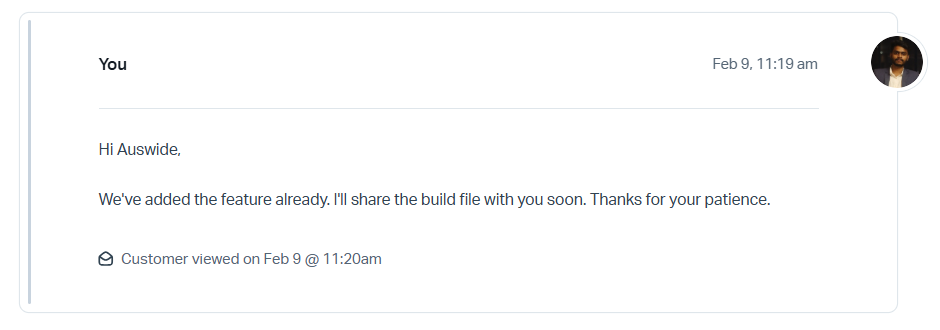
We didn’t let the user wait for the next plugin update to release. The support team immediately shared the build file so that the user could test and start using the feature immediately.
The reaction was warm. The user confirmed that the feature worked exactly as they’d hoped and expressed appreciation that the feedback had been taken seriously and acted upon.
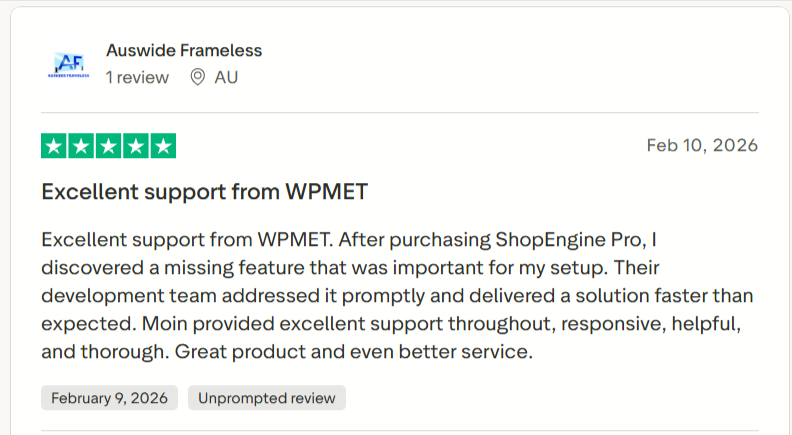
That response, someone simply saying “thank you, this works now”, might seem small. But it represents something larger! A loop that closed properly. A problem was raised, heard, solved, and confirmed. That’s the feedback cycle working as it should.
How does a user help us identify and solve child product category issues in WooCommerce templates?
This tutorial includes lorem ipsum dolor sit amet.
🎟️ Support ticket: A user wanted to create a separate template for products under a child category.
👉 Issue: Sub-category support for the ShopEngine templates builder wasn’t available. Child categories are used to inherit the parent layout.
👉 Challenge: Difficulties in creating a dedicated UI of specific customer segment.
How does it work now?
The child category support is now added to the ShopEngine template builder workflow.
Here’s the current workflow:
✅ Navigate to ShopEngine ➔ Builder Template.
✅ Lave en new template and choose the template type: Enkelt eller Arkiv.
✅ I den Gældende kategori section, select a specific Child Category.
A full category tree is now available, including all child categories nested under their parent categories.
Customer reaction?
Warm reaction with appreciation for addressing the issue with immediate effect.
Afslutter…
There’s a philosophy integrated into this story, and it’s worth mentioning explicitly.
Somehow, the gap missed our radar during planning, testing, or product roadmap review. But one of our users stood up there.
They found it in the course of trying to do something specific and useful with their store. And they took thirty seconds to describe what they couldn’t do.
This is what “user-driven development” actually looks like in practice. Not focus groups. Not surveys with checkbox responses. A person using a tool for real work, hitting a limitation, and trusting that it’s worth mentioning. And a product team that treats that mention as a signal, not noise.
That act of speaking up, as simple as it was, is what made the feature happen.


Skriv et svar