 Fall for Wpmet Up to 83% OFF


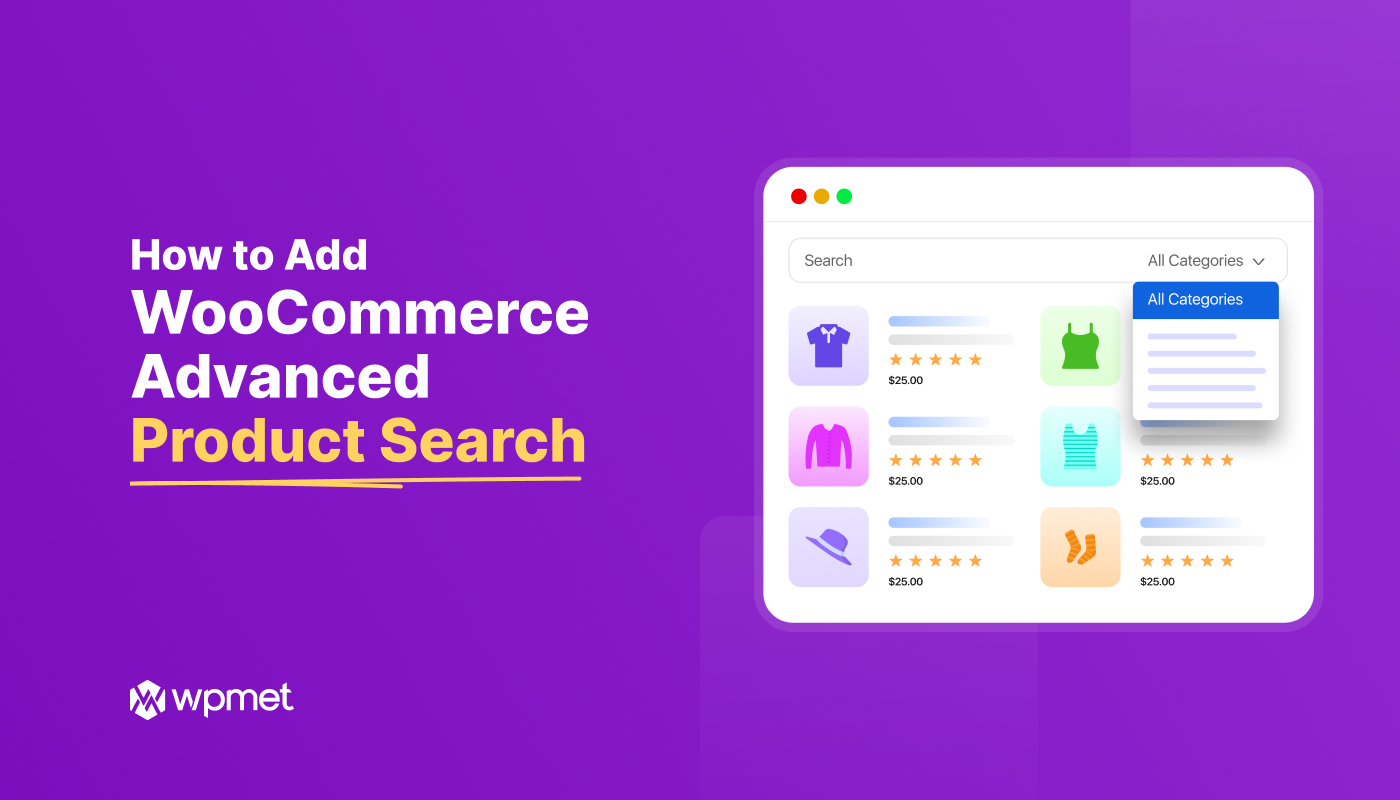
Adding advanced WooCommerce product search is easy. Just pick a WooCommerce builder with this feature. Enable advanced product search. Then simply drag and drop the element in your shop page.
But why do you need it? The default search feature in WooCommerce is functional, but let’s be honest, it’s often basic and frustrating for shoppers.
For a user-friendly e-commerce site, a superior search experience isn’t a luxury. It’s a necessity to make your products easily accessible to the users.
This guide will walk you through adding an advanced product search to your WooCommerce store using a dedicated plugin, ShopEngine, dramatically improving user experience and boosting sales.
How to make WooCommerce Product Search faster and easier?
This guide describes the process to add an advanced product search for WooCommerce with Elementor and ShopEngine.
☑️ Impacts:
- Faster Loading: Reduces initial page load time and server strain.
- Mobile Friendly: Prevents endless scrolling on small screens.
- Better SEO: Improves Core Web Vitals and reduces bounce rates.
- Clean Layout: Keeps your site design professional and scannable.
☑️ Steps to enable pagination:
- Install ShopEngine: Search for “ShopEngine” in the WordPress Plugin repository to install it and activate it.
- Enable advanced search: Navigate to ShopEngine → Widgets, find Advanced Search widget, and enable it.
- Drag and drop the widget: Open the shop page template in Elementor editor. Then drag and drop the widget in the layout.
💡 Best practices to add WooCommerce product search:
- Place search where users expect it
- Enable category-based filtering
- Optimize product data for search accuracy
How advanced product search feature in WooCommerce make a difference?
While regular search relies on basic keyword matching, AJAX-based (Asynchronous JavaScript and XML) advanced product search delivers more relevant results by analyzing product attributes, variations, and metadata.
In simple words, the ultimate goal is to improve the user experience with higher result accuracy and intent-based matching.
Key differences between regular and advanced product search for WooCommerce:
| Criterias | Regular Product Search | Advanced Product Search |
|---|---|---|
| Search Method | Basic keyword matching | Contextual and intent-based search |
| Search Coverage | Product titles and basic content only | Attributes, variations, SKUs, metadata, and taxonomies |
| Result Accuracy | Often irrelevant or incomplete | Highly relevant and precise |
| Zero-Result Pages | Common | Greatly reduced |
| Keyword Flexibility | Requires precise wording. | Supports partial keywords, synonyms, and alternate phrases |
| Variation-level Search | Cannot search individual product variations. | Allows searching by variation attributes. |
| Performance at Scale | Becomes inefficient as the product catalog grows | Optimized for large WooCommerce stores |
| Search Speed | Page reloads required | Instant results using AJAX |
| Live Search Results | Not available | Results appear as users type |
| Autocomplete & Suggestions | Not available | Yes |
| User Experience (UX) | Basic and slow | Smooth, intuitive, and fast |
| Impact on Conversions | Comparatively lower conversion rate. | More likely to complete a purchase |
Regular product search in WooCommerce is functional but limited. Advanced product search transforms search into a powerful discovery and conversion tool by improving speed, relevance, usability, and insight.
What makes a great WooCommerce product search experience?
An effective WooCommerce product search does more than display matching products. It helps customers quickly find exactly what they’re looking for, reducing frustration and making the shopping journey smoother. The easier it is to discover products, the more likely visitors are to make a purchase.
Here are the key features of a great WooCommerce search experience:
- Live AJAX Search: Live search displays matching products as customers type, eliminating the need to load a separate search results page. This speeds up product discovery and keeps shoppers engaged.
- Autocomplete Suggestions: Autocomplete predicts search terms and suggests relevant products, categories, or keywords. It helps customers find products faster while reducing spelling errors and incomplete searches.
- Search by SKU, Category, and Attributes: Many shoppers search using product names, SKUs, brands, colors, sizes, or other attributes. A powerful search solution should support multiple search parameters to deliver more accurate results.
- Product Image Previews: Showing product thumbnails alongside search results helps customers quickly recognize the items they’re looking for without opening multiple pages.
- Mobile-Friendly Search: With many customers shopping on smartphones, your search bar should be easy to access and responsive across all devices. Features like touch-friendly search boxes and instant results improve the mobile shopping experience.
- Fast and Relevant Results: Speed and accuracy are equally important. Customers expect relevant products to appear almost instantly. A search solution that delivers fast, accurate results keeps visitors engaged and reduces the likelihood of them leaving your store.
The best WooCommerce search experience removes friction from the buying process, helping customers discover products quickly and confidently.
How to add advanced product search for WooCommerce
The easiest and most effective way to implement an advanced product search is to a specialized WooCommerce builder that comes with an advanced product search feature.
For this tutorial, we will use ShopEngine to explain how to add advanced product search for WooCommerce.
Before getting started, make sure you have the following plugin installed:
- WooCommerce: Download Plugin
- Elementor: Download Plugin
Step 1: Install a WooCommerce product search plugin
To install a WooCommerce builder plugin on your WordPress website:
- Navigate to Plugins → Add New from your WordPress Dashboard.
- Search for a ShopEngine WooCommerce builder plugin.
- Install and activate the plugin. Follow any initial setup wizard steps to ensure core functionality is enabled.
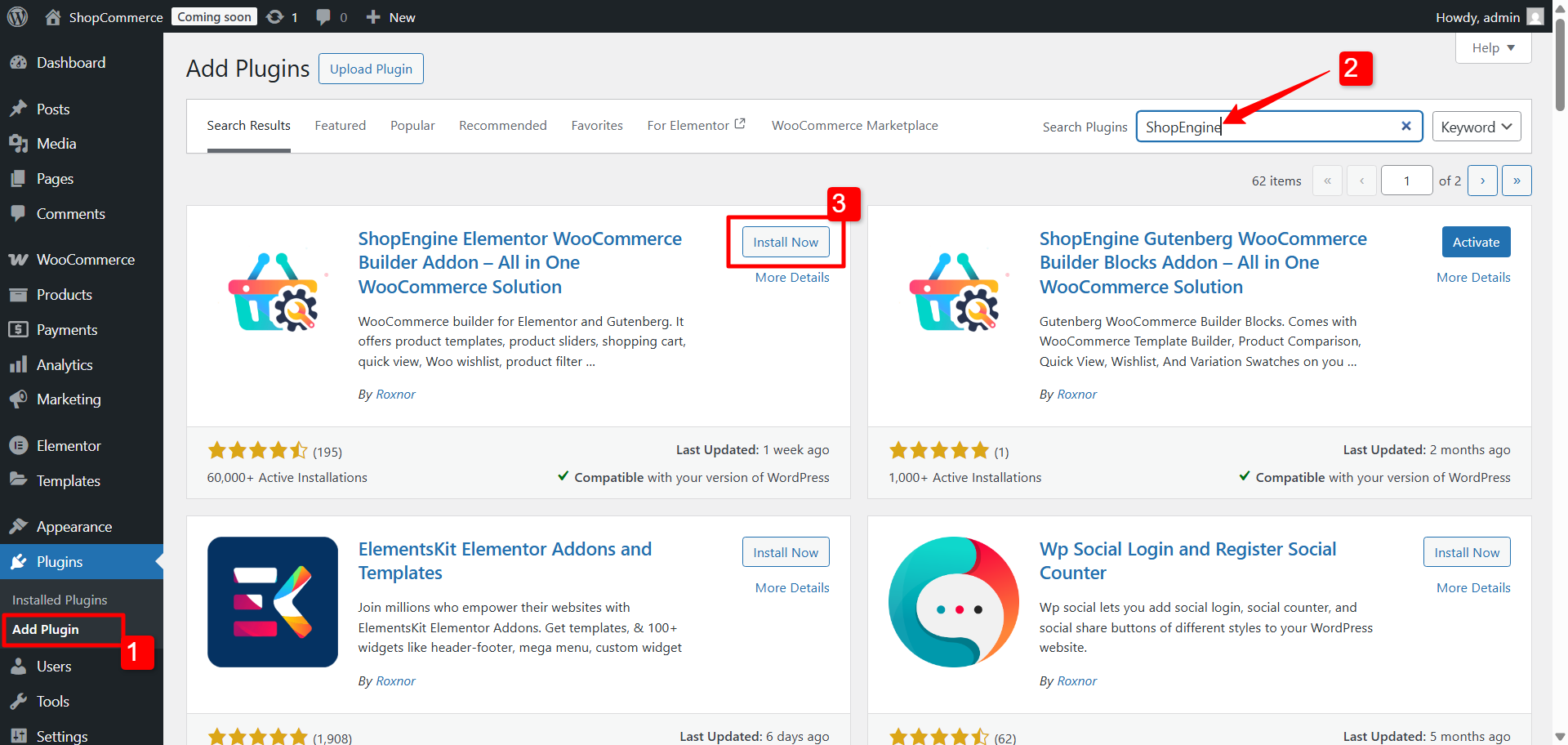
ShopEngine’s Advanced Product Search widget is a free feature. So you can easily add WooCommerce product search for free to your website.
Step 2: Enable the WooCommerce advanced search widget for products
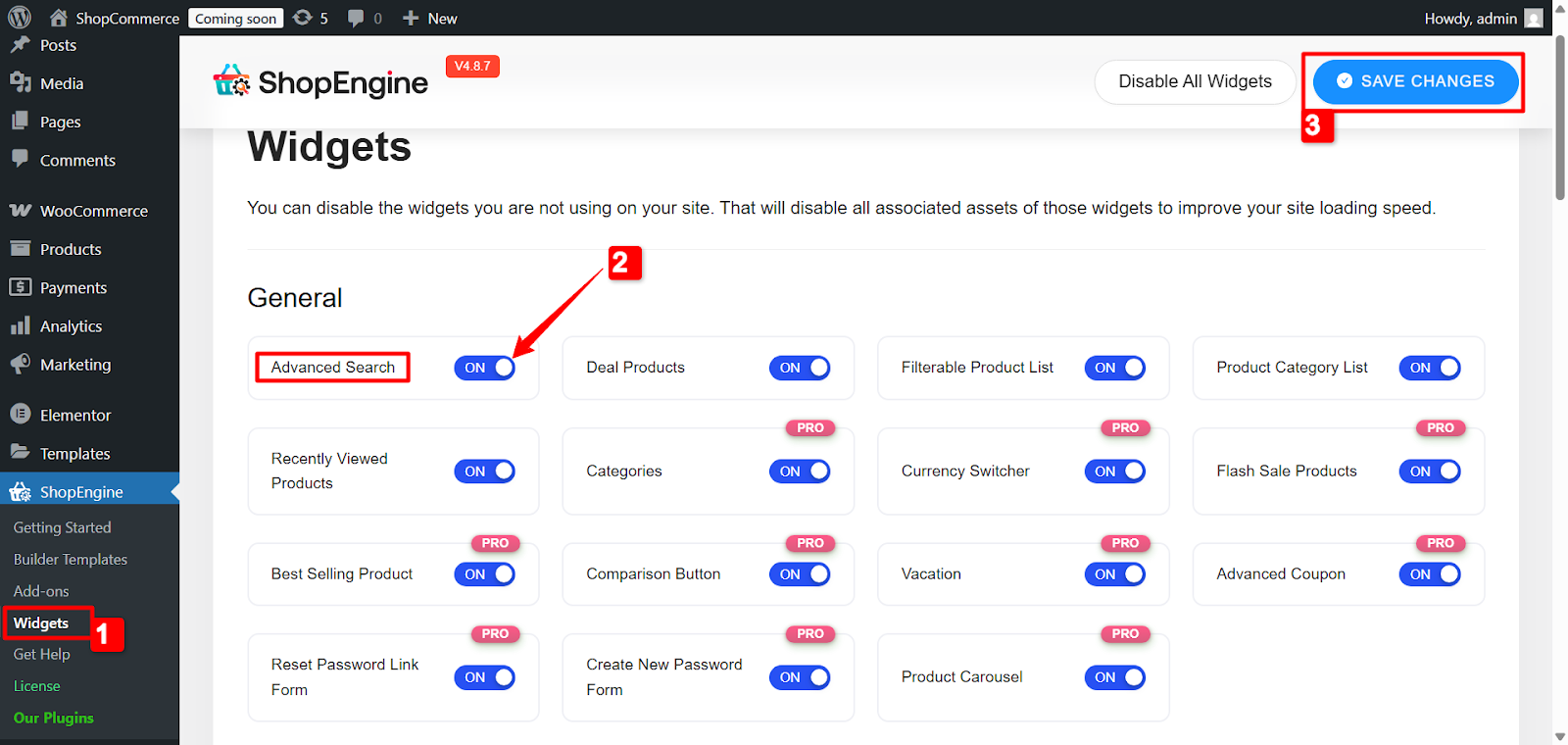
To use the advanced product search for WooCommerce, you need to enable the Advanced Search widget from the ShopEngine dashboard.
- Navigate to ShopEngine → Widgets.
- Locate the Advanced Search widget and ensure it is enabled.
- Click on the Save Changes button.
Step 3: Add advanced WooCommerce product search in Elementor
Once you turn on the advanced search widget, you can use it for the shop page, archive page, and similar pages. Let’s say you want to use the widget on the Shop page.
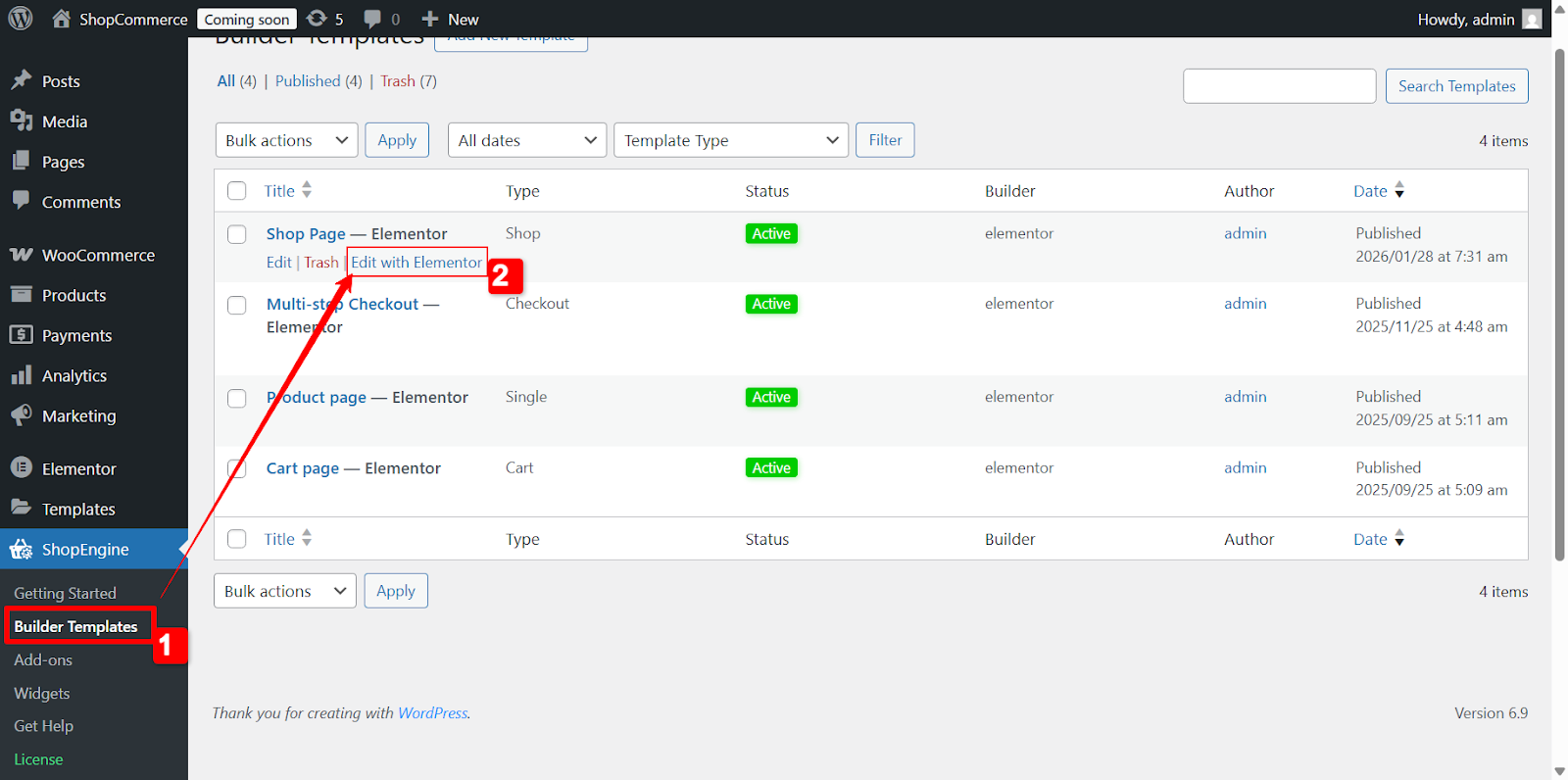
- Go to ShopEngine → Builder Templates from your WordPress dashboard.
- For the Shop Page, choose ‘Edit with Elementor’. It will redirect to the page editor.
- Now decide where you want the advanced search to appear (e.g., on the Header template, or a sidebar).
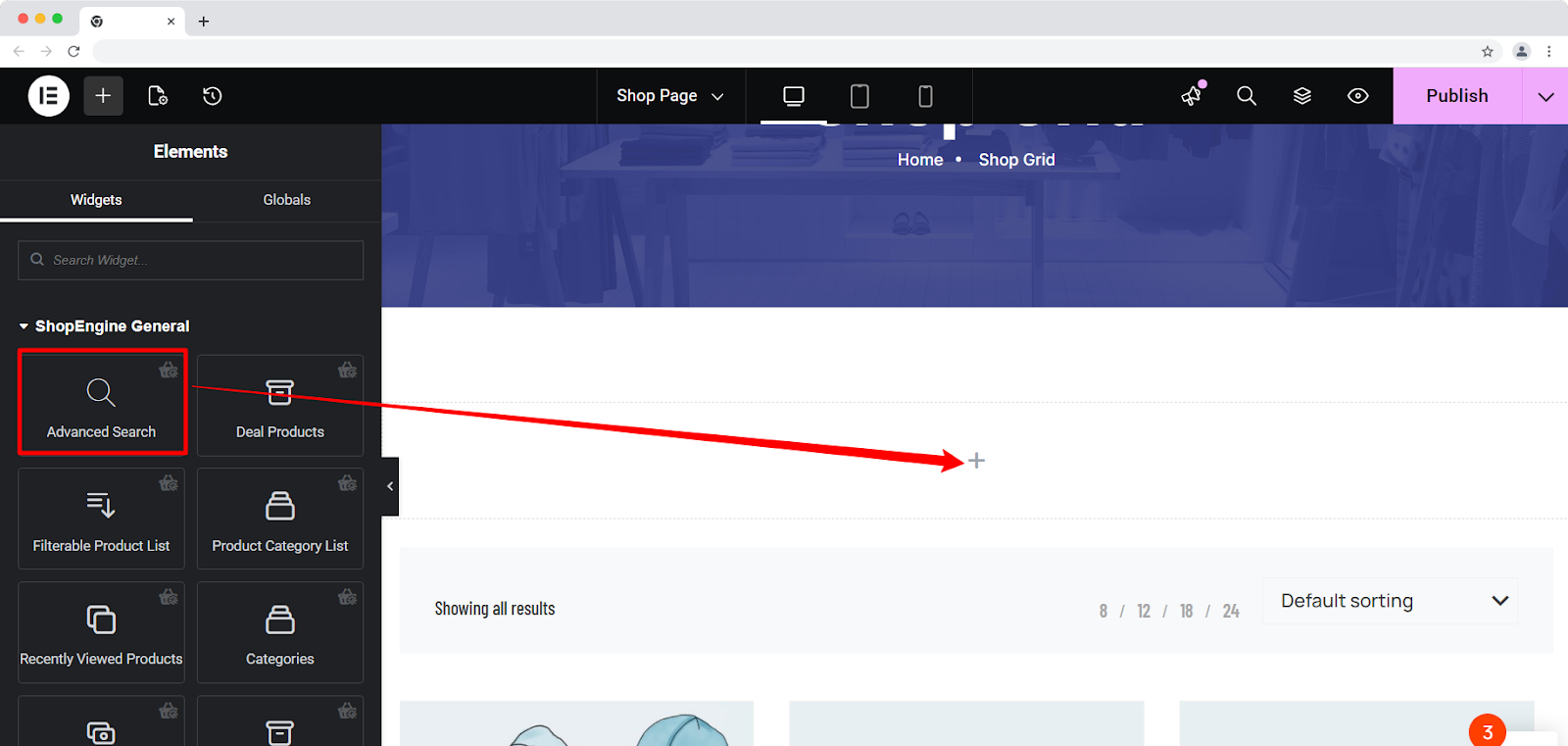
- After that, head to the left sidebar for the widget library, and search for “Advanced Search.” Once it shows up, just drag and drop the widget onto the page where you want the search option to appear.
Step 4: Configure the advanced search widget for WooCommerce products
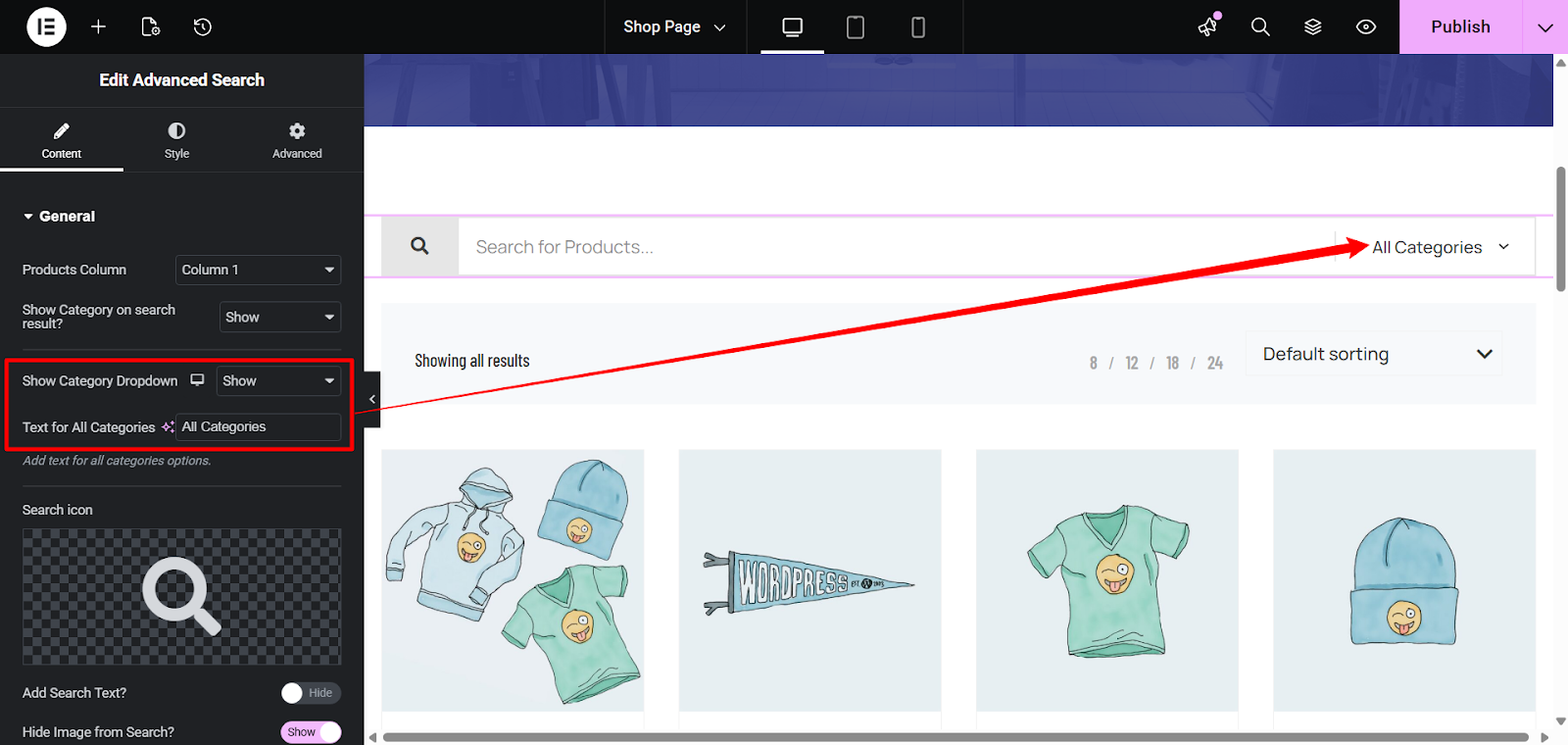
This advanced search widget from ShopEngine lets customers narrow down their search by product category, so they’re not digging through your entire store every time.
For this filter, enable the Show Category Dropdown and set the text for All Categories.
For example, if someone selects “All Categories” and searches for a product, they’ll see results from every category in your store.
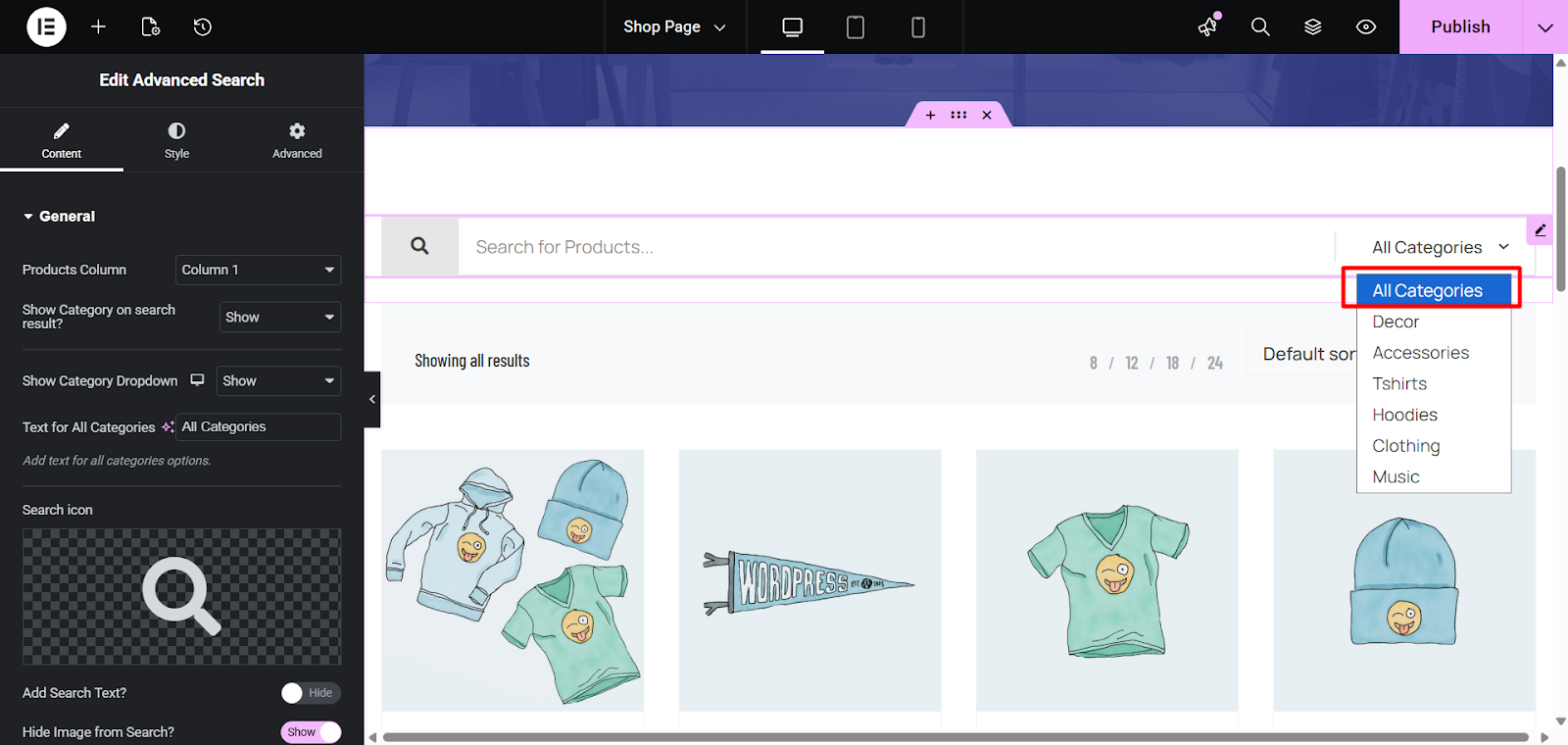
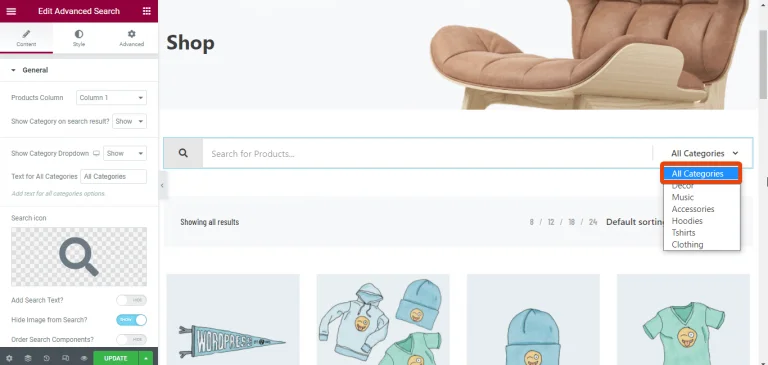
But if they choose a specific category before searching, the results stay limited to that category only.
So if a customer picks “T-shirts” and searches for “Polo,” the search results will show only polo shirts from the T-shirts category.
Why does WooCommerce product search matter for user experience?
In simple words, a WooCommerce product search option helps customers quickly find the exact products they’re looking for, improves user experience, and ultimately increases conversions.
Search explores how humans actually think: People don’t think in category structure in your menu. They think in messy terms like “monthly plan,” “blue hoodie,” or “plugin with popups.” Search meets them where their brain already is.
Customers often arrive with intent, not curiosity: Many visitors don’t come to browse randomly. They already know either the product name, the features they want, categories, or a SKU. Product search allows them to reach the product instantly instead of navigating through multiple categories and filters.
Catalogs don’t stay small forever: A store with a limited number of products may work without search. But once you have dozens or hundreds of products, users struggle to locate specific items. So they need a search option to easily find their desired product.
Search users usually convert more: Visitors who use search are usually more motivated to buy. They are actively looking for something specific, not casually browsing. So it’s crucial to let them find results quickly for a higher conversion rate.
Common Advance Search error (How to Fix)
Advanced search usually fails for silly reasons not mysterious ones. When results look wrong, it’s almost always because the store data or configuration is sloppy. Here are the most common issues and how to clean them up.
- No results for obvious products
Caused by wrong titles, missing SKUs, uncategorized products, or unassigned attributes.
Fix: Use clear product names and properly assign attributes and categories. - Irrelevant products in results
Happens when keywords and categories are too broad or messy.
Fix: Clean up categories, avoid keyword stuffing, and keep attributes structured. - Product variations are not searchable
Searches ignore size, color, or other variations.
Fix: Enable variation swatches and assign attributes to each variation. - Category filter not working
Results show products from all categories.
Fix: Ensure products are assigned to the correct categories and filters are configured properly. - Search feels slow or laggy
Results load late or require page reloads.
Fix: Use AJAX live search, reduce heavy previews, and disable duplicate search plugins. - Users search for products you don’t sell
Repeated searches lead nowhere.
Fix: Use search data to adjust product naming or plan future inventory.
Signs your WooCommerce search is hurting conversions
Your search bar should help customers find products quickly. If it doesn’t, it could be costing you valuable sales without you realizing it. Here are some common signs that your WooCommerce product search needs improvement.
- Customers Leave After Searching: If visitors perform a search and leave your website without viewing a product or making a purchase, your search results may not be meeting their expectations.
- Search Results Aren’t Relevant: Customers expect to see the most relevant products first. If unrelated or low-priority products appear instead, shoppers may lose confidence and abandon their search.
- Customers Can’t Find Products by SKU or Attributes: Many shoppers search using product codes, brands, colors, sizes, or other attributes. If your search only recognizes product titles, customers may struggle to locate the right items.
- Large Product Catalogs Are Difficult to Navigate: As your store grows, browsing through hundreds or thousands of products becomes challenging. Without an advanced search experience, customers spend more time searching and less time buying.
- Mobile Users Struggle to Search: A search feature that’s difficult to use on mobile devices creates unnecessary friction for customers shopping on smaller screens.
- Customers Contact Support to Find Products: If your support team frequently answers questions like “Where can I find this product?” or “Do you sell this item?”, your search functionality may not be helping customers discover products efficiently.
Recognizing these issues early allows you to improve product discovery, reduce customer frustration, and create a smoother shopping experience.
How better WooCommerce product search creates a better shopping experience
A well-optimized WooCommerce product search does more than help customers locate products. It makes shopping faster, easier, and more enjoyable, encouraging visitors to stay longer and complete their purchases.
- Helps Customers Find Products Faster: Instead of browsing multiple categories, shoppers can quickly search for exactly what they need and access relevant products within seconds.
- Reduces Shopping Frustration: Accurate search results, autocomplete suggestions, and product previews eliminate unnecessary clicks and make it easier for customers to discover the right products.
- Improves Mobile Shopping: Instant search results and responsive search interfaces create a smoother experience for customers browsing from smartphones and tablets, where navigation can be more challenging.
- Encourages Product Discovery: A smart search solution can recommend relevant products, categories, or popular items, helping customers discover products they may not have found through browsing alone.
- Increases Customer Confidence: When customers consistently receive accurate and relevant search results, they gain confidence in your store and are more likely to continue shopping.
- Supports Higher Conversion Rates: Every step removed from the buying journey reduces friction. By helping customers reach the products they want more quickly, an optimized search experience can increase conversions, reduce bounce rates, and improve overall customer satisfaction.
Investing in better WooCommerce product search isn’t just about improving a search box. It’s about creating a shopping experience that helps customers find what they want with minimal effort while making it easier for your store to convert visitors into buyers.
Best practices to add WooCommerce product search to your website
At this point, the search is live and working. That’s only half the job done. The impact comes from how thoughtfully you set it up and how well it fits into the way people actually shop.
- Place search where users expect it: Header Menu, Visible Sidebars, etc.
- Enable category-based filtering: Narrow down the search results and make it easy to find.
- Optimize product data for search accuracy: Make sure product titles, SKUs, attributes, variations, and categories are clearly defined.
FAQs
What makes advanced product search better than WooCommerce default search?
Does advanced product search slow down my WooCommerce store?
Can customers search by product category or variation?
Is advanced product search worth it for small WooCommerce stores?
What features should a WooCommerce product search plugin include?
What is AJAX product search in WooCommerce?
Can WooCommerce product search increase sales?
Wrap up
Adding an advanced product search for WooCommerce is one of the most impactful upgrades you can make to your WooCommerce store’s user experience. And this is directly related to conversions.
When customers arrive with intent, and they can’t find what they’re looking for quickly, they leave. A basic keyword-based search simply isn’t enough to meet modern shopping expectations.
By replacing the basic default search with an advanced product search with AJAX, live results, category filtering, and attribute-level matching, you create a faster and more accurate search experience. This reduces zero-result searches, improves product discovery, and increases the likelihood of conversions, especially for users who already know what they want.


Leave a Reply