


WP Social YouTube Counter makes it easy to show your live YouTube subscriber count on your website. It’s a simple way to highlight your channel activity and keep visitors connected with your growing audience.
YouTube Subscriber Counter by WP Social #
Before getting started, ensure your YouTube channel is ready to use.
After that, simply follow the steps below to set up the counter quickly.
Step 1: Access Google Cloud Console #
Odwiedzać Google Cloud Console and open a new project.
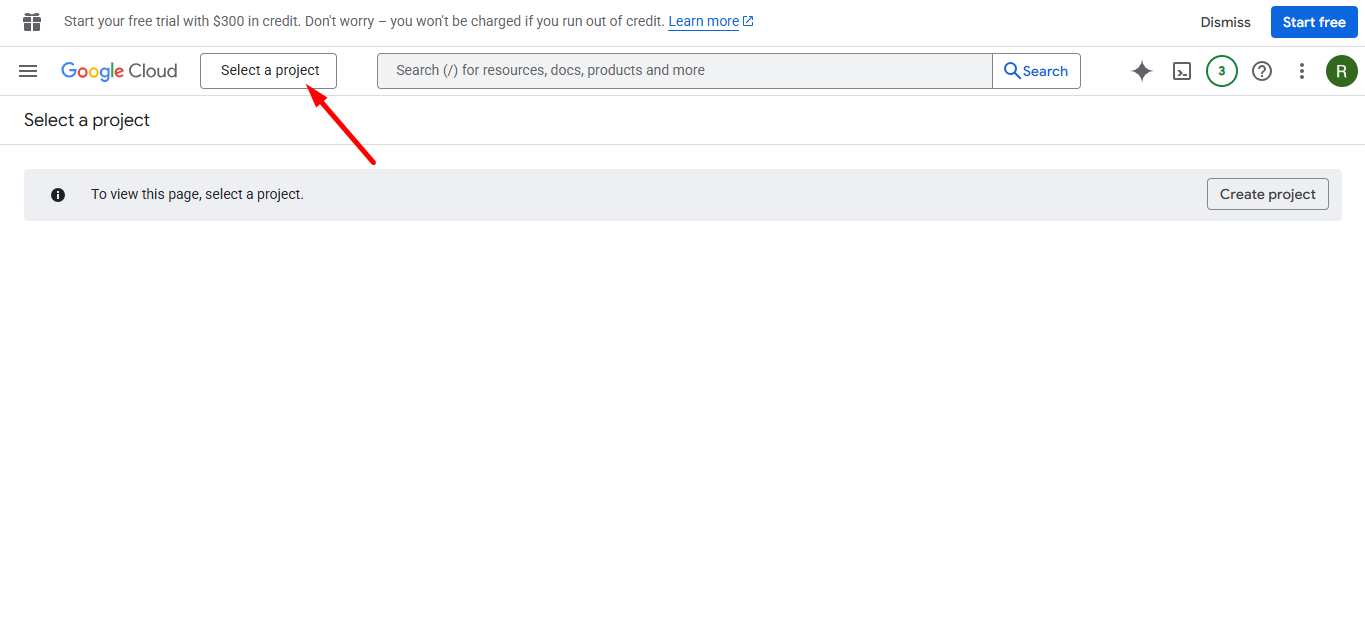
Give a project name and create.

Click APIs & Services from the Quick access.

Click Enable APIs & Services.

Search for YouTube Data API v3.

Enable YouTube Data API v3.
This API is required to connect your YouTube channel data with the counter feature.

- Now, Go to Credentials
- Create credentials from credentials
- Click APIs key

When the window appears, locate the YouTube Data API v3, select it, and click OK.

Now, scroll down and click Create.

Kiedy API key is generated, copy and save it for later use.

Step 2: Enable the WP Social YouTube Counter # #
To enable the YouTube counter,
- Iść do WP Social > Social Counter z pulpitu WordPress
- Idź do Dostawcy tab and scrolldown to YouTube
- Przełącz przycisk, aby go włączyć

To configure the setting, click Ustawienia for YouTube.

Insert the API Key you’ve copied earlier.

Step 3: Get YouTube Channel ID #
Użyj YouTube Channel ID Finder to get your channel ID.
Copy your YouTube link, paste it in the given field to get the Channel ID.

Scroll down and copy the channel ID.

Next, return to Step 2 :
- Włóż ID kanału
- Clear the kryjówka
- Kliknij Zapisz zmiany

Copy the shortcode from the counter settings tab.

STEP 4: Check the YouTube Subscriber Counter #
Open any page, add a Shortcode block, paste the code snippet and save.
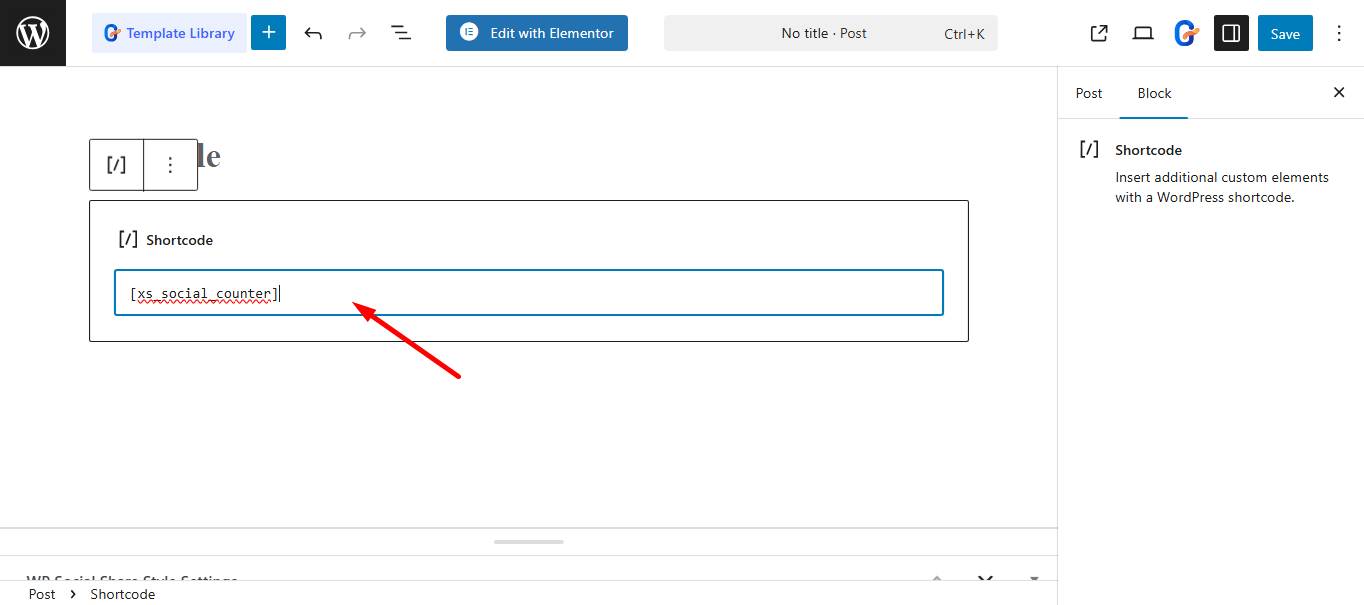
View the page and check that the YouTube subscriber count is displaying accurately on the counter.

That’s it! Your WP Social YouTube Subscriber Counter is now active and ready to display your live channel stats.


