


If you want to overcome the plain and generic look of your site, using Lottie animation can make a huge difference. It’s responsive, smooth, and loads instantly without slowing down your site. With Lottie, you can turn a static website into interactive motion graphics that grab attention, promote your brand, and create a friendly browsing experience.
Luckily, in WordPress, you can add Lottie using a plugin. So, if you don’t want to sacrifice your site speed and still want it to load quickly than GIFs and videos, Lottie animations are the perfect solution. Learn how to add Lottie animations in WordPress without code, a friendly process that anyone can understand and follow.
How can you add Lottie animations in WordPress?
You can add Lottie animations in WordPress using a plugin like ElementsKit, which allows you to insert lightweight, high-quality animations using pre-built sections or a dedicated Lottie widget. These animations use JSON files, making them faster and more efficient than GIFs or videos while enhancing user engagement.
Steps to add Lottie animations
Install required plugins: Install and activate Elementor and ElementsKit.
Choose a method: Use either pre-built sections or the Lottie widget, depending on your design needs.
Import or upload animation: Add a Lottie JSON file from your media library or external sources like LottieFiles.
Customize animation settings: Adjust autoplay, loop, speed, hover effects, and styling options.
페이지 게시: Preview and publish your page to display the animation.
예
A landing page can use a Lottie animation of a loading spinner or product illustration to make the hero section more interactive and visually appealing without slowing down the site.
요약
Lottie animations provide a fast, lightweight way to add motion and interactivity to WordPress websites. With tools like ElementsKit, you can easily integrate and customize Lottie animations without coding to improve user engagement while maintaining performance.
What is Lottie animation in WordPress?
Lottie animation is a high-quality, modern, lightweight, and open-source motion graphics in WordPress that can be added using a plugin. These are super small in size and a quickly loaded JSON file, perfect for web use.
Why add Lottie animation in WordPress?
Adding Lottie animations can completely change how your audience interacts with your website. These are not only beneficial for your website’s growth but also increase traffic. Here are more reasons why Lottie animations are worth adding to WordPress:
- Lottie animations boost site engagement 그리고 increase average time on site.
- These animations 더 빠르게 로드 than GIFs or videos.
- They are 장치 반응형 and look great on any screen size.
- These improve overall site performance with higher speed and engagement.
- Lottie animation helps you to present your brand with strong and professional storytelling.
- This animation 효과 증가하다 visitors along with their engagement.
- Lotties are fully customizable with endless control over content and style customizations.
- These add 경량 motion graphics without losing quality.
How to add Lottie animations in WordPress
In WordPress, you can add Lottie animations either using code or a plugin. Since the plugin is a friendly and effortless solution, here we’ll show in-depth about creating Lottie animation with ElementsKit’s ready-made section and widget.
ElementsKit Elementor Addon empowers 2 million users with 90+ advanced widgets, 20+ modules, and 1,000+ professional templates. It extends the Elementor page builder with multilevel mega menus, custom headers & footers, versatile content elements, and trendy animations like liquid glass or parallax to build powerful WordPress websites.
Before going through the methods, you need to install and activate the following solutions:
- 엘레멘터 (무료)
- ElementsKit (free & pro)
After that, adopt any of the two methods below to create Lottie using the WordPress Lottie Animation plugin, ElementsKit:
Method 1: Create Lottie animation with a pre-built section
In the first method, we’ll show how to add Lottie animations in WordPress using ElementsKit’s ready-made sections. Besides, you will get to upload Lottie animations from LottieFiles that can be further customized.
Let’s learn the in-depth process of creating an Elementor Lottie animation in WordPress:
Step 1: Add a page for Lottie animation
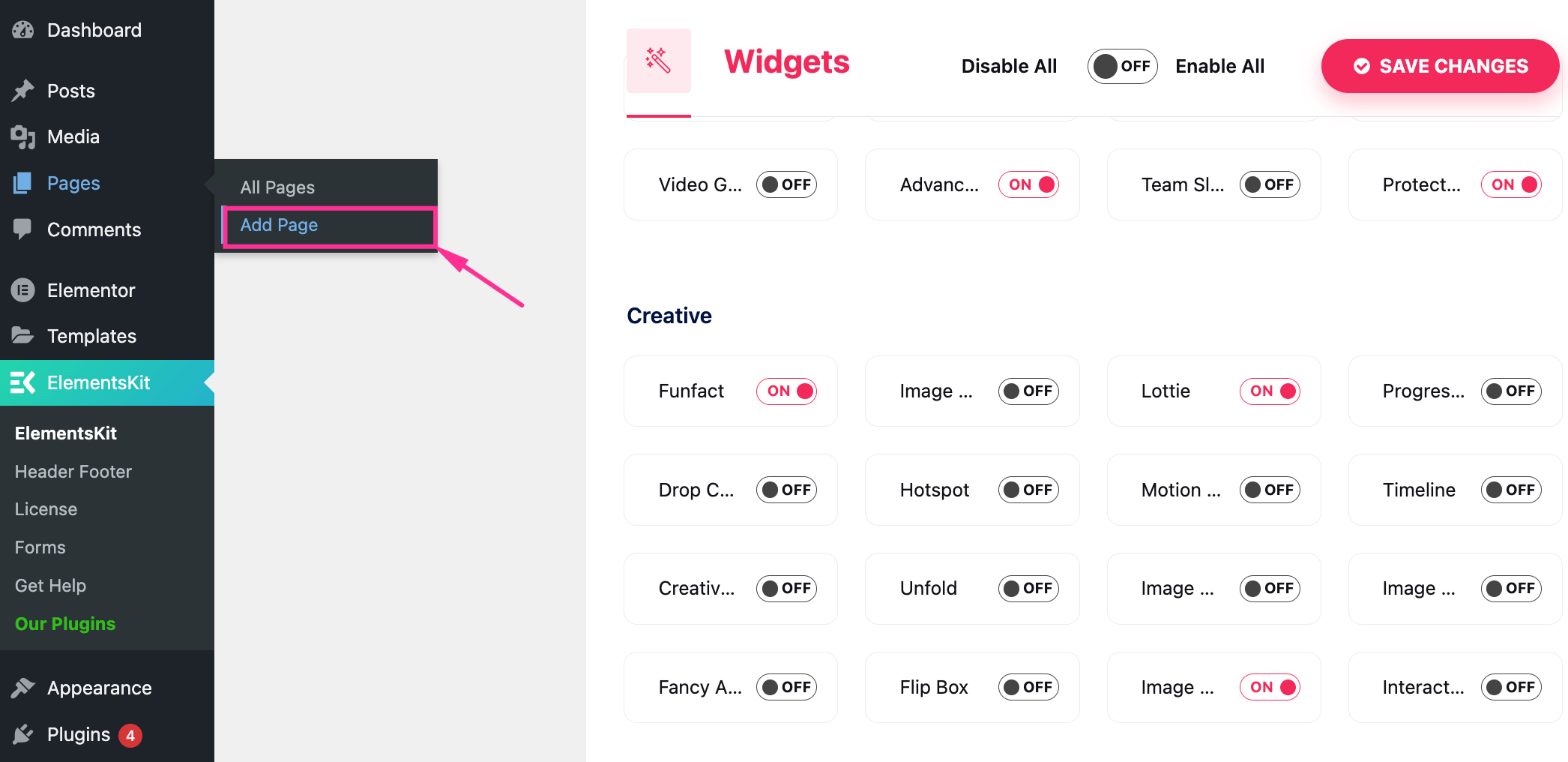
First, navigate to your WordPress dashboard and press the "새로운 걸 더하다" option under Pages. You will be taken to a new page. Besides, you can also add Lottie animation to an existing page.
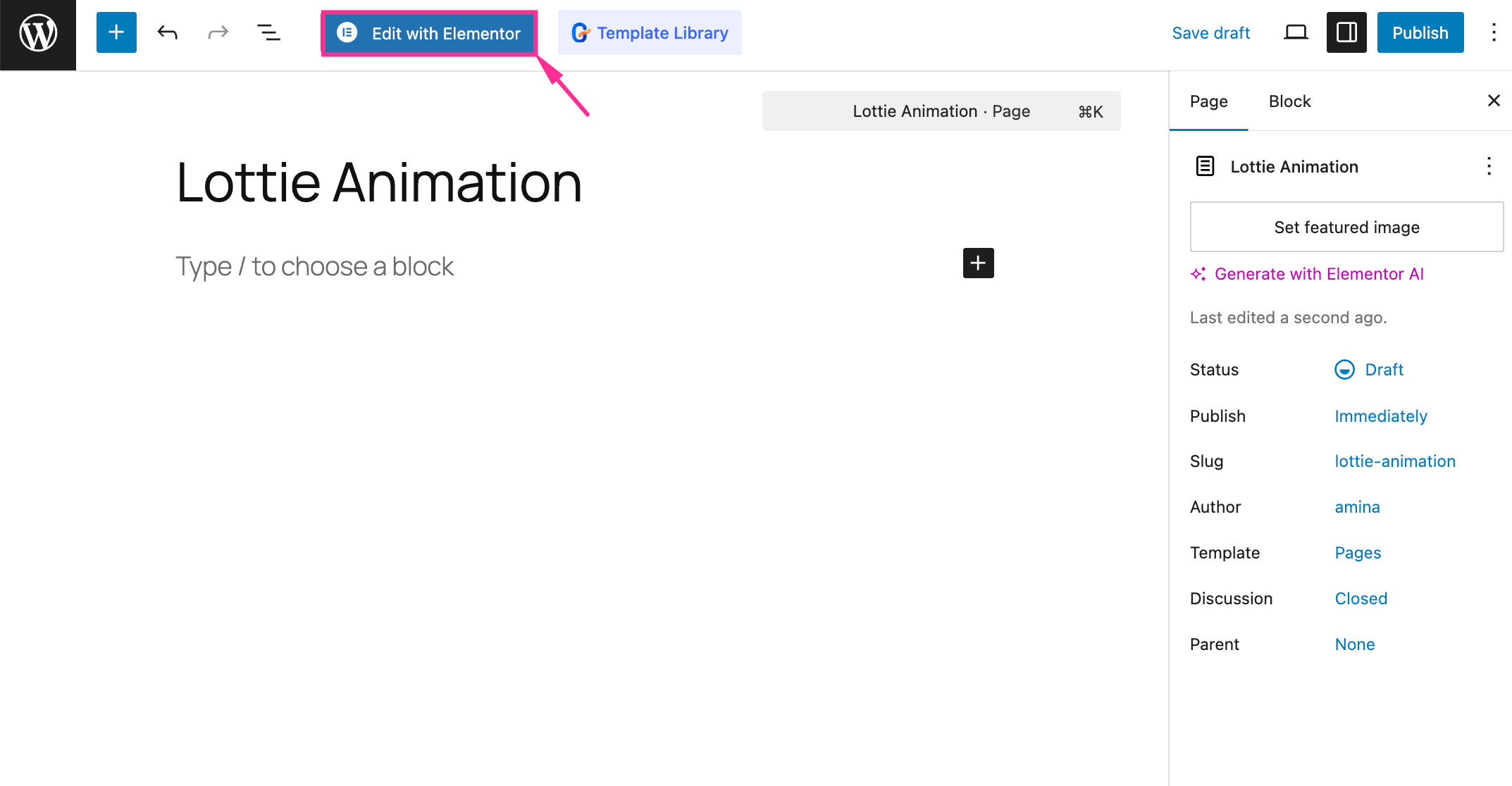
그 다음에, "Elementor로 편집"을 누르세요 button to create Lottie animation with ElementsKit.
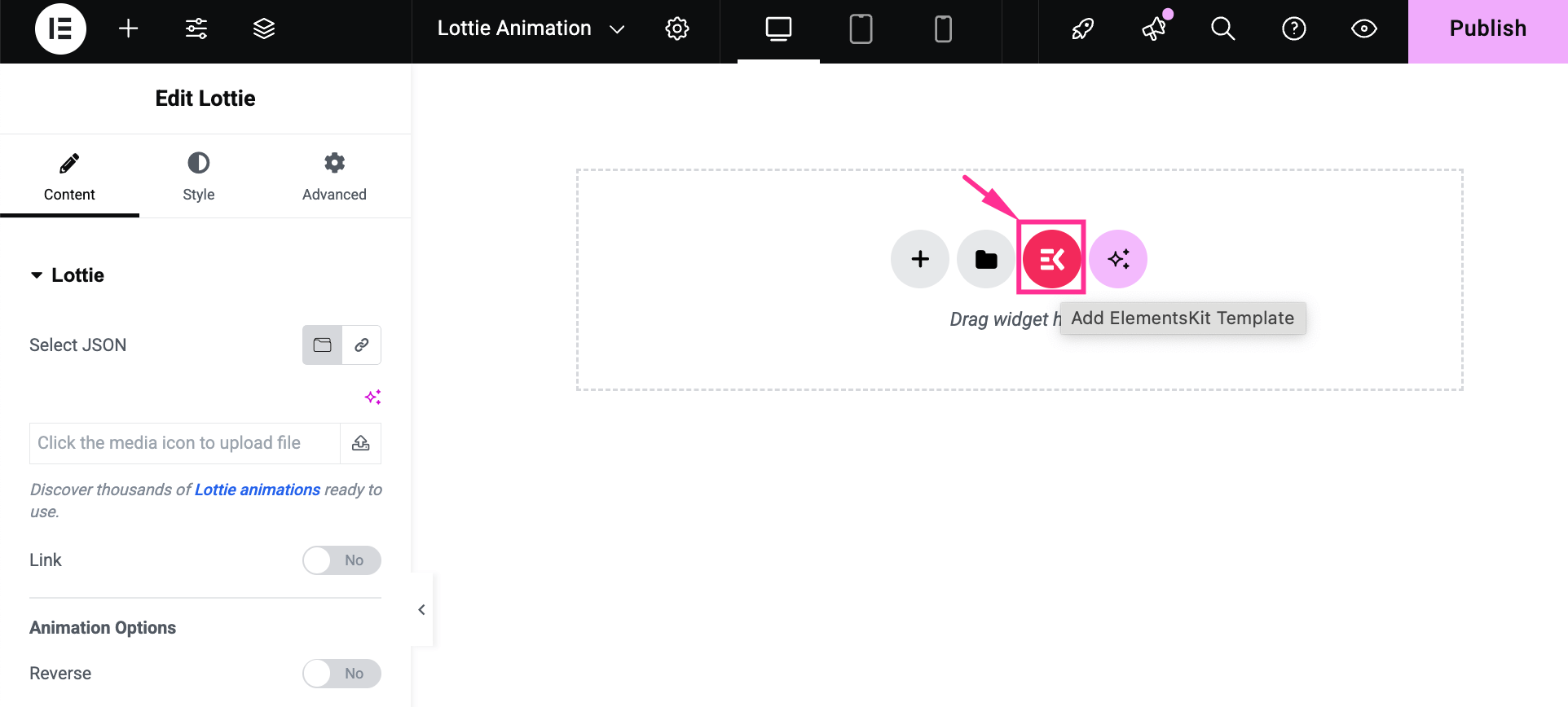
Step 2: Import the built-in Lottie section
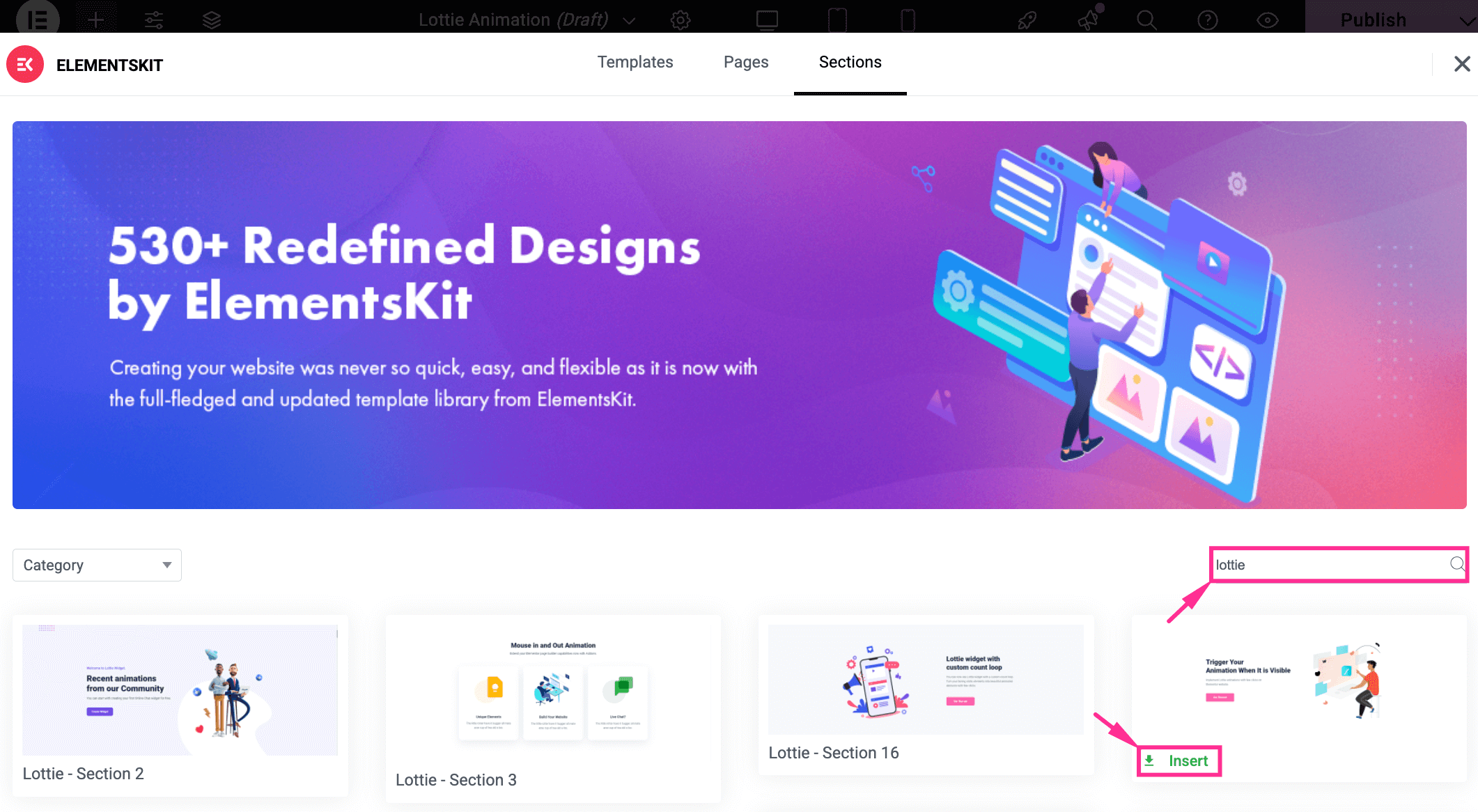
After navigating to the Elementor editor, press the “ElementsKit” icon, and there you will get to see a template library full of built-in templates, pages, and sections.
Now, visit the “Sections” 탭과 search for “Lottie” in the search box. Afterwards, select a suitable Lottie animation section and press “Insert” to import that pre-built section.
Step 3: Customize Lottie content
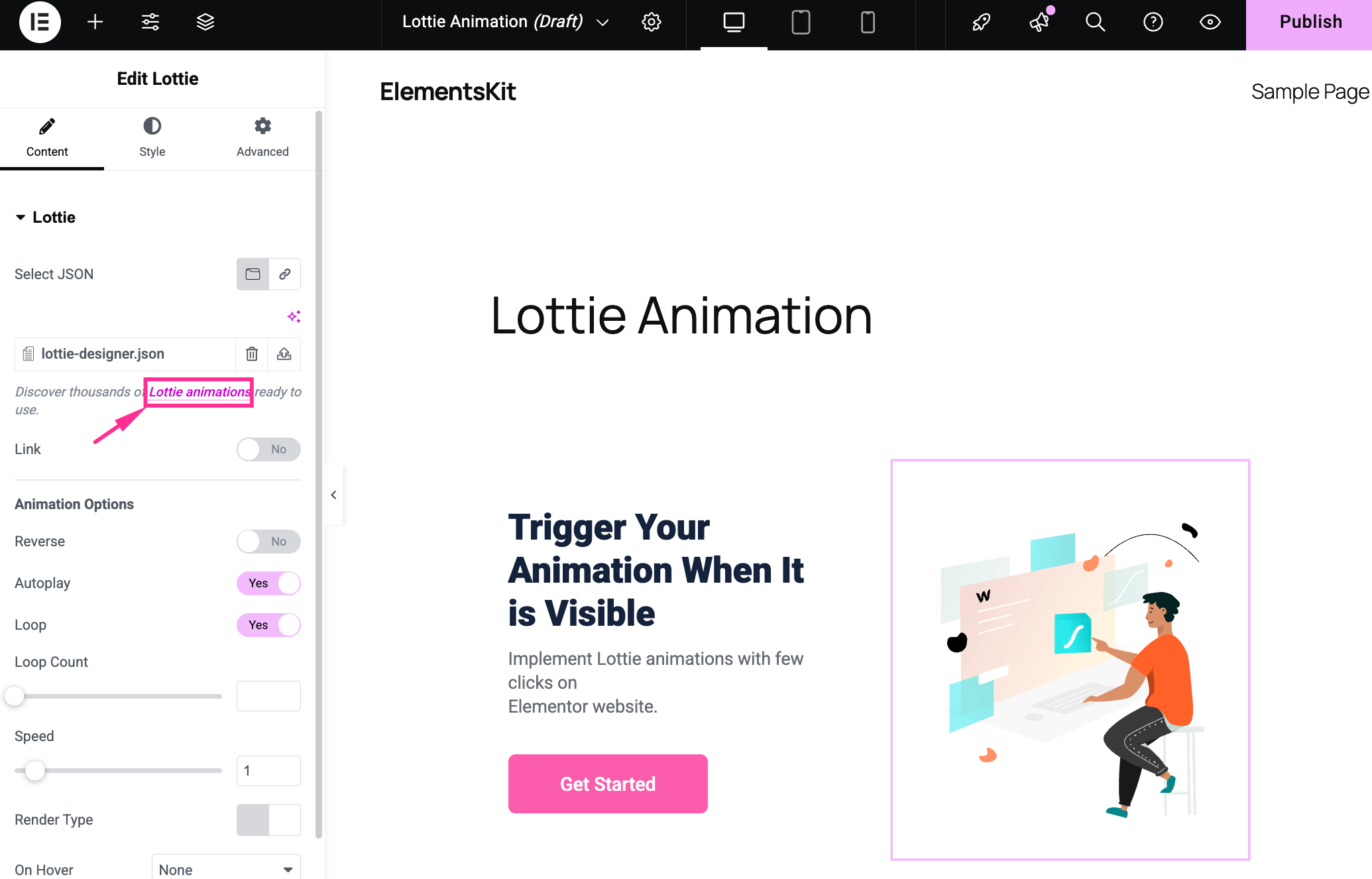
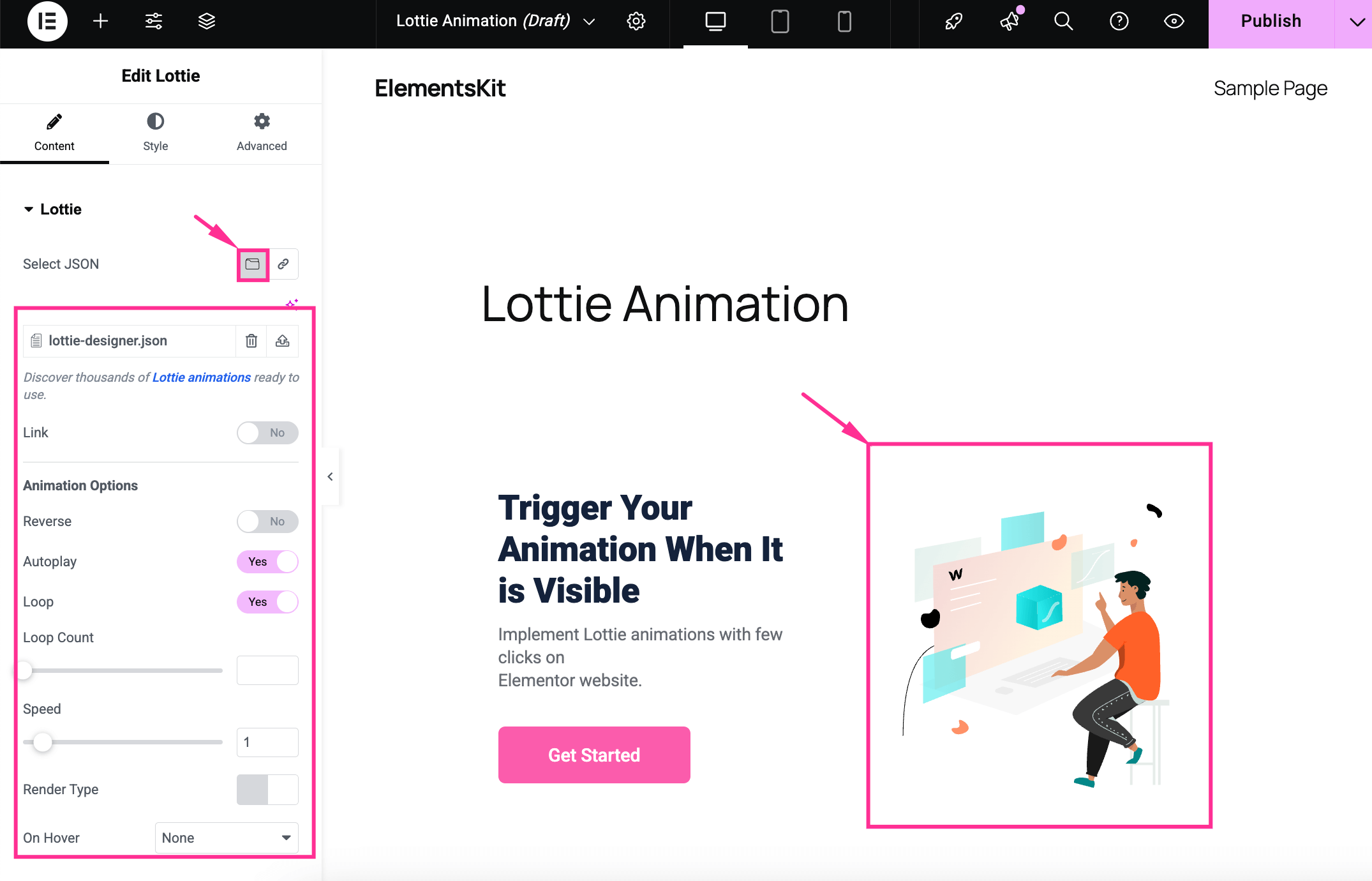
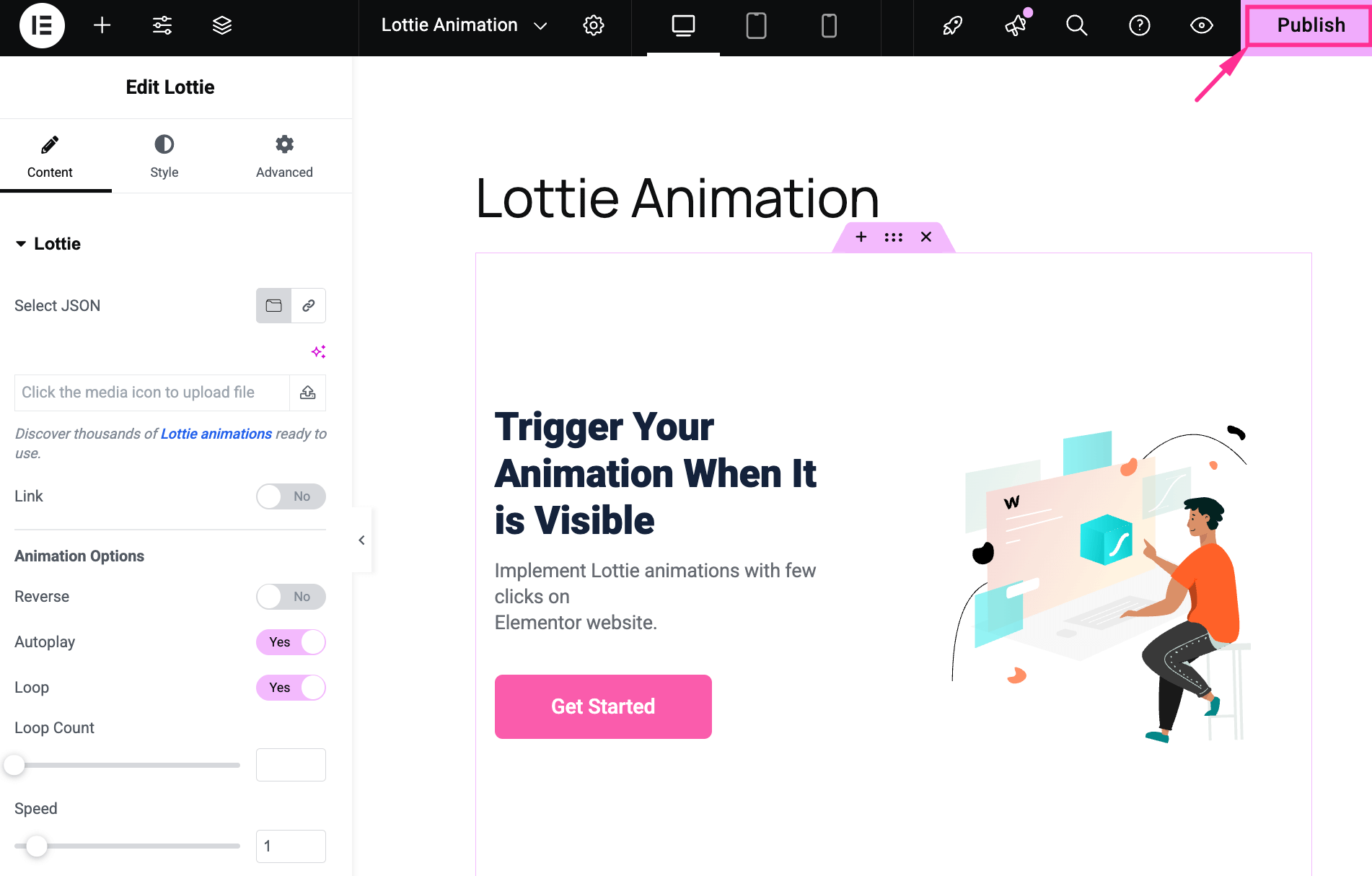
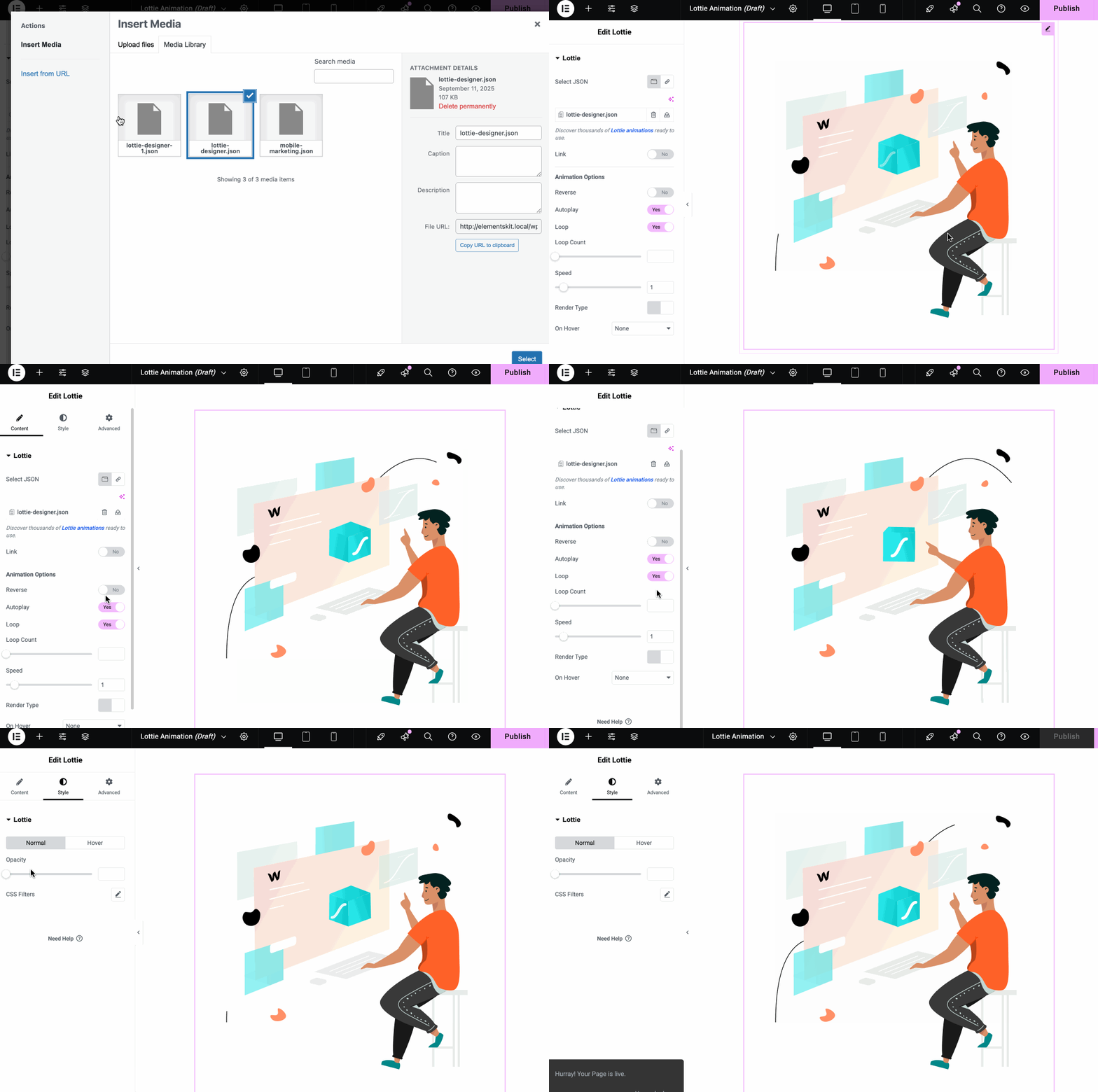
In this step, you have to customize your uploaded animation according to your desire with this WordPress lottiefiles plugin. For that, navigate to the “Content” tab. There you will find two options: select a JSON file or a URL for your Lottie animation.
Also, you ~할 수 있다 upload Lottie animations among thousands of options from LottieFiles. Now, press the highlighted “Lottie animations” text for that.
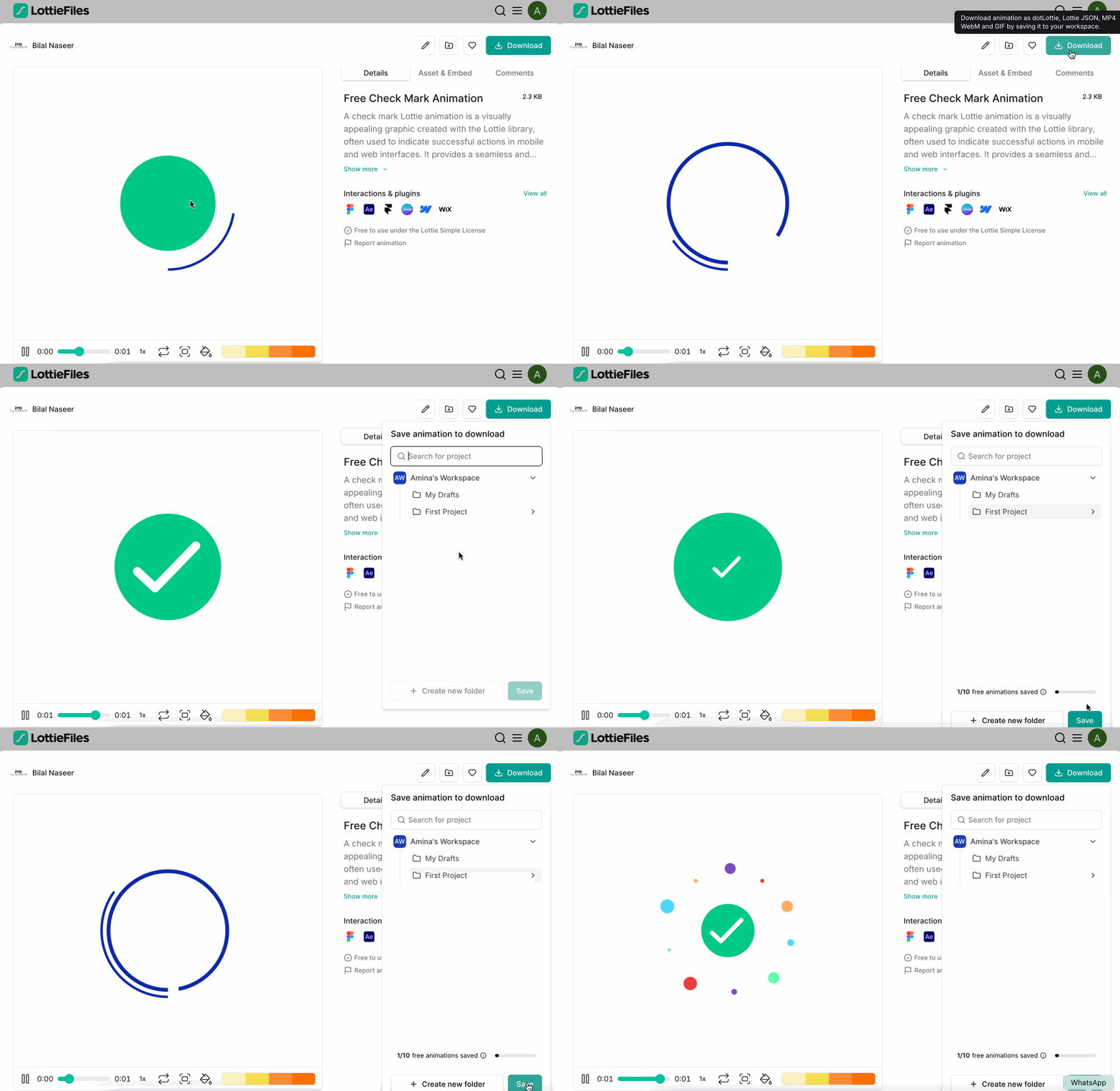
This will take you to LottieFiles, from where you can select a Lottie animation 그리고 press download. Then, you have to select a folder 그리고 hit the “Save” 단추.
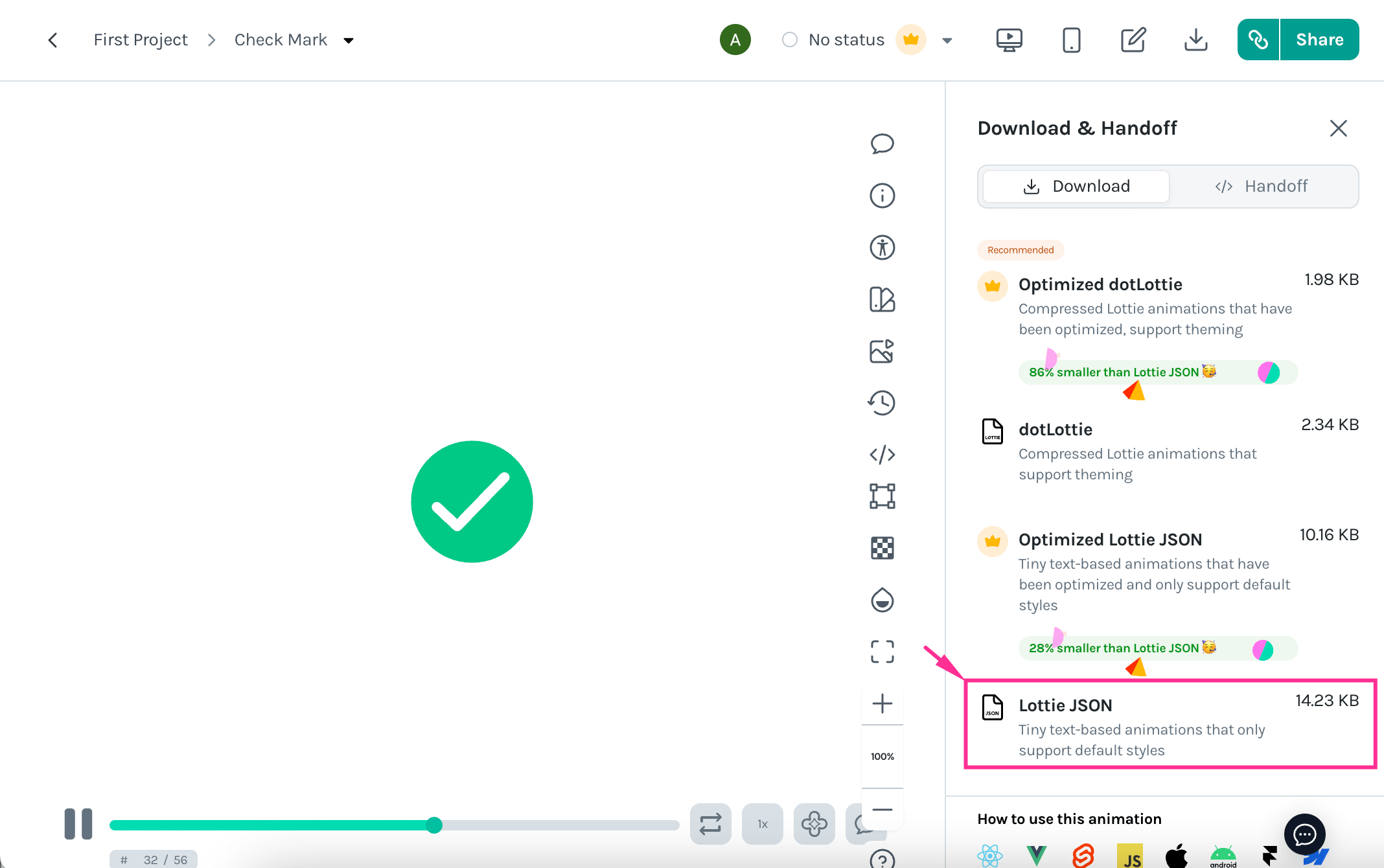
다음, select Lottie JSON to download your Lottie animation. Thus, your selected Lottie will be downloaded and saved to your selected media library.
지금, press the upload button to add your downloaded Lottie animation from LottieFiles.
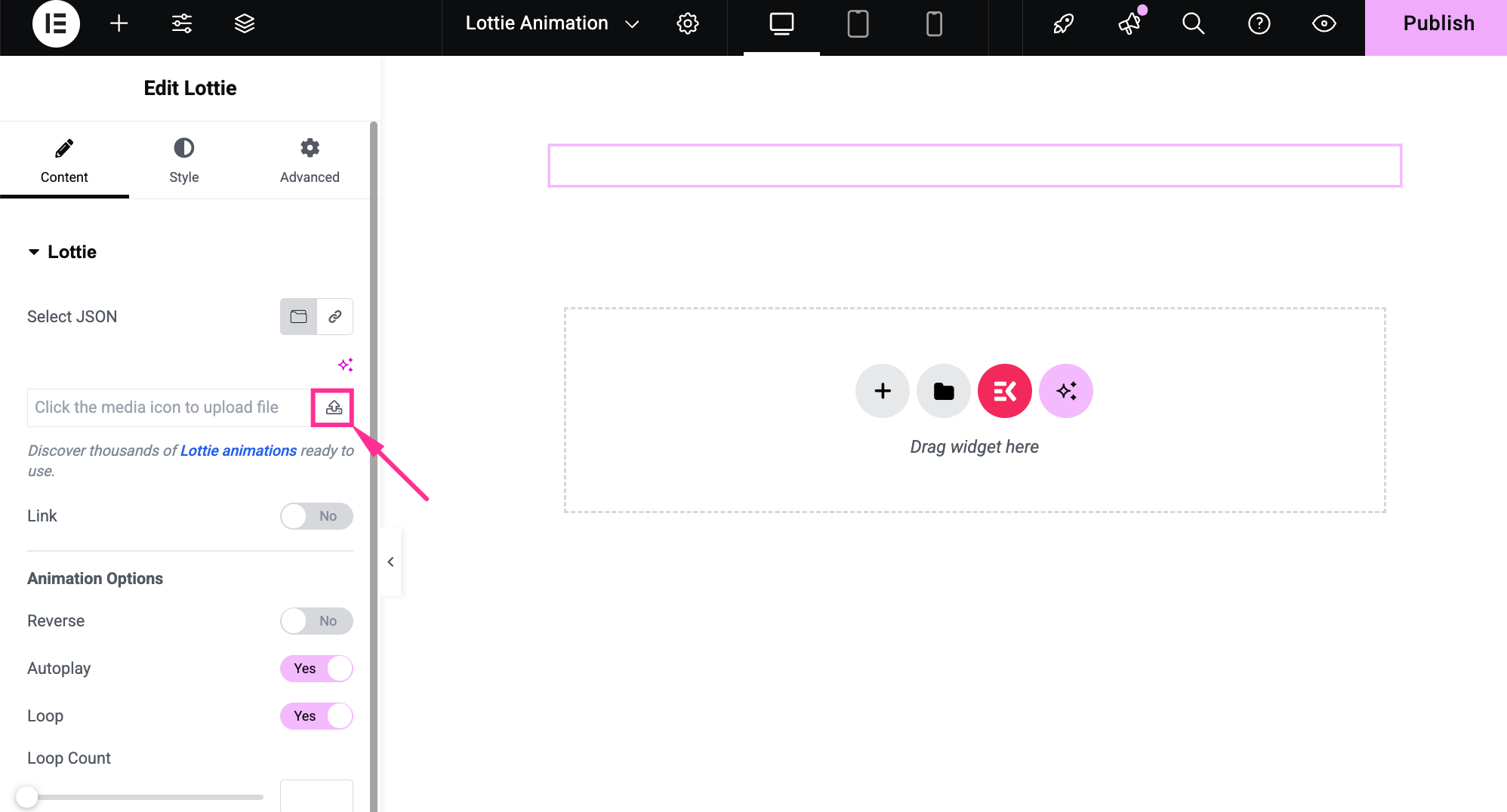
From there, upload and select a file from your media library with ElementsKit. Here, your chosen Lottie animation will be added.
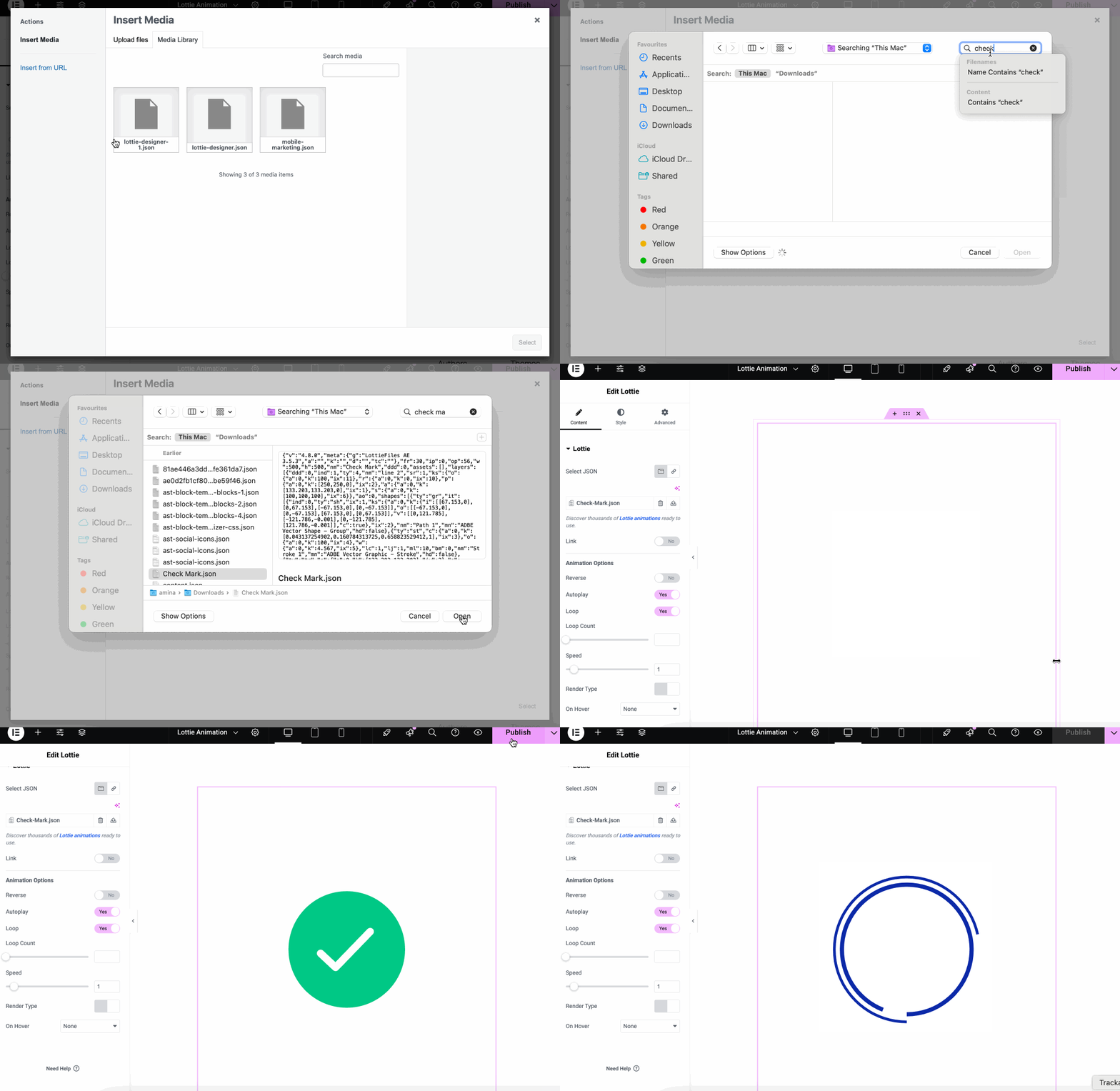
After that, adjust the following fields for additional customization:
- 링크: Turn on this toggle button to add a link to your Lottie animation.
- 뒤집다: Enable this option to reverse this Lottie animation.
- 자동 재생: Toggle on to automatically play the Lottie animation on your site.
- 고리: Enable to continuously play the Lottie animation.
- Loop count: Set loop number. For instance, if you add 2, your Lottie animation will play twice.
- 속도: Adjust animation speed.
- Render Type: Select SVG or Canvas.
- On Hover: Choose play, pause, or reverse from the dropdown option. If you select play, the animation will play whenever you hover your mouse over Lottie. For pause or reverse, Lottie animation will respectively pause or reverse.
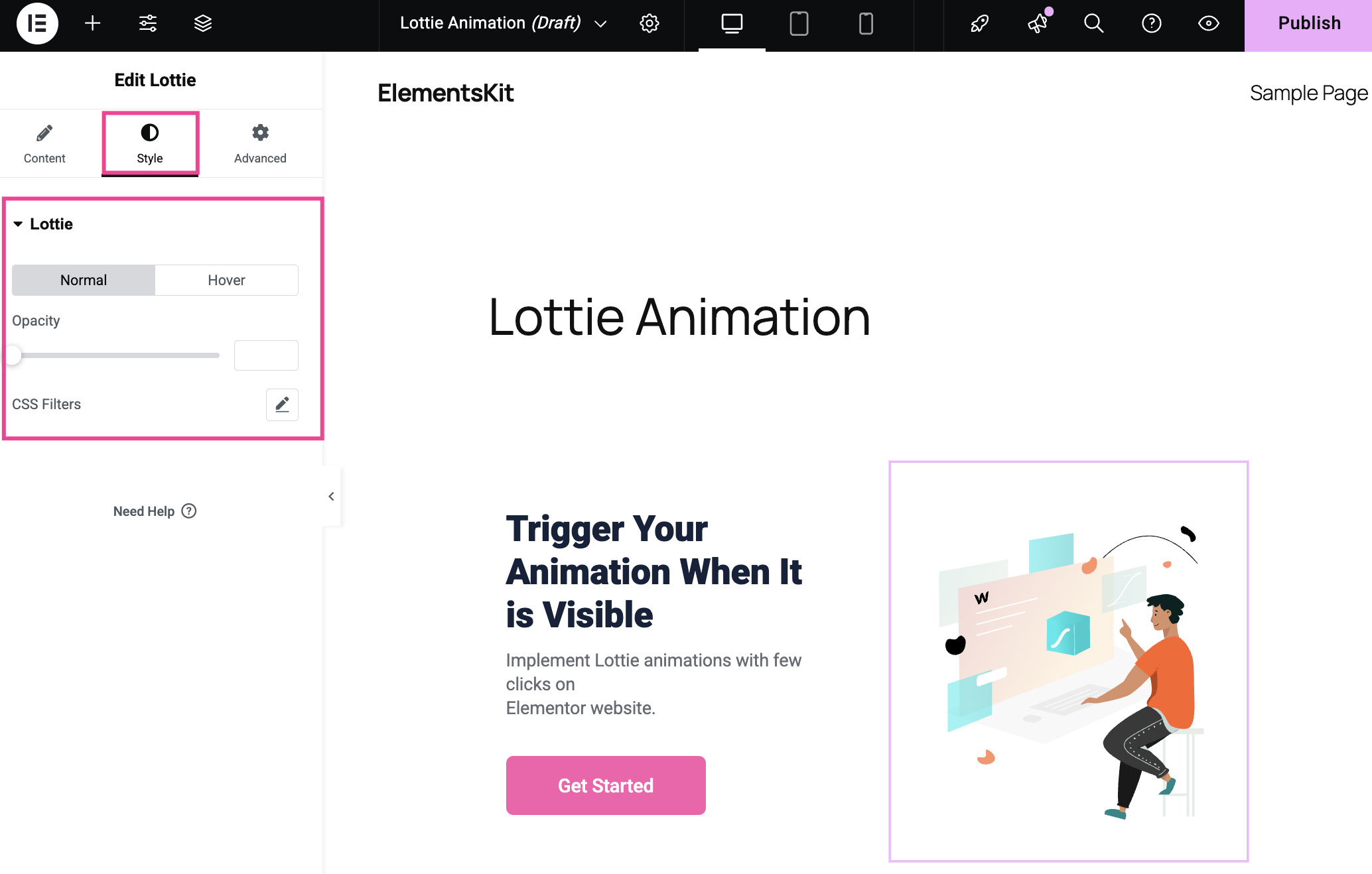
Step 4: Custom style for Lottie
Next to content customization, adjust the style of your Lottie animation. Navigate to your Style tab and select 일반 또는 호버 Lottie along with Custom Opacity and CSS Filters.
Step 5: Publish Lottie animation
In this final step, "게시"를 누르세요 button to make your Lottie animation live.
Method 2: Integrate Lottie animation with the ElementsKit widget
This process is about integrating WordPress Lottie animation in Elementor using a widget. ElementsKit comes with a 로티 위젯 that smooths your overall process of adding Lottie animation.
Follow and adopt the steps to create a Lottie animation with ElementsKit:
Step 1: Enable the Lottie widget.
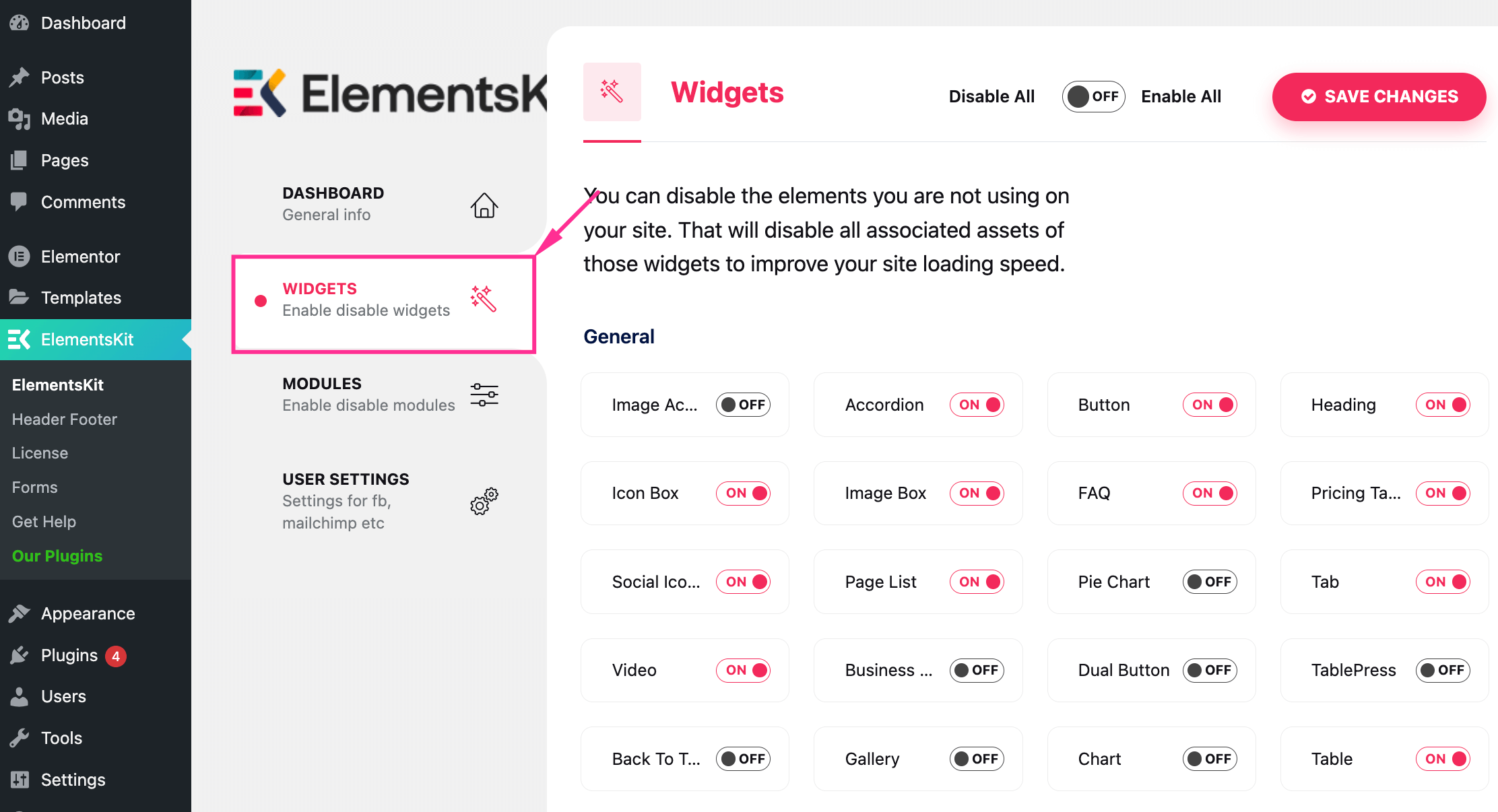
In the first step, you have to enable the Lottie widget by navigating to ElementsKit >> Widgets. Later, 아래로 스크롤 until you find the Lottie widget.
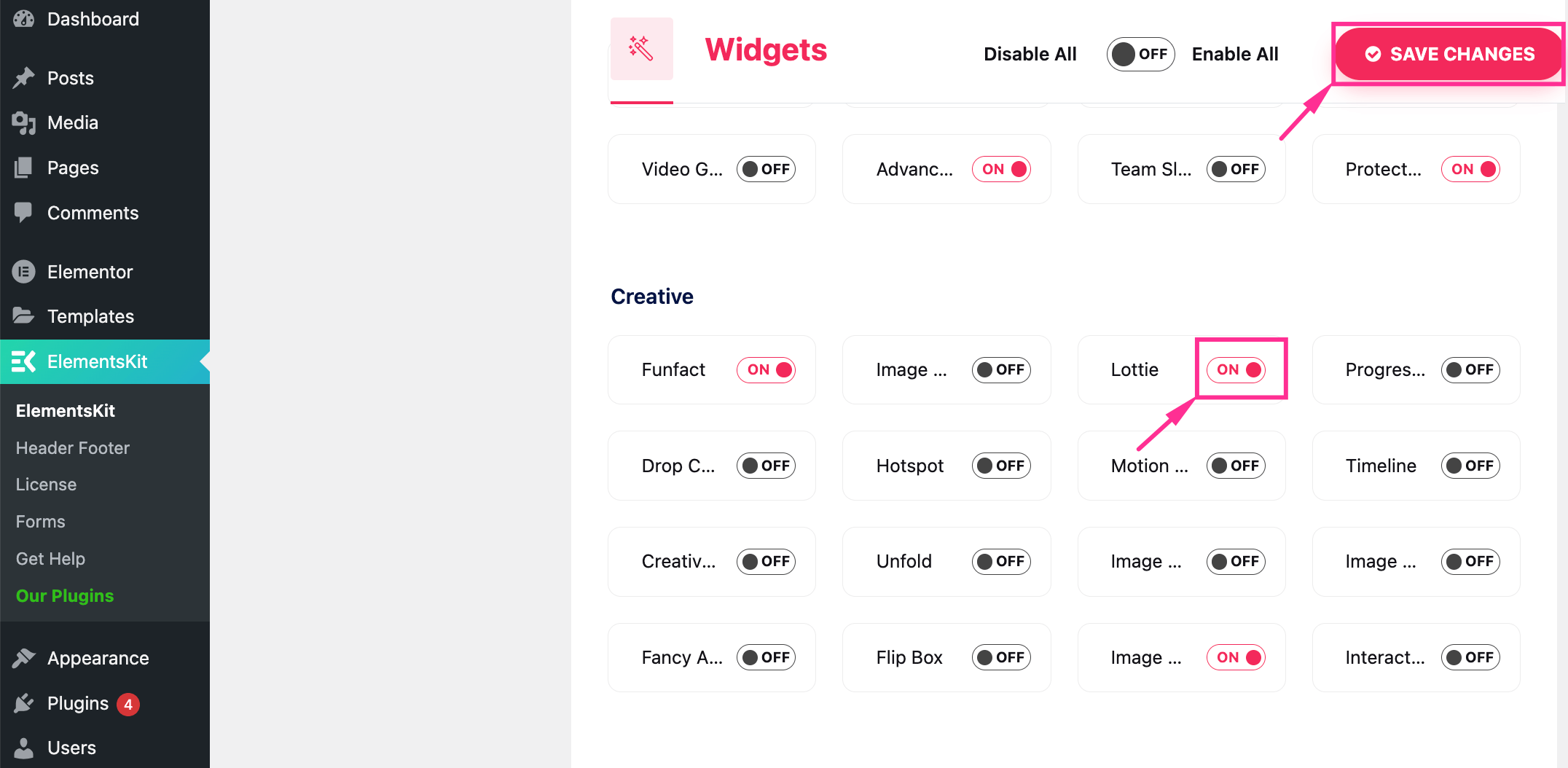
여기, 켜다 the toggle button for the Lottie widget and press the "변경 사항을 저장하다" 단추.
Step 2: Add page for Lottie animation.
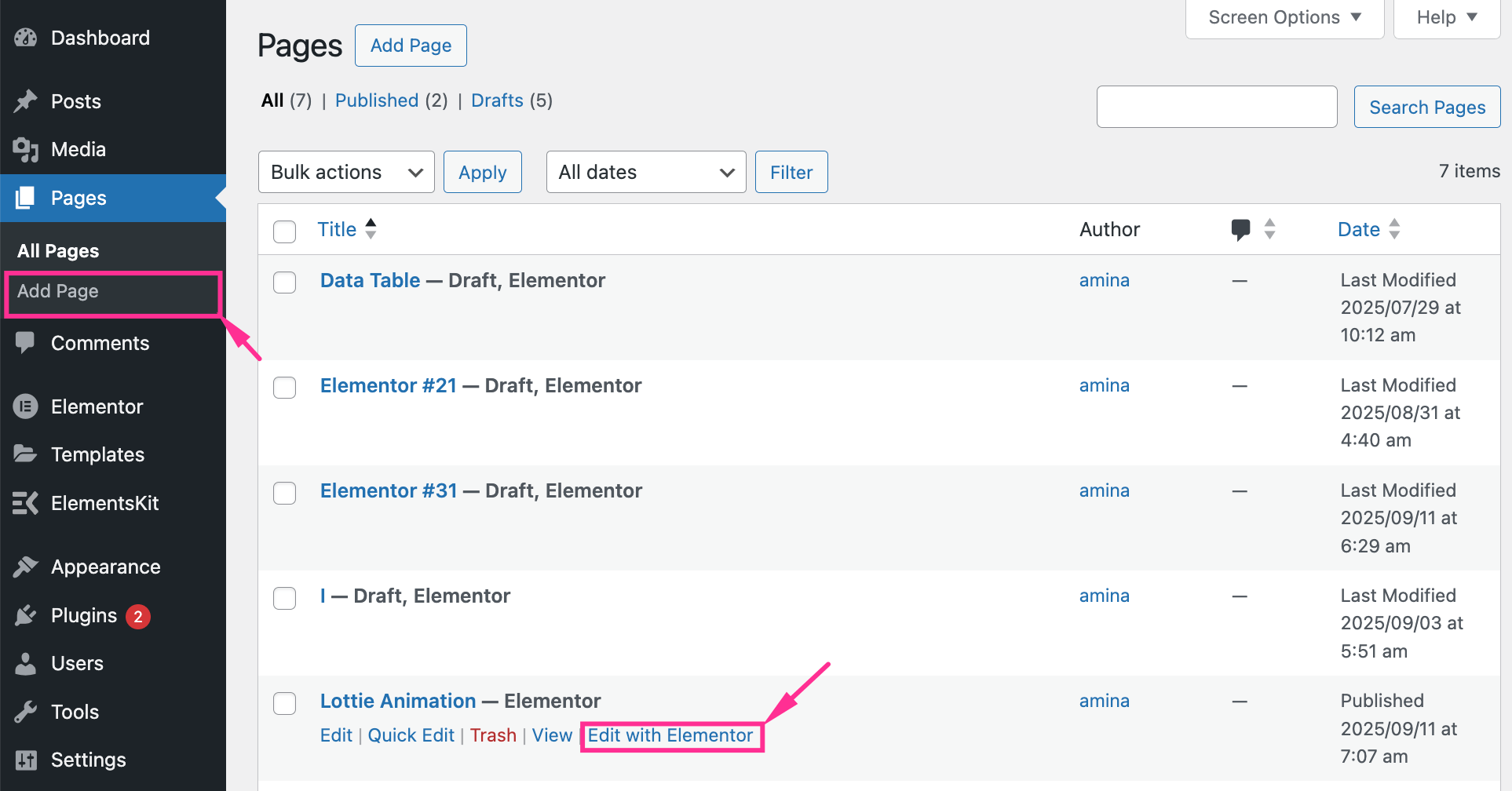
Like the previous method, add a page by visiting 페이지>> Add Page 그리고 pressing the “Edit with Elementor” button to further integration. Also, you can open an existing page by pressing the “Edit with Elementor”.
Step 3: Drag-and-drop Lottie widget.
In the third step, you will be taken to the Elementor editor from where search for “Lottie” and drag-and-drop the Lottie widget on the “Plus” 상.
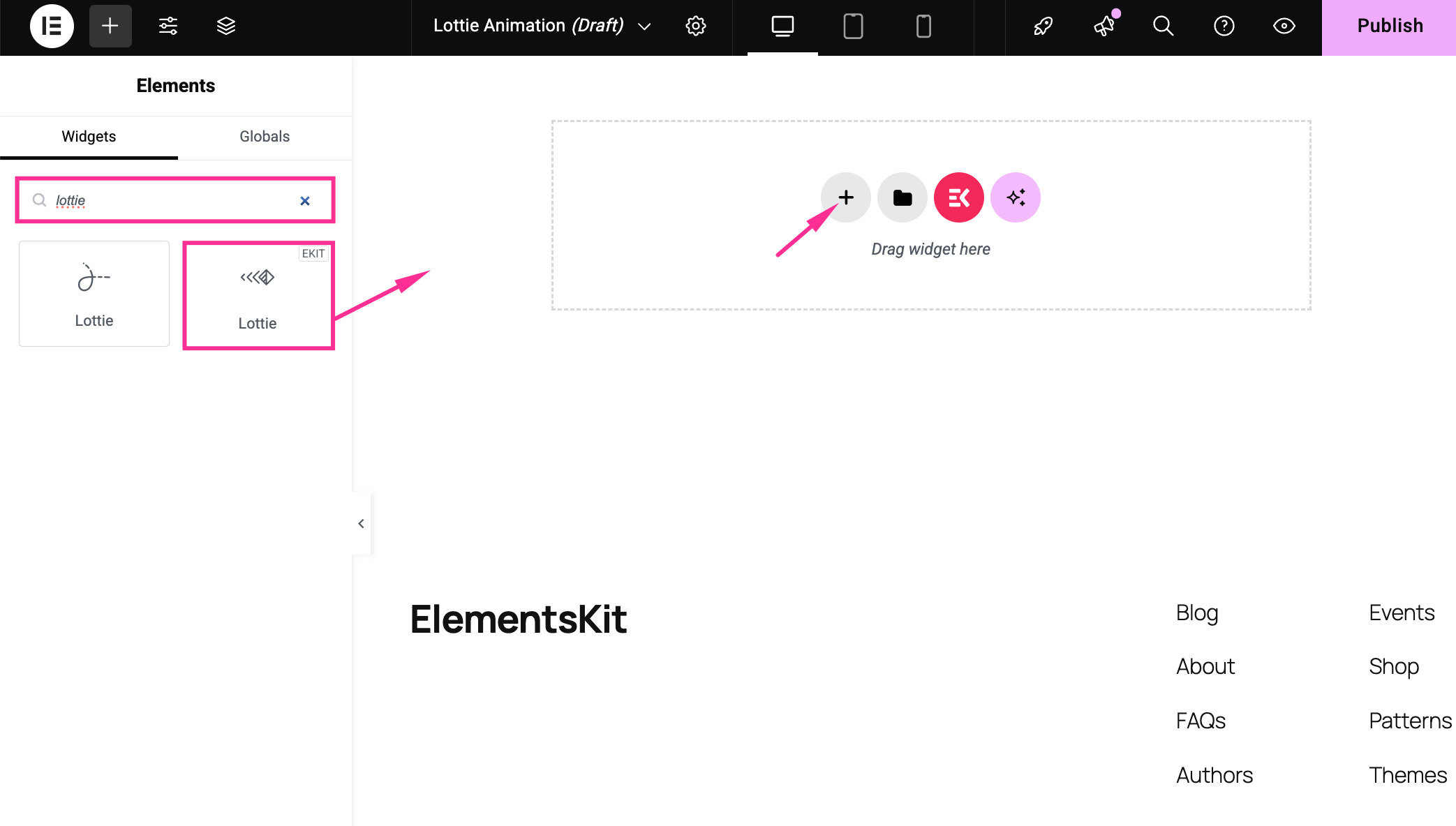
Step 4: Import the JSON file for Lottie animation.
이후, import the JSON file from your media library by pressing the “Upload” 상.
지금, pick a JSON file from your media library and hit the “Select” button. Here comes the content and style customization. The process of customizing content and style is similar to 그만큼 previous method. So, follow the previous method and customize according to your requirements. Finally, "게시"를 누르세요 버튼을 누르면 활성화됩니다.
자주 묻는 질문
Where to find free Lottie animations?
Yes, you will find thousands of Lottie animations on Lottiefiles.com from where you can add Lottie by downloading JSON file or embedding on WordPress.
Do Lottie animations slow down WP site?
No, Lottie animations are lightweight and speed optimized. It doesn’t hamper your site speed at all since they use vertor-based graphics.
Can you add Lottie animation without coding?
Yes, you can add Lottie animation without coding as WordPress provides a no-code solution for everything. For example, using ElementsKit’s Lottie widget, you can add Lottie animation by dragging-and-dropping.
마무리
WordPress Lottie animation can add life to your website in a way that static visuals can’t do. They are super lightweight, fully customizable, and fast-loading to present a professional and sleek look on your site. With a powerful tool like ElementsKit, you can create free Lottie animations in WordPress in minutes without coding knowledge.
Whether you want to integrate with pre-built sections or a widget, it comes with both options. So, integrate Lottie animation and see how your website engagement drives in a positive direction.


답글 남기기